
Using Workflow Recipes
Recipes are pre-built workflow templates you can activate and customize in minutes. Instead of building from scratch, you pick a recipe, tweak the configuration, and turn it on.
Key Terms
Recipe — a pre-built workflow template for a specific use case.
Template — the structure and logic inside a recipe that you customize for your workspace.
Activate — turn a workflow on so it responds to triggers.
Deactivate — turn a workflow off temporarily. It stops responding until reactivated.
Why Use Recipes
Building from scratch takes time and a good understanding of triggers, conditions, and sequences. Recipes skip that:
Faster to set up than building from scratch.
Proven templates that have been tested.
Good for learning — reading through a recipe shows you how workflows are structured.
Browse Recipes
Go to the
Workflowspage from the top navigation.Click
Recipesin the top right.Browse the list or use the search bar to find what you need (for example, "meeting summary").
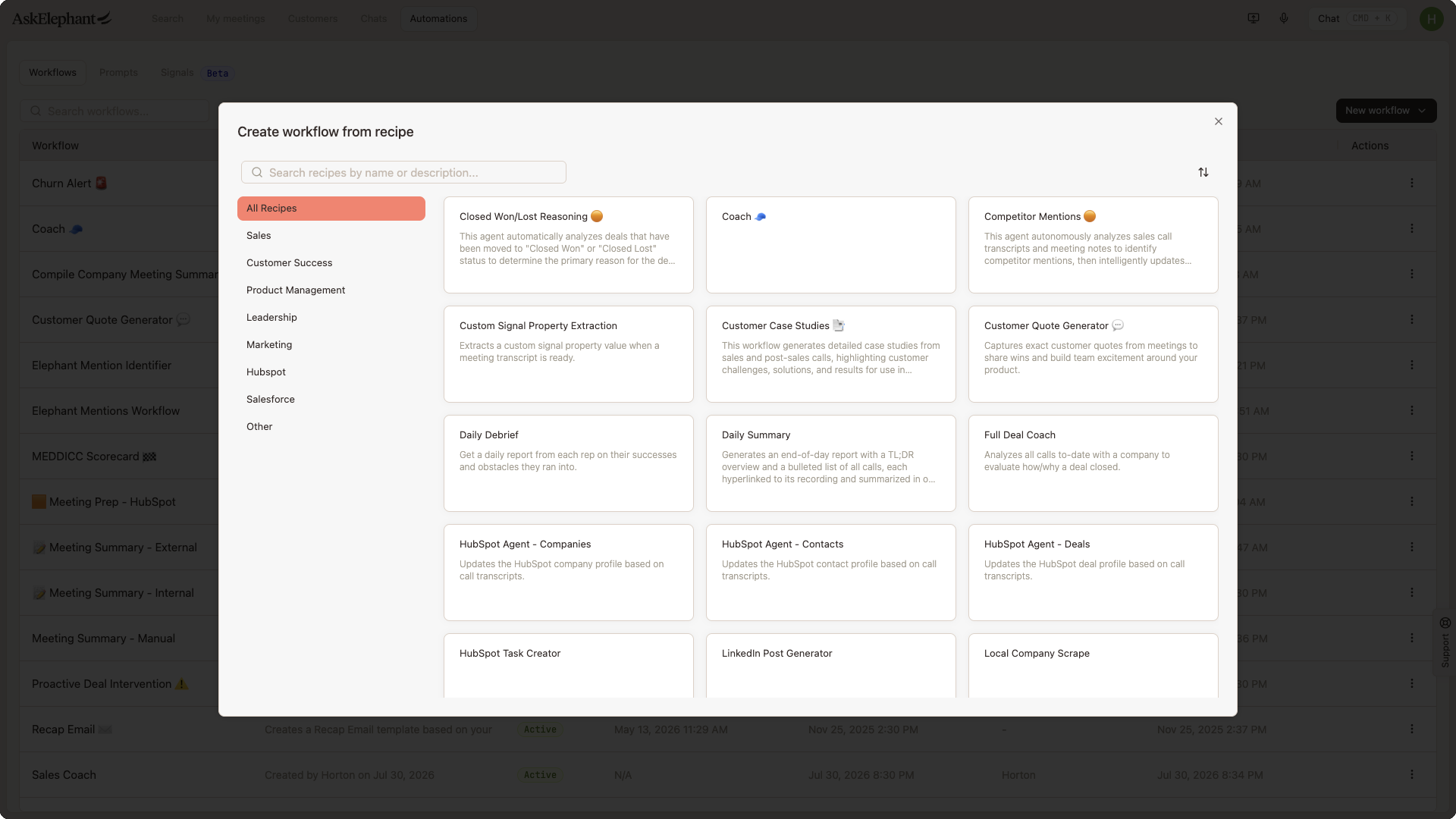
Recipes Create New Workflows
Clicking a recipe creates a new workflow — it does not edit an existing one. That means clicking the same recipe twice creates two separate workflows from the same template. Useful for variations, but worth knowing if you're tidying up duplicates.
Existing workflows (in your main Workflows list): already configured; clicking opens them for editing.
Recipes (in the Recipes section): templates; clicking creates a new, inactive workflow you can then customize and activate.
Create a Workflow From a Recipe
Click the
Recipesbutton on the Workflows page.Find the recipe you want and click it.
A new workflow is created based on that template.
Customize the configuration — name, triggers, conditions.
Click
Activatewhen you're ready.
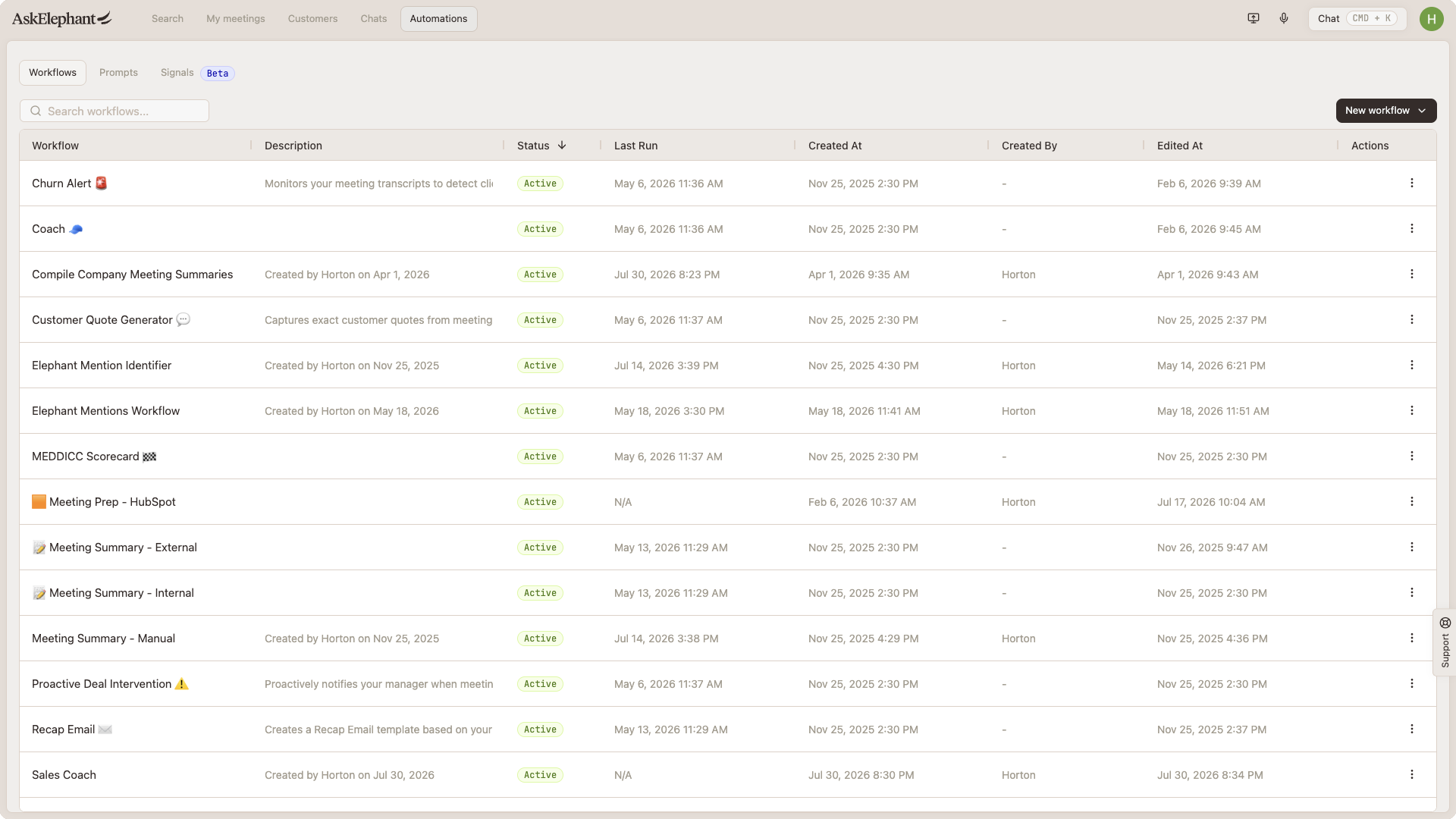
Example: Slack Notification Workflows
A common pattern built from recipes is sending workflow output to a Slack channel. Some of the more common setups:
Task reminders — daily summaries of action items from calls.
Customer feedback — positive quotes and testimonials.
Product feedback — feature requests and product discussions.
Meeting summaries — daily or weekly call summaries to a specific channel.
Alert workflows — churn risk, client satisfaction scores, or other specific events.
Two tactical things that come up often when configuring these:
Add AskElephant to the channel first. If AskElephant isn't in the channel, the workflow can't post. Open the channel, click the channel name at the top, select
Settings→Add apps, and add AskElephant.Keep channels tidy with threads. Configure the workflow to post a short main message and put the detail in a threaded reply — for example, "Positive customer quote" as the main message with the full quote and context in the thread.
You can send different content types to different channels (for example, #customer-feedback, #product-feedback, #churn-alerts) by creating separate workflows, or by configuring one workflow to route based on conditions.
See the Integrations article for troubleshooting Slack workflow posting issues.
Best Practices
Start from a recipe even if you'll customize heavily — it's faster than building from zero.
Name workflows descriptively.
Auto-summarize customer callstells you what it does at a glance;Workflow 1does not.Test before activating. Review the trigger and configuration with a sample deal or meeting.
Create variations intentionally. Two workflows from the same recipe is fine — just give each one a clear, distinct name so you don't confuse them.
Check back regularly. New recipes are added over time and may cover something you've been doing manually.
Need More Help?
Reach the AskElephant support team by:
clicking the Support tab on the right side of your screen,
emailing [email protected],
or using
@askelephant supportin your dedicated Slack channel.