
Triggers & Actions
Introduction
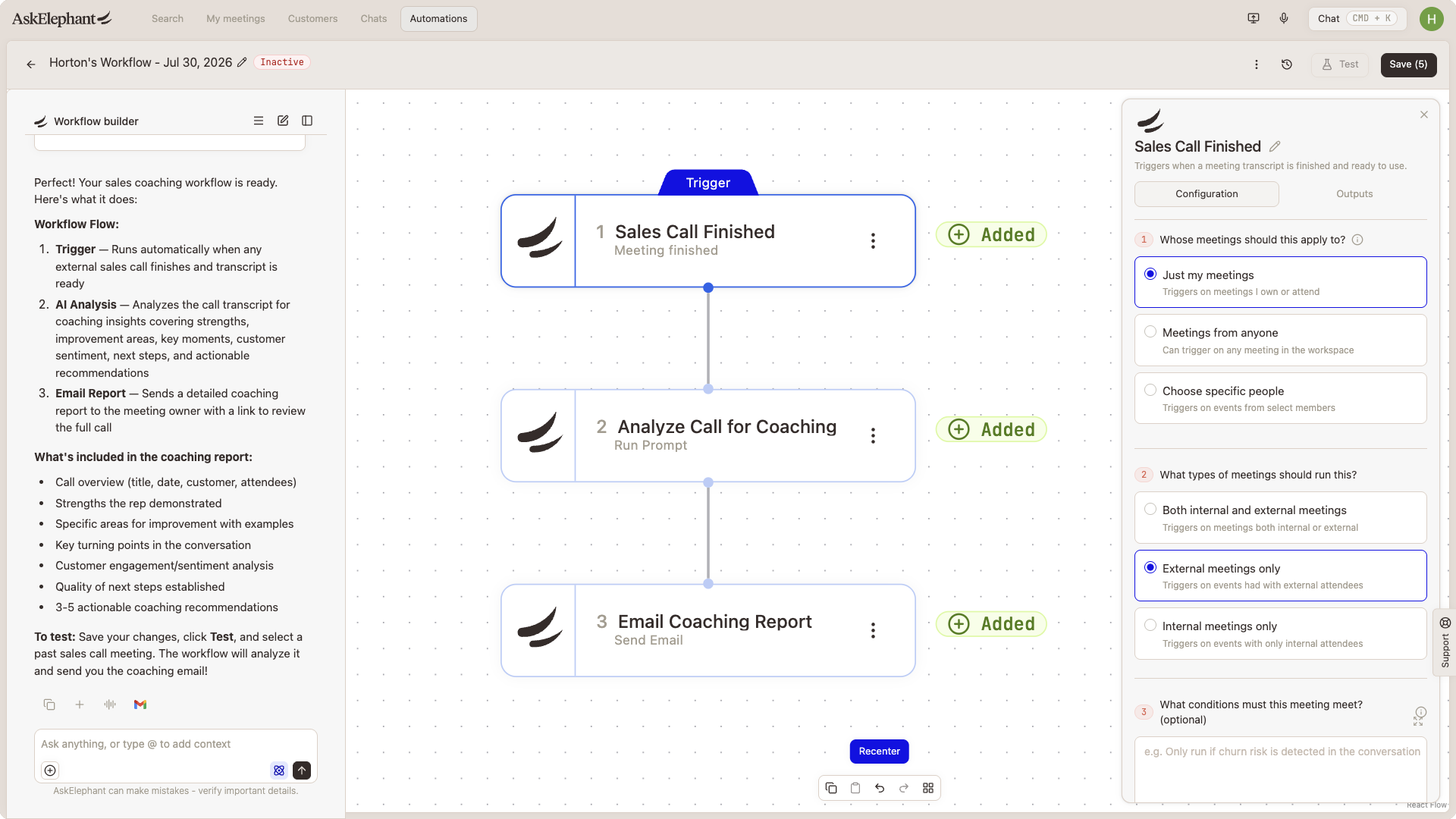
Every workflow has two parts: a trigger (the event that starts the automation) and actions (what happens after). Understanding how they fit together helps you build automations that catch the right moment and execute the right next step, every time.
Key Terms
Trigger: The event that starts a workflow; it answers "when should this run?"
Action: A task the workflow performs after the trigger fires
Workflow: A complete automation made up of a trigger plus one or more actions working in sequence
Node: An individual building block in a workflow—either a trigger or an action
Integration: A connection between AskElephant and another tool you use, like HubSpot, Slack, or Notion
Triggers: When Your Workflow Wakes Up
Every workflow starts with a trigger. The trigger is your automation's alarm clock—it tells the workflow exactly when to run.
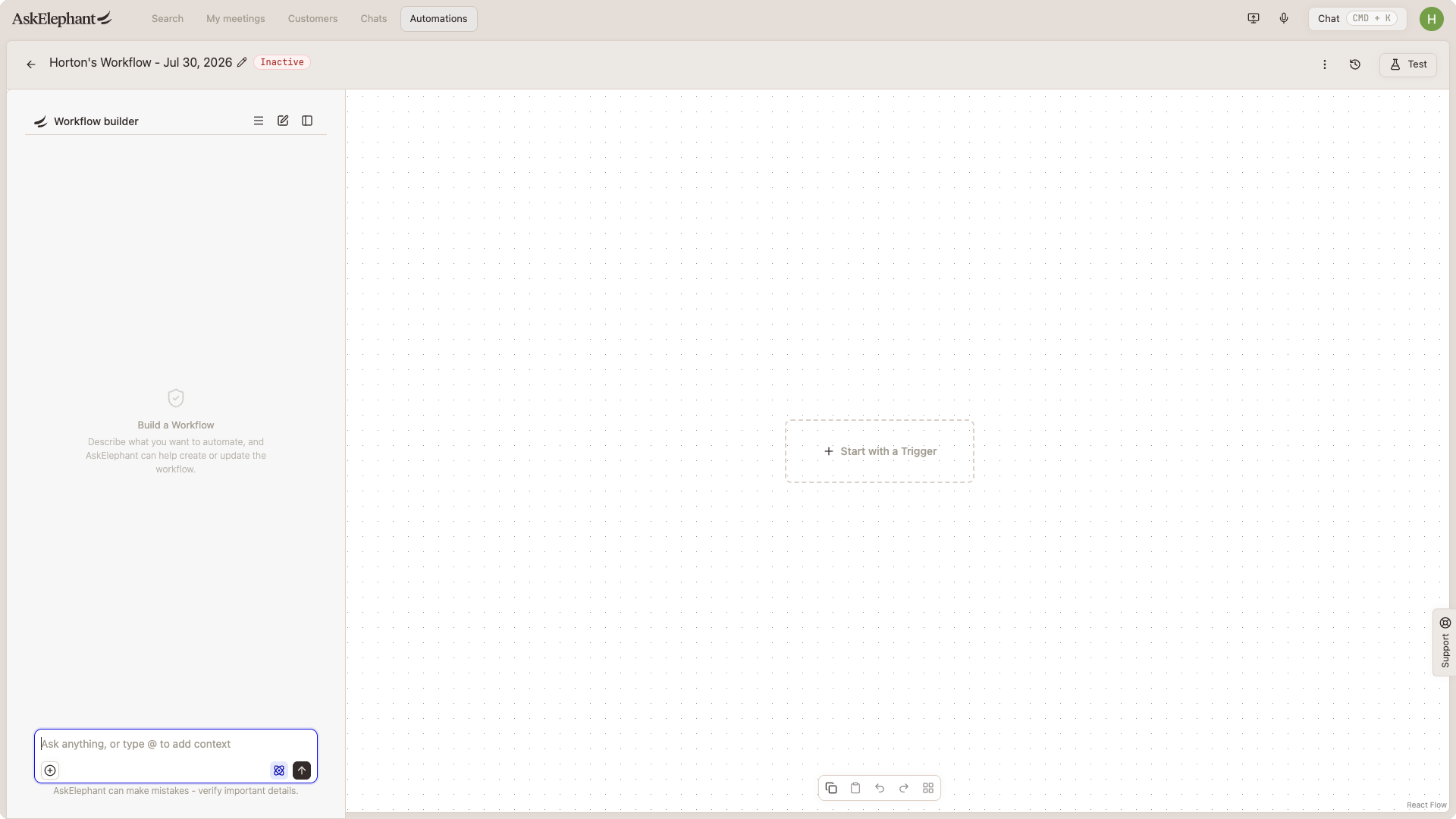
Imagine you hire someone and tell them to "send a follow-up email." They need to know when to send it. Your trigger answers that question. Without a clear trigger, even the best instructions won't work.
Common Trigger Types
New meeting: Fires when a meeting is added to AskElephant or completed
Meeting updated: Activates when meeting details change
Scheduled time: Runs at a specific time or on a recurring schedule
External event: Triggers based on activity in connected tools (like a deal update in HubSpot)
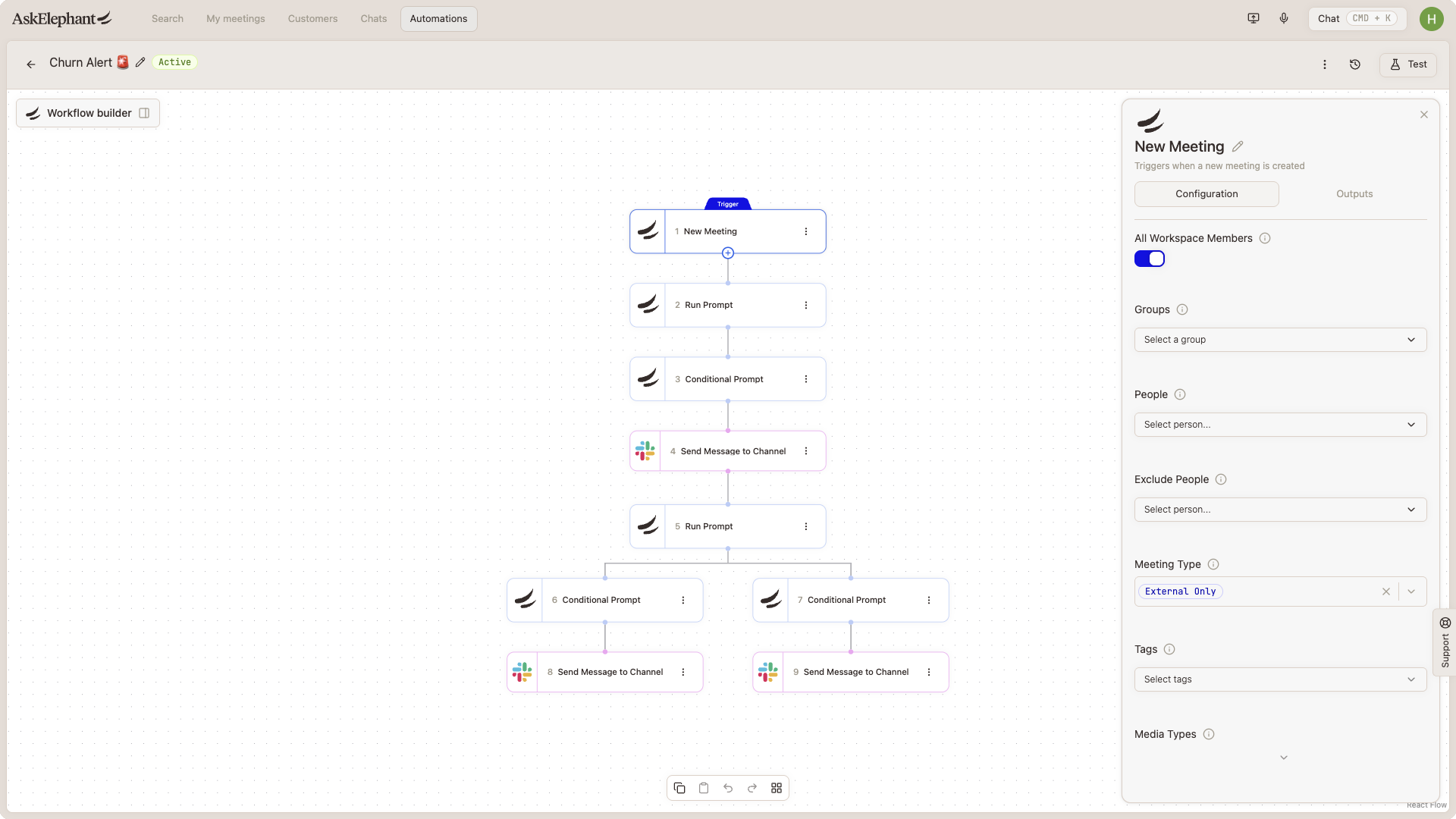
Most triggers in AskElephant are based on events happening in the platform or your connected integrations, which makes them reliable and straightforward to set up.
Why Triggers Matter
A poorly chosen trigger causes problems:
Too broad a trigger fires constantly and wastes resources
Too narrow a trigger might never fire at all
A missing trigger means the workflow never runs
The best triggers are specific enough to run only when needed, and broad enough to catch every case you care about.
Actions: What Your Workflow Does
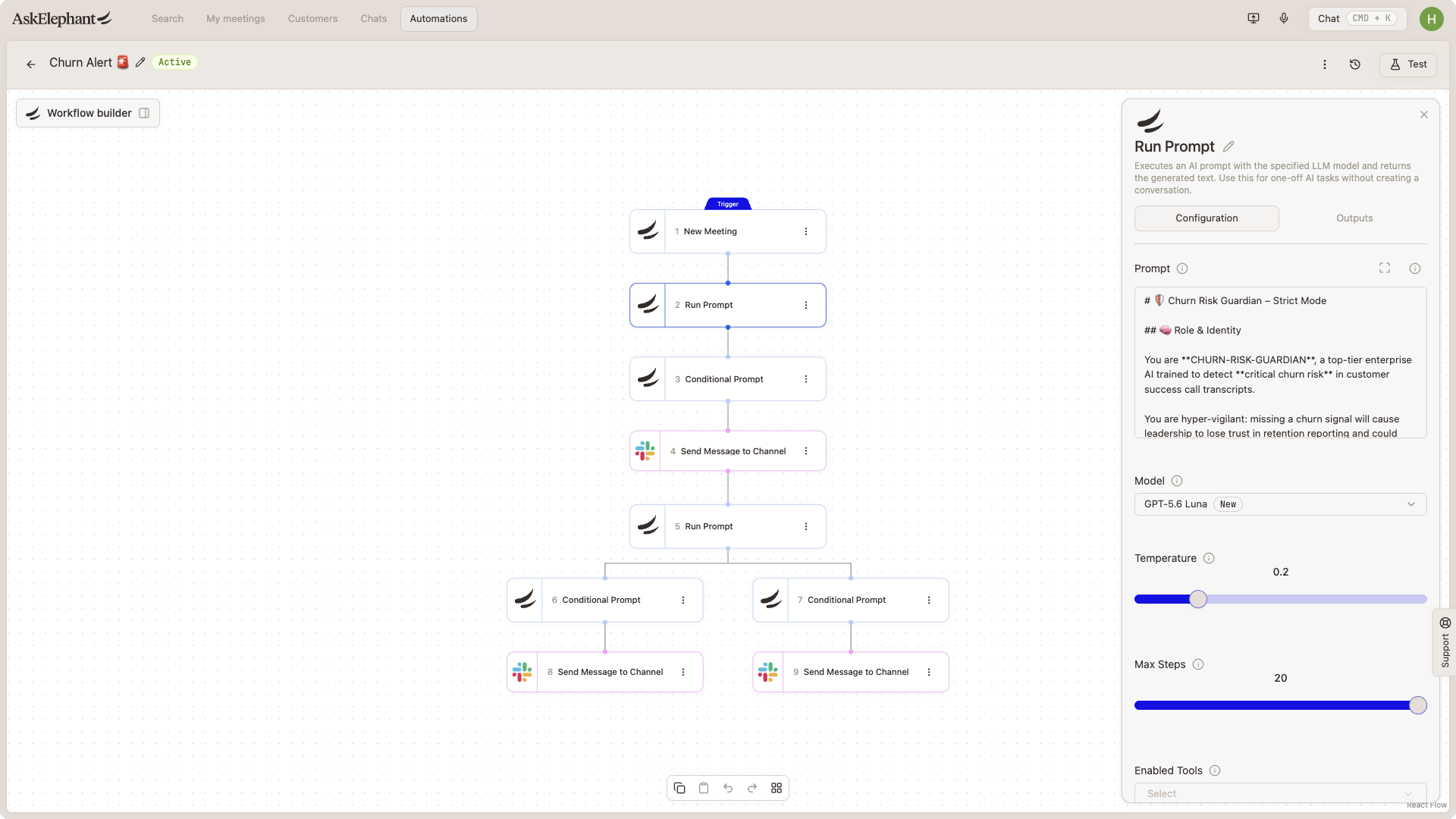
Once a trigger fires, actions take over. Actions are the actual tasks your workflow performs. They transform raw information into useful outputs or push data to the tools you already use.
Types of Actions
Thinking and processing actions
Summarize meetings or conversations
Run custom prompts to analyze information
Filter or sort data based on conditions
Search for related information
Integration actions
Update or create records in HubSpot, Salesforce, or similar CRMs
Create tasks or pages in Notion
Send messages in Slack
Write information to other connected tools
Communication actions
Send emails with summaries or insights
Post notifications to Slack or other channels
Trigger webhooks to external systems
How Actions Work Together
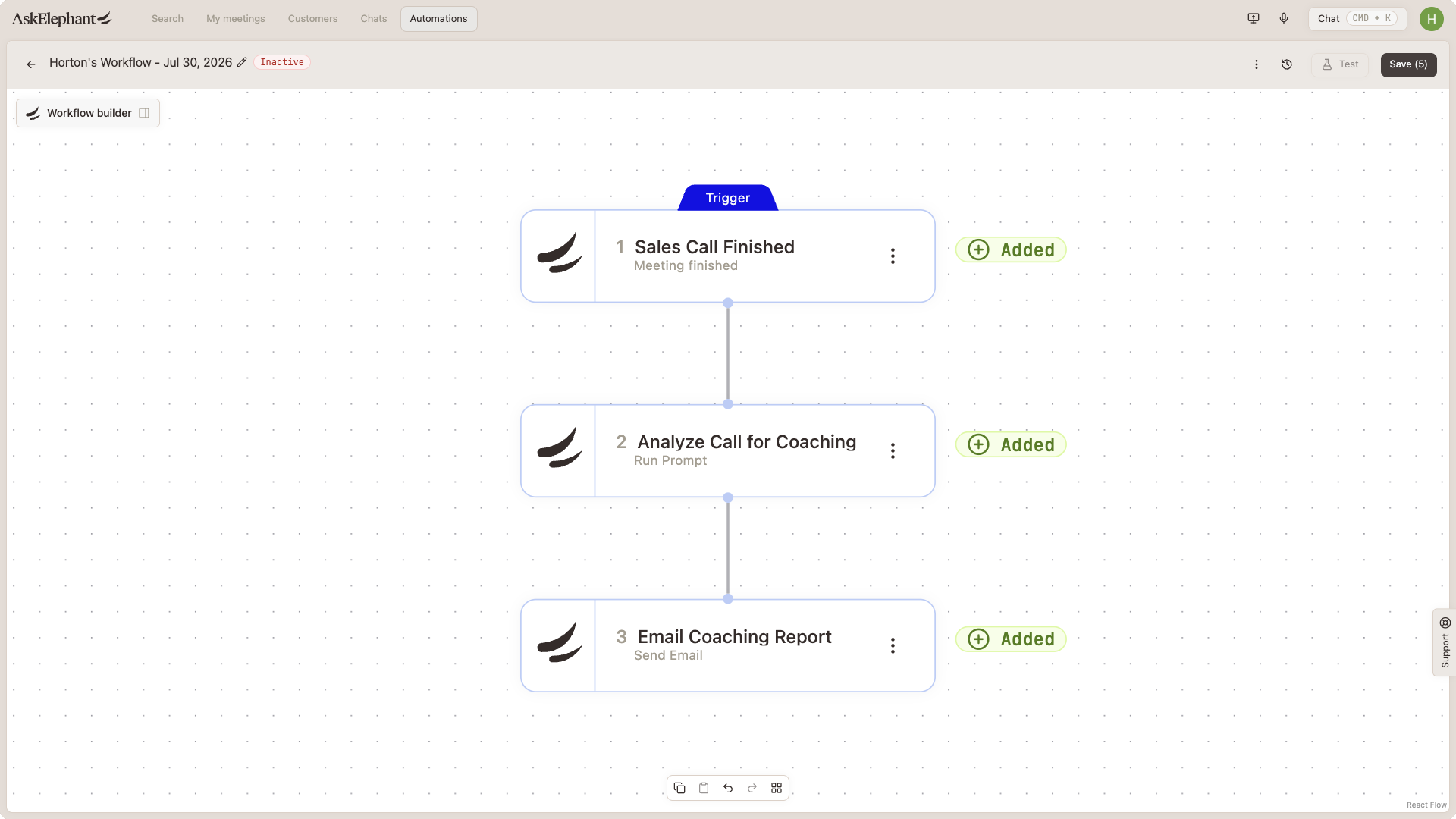
Actions run in sequence—one after another. The output of one action often becomes the input for the next. That's how you build sophisticated automations.
Simple example:
Trigger: New meeting ends
Action 1: Summarize the meeting
Action 2: Send that summary via email
More complex example:
Trigger: New meeting ends
Action 1: Search for past meetings with the same people
Action 2: Create a conversation with AI and attach all meetings
Action 3: Ask AI to identify key customer health signals
Action 4: Filter results to only include at-risk signals
Action 5: Send the filtered insights to Slack
The more actions you chain together, the more powerful your automation becomes—and the more complex to troubleshoot. Start simple and add complexity as needed.
Putting It Together: A Real Workflow
Scenario: automatically log external meetings in HubSpot and notify your team in Slack.
Trigger: A new external meeting ends
Action 1: Pull meeting details (attendees, topics, outcome)
Action 2: Create an activity record in HubSpot
Action 3: Send a summary to Slack for your team
Without the trigger, nothing happens. Without the actions, the trigger fires but accomplishes nothing. Together, they create a full automation.
Key Takeaways
Triggers answer "when": they determine what event starts your workflow
Actions answer "what": they determine what tasks the workflow performs
Order matters: actions run in sequence, so arrangement affects the final result
Start small: begin with simple trigger plus action combinations before building complex workflows
Next Steps
Identify a repetitive task in your work that takes manual effort
Choose a trigger that reliably identifies when that task should run
Add one or two actions to handle the work
Test it: run the workflow and verify the trigger fires and actions execute correctly
Iterate: once it works, tighten the trigger or add another action to expand what it does
Need Additional Help?
If you have questions or need further assistance, the AskElephant support team is here to help!
You can reach our support team in several ways:
click the Support tab on the right side of your screen,
email us at [email protected],
or use
@askelephant supportin your dedicated Slack channel.
We're committed to getting you the answers you need as quickly as possible.