
Running Workflows on Old Meetings
Workflows only run on meetings created after the workflow is set up — there's no automatic retroactive processing. If you want to analyze meetings that already happened, you have two paths: a manual approach using Search and Chat, and a managed backfill run by our team.
Option 1: Manual Analysis with Search and Chat
For one-off analysis or exploration, you don't need to run a workflow at all. Use Search and Chat to query past meetings directly:
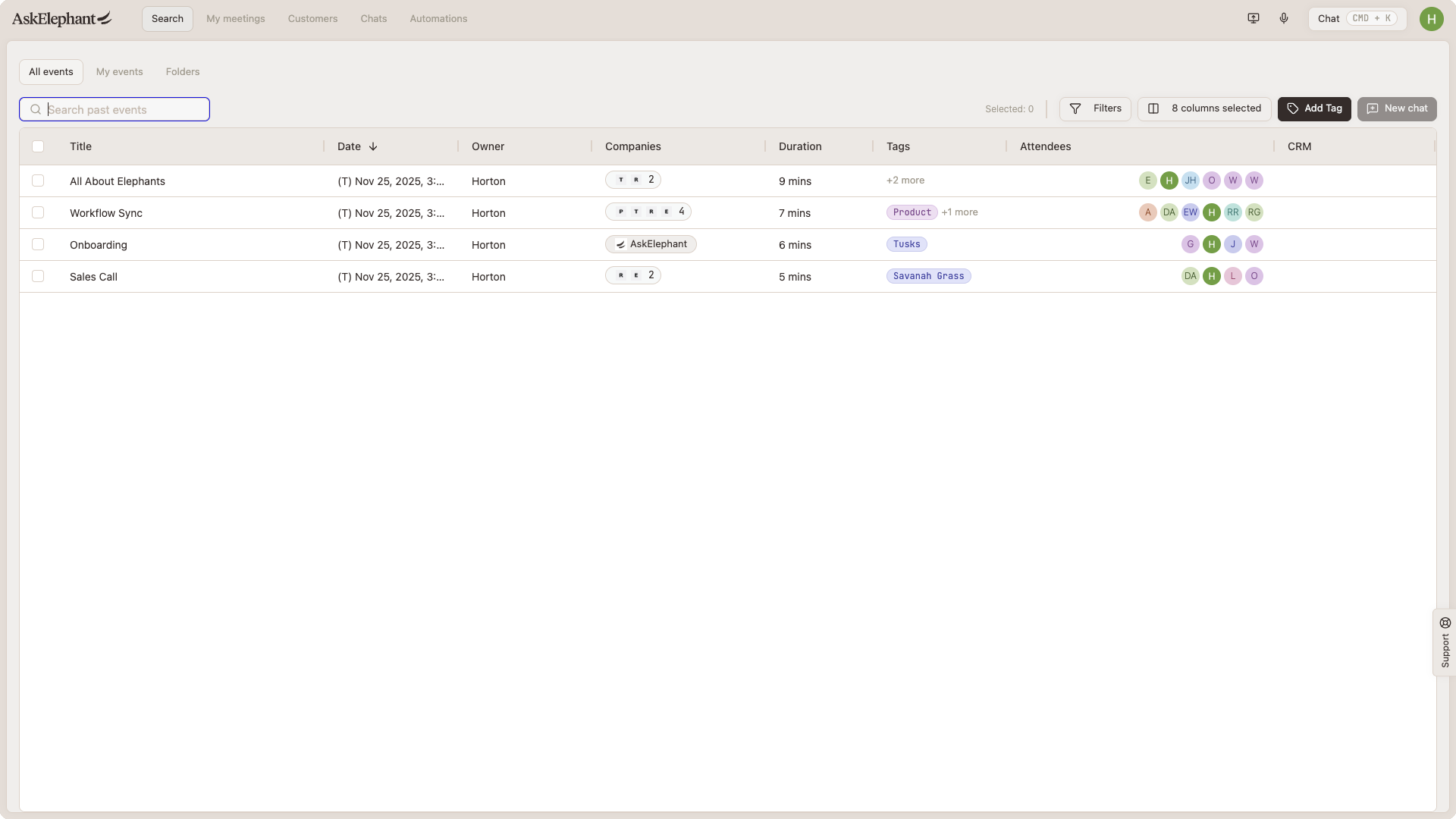
Go to the Search page in AskElephant.
Filter and select the specific meetings you want to analyze using the checkboxes.
Click
New chatin the top right.Ask questions about those meetings — "What objections came up?", "Summarize feature requests," "Extract pricing conversations."
This gets you quick insight without setting up a dedicated workflow.
For best results, keep the selection focused — roughly 20 meetings at a time. See Analyzing Multiple Calls with AI Chat for the full walkthrough, including model selection for larger windows.
Option 2: Managed Backfill
If you need an existing workflow to actually run on past meetings — writing to HubSpot, posting to Slack, generating outputs — we can run it for you on the backend.
The backfill service:
Runs your workflow against historical meetings you specify.
Is priced per run and varies depending on the workflow. Reach out for a quote based on what you need.
Can process meetings from before the workflow existed.
To request a backfill, contact support with:
The workflow you want to run.
The time period or list of meetings you want it run against.
We'll come back with a quote and a turnaround time.
Private Meetings Note
Workflows skip private meetings by default. If your historical meetings include private ones, they won't be processed unless the workflow has Should run on Private Meetings enabled.
Related
Analyzing Multiple Calls with AI Chat— the Search-and-Chat approach in detail.Building Your Own— if you need a new workflow before backfilling.
Need More Help?
Reach the AskElephant support team by clicking the Support tab on the right side of your screen, emailing [email protected], or using @askelephant support in your dedicated Slack channel.