
Using Node Variables
Introduction
Every node in a workflow can produce an output that later nodes reference. You access those outputs by typing {{ in any prompt or message field — the builder shows you what's available and you pick the one you want.
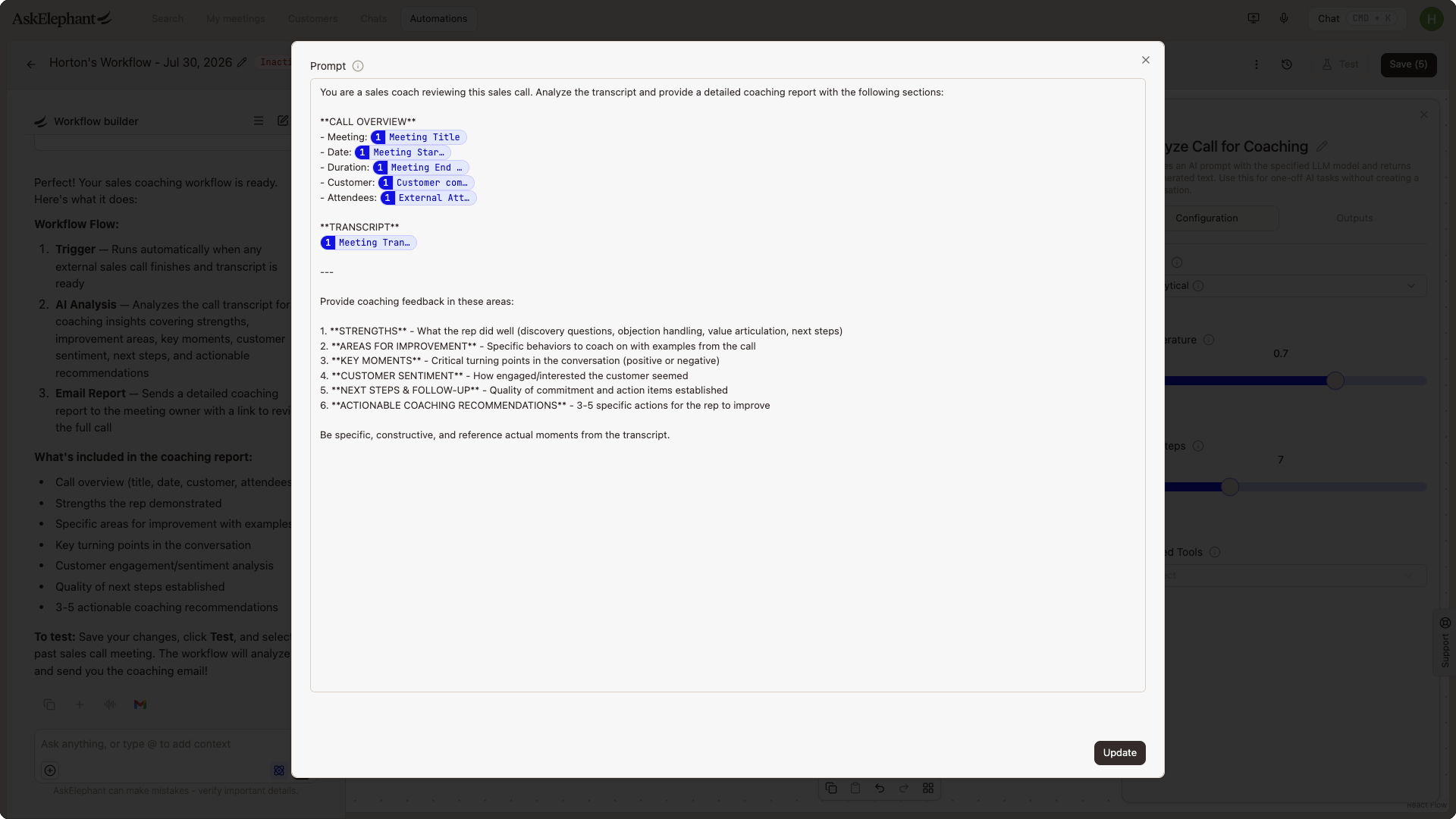
Referencing a Node's Output
To use a previous node's output:
In the field where you want to insert it (a prompt, a Slack message, an email body), type
{{.The builder shows available outputs from nodes that run before this one.
Click the one you want. The reference is inserted as something like
{{aiCompletion}}or{{meetings}}.
The list only shows outputs from nodes earlier in the workflow — a node can't reference itself or anything downstream.
Common Node Outputs
Most nodes expose a single named output. The ones you'll reach for most:
AI Completion / Run Prompt nodes —
{{aiCompletion}}returns the AI-generated content from that node.Search Past Meetings —
{{meetings}}returns the list of meetings that matched the search.Meeting trigger — exposes several outputs including meeting details, attendees, and the transcript.
Create Slack Block —
{{slackMessage}}returns a Block Kit-formatted message ready for a Slack send node.
Each node's documentation or tooltip lists its exact output names.
Working with a List Output
Some nodes return a list rather than a single value. Search Past Meetings returns {{meetings}}, which is a list. To work with the individual items:
Use a
Loop Promptnode to iterate over each meeting and run a prompt per item.Or use
Attach Documentsif you're sending the list into a Chat conversation and want to query across them together.
Dropping {{meetings}} directly into a prompt without looping usually gives you an unhelpful stringified list.
Combining Multiple Outputs in One Node
You can include as many references as you want in a single node. A Slack message node might combine:
A headline from one Run Prompt node.
A detailed summary from another.
A list of meetings from a search.
Just type {{ wherever you want each one to land.
Troubleshooting
If {{ doesn't surface the output you expect:
Check the node order. Outputs are only available from nodes that run before the current one.
Refresh the page. The builder sometimes needs a reload to pick up newly added nodes.
Confirm the source node actually completed in your most recent test run — a failed node won't produce an output.
Check that you're typing
{{in a field that accepts variables. Some structured fields (like dropdowns) don't.
If the outputs still don't show up, open the workflow run history — a node that errored on every test run won't expose its output to downstream nodes.
Related
Building Your Own— the broader workflow-building walkthrough.Triggers & Actions— list of all node types and their outputs.Writing Workflow Prompts— how to structure prompts that reference node outputs well.
Need More Help?
Reach the AskElephant support team by clicking the Support tab on the right side of your screen, emailing [email protected], or using @askelephant support in your dedicated Slack channel.