
Workflow Outputs
Introduction
Workflow outputs show up in different places depending on what the workflow is configured to do. This article covers the three main locations and how to see test results while you're building.
On the Meeting Page: the Workflow Dropdown
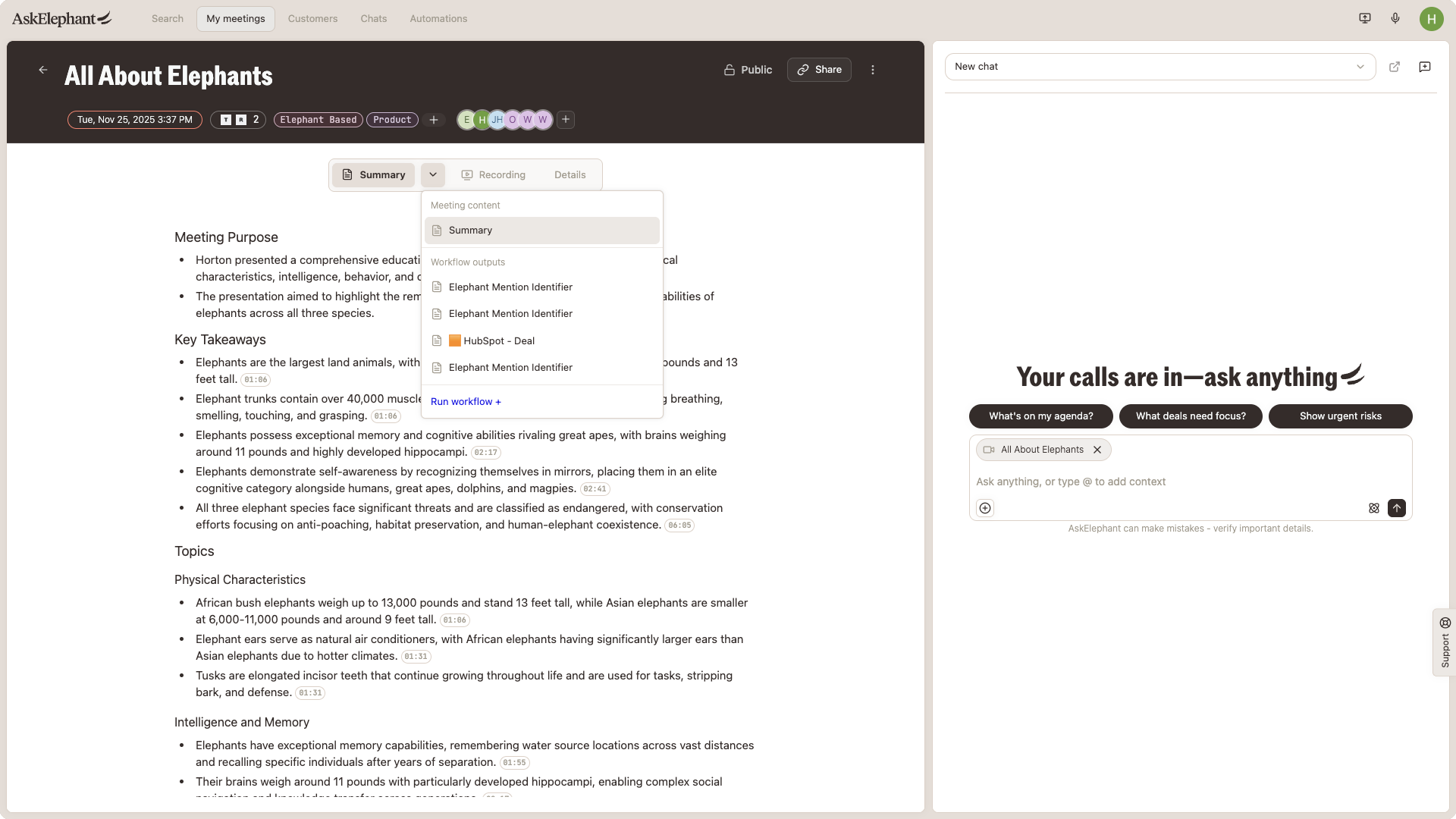
If your workflow generates content tied to a specific meeting (a follow-up email, a summary, a coaching report), the output lands on that meeting page under the workflow dropdown.
Open the meeting page in AskElephant.
Click the workflow dropdown next to the
Summarytab.Click the workflow name to view its output.
This is the default location for any workflow whose trigger is "on meeting" and whose output is text.
Integration Outputs: External Systems
If your workflow sends data to a connected system, the output appears there instead of (or in addition to) AskElephant:
HubSpot. Tasks, contact updates, deal property changes, and notes appear on the relevant record in HubSpot.Salesforce. Similar pattern. Updates land on the account, opportunity, or contact record.Slack. Messages post to the channel you configured in the workflow.Notion. Data is written to the database or page you pointed the workflow at.Email. Recap and follow-up emails are sent to the configured recipient list.
If the output isn't showing up in the external system, the most common cause is a disconnected integration. Check Integrations in your workspace settings.
Workflow Test Results
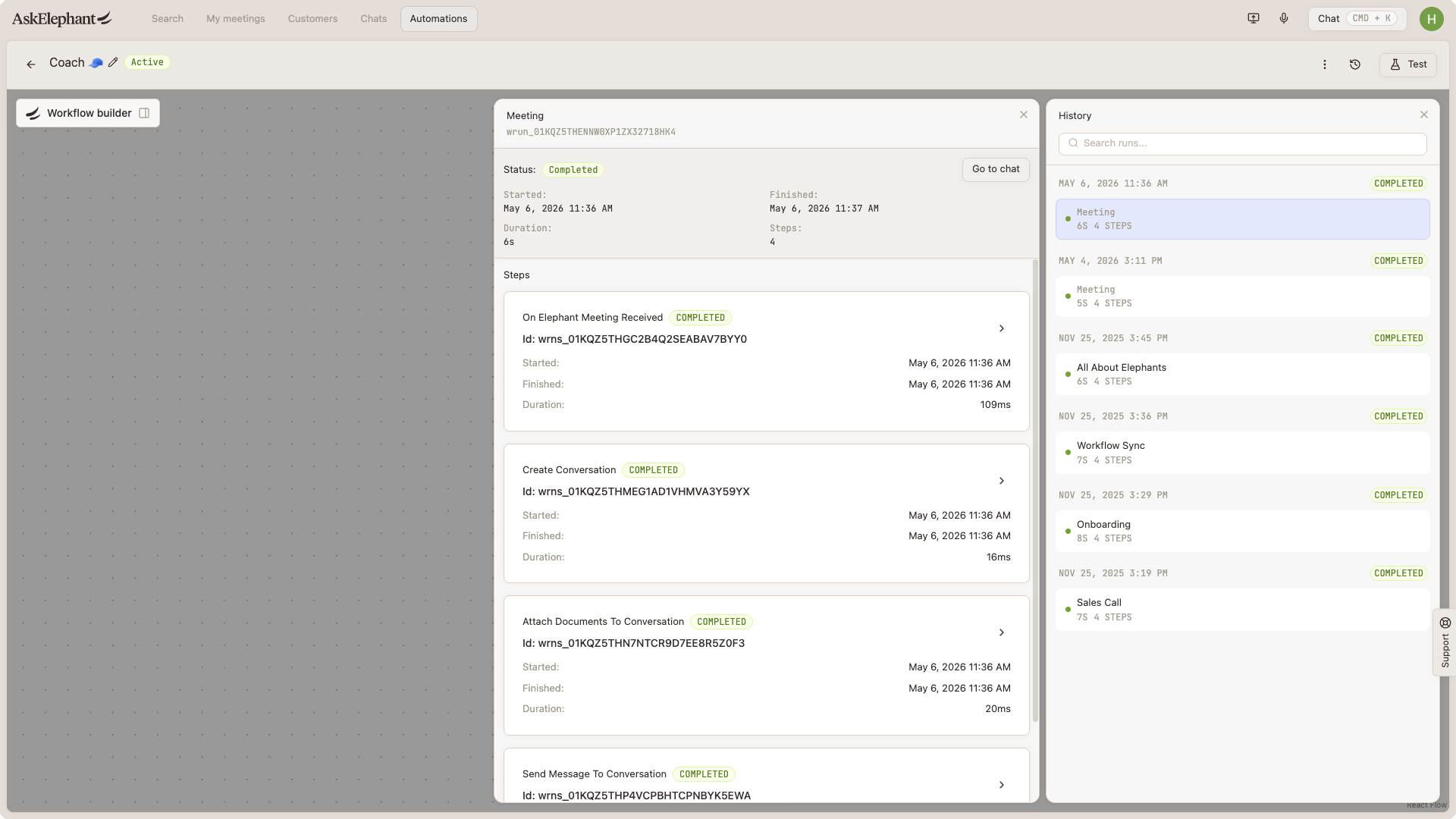
While you're building or editing a workflow, you can view test run results:
Open the workflow in the AskElephant automations tab.
Check the run history to see each test execution.
Review individual test results to see what data was extracted, what each node produced, and where a run failed if it did.
Heads up: testing a workflow runs the real actions. If the workflow writes to HubSpot or posts to Slack, the test run will too, even if the workflow itself is set to inactive.
Not Seeing Outputs?
If you expected an output and don't see one:
Check that the trigger conditions actually matched the meeting. Conditional workflows often skip meetings silently.
Check that required integrations are connected and healthy.
Check that the meeting isn't marked private. Workflows skip private meetings by default.
If everything looks right, look at the workflow run history. A failed run will show where the problem was.
Need More Help?
Reach the AskElephant support team by clicking the Support tab on the right side of your screen, emailing [email protected], or using @askelephant support in your dedicated Slack channel.