
Configuring Workflow Intake
Introduction
Workflows can be restricted to run only on the meetings and attendees you care about. This article covers the three most common restriction patterns — meeting type, meeting title, and attendee — and how to combine them.
Meeting Type (External, Internal, or Both)
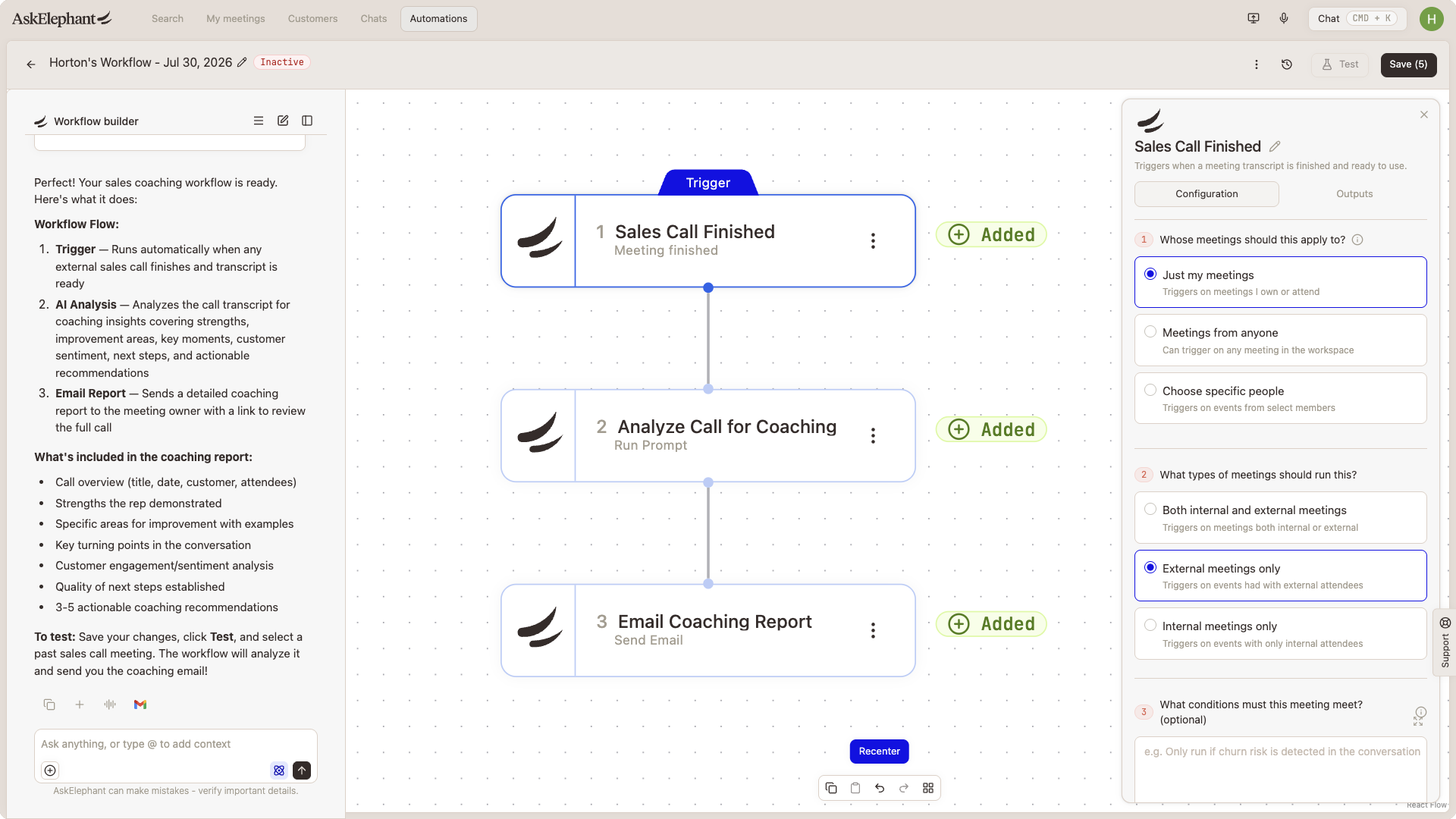
The simplest restriction. Every workflow has a scope setting that controls which meetings it sees:
External — meetings with at least one attendee from outside your workspace domain.
Internal — meetings where all attendees are inside your workspace domain.
All — both.
Set this in the workflow's trigger configuration. If your workflow should only fire on sales calls, set it to External. If it's a team standup automation, Internal.
Meeting Title Keywords
To restrict by title, add a conditional node that checks the meeting title for specific text. Common patterns:
title contains "Onboarding"— only kickoff meetings.title contains "QBR"— only quarterly business reviews.title starts with "[Demo]"— only meetings your team has prefixed.
Keep the keyword list explicit. Vague criteria like "customer meetings" will pull in anything with the word customer in the title.
Specific Attendees
Workflows can also be scoped to run only when a particular person is in the meeting — useful when one rep's calls should trigger a recipe that other reps' calls shouldn't.
To set this up:
Open your workflow's trigger configuration.
Add the attendee criteria — specify the email addresses or domains that must be present.
Save the trigger.
Combining Conditions
You can stack any of the above. A workflow can be scoped to External + title contains QBR + attended by your CSM team — meaning it fires only on quarterly business reviews with customers that a CSM attended.
Conditions are AND'd together by default. If you need OR logic (e.g., QBR OR Renewal), use a conditional node with keyword alternatives in the prompt.
Meeting Variables in Conditional Prompts
Conditional nodes can reference meeting properties — title, type, attendees, duration — inside their prompts. This lets you build dynamic logic like:
"If the meeting title contains a project code, branch to the project-specific path."
"If the meeting has more than three external attendees, treat it as a group demo."
See Conditional Workflows for Specific Meeting Types for full conditional node syntax and examples.
Test Before You Trust
Two habits that save pain later:
Test conditionals against three or four sample meetings before activating. The
Test workflowbutton runs the workflow without firing real outputs.Prefer specific criteria over broad ones. Broad triggers create unwanted deals, duplicate Slack messages, and noise in reports.
Related
Conditional Workflows for Specific Meeting Types— conditional node syntax in depth.Testing Workflows Without Activating Them— preview runs before you activate.Requesting Workflow Help and New Workflow Builds— when the trigger logic gets complex enough to need a hand.
Need More Help?
Reach the AskElephant support team by clicking the Support tab on the right side of your screen, emailing [email protected], or using @askelephant support in your dedicated Slack channel.