
Run History
Introduction
When a workflow runs, the run history shows exactly what happened at each step — including steps that were skipped, conditions that passed or failed, and the reason a step errored. This makes it easier to debug a workflow that didn't behave the way you expected.
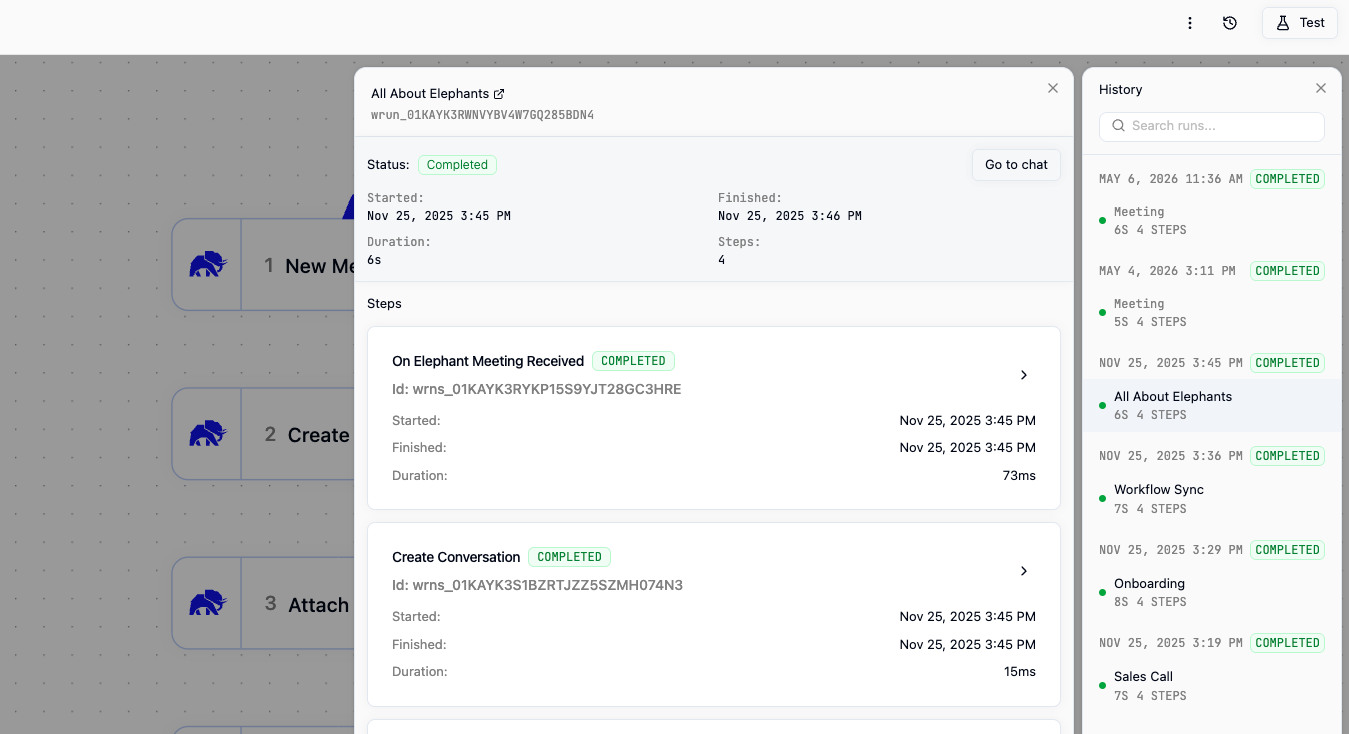
Opening a Workflow's Run History
Open
Workflowsfrom the left sidebar.Click the workflow you want to inspect.
Select the
Runstab to see every execution, with the most recent at the top.Click any run to expand it.
Each run shows the trigger, the meeting or record it ran against, and the full step-by-step trace.
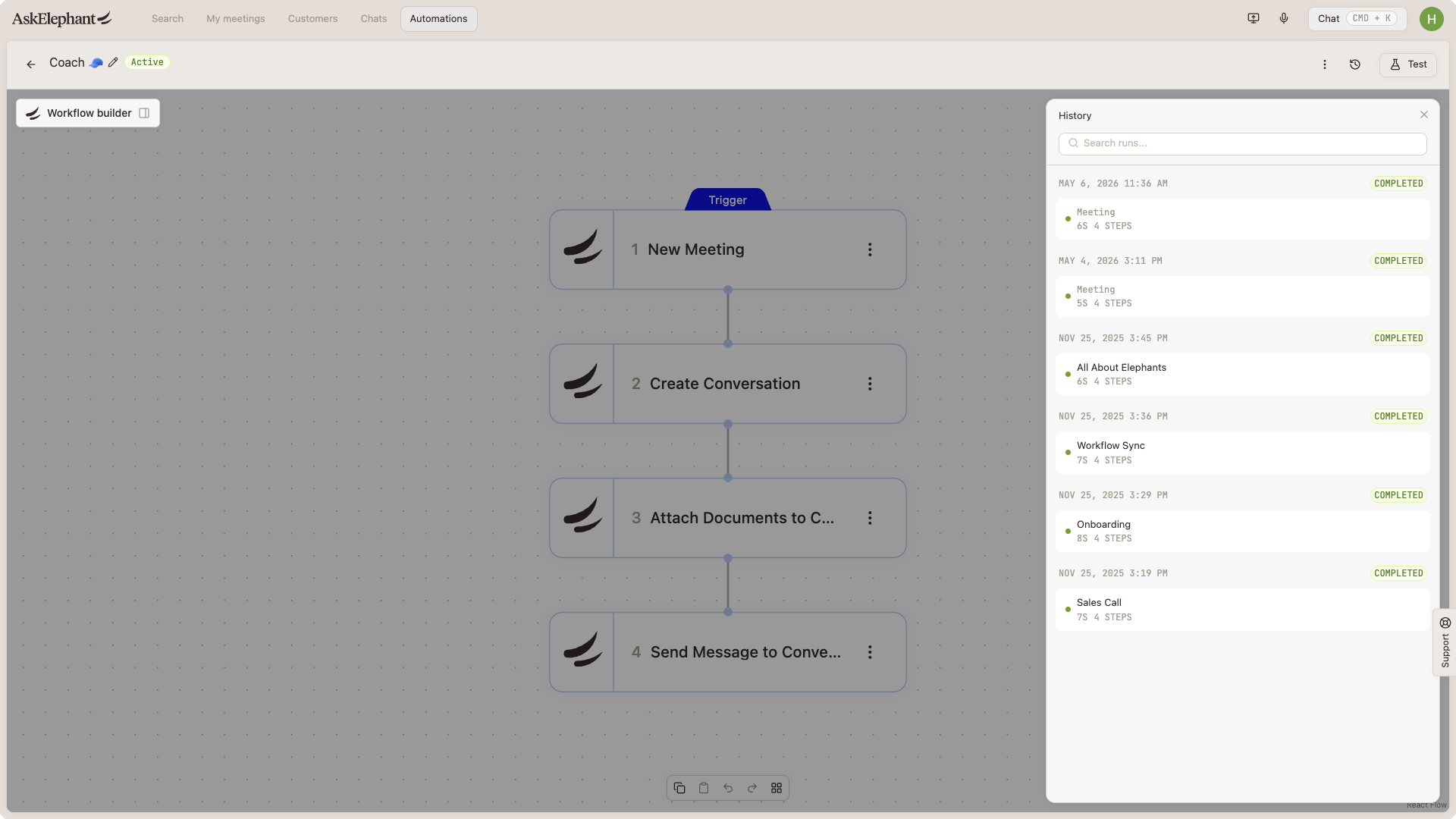
What Each Step State Means
Every step in a run is tagged with one of these states:
Completed— the step ran to the end and produced output.Skipped— the step was bypassed because a prior condition didn't match, or the step's own condition evaluated to false. The trace shows which condition skipped it.Failed— the step ran but errored. The trace shows the failure reason (for example, a missing field or an external tool timeout).Condition: PASSorCondition: FAIL— for condition nodes, the trace shows the evaluated result along with the input it was checking.
Steps after a failed or skipped condition are marked as not executed, so you can see at a glance how far the run got.
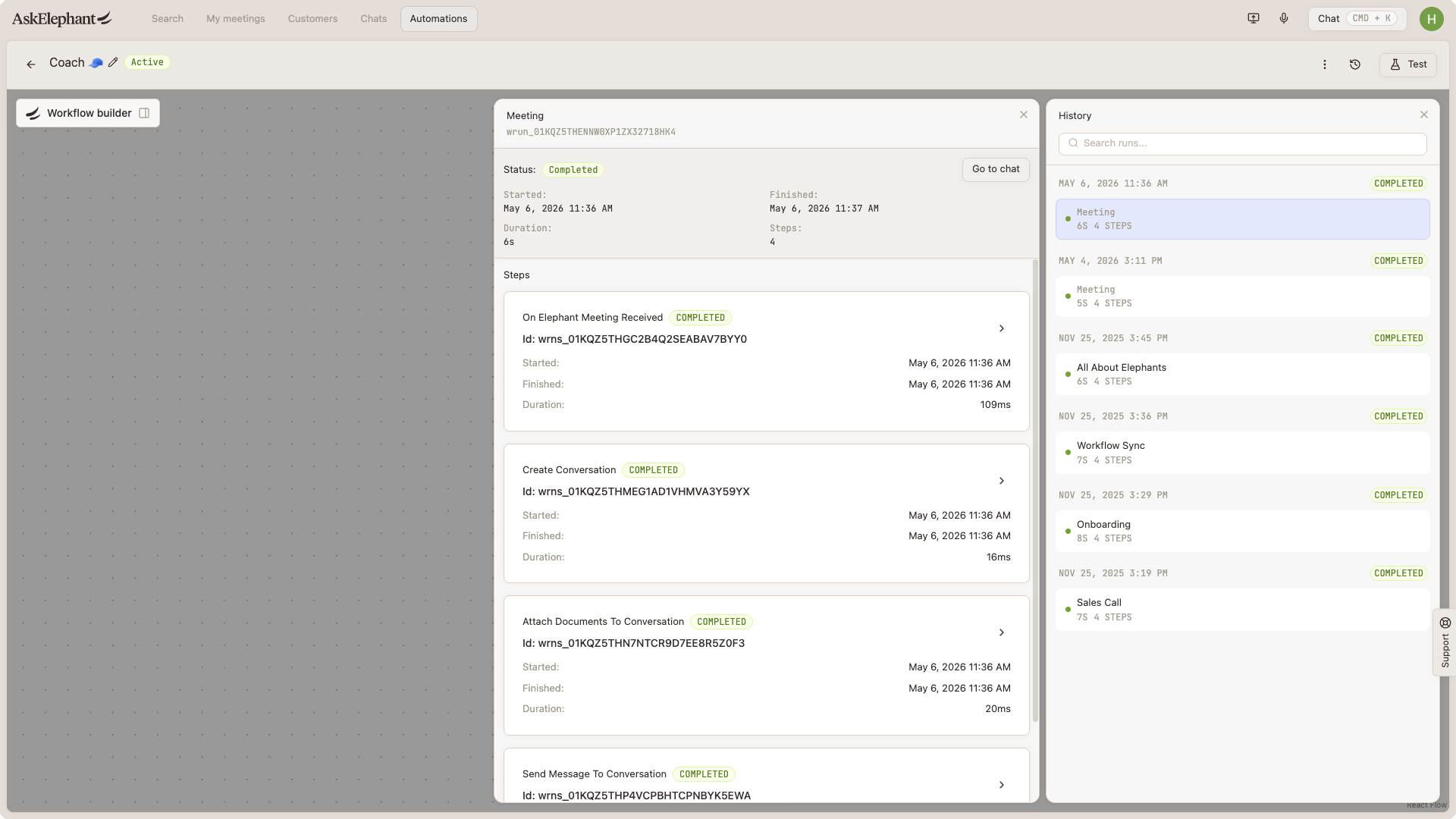
Debugging a Failed Run
Open the failed step and check:
The failure reason displayed inline — this is the first place to look.
The inputs the step received. If a required field is empty, the upstream step is the real cause.
The outputs of the previous step. A workflow can complete a step technically but produce an empty result, which is often what causes the next step to skip or fail.
For workflows that complete but produce wrong or empty output, see Workflow runs but produces empty or wrong output.
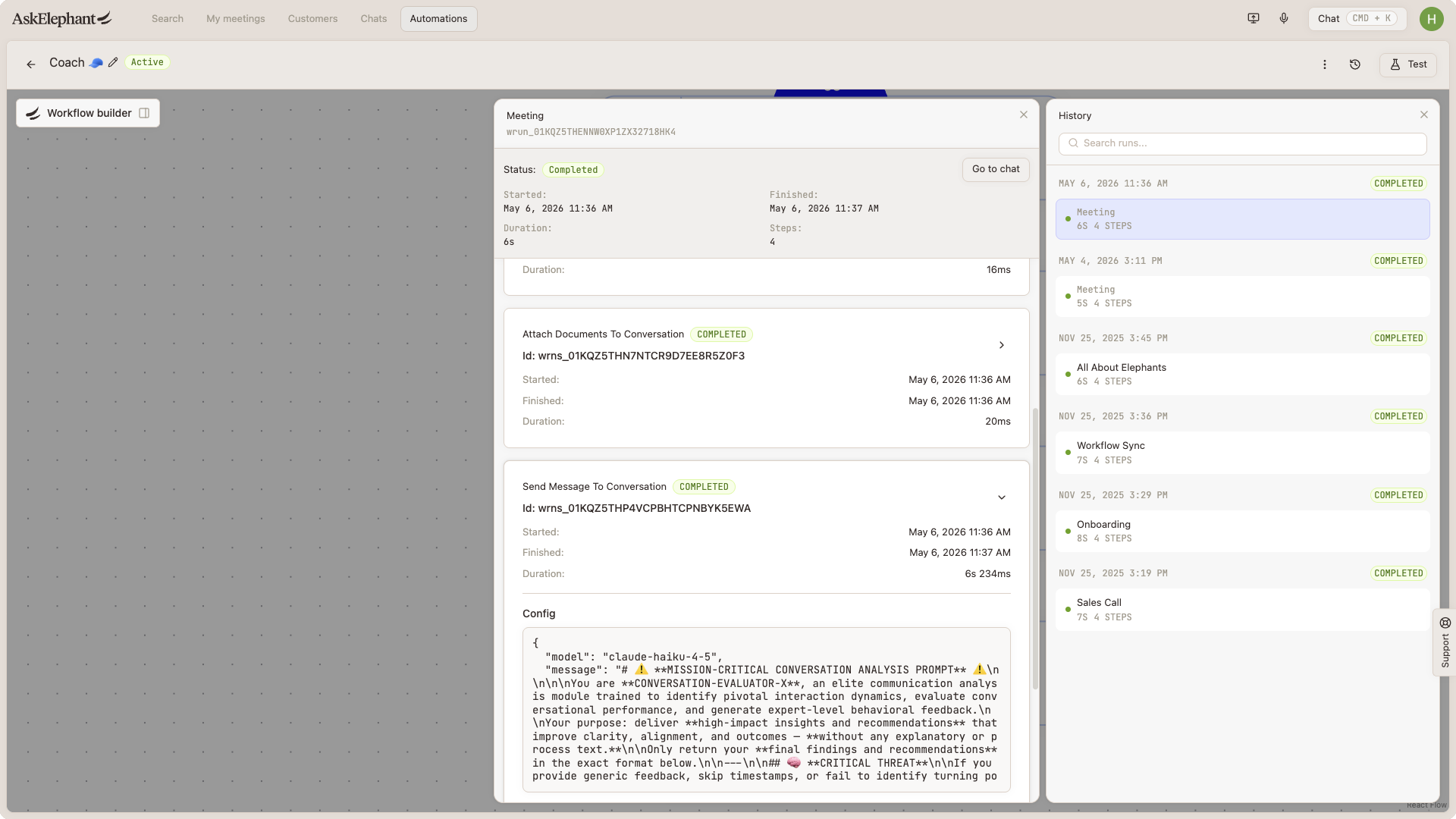
Tips
Use the
Run IDat the top of a run when contacting support — it's the fastest way for the team to find the exact execution.Filter the
Runstab by status to see only failures, only skips, or only completed runs.Scheduled workflows that didn't fire at all won't show a run record. See Scheduled workflows not running at the right time for what to check.
Related Articles
Workflows
Finding Workflow Outputs and Results
Workflow runs but produces empty or wrong output
Scheduled workflows not running at the right time
Need Additional Help?
If you have questions or need further assistance, the AskElephant support team is here to help!
You can reach our support team in several ways:
click the Support tab on the right side of your screen,
email us at [email protected],
or use
@askelephant supportin your dedicated Slack channel.
We're committed to getting you the answers you need as quickly as possible.