
Meetings
Introduction
Meetings are the backbone of AskElephant — every insight, summary, and workflow starts here. This guide walks through how meetings work: calendar setup, which meetings get recorded, privacy, joining and prepping calls, and how phone calls from Salesforce and HubSpot show up.
How AskElephant Joins Your Meetings
AskElephant automatically sends a notetaker to meetings — internal and external — as long as:
The meeting is on your connected calendar.
The calendar invite includes a meeting URL.
This works whether you're hosting or a client is.
Supported platforms. Google Meet, Microsoft Teams, and Zoom.
Setting Up Your Calendar
Before AskElephant can join, connect your calendar.
First login. You'll be asked to connect Google Calendar or Microsoft Calendar the first time you log in.
Switching calendars.
Click your name in the top-right corner.
Open
Preferences.Disconnect your current calendar.
Reconnect with a different Google or Microsoft account.
Once connected, AskElephant handles the rest.
Which Meetings Get Recorded
Not every meeting needs to be recorded. You have full control.
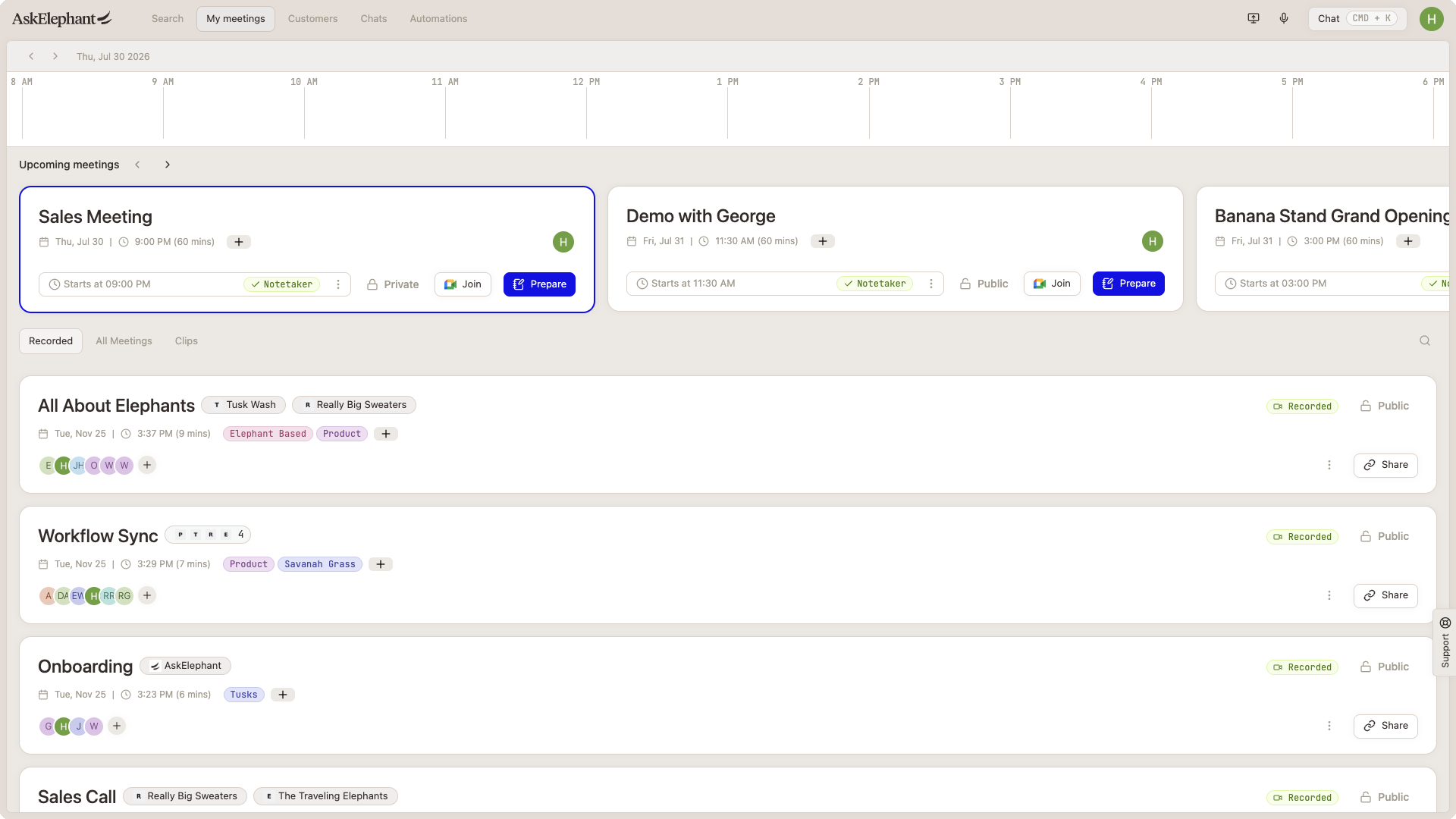
Toggle Recording for an Individual Meeting
Go to
My Meetings.Find the meeting in the
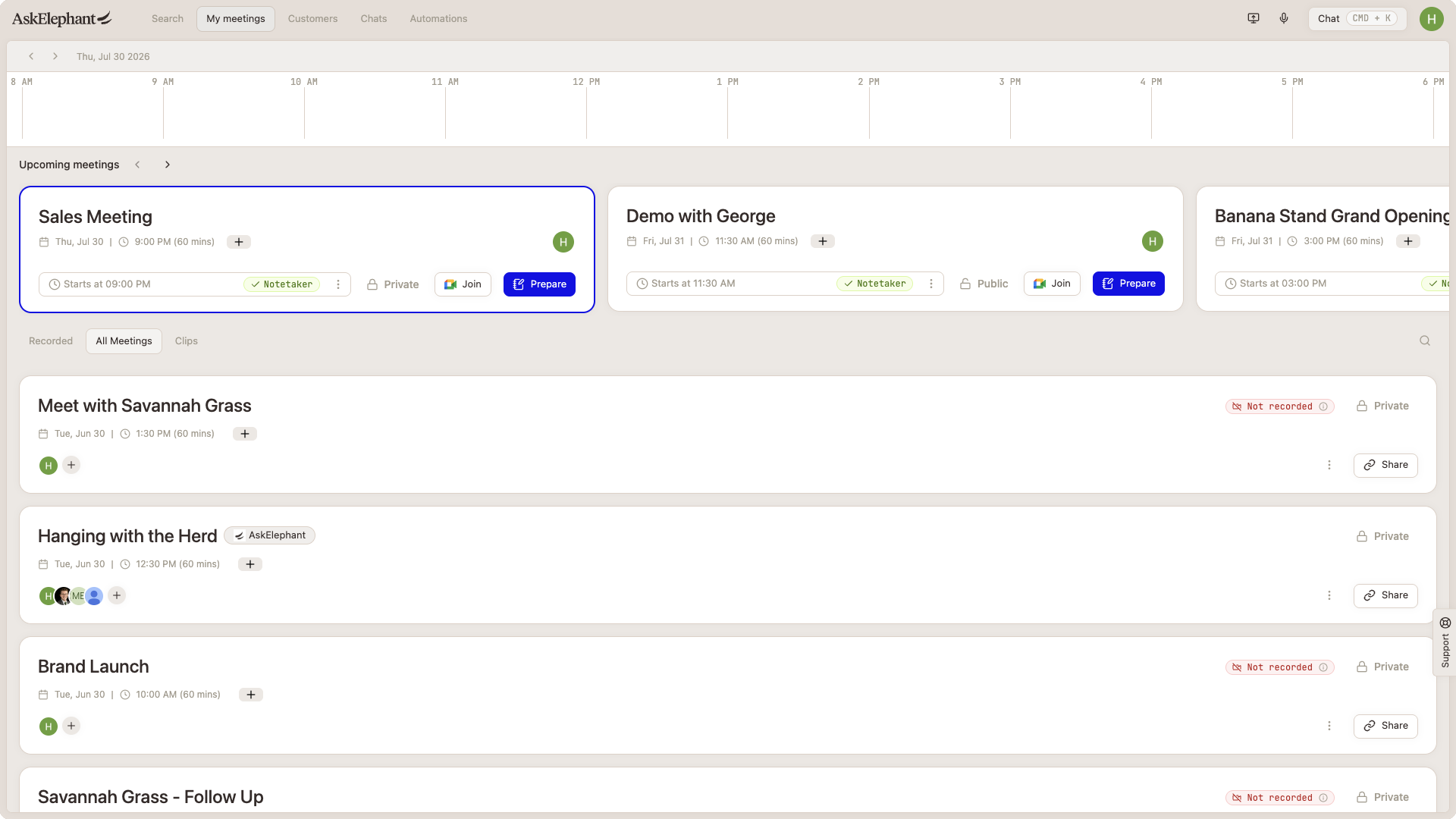
Upcoming Meetingssection.Look for the blue toggle labelled
This meeting will be recorded.Toggle it off to skip recording.
Toggle Recording for a Recurring Meeting
If the meeting repeats, you can disable recording for just that instance or for all future instances in the series.
Find the recurring meeting in the
Upcoming Meetingssection.Toggle off the recording option.
When prompted, select
apply to recurringto disable recording for the whole series.
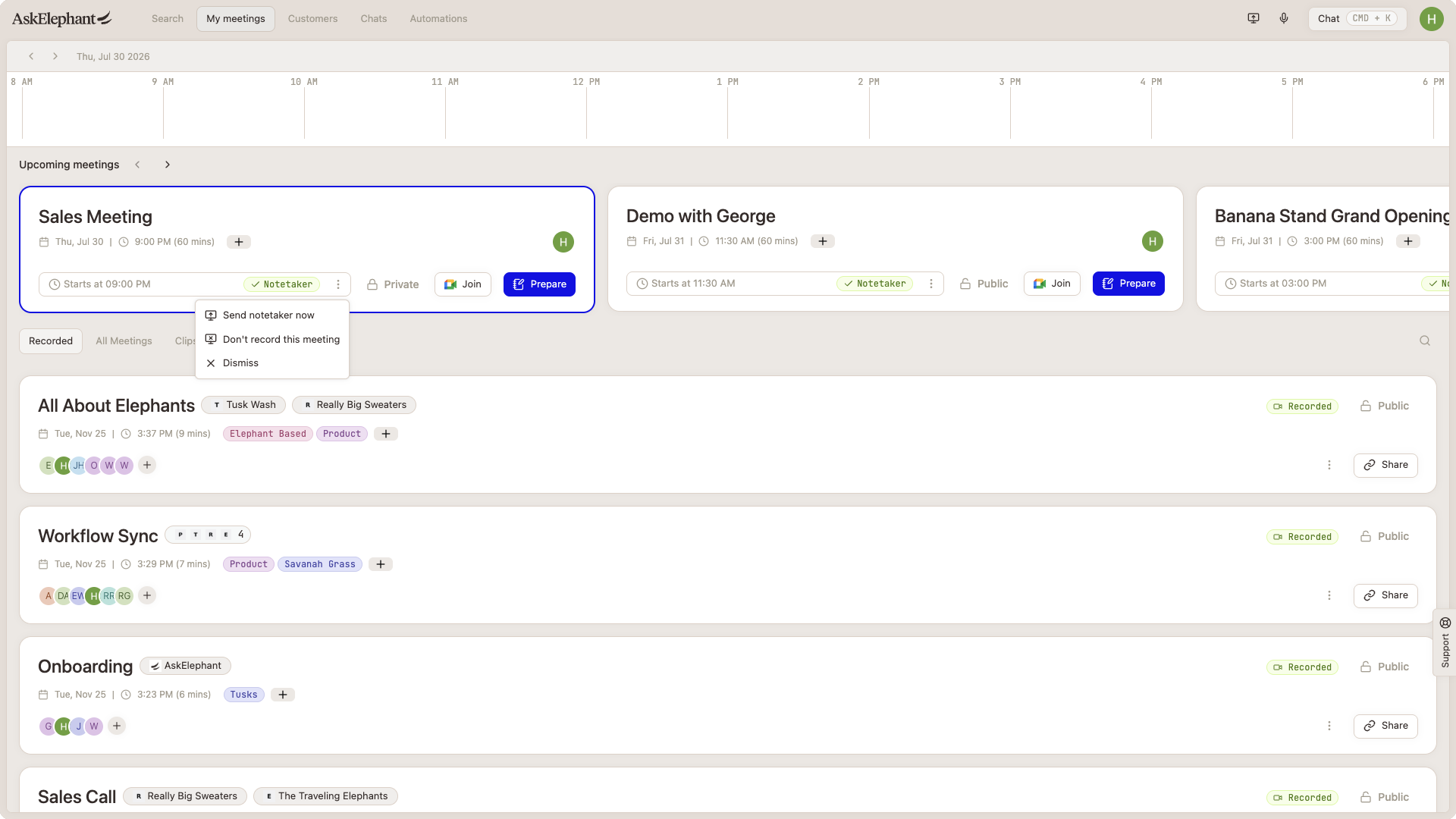
Heads up. apply to recurring only affects that specific calendar series. It does not automatically disable recording for all meetings with a particular client or company — that's a future enhancement.
Why a Meeting Says It Will Not Be Recorded
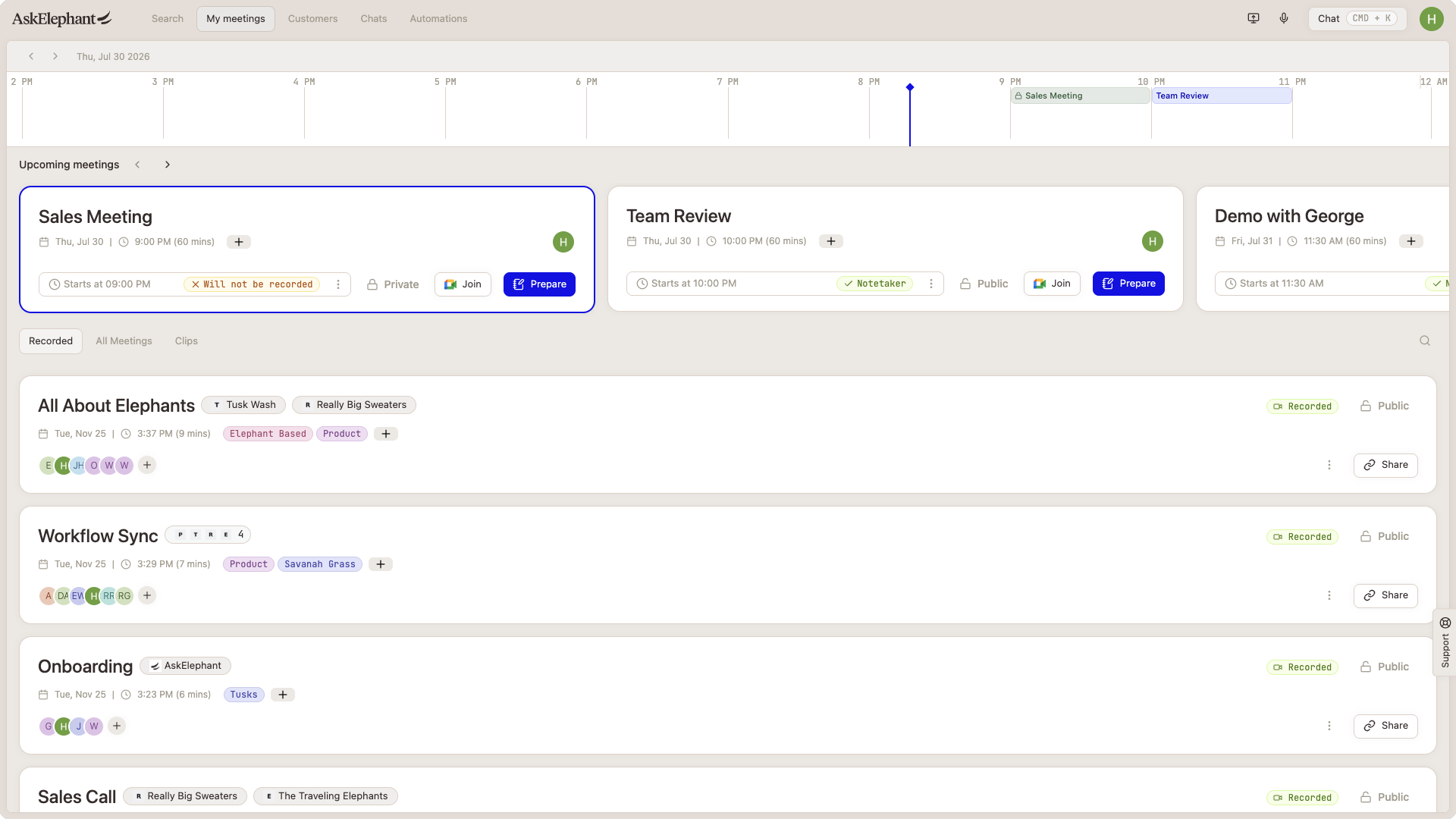
A meeting tagged Will not be recorded in Upcoming Meetings is almost always missing a meeting link. The notetaker joins a meeting URL, not a calendar slot, so an event with no Zoom, Microsoft Teams, or Google Meet link has nowhere to send the notetaker. Recording turned off manually produces the same tag, so check the toggle first.
Add a meeting link to the event.
In
Upcoming Meetings, confirm theThis meeting will be recordedtoggle is on.Open the event on your calendar and click it to view the details.
Look for a meeting link. If there is one, the link is not the problem: see Notetaker Didn't Join.
If there is no link, edit the event, add a meeting link, and save.
Back in
My Meetings, confirm the tag is gone.
Heads up. Only the event organizer can edit the invite. If a client owns the event, ask them to add a link, or use Send Notetaker and paste the URL in manually.
Current Limitations
You can only modify recording settings for meetings that appear in Upcoming Meetings. If a meeting is scheduled more than a few weeks out, you may not be able to adjust it until closer to the meeting date.
Privacy: Who Can See Your Meetings
By default, recorded meetings are visible to anyone in your workspace.
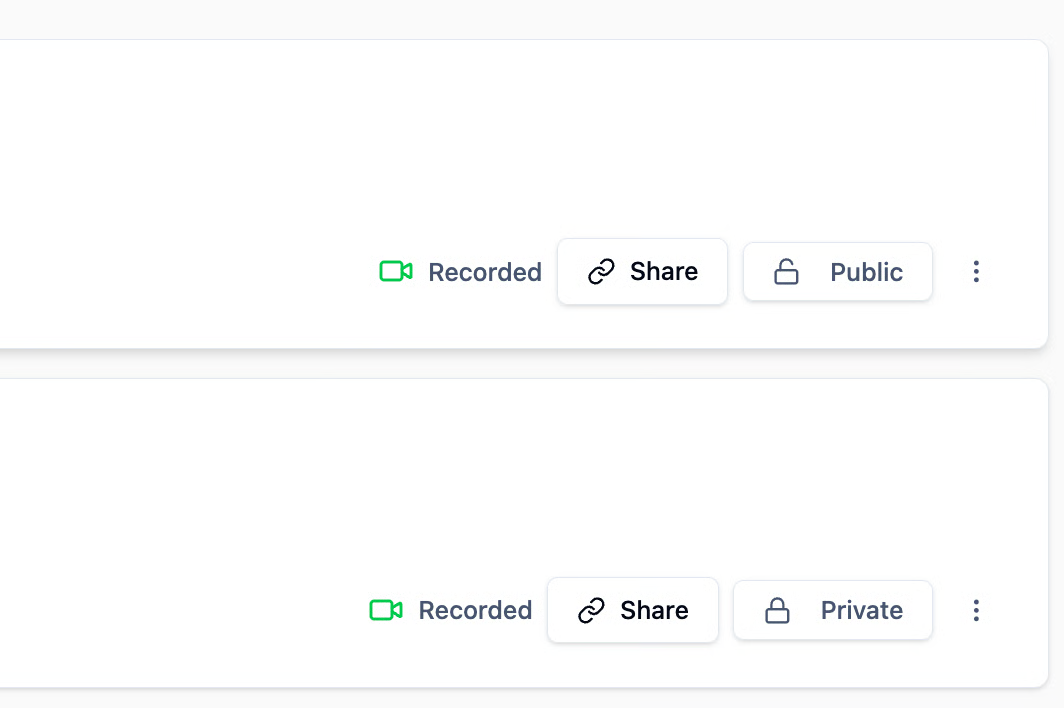
Make a meeting private. Set a meeting to private and only its attendees can view the recording, transcript, and related outputs.
Permissions. Only workspace Owners and Managers can set meetings to private. See Meeting Privacy & Deletion for the full permission matrix and privacy-hierarchy rules.
Joining and Preparing for Meetings
Join a Meeting
Open
My Meetings.Find the upcoming meeting in
Upcoming Meetings.Click
Join Meeting.A new tab opens for Zoom, Teams, or Google Meet.
Prep Before a Meeting
Click the
Preparebutton on the meeting details.AskElephant generates a pre-meeting summary with context from previous calls with that client or company.
Review before you go in.
For a fully automated prep flow — runs 30 minutes before every external meeting and builds a full briefing from HubSpot plus past meetings — activate the Meeting Prep - HubSpot recipe.
Finding All Your Meetings
Recorded meetings appear in the Recorded section of My Meetings.
All meetings — recorded or not — appear in the All Meetings section. This is a complete list of every calendar event and whether it was recorded.
Cleaning up the list. To remove unwanted events from My Meetings (prep blocks, recurring personal events), remove them from your calendar. They'll disappear from My Meetings automatically.
Phone Calls and CRM Integration
AskElephant also captures phone calls made through Salesforce or HubSpot integrations. These calls behave like meetings:
They appear in
Recorded.They appear in
All Meetings.They're searchable across the platform.
Unlike video meetings, phone calls don't need a notetaker — transcription and metadata come directly from your CRM and dialer.
Identifying Which Meeting Triggered a Workflow
When reviewing workflow logs:
Click into the workflow run from the log.
Open the
On Elephant Meeting Receivedtrigger.Scroll down to view the meeting title.
The title isn't surfaced in the main logs view, so this path is how you confirm which specific meeting the run was tied to.
Next Steps
Your calendar is connected and you're ready. AskElephant will join your meetings and capture the insights your workflows depend on.
Need More Help?
Reach the AskElephant support team by:
clicking the Support tab on the right side of your screen,
emailing [email protected],
or using
@askelephant supportin your dedicated Slack channel.