
Associating Meetings
Introduction
AskElephant automatically links meetings to companies based on attendee email domains. If a meeting ended up on the wrong company — or didn't get associated at all — you can fix it by editing the attendee list.
How Automatic Association Works
When someone from a company joins a meeting, AskElephant reads their email domain and links the meeting to that company. From then on, the meeting appears in the company's activity feed and Chat context. This happens without any action from you, as long as at least one external attendee is on the calendar event.
Manually Associate a Meeting with a Company
If the meeting isn't linked — no external attendee made it onto the calendar event, or the wrong person was invited — you can add a contact from the right company after the fact.
Open the meeting in AskElephant.
Click the
+button in the top-right of the meeting page.Add a contact from the company you want to associate the meeting with.
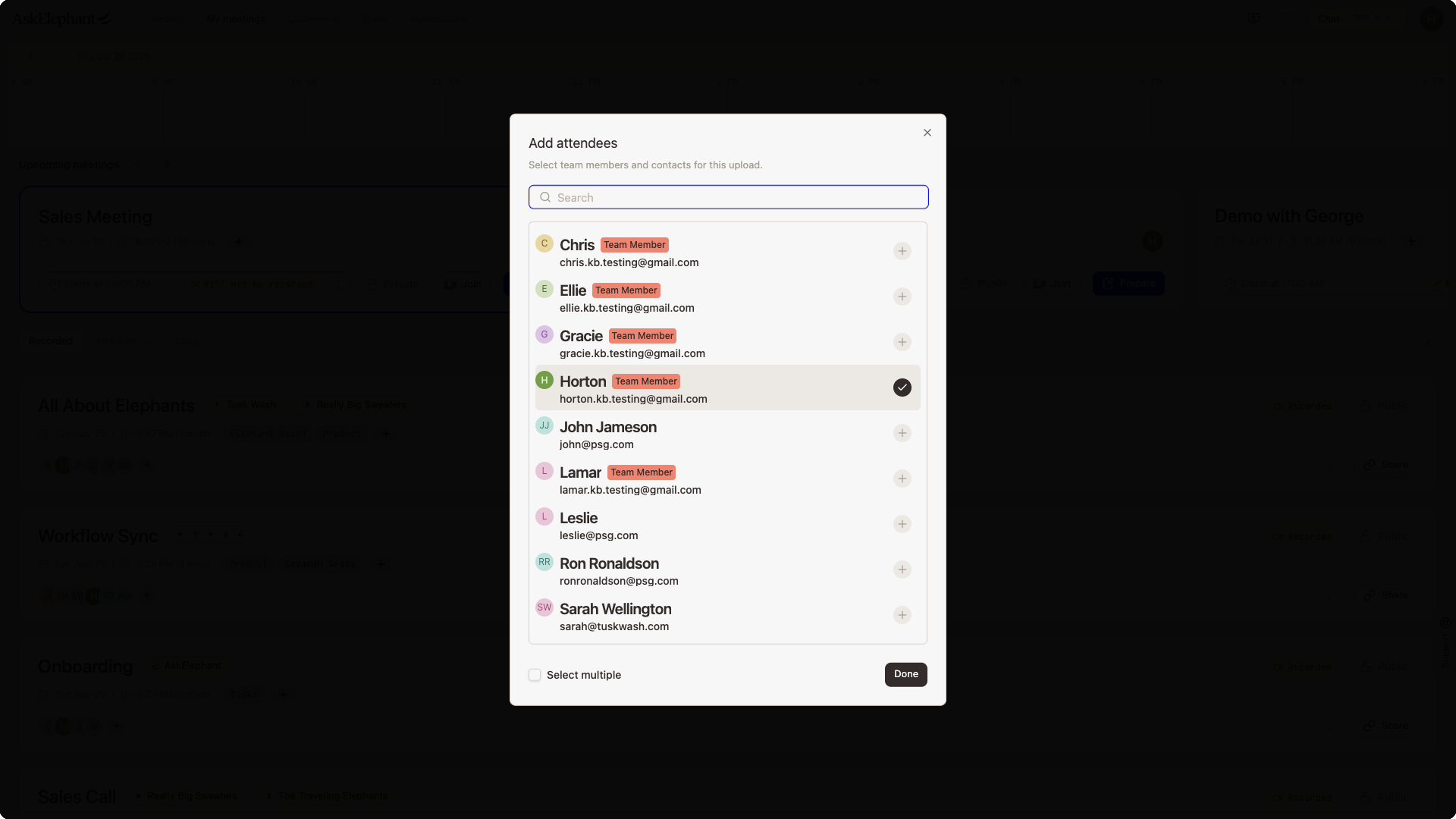
Once the attendee is added, the meeting shows up in that company's context immediately.
Heads up. Adding someone as an attendee gives them access to the meeting recording. They won't get a notification, but they can now see it. Be careful when associating internal meetings about a client — if you add a contact from that client, they can open the recording.
Move a Meeting to a Different Company
If the meeting is associated with the wrong company:
Open the meeting.
Remove contacts from the incorrect company.
Add contacts from the correct company.
The meeting re-associates based on who's currently on the attendee list.
Tags Don't Associate Meetings
You can tag meetings for organization, but tags alone don't link a meeting to a company. A tagged meeting won't appear in a company's side-tab view. For true company association, you need to add an attendee from that company — tags are for filtering and search, not association.
Related
Companies— how company records work, manual creation, and importing from HubSpot.Search— filtering and tagging meetings.Meeting Privacy & Deletion— who can see what, and the privacy model.
Need More Help?
Reach the AskElephant support team by clicking the Support tab on the right side of your screen, emailing [email protected], or using @askelephant support in your dedicated Slack channel.