
Sending the Notetaker
Introduction
If a meeting is already in progress, or you want the notetaker in the room before its scheduled start time, you have two options depending on which app you're using.
Join a Live Call from the Web App
Use this when a meeting has already started and the notetaker isn't in it yet.
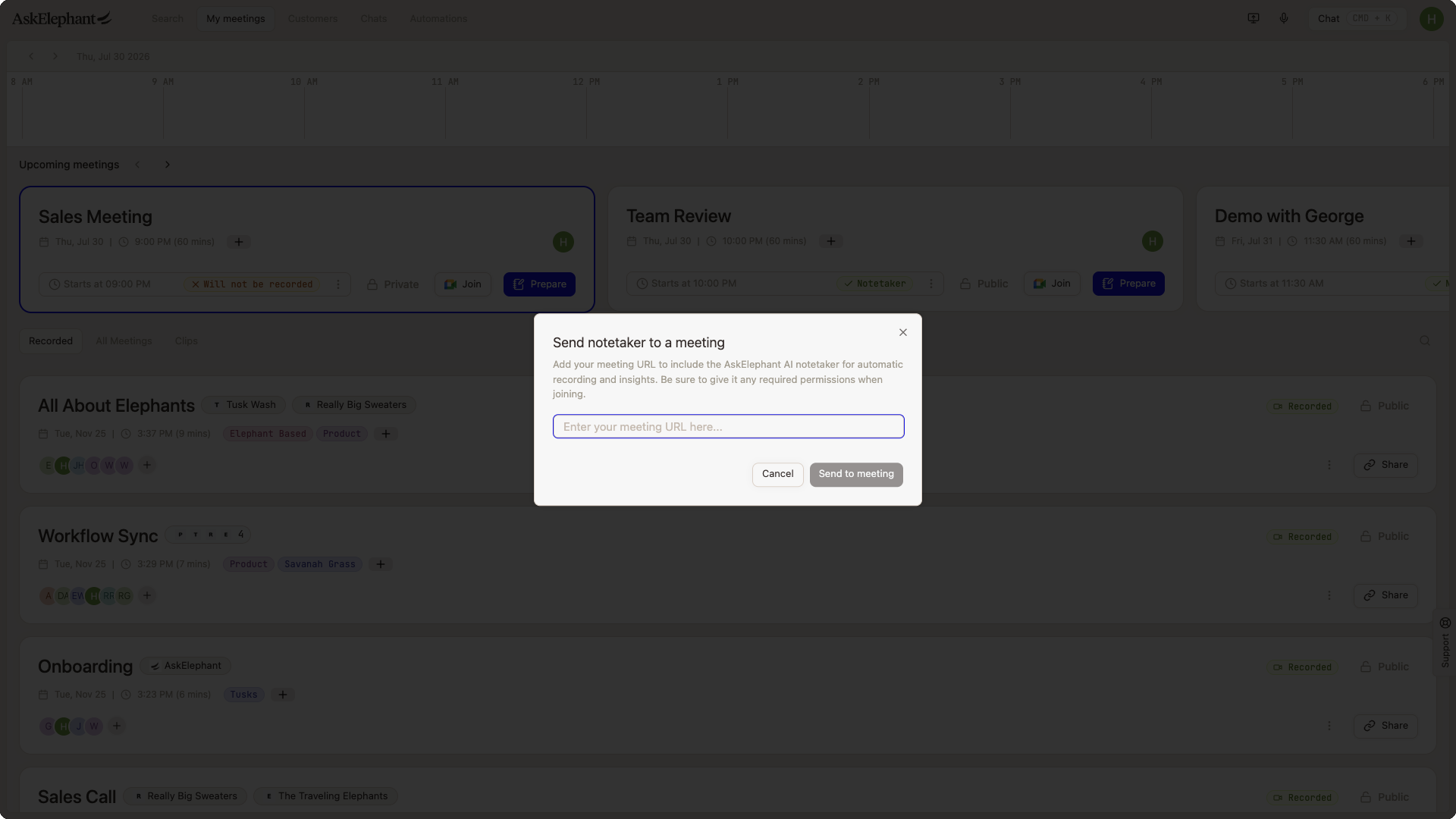
Open the AskElephant web app.
Click
Send Notetakerin the top right navigation bar.Paste the meeting URL into the popup.
Click
Send— the notetaker joins that call directly.
Send Early from the Desktop App
Use this when you want the notetaker in the meeting room before the calendar-scheduled join time.
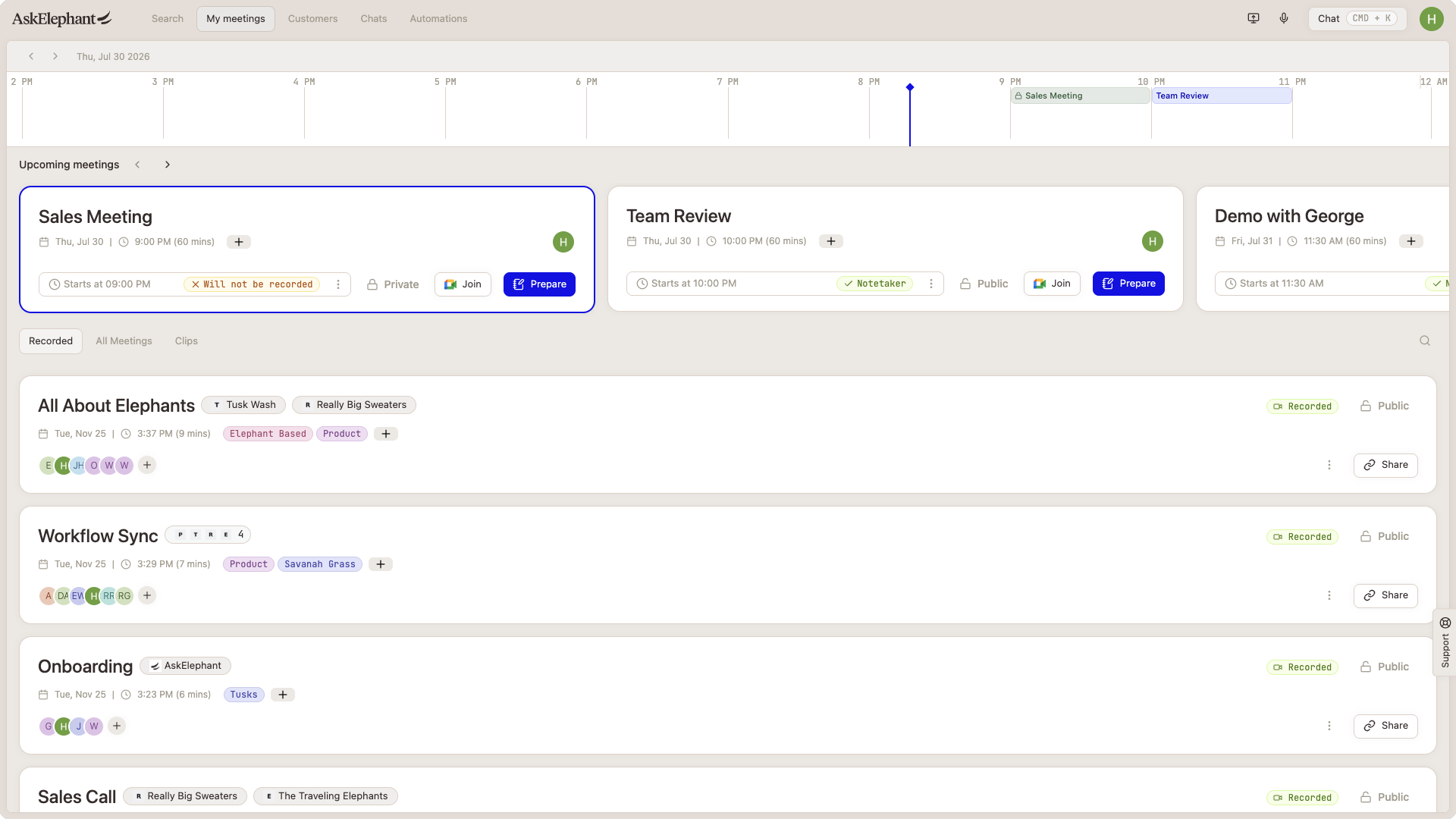
Open the AskElephant Desktop App.
Find your next upcoming meeting.
Click
Send Early— the notetaker joins immediately.
What to Know
The
Send Earlyfeature is only in the Desktop App. TheSend Notetaker(live-join) feature is only in the Web App.Someone in the meeting needs to admit the notetaker from the waiting room unless the waiting room is disabled.
Look for the
Recordingbanner to confirm the notetaker is actively capturing.The notetaker can be in several meetings at once, as long as each has a unique URL and you're listed as an attendee.
If a meeting gets rescheduled, update the calendar event — the notetaker joins at the time on the calendar, not the time attendees actually show up.
Prefer no participant in the call? If you'd rather the notetaker not join a Zoom meeting as a visible participant, connect Zoom import instead: Zoom records the call to its cloud and AskElephant pulls the recording in automatically, with no bot in the room. It needs a quick setup with our team, so contact support to turn it on. See
Importing Callsfor other ways to bring recordings in.
Related
Notetaker 101— full guide to notetaker settings and troubleshooting.Meetings— how meetings work, calendar setup, and recording controls.
Need More Help?
Reach the AskElephant support team by clicking the Support tab on the right side of your screen, emailing [email protected], or using @askelephant support in your dedicated Slack channel.