
Importing Calls
Introduction
There are a few ways to bring existing recordings into AskElephant, depending on where they live and how much you need to import.
Upload a Single Recording
For one-off files — any audio or video you can download to your computer — use the manual uploader.
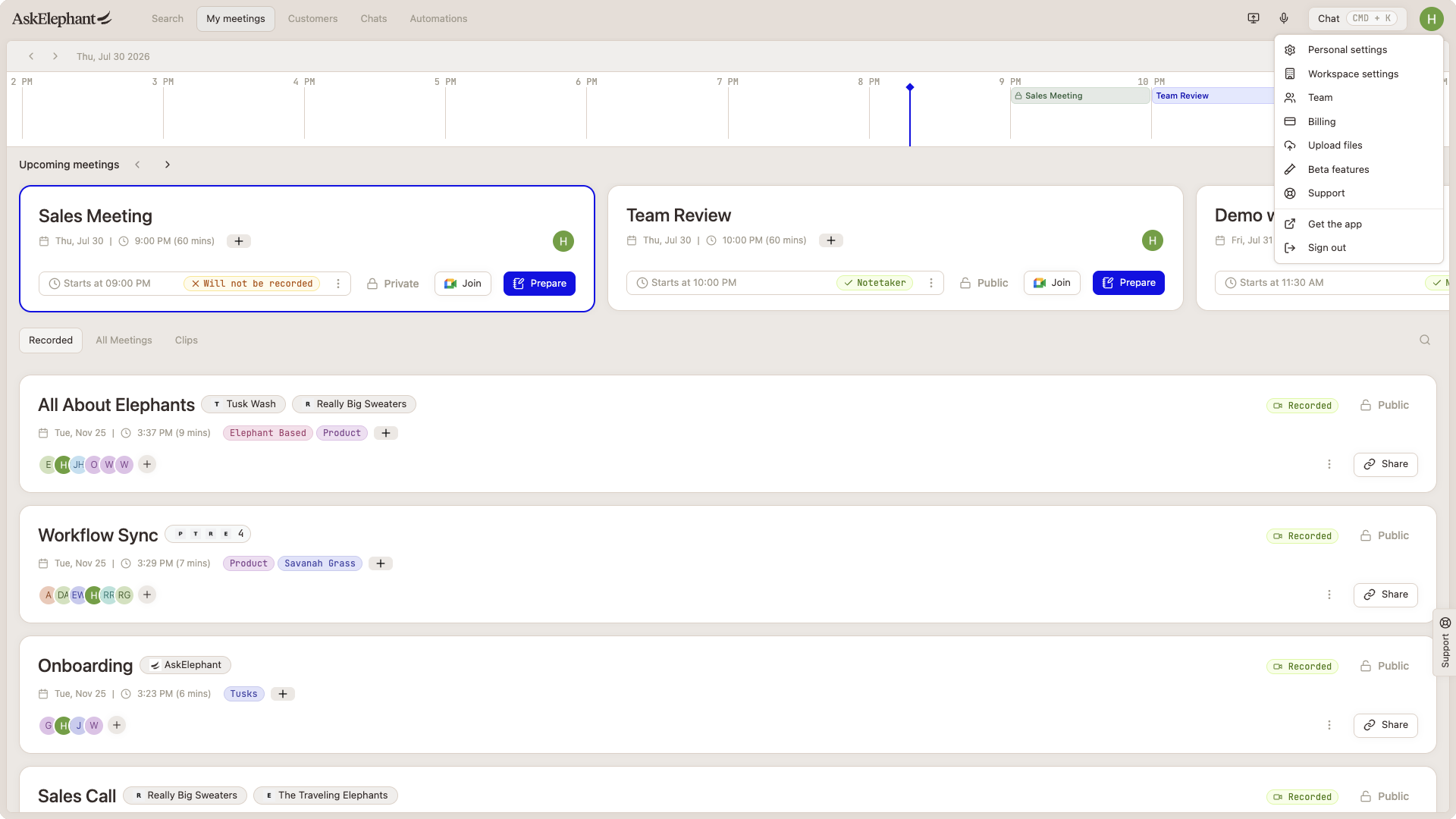
Open the AskElephant web app.
Click
Profile Iconin the left-hand sidebar.Click
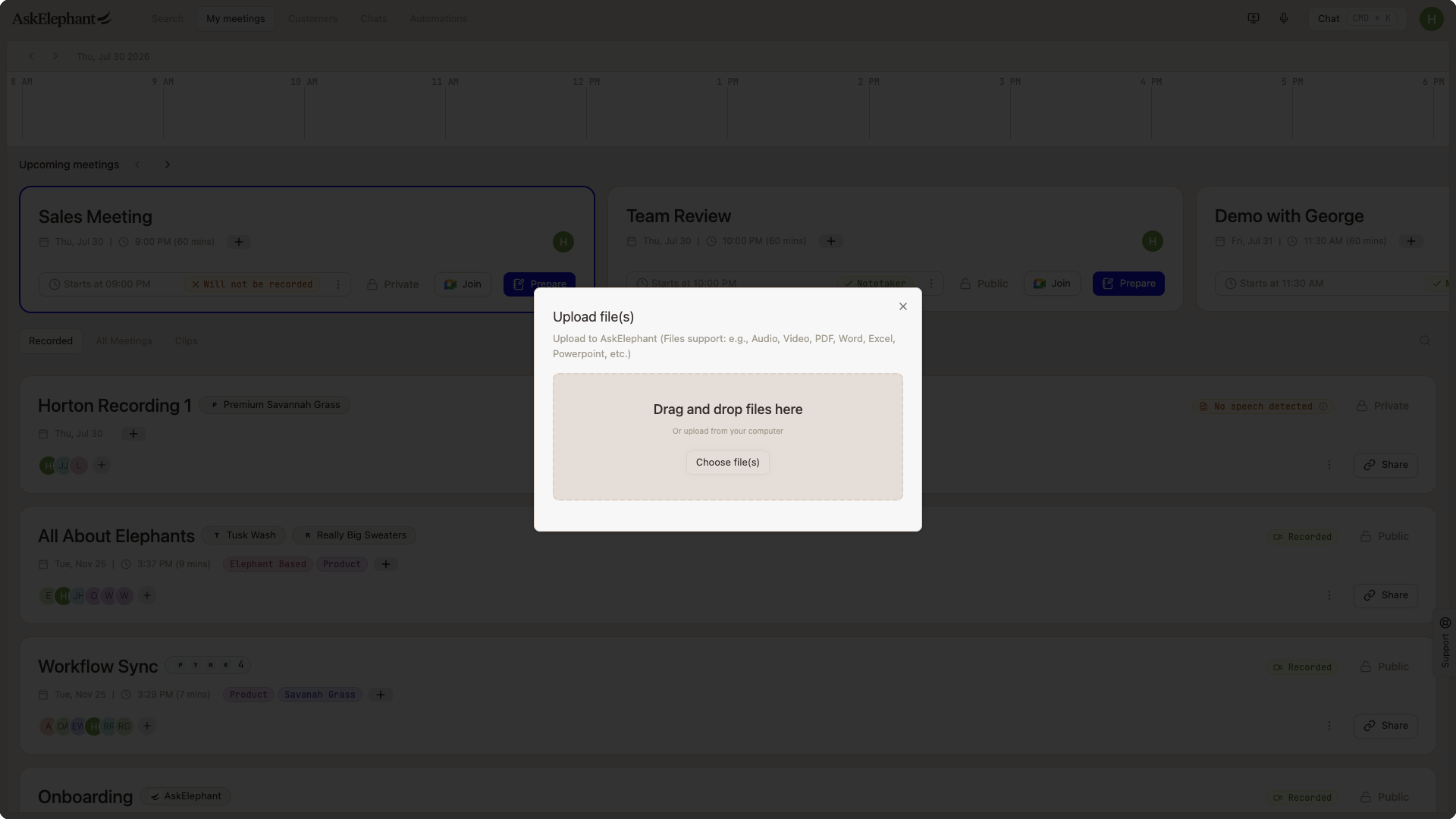
Upload files.Select the file.
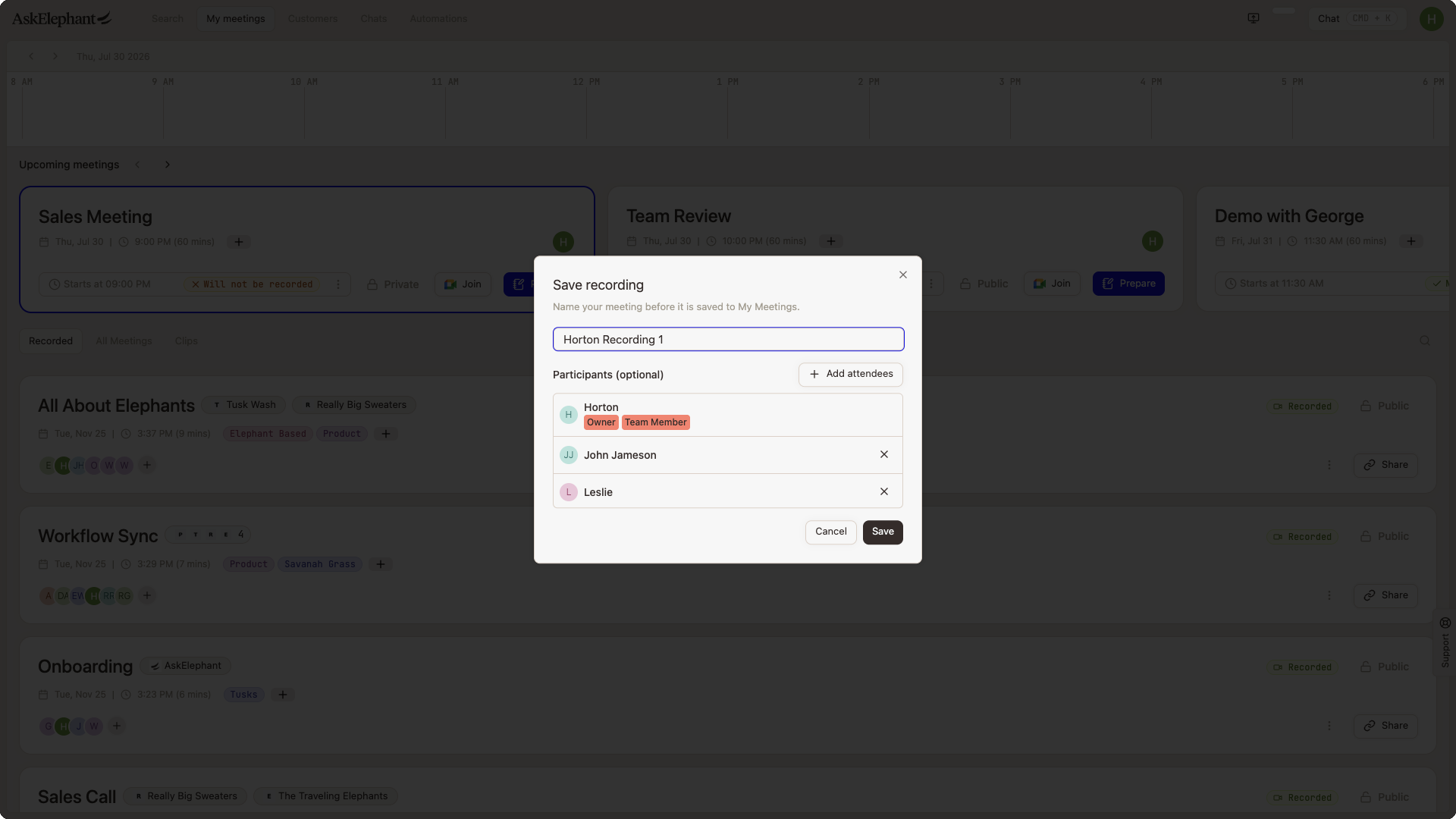
The recording processes like a regular meeting once the upload completes.
Import from Integration
AskElephant has a dedicated integration for a handful of additional call recorders, including:
Gong
RIngCentral
Grain
Dialpad
Aircall
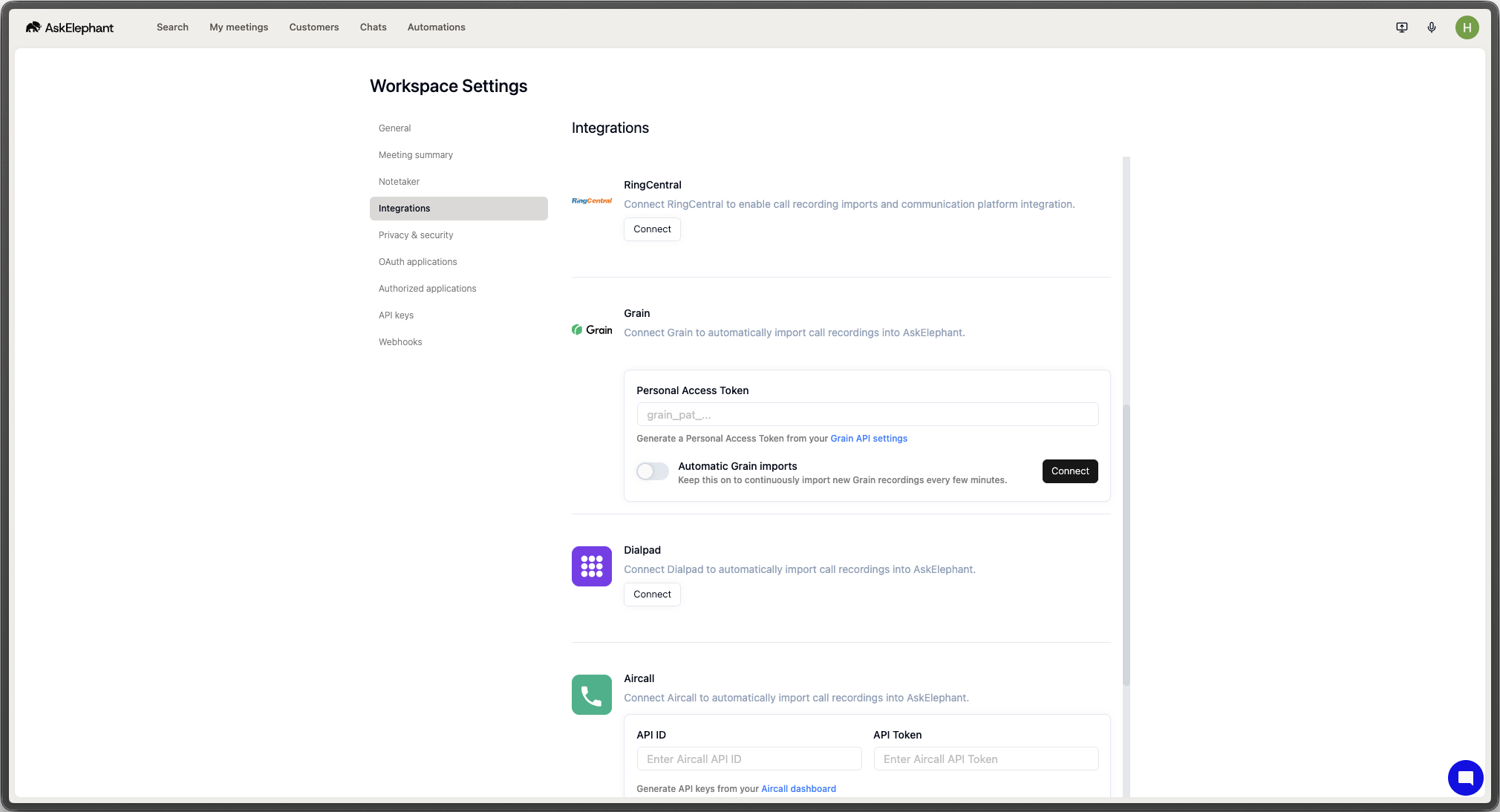
To configure other call importers:
Go to
Workspace Preferences→Integrations.Add your credentials.
Enable automatic imports to sync new calls in real time.
Only new calls going forward sync automatically. For historical calls, contact support to discuss bulk import options.
Watch for Duplicates
If AskElephant is natively recording a call and another tool (Gong, Zoom import, HubSpot) is also capturing it, the same call can land in your workspace twice. Pick one source per call, or contact support to set up filters.
For large historical imports, reach out to support — we can help plan the approach so you don't end up with a mess of duplicates.
Related
Meetings— how the notetaker captures meetings natively.HubSpot— importing and analyzing calls from HubSpot.Stopping Unwanted Recordings from Third-Party Dialers— filtering out short or unwanted calls from dialers.
Need More Help?
Reach the AskElephant support team by clicking the Support tab on the right side of your screen, emailing [email protected], or using @askelephant support in your dedicated Slack channel.