
Uploading Files
You can upload documents and videos into AskElephant and then reference them in chats, search, and workflows. This article covers supported file types, where uploads land, and how to get analysis running on uploaded content.
What You Can Upload
Supported formats:
PDF
Word documents
PowerPoint
Video files (for meeting-style analysis)
Other common office formats
Excel files can be uploaded, but AskElephant can't currently interact with spreadsheet data. If you need data from an Excel file analyzed, export it to PDF or convert it to a document format first.
Uploading a File
Click the Upload tab in the sidebar.
Select your file (or multiple files — hold shift/cmd to multi-select).
Provide a title and, if relevant, a start time.
Click Upload.
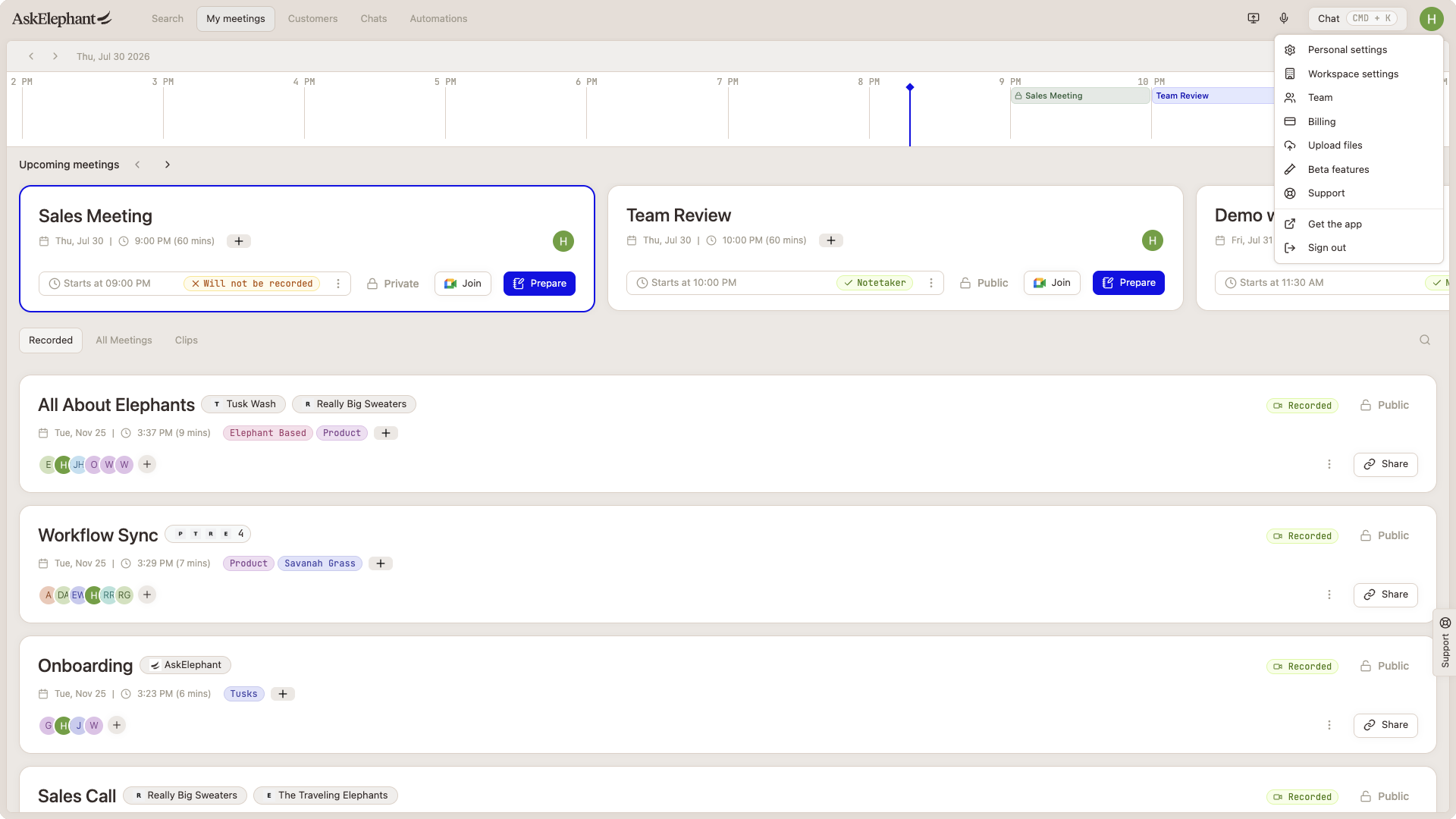
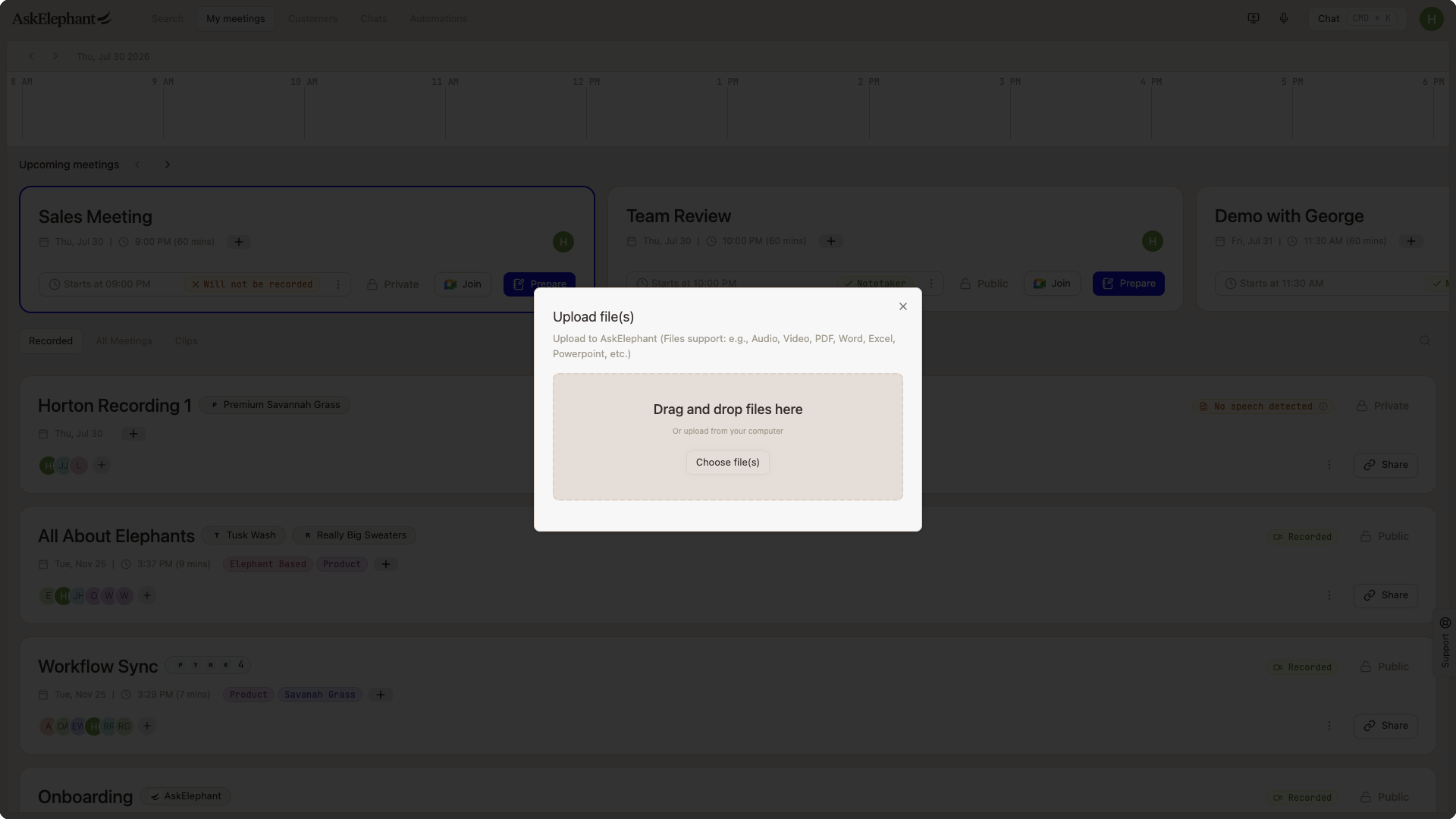
For best performance, upload in batches of 10–20 files. Larger batches still work but take longer to process.
Where Uploaded Files Live
Uploaded files appear in My Meetings. The platform currently labels every upload as a "meeting," even for documents — that's a display label, not a processing behavior.
You can surface them from:
The Search tab — use the built-in media filter.
Custom tags — assign tags at upload time or later for easier grouping.
Any chat — reference them like you'd reference a meeting.
Workflows — include them as a data source.
Associating Files with Contacts
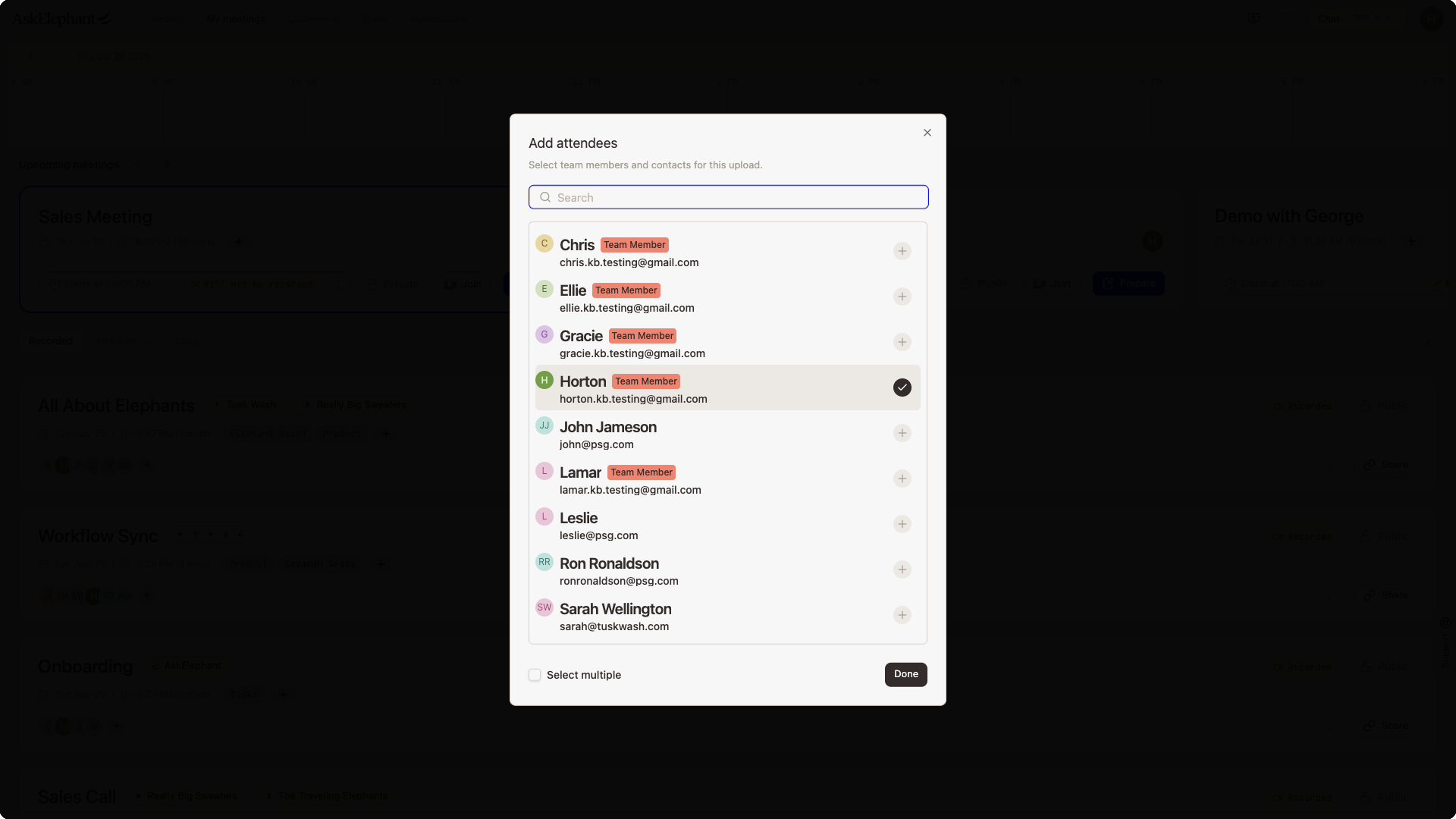
Uploaded files can be attached to contact records. They appear in the contact's record as a past meeting. Adding an attendee to the meeting/document will associate the file with that contact and parent company.
Troubleshooting Uploads
Unsupported format — check your file type against the list above. Excel isn't processable even if it uploads.
Chat can't see the file — refresh the page; if that doesn't resolve it, re-upload.
Upload missing from My Meetings — contact support with the filename and upload time.
Video uploads don't trigger automations automatically — use manual workflows or prompts from prompt library to extract insights quickly.
Need More Help?
Reach the AskElephant support team by clicking the Support tab on the right side of your screen, emailing [email protected], or using @askelephant support in your dedicated Slack channel.