
Meeting Privacy & Deletion
Introduction
Control who can see your meetings and who can delete them. Set workspace or per-meeting privacy, understand role-based deletion permissions, and follow the best practices below to keep sensitive customer conversations secure while your automations still get the data they need.
AskElephant is SOC 2 compliant and HIPAA compliant. Recordings and transcripts meet strict security and privacy standards.
Privacy: Who Can See Your Meetings
By default, all meetings in AskElephant are public — anyone in your workspace can view the recording and transcript. This supports Sales, Success, and Service handoffs where shared context matters.
Who Can Make a Meeting Private
Owners can mark any meeting as private, including meetings they didn't host.
Managers can mark only their own meetings as private.
Users cannot mark meetings as private. If the privacy toggle appears greyed out and you need to change it, ask your Owner to update your role to
ManagerorOwner.
How to Make a Meeting Private
Go to the
My Meetingstab.Find the meeting you want to make private.
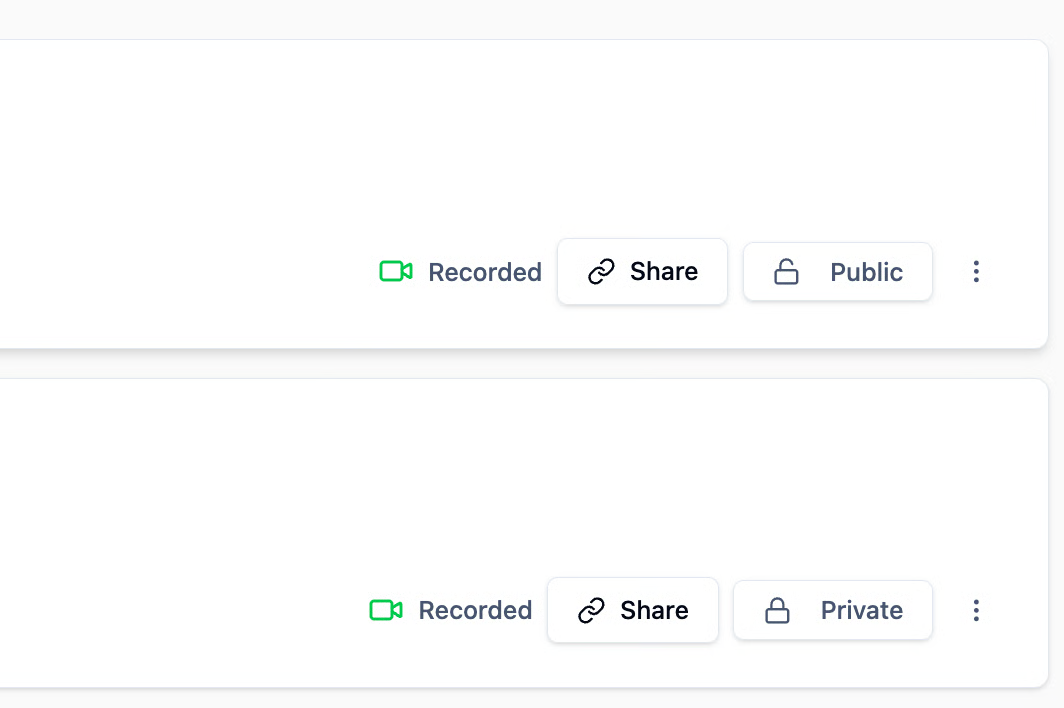
Toggle
private/publicon the meeting details toPrivate.
Only the attendees and workspace owners will now be able to view that recording.
Set Meetings to Private by Default
Click your name in the sidebar.
Select
Preferences.Find the
Meetingssection.Check
Meetings are private by default.
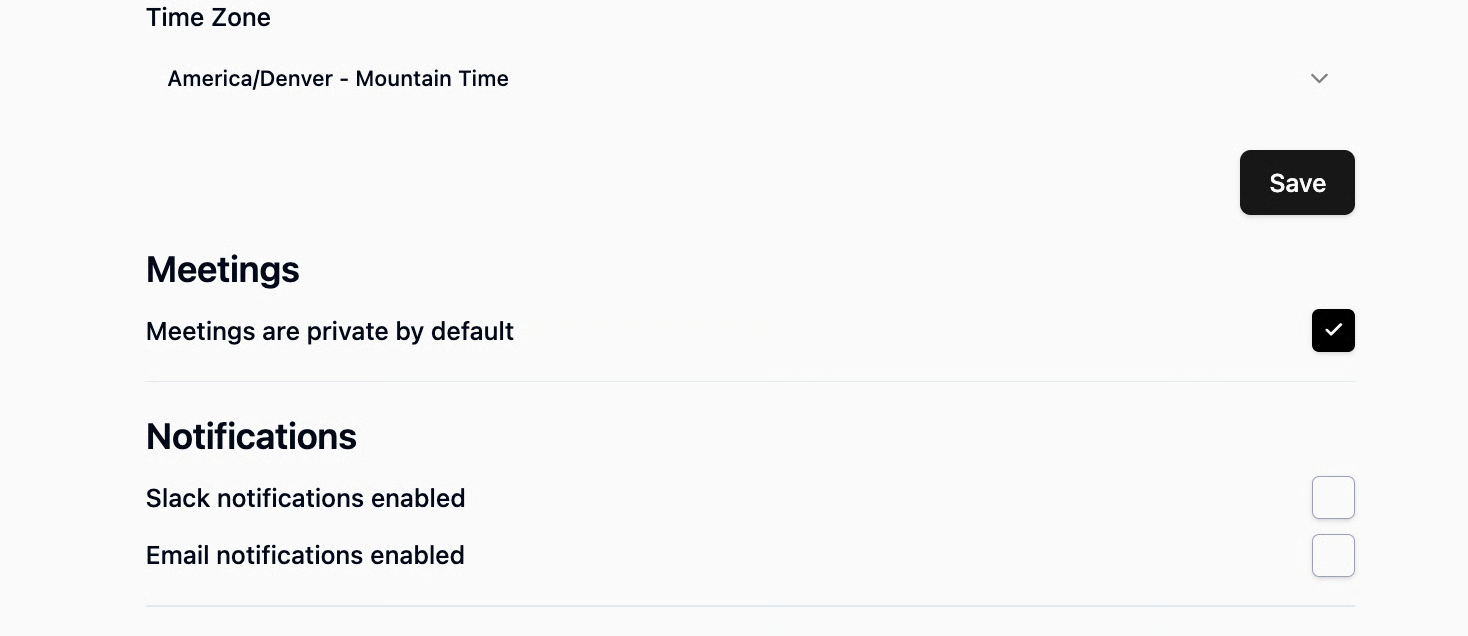
Every meeting you host after that point is private unless you manually flip it back to public.
This default applies only to meetings you host after you save the setting. Meetings that already exist, and meetings that sync in later from calendar events created before the change, keep whatever privacy they had. To change those, update each one manually.
Privacy Hierarchy: Host Setting Wins — With One Exception
If you host the meeting, your privacy setting takes priority. For example, a meeting you set to public stays public even if a manager joins and has their default set to private.
The exception. If a Manager or Owner is listed as an attendee on the calendar event and their default is set to private, their setting takes precedence and the meeting is marked private — even if they never actually join the call. Only that Manager or Owner can flip it back to public.
What Private Means for Workflows
By default, workflows do not run on meetings marked as private. If you notice a workflow isn't executing on certain calls, check whether those meetings are private. You can override this behavior on a workflow-by-workflow basis if needed.
Finding Out Why a Meeting Was Marked Private
Look for the event log next to the transcript on each meeting page. It shows what actions were taken and by whom. Privacy changes driven by a user's default setting don't currently show up in the event log, so if the log looks empty the change likely came from an attendee's default preference.
Changed Your Default but Meetings Didn't Update?
If you turned on private-by-default but some meetings are still public, here's why and what to do:
The default only applies going forward. It affects meetings you host after you save it, not meetings that already existed or that synced in from earlier calendar events.
The host's setting wins. If someone else hosted the meeting, their setting applies, not yours. See the privacy hierarchy above.
Only Owners and Managers can change the default. If the setting is greyed out, ask your Owner.
Fix existing meetings manually. Open each one and toggle it to
Private.
If meetings you host are still defaulting to public after all of this, confirm the setting is saved under your name > Preferences > Meetings, then contact support with an example meeting and the time you changed the setting.
Deletion: Who Has Permission
Not every meeting needs to stay in your workspace forever. Deletion permissions depend on your role.
Permissions by Role
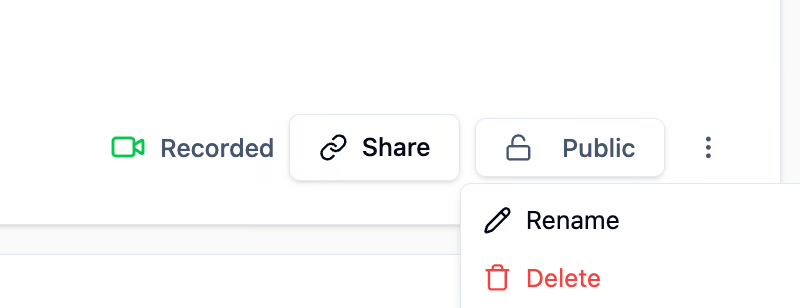
Owners can delete any public meeting in the workspace, including their own.
Managers can delete meetings they host. They cannot delete meetings hosted by others.
Users cannot delete meetings.
How to Delete a Meeting
Open the meeting page.
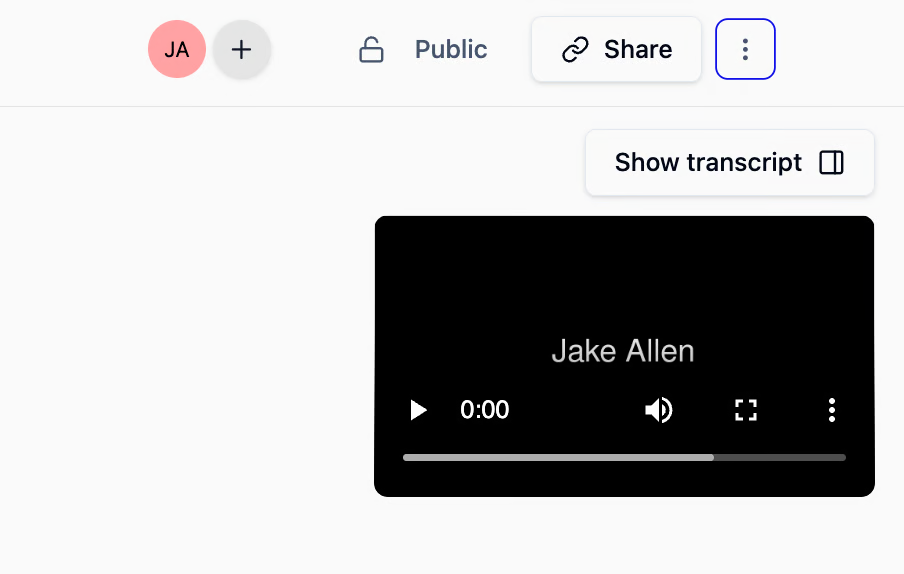
Click the three-dot menu in the top-right corner.
Select
Delete.
Deletion is irreversible. Once removed, the meeting is gone from AskElephant for all attendees. It may remain on AskElephant's backend temporarily for restoration purposes but is not accessible for training or research by default.
If a meeting or clip you deleted still appears in a list, refresh the page. If it's still there, clear your browser cache and refresh, or sign out and back in.
Expiring or Cancelling a Shared Clip
If you've shared a clip link and need to revoke access:
Open
My Meetings.Go to the
Clipssection.Find the clip.
Click to expire or cancel the shared link.
Revoking a clip link doesn't delete the source meeting — it only cuts off external access through that specific shared link.
When to Delete a Meeting
Delete a meeting when:
It contains information that should no longer be stored.
It was recorded by mistake.
It's outdated and no longer useful as reference.
You need to comply with privacy or retention policies.
Best Practices
Think before you delete. Once a meeting is deleted, it cannot be recovered. Confirm you don't need the transcript or recording first.
Use privacy settings for sensitive calls. Consider making a meeting private instead of deleting it — you keep the recording but limit who can see it.
Coordinate with your team. If other team members attended a meeting, check whether they need access before removing it.
Review your defaults. If most of your meetings should be private, set that as your default in Preferences. You can always make individual meetings public as needed.
Request access to the Trust Center. For detailed information about data privacy and storage policies, ask support for Trust Center access.
Next Steps
Review your current privacy default in
Preferences.Flag any upcoming sensitive meetings to mark private.
If you're an Owner or Manager, get familiar with the deletion flow before you need it.
Need More Help?
Reach the AskElephant support team by:
clicking the Support tab on the right side of your screen,
emailing [email protected],
or using
@askelephant supportin your dedicated Slack channel.