
The Meeting Page
Introduction
The meeting page has a new layout. After a meeting ends, you land on a cleaner two-pane view: the meeting summary on one side, chat on the other. This article covers what changed, and where to find your workflow outputs.
What's New
The post-meeting view is now split into two panes:
The left side shows the meeting summary and any other automated outputs for that meeting.
The right side is chat. It's always accessible, so you can ask follow-up questions without leaving the page.
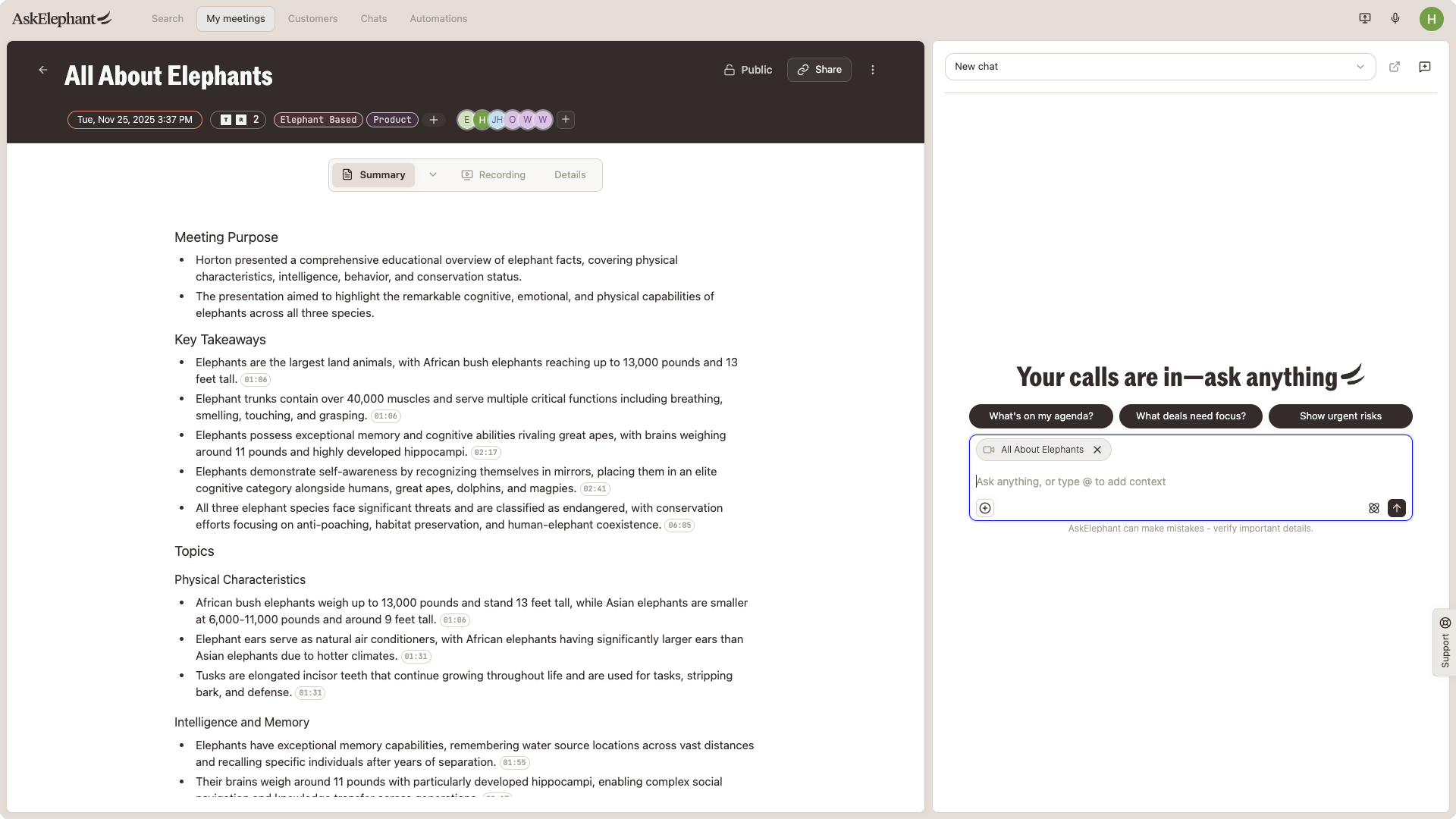
Previously, the meeting page opened on an empty chat. The new layout gives you something useful the moment you open a meeting and keeps chat one click away.
This change applies only to post-meeting pages. Pre-meeting pages, company pages, and contact pages are unchanged.
Where to Find It
You can open a meeting page from either of these spots:
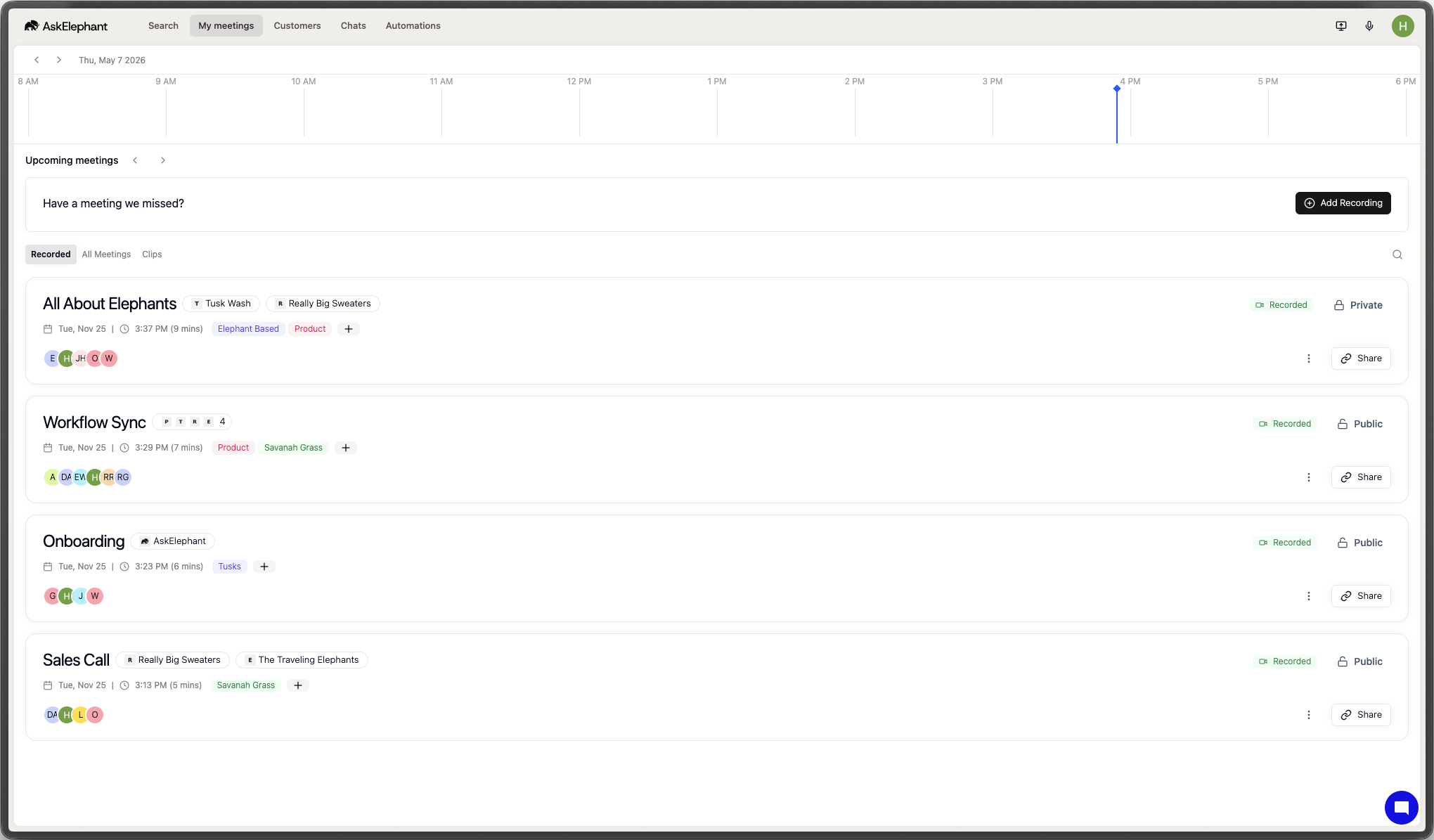
My Meetings. Open the tab and click a past meeting.
Search. Find a past meeting from the search page.
The new layout is on by default for all users.
Where Workflow Outputs Live
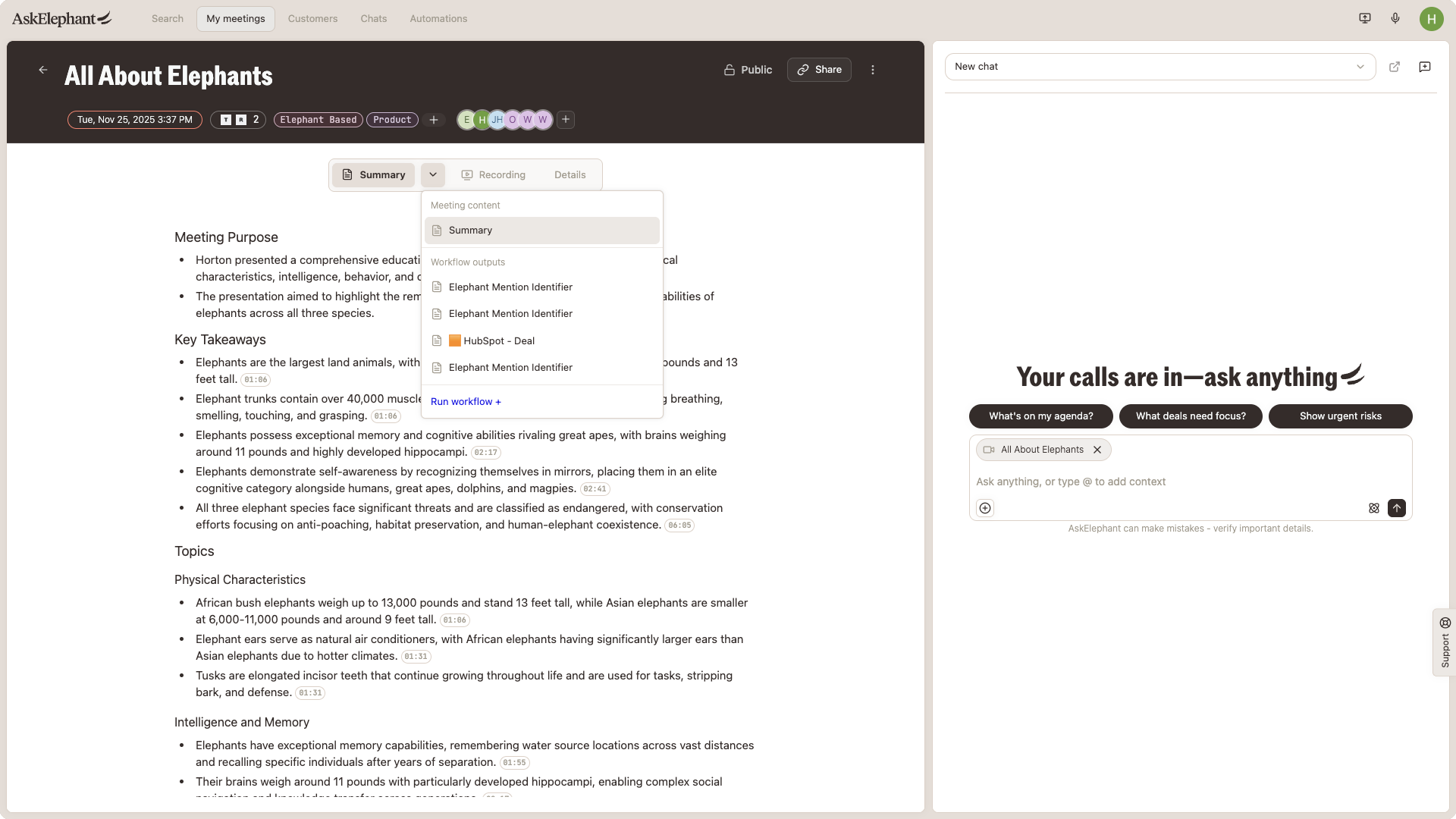
Workflow outputs are no longer shown by default in a list. They're collapsed under a dropdown on the meeting page. Click the dropdown to expand and see every workflow that ran for that meeting.
Nothing about your workflows has changed. They still run, they still produce outputs. Only their location in the UI has changed.
Need Additional Help?
If you have questions or need further assistance, the AskElephant support team is here to help:
Click the Support tab on the right side of your screen.
Email us at [email protected].
Use
@askelephant supportin your dedicated Slack channel.
We're committed to getting you the answers you need as quickly as possible.