
Speaker Tracking
Overview
The Participants panel and Highlights in your meeting view now give you faster ways to see who spoke when, and to jump from a highlight straight into the matching transcript line. This article covers both updates.
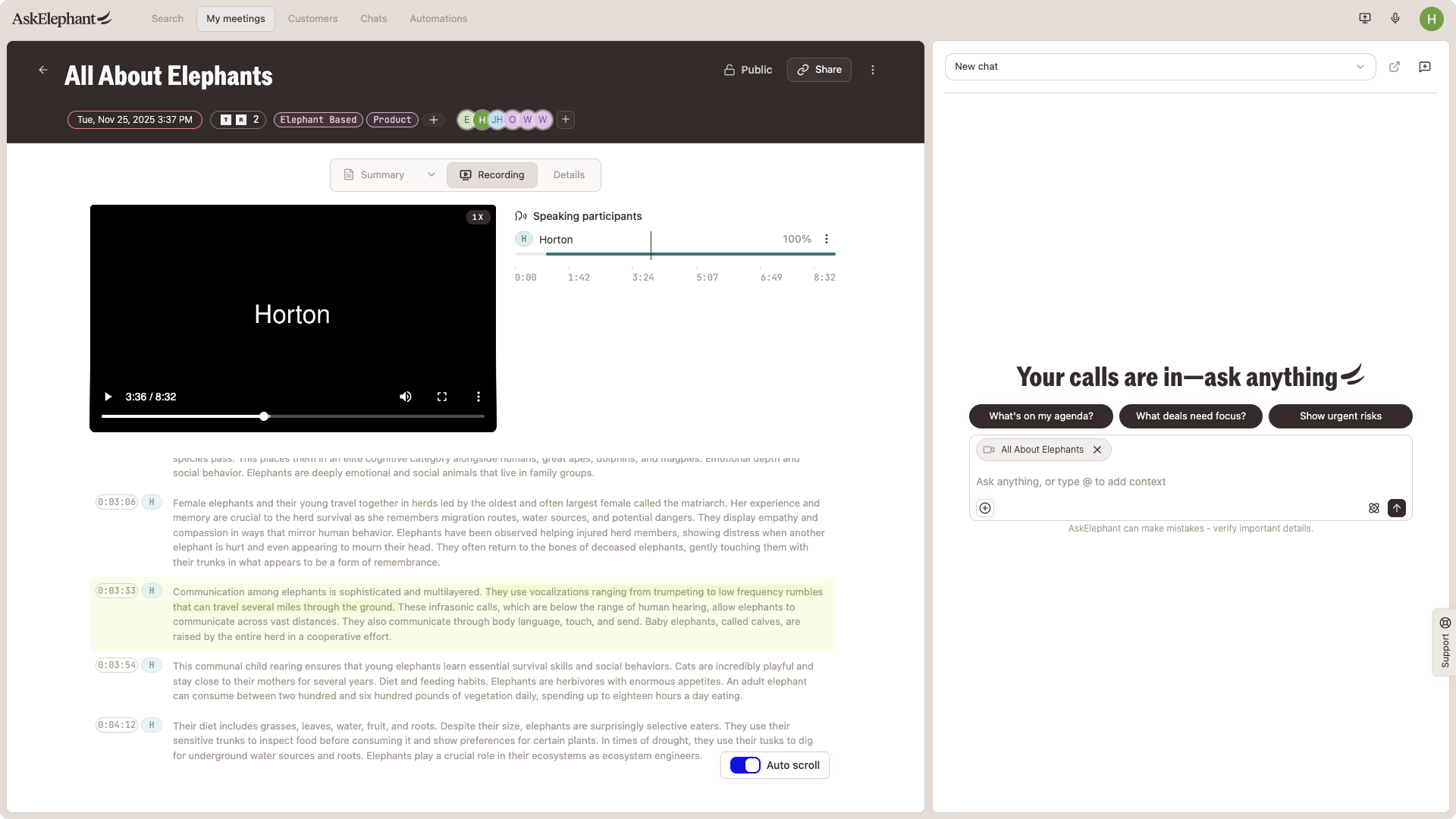
Speaking Activity in the Participants Panel
The Participants panel now breaks out when each person was speaking during the meeting, so you can see at a glance who drove which parts of the conversation.
To see speaking activity:
Open a meeting from the
Meetingslist.Click the
Participantstab in the meeting view.Each participant shows a breakdown of when they were speaking across the call.
Use this to:
Spot which sections of the call a specific person led.
Jump to the moments when a customer or colleague was talking.
See who dominated the conversation versus who stayed quiet.
Highlight-To-Transcript Search
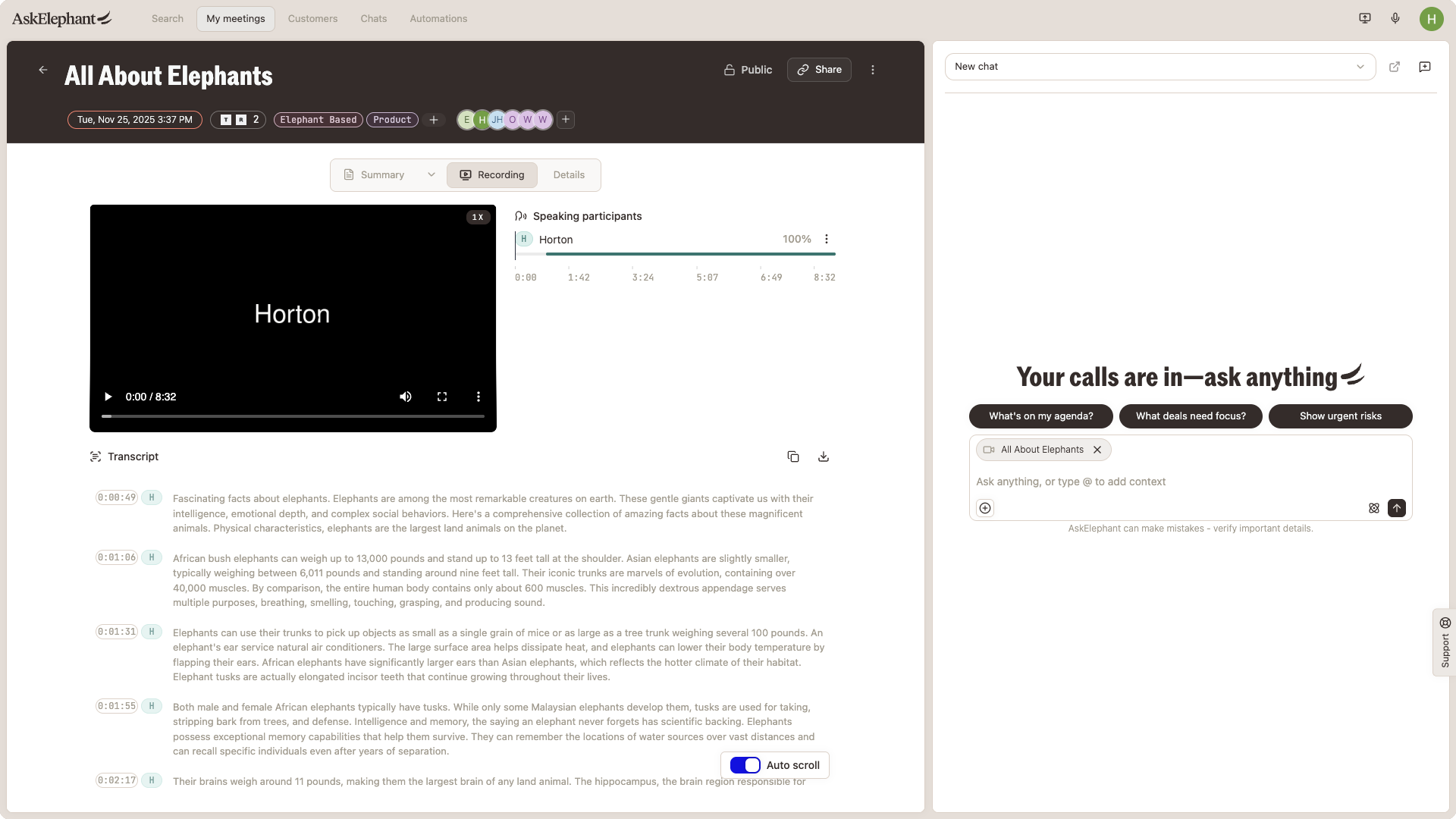
Highlights are now linked directly to the transcript. When you click a highlight, the transcript scrolls to and searches for the matching content automatically.
To use it:
Open a meeting that has highlights.
Click any highlight in the highlights list.
The transcript panel opens to the matching section.
This is the fastest way to verify exactly what was said around a highlighted moment, without scrubbing the audio or scrolling the transcript manually.
Related Articles
Notetaker 101
Meetings & Notetaker
Navigating the Interface
Need Additional Help?
If you have questions or need further assistance, the AskElephant support team is here to help!
You can reach our support team in several ways:
click the Support tab on the right side of your screen,
email us at [email protected],
or use
@askelephant supportin your dedicated Slack channel.
We're committed to getting you the answers you need as quickly as possible.