
My Meetings Timeline
Overview
On the My Meetings timeline, meetings appear in green or blue to show their privacy at a glance. This article explains what each color means and how to check an individual meeting's setting.
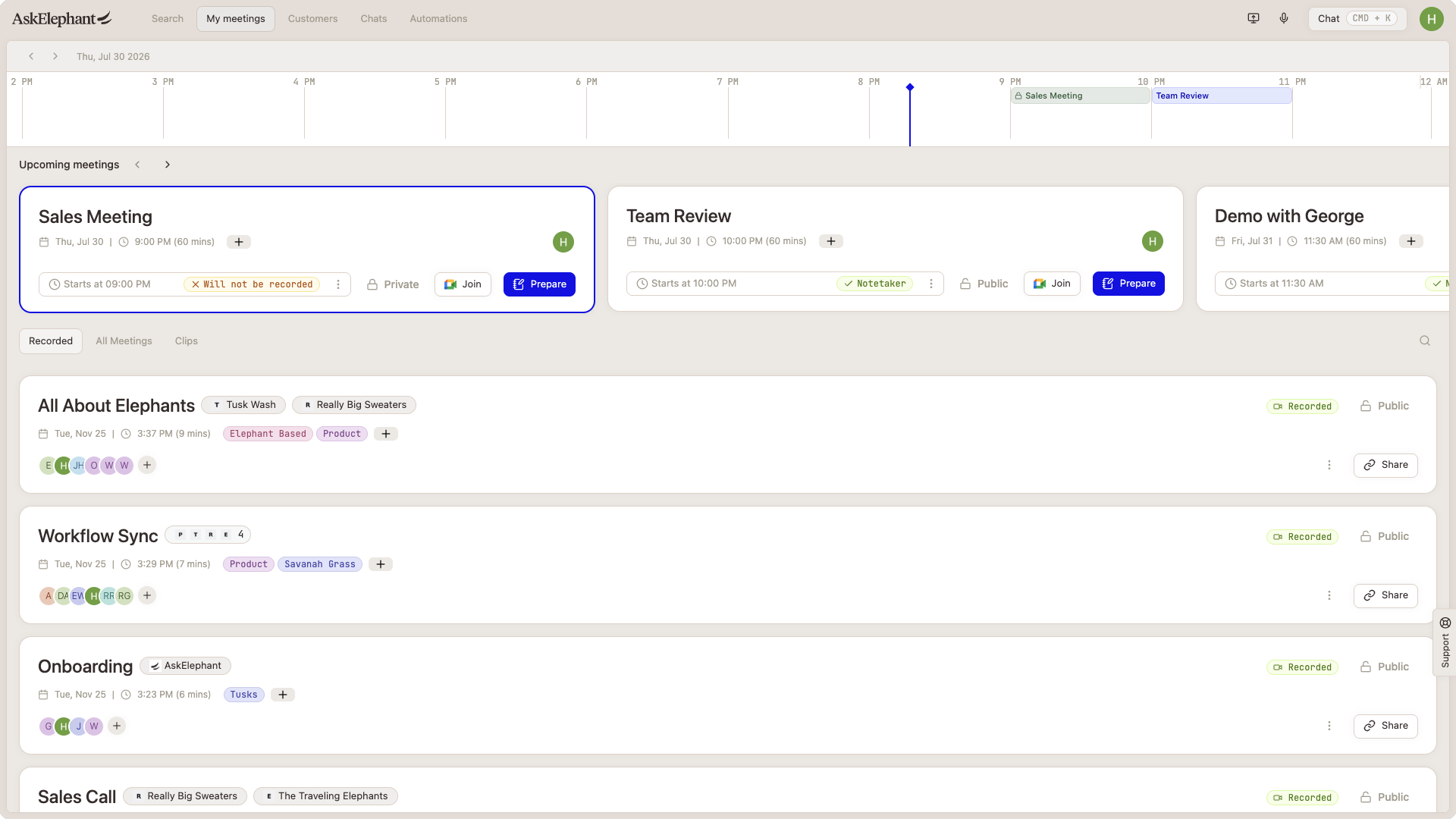
What the Colors Mean
Green: the meeting is private and visible only to you and the people you invite.
Blue: the meeting is public and visible to a broader group, based on your workspace's visibility rules.
Where This Applies
These colors appear on the My Meetings timeline in the browser version of AskElephant.
Check a Meeting or Report an Issue
Open a meeting to confirm its privacy setting in the event details.
If your workspace uses custom visibility rules, check with your workspace admin. Those rules can change what the colors mean.
If the colors still look wrong, contact support with a description of what you see. Avoid sharing personal details.
Need Additional Help?
If you have questions or need further assistance, the AskElephant support team is here to help!
You can reach our support team in several ways:
click the Support tab on the right side of your screen,
email us at [email protected],
or use
@askelephant supportin your dedicated Slack channel.
We're committed to getting you the answers you need as quickly as possible.