
Sharing Meetings
Share a full meeting or a specific clip with teammates or external contacts. This article covers how to share, what recipients see, how to cancel or expire a link, and how to fix common problems.
Share the full meeting
Open the meeting you want to share.
Click the
Sharebutton in the top-left corner.Click
Copy Link.Paste the link wherever you need it.
You'll generate a separate link for each meeting.
Create and share a specific clip
Open the meeting.
Click
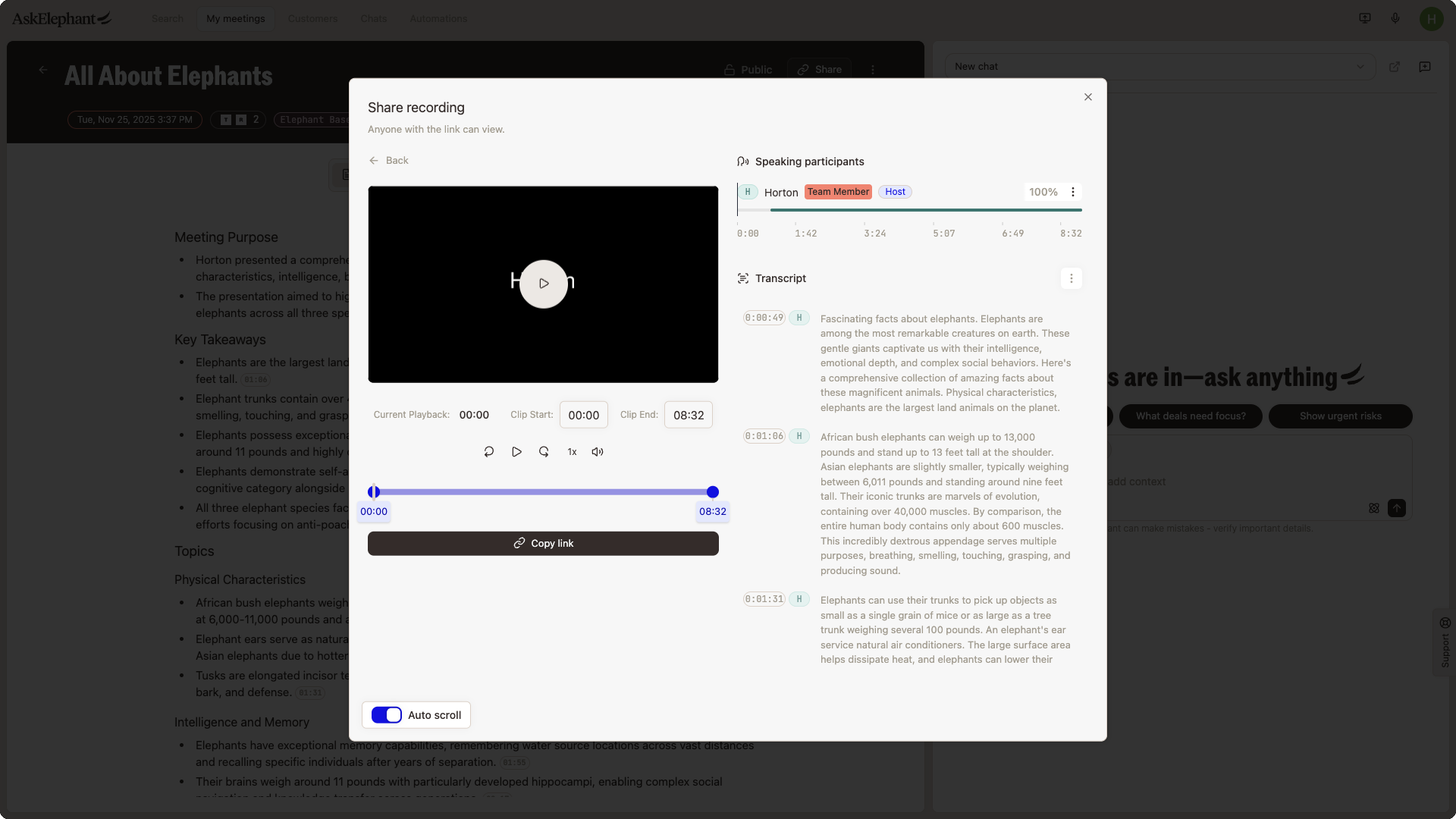
Share.Use the timeline sliders (or the time boxes) to select the exact segment.
Click
Create Clip. The link generates automatically.Copy and share the link.
Clips you create also appear under the clip section on the My meetings page, where you can see a full list and manage each one.
💡 Tip. You can create clips from private meetings too. This lets you pull the relevant moments out of a private meeting without exposing the rest.
What recipients see
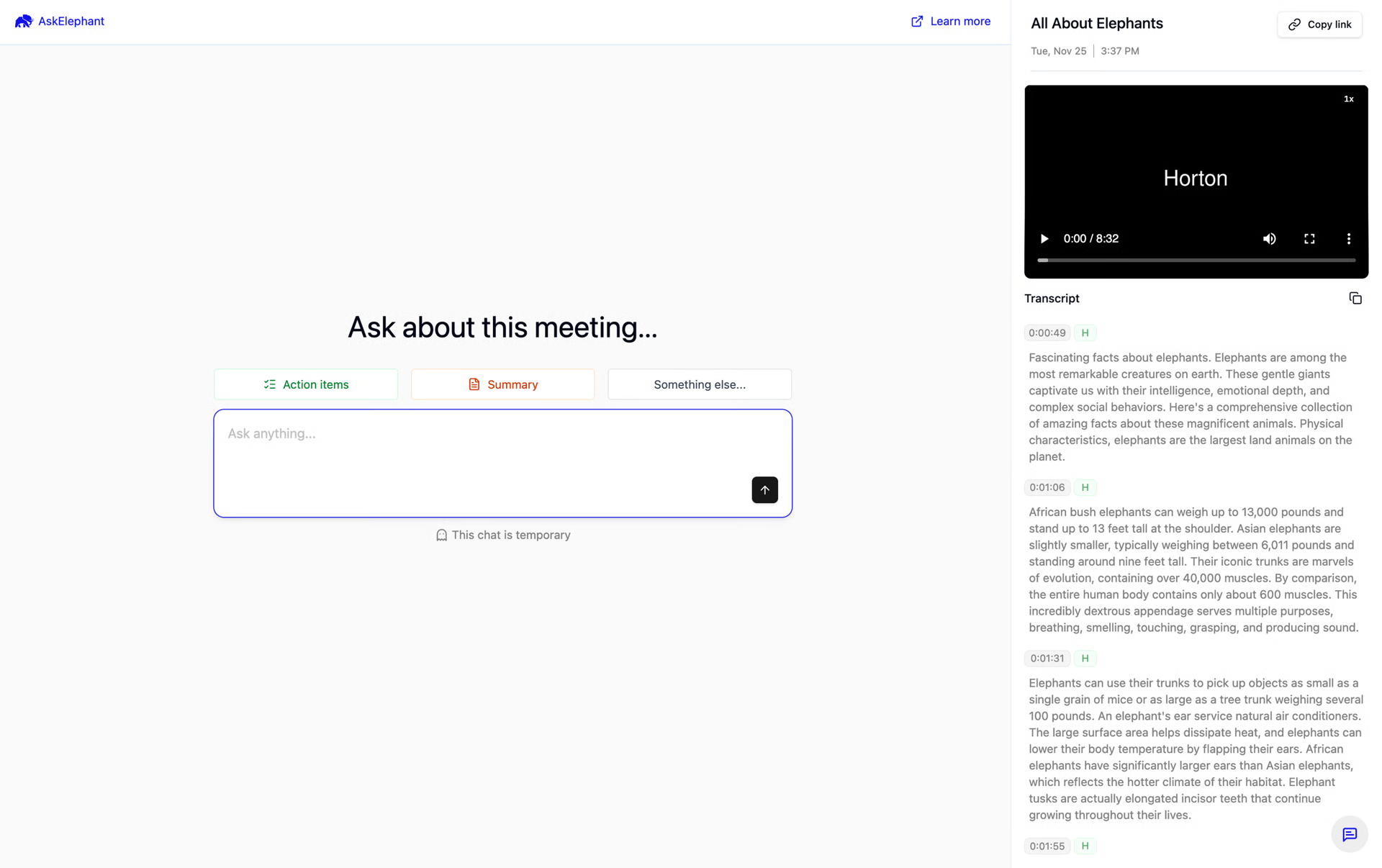
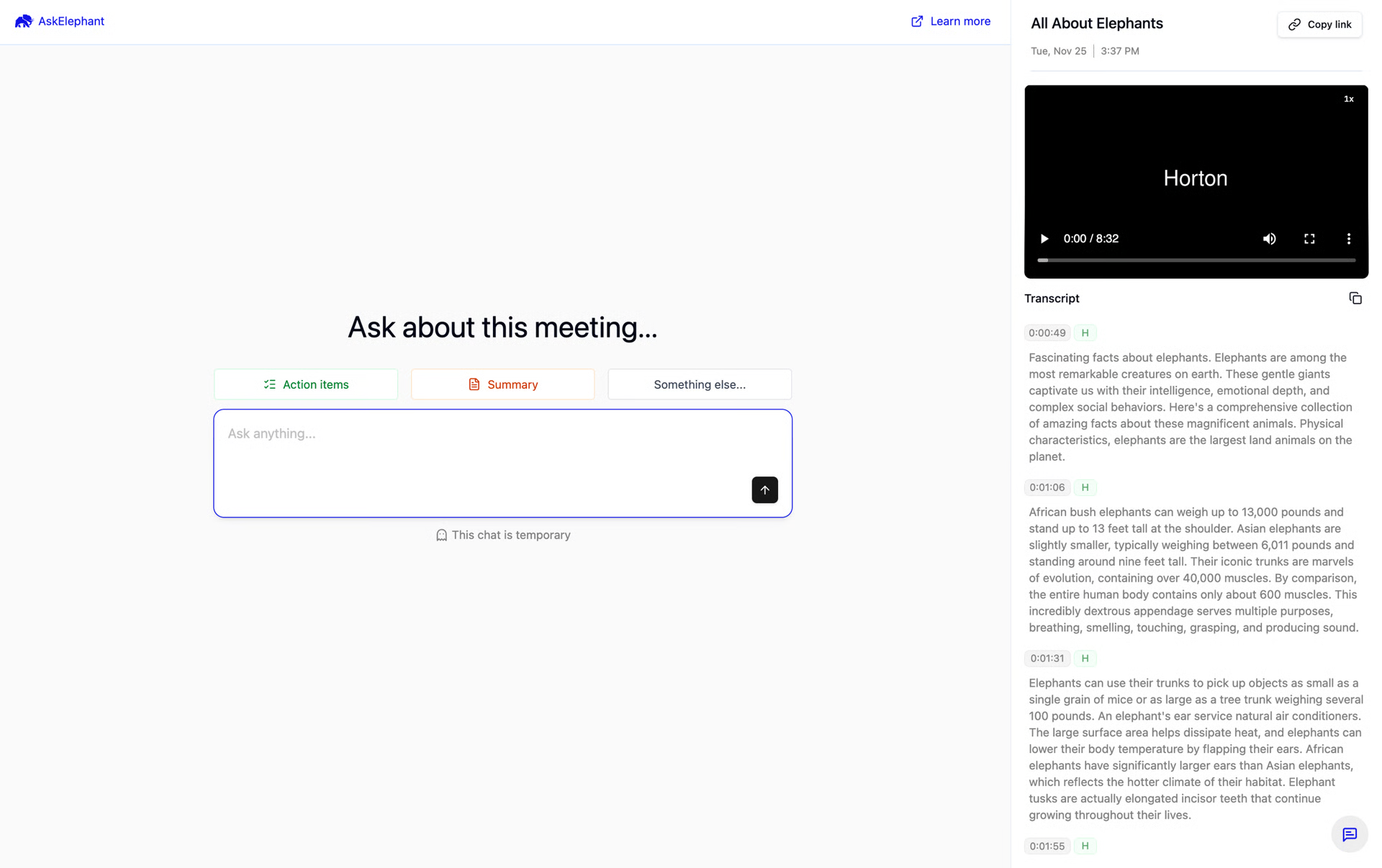
Anyone who opens a shared link — including people without an AskElephant account — sees:
The video and audio. Standard playback controls.
The transcript. Syncs with the video as it plays, with timestamps.
Action items. Tasks identified during the meeting, with owners and timestamps. Click any item to jump to that moment.
Summary. A snapshot of key points.
Chat. Recipients can ask basic questions about the meeting and an AI agent answers using the meeting content.
Two things to know:
Recipients do not need to be part of your workspace or have an AskElephant account.
Chat conversations on the share page are temporary. Closing the page clears the conversation.
Adding teammates to your workspace
If you'd rather give a teammate ongoing access instead of sharing individual links, add them to your workspace. As long as the meetings are set to public, they'll open meetings through normal links in the app. See Managing team members for how to invite someone.
Manage a shared link
Cancel a shared clip
If you shared something you shouldn't have, cancel the link right away:
Find the clip in your clips section.
Click the three dots.
Click
Cancel Link. The link stops working immediately.
Set an expiration date
You can make a link expire on its own:
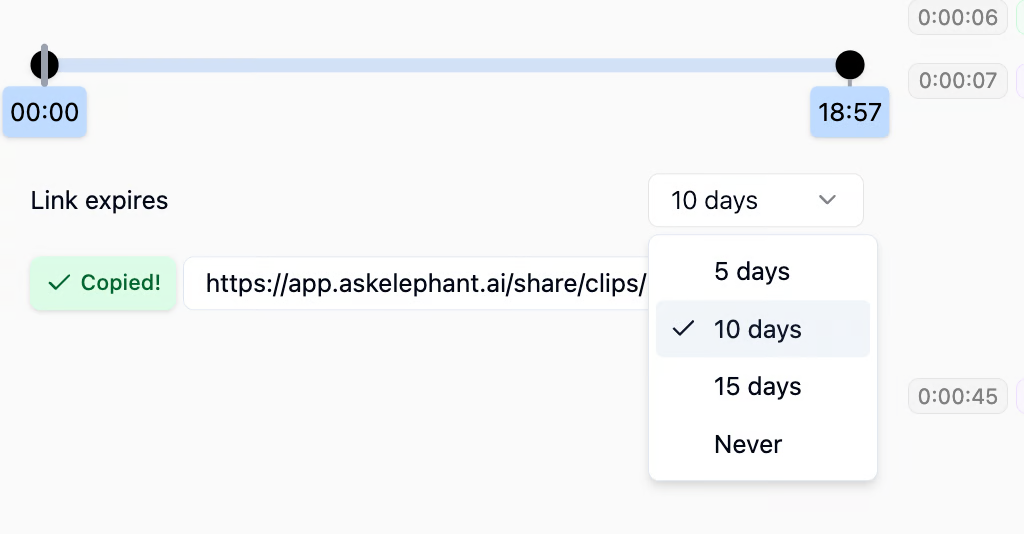
When sharing, choose an expiration from the options.
Pick
5 days,10 days,15 days, orNever.The link stops working after that period.
If recipients need access again after expiration, create a new link.
Download a Recording (MP4 or Audio)
If a recipient's firewall or network blocks the hosted player, send them the file directly instead of a link:
Open the meeting.
Click the three dots.
Download the recording as video (
MP4) or audio only.Send the file to your recipient.
If they only need the words, copy the transcript from the transcript panel and send that instead.
Troubleshooting shared links
The link won't load or play. Start with a hard refresh:
Windows/Linux:
Ctrl + Shift + RMac:
Cmd + Shift + R
If that doesn't help, try opening the link in an incognito or private browsing window to rule out browser extensions or cached data.
You see a "meeting details not found" error, or the clip won't generate. The previous clip may have expired. Regenerate it:
Open the original meeting.
Adjust the start or end time by at least one second using the sliders or time boxes.
Click
Create Clipagain.
The timing change forces a fresh clip without an expired record behind it.
Still stuck. Contact support with:
The shared link that isn't working.
The meeting name and date.
The platform (web, mobile) you're on.
Any error messages you see.
Multiple examples help the team spot patterns faster.
Need additional help?
Reach the AskElephant support team by:
Clicking the Support tab on the right side of your screen.
Emailing [email protected].
Using
@askelephant supportin your dedicated Slack channel.