
Recap Email
AskElephant can send a recap email after every meeting, covering discussion highlights, decisions, and action items with owners and dates. There are two ways to turn it on — a built-in settings toggle and a customizable recipe workflow — and this article covers both, plus what the email contains and how to fix common issues.
Turn on automatic recap emails
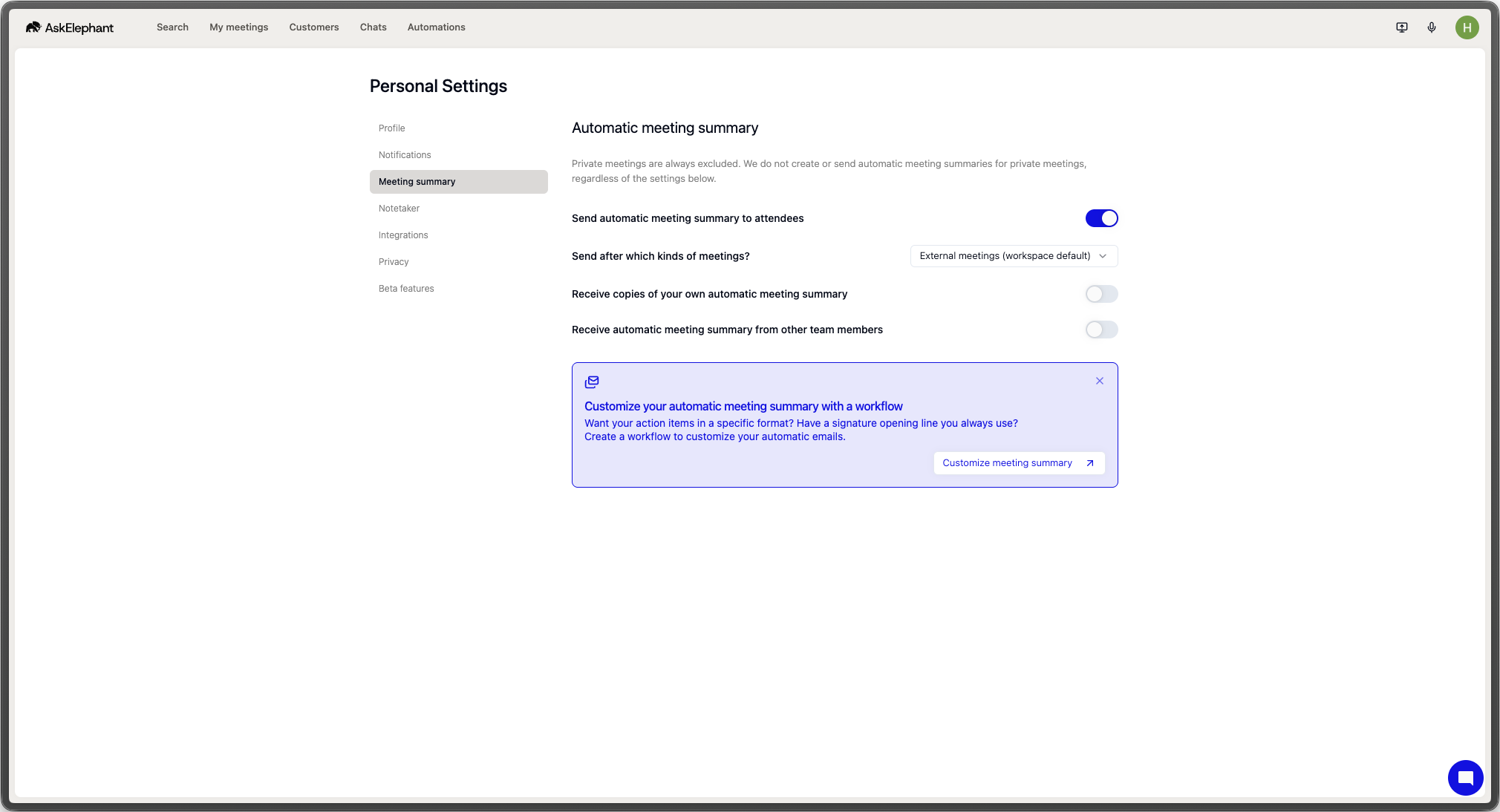
The fastest way to start getting recaps is the built-in toggle.
Go to
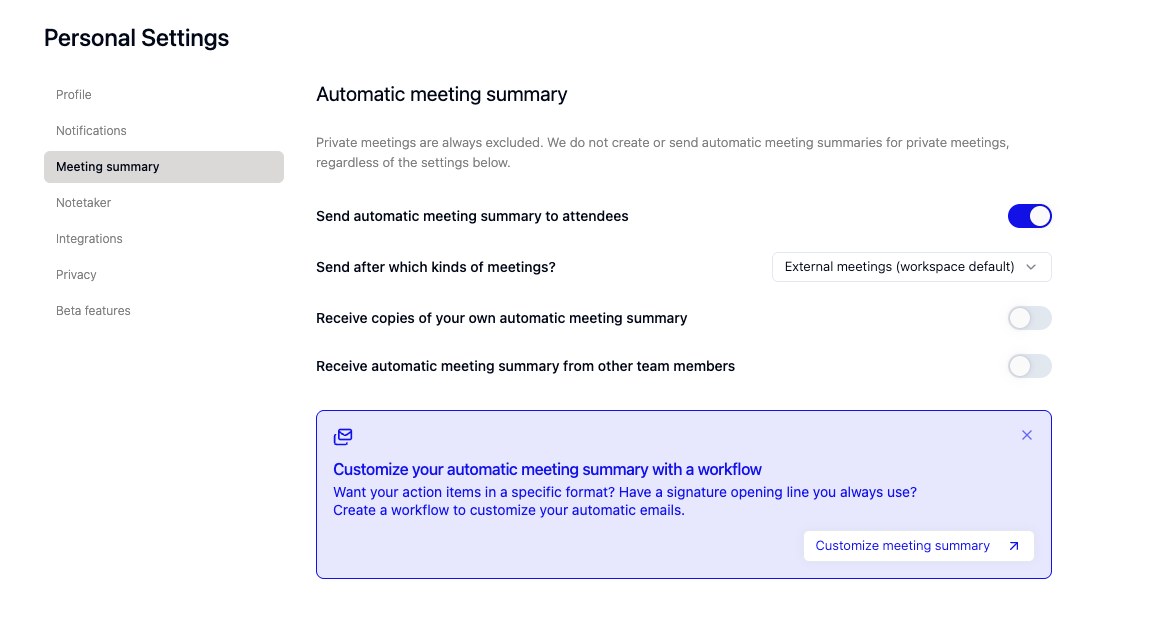
Settings → Automatic email recaps.Toggle on
Receive a copy of my own recapto get your meetings' recaps yourself.Choose when recaps send using the
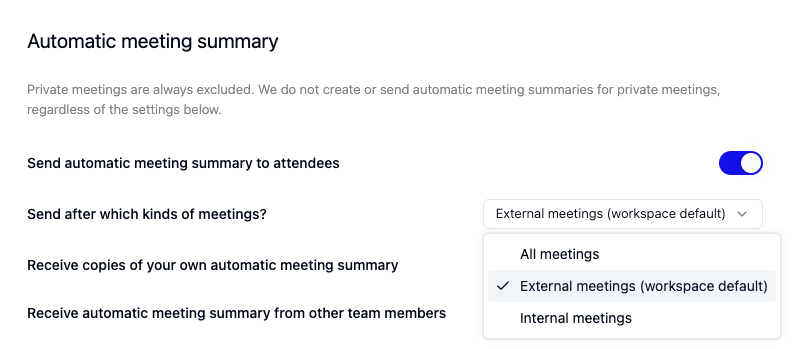
Send afterdropdown:External meetings only— only meetings with at least one external attendee.All meetings— internal and external.
Toggle on
Receive recaps from other team membersif you want recaps from your teammates' meetings too.
That's it. Recaps go out automatically after each matching meeting ends.
What the recap email contains
Each recap has:
A short summary of what was discussed.
Key decisions made during the call.
Action items listed at the end, with owner and due date.
A link to the full meeting recap page — recording, transcript, and an AI chat that recipients can use to ask questions about that meeting.
The email is sent from [email protected]. It will not appear in your Gmail Sent folder, because it is sent from AskElephant, not from your account.
Customize with a workflow recipe
If you need more control — custom tone, filtered recipients, different triggers — use the Recap Email recipe workflow instead of (or alongside) the settings toggle.
Click
Automationsin the left sidebar.In the
Workflowstab, clickNew Workflow → From Recipe.Search for
Recap Emailand select it.Click the three dots in the workflow bar and select
Activate Workflow.
The recipe creates a conversation on each new meeting labeled ✉️ Recap Email, attaches the transcript and attendees, and generates the email. You can then edit the AI prompt, the trigger filters, or the recipient list.
Tone. The prompt adapts automatically by department — direct for sales, technical for engineering, warmer for HR. You can override this by editing the prompt in the Send Message to Conversation step.
Length. The default is 75–100 words. Increase the word count in the same prompt if your team wants longer recaps.
Action-item format. Items appear at the bottom of every email as:
[Action Verb] [Task] — [Owner] by [Date]. Context: [one line if needed]
Send a recap from your own Gmail account
If you want the recap to come from your address (not [email protected]):
Open the meeting and run the
Recap Emailworkflow.Use the
GmailorCopybutton to move the email into a draft in your Gmail account.Review and send.
Private meetings
Automatic recaps do not run on private meetings by default. To include them, either:
Go to
Settings → Event privacyand toggle offMeetings are private by default(note: public meetings are accessible to anyone in your workspace with AskElephant), orIn the recipe workflow's
New Meetingtrigger, enableShould Run On Private Meetings.
External share links
Recap emails can include an external share link that lets recipients outside your workspace access the full recap page. If your recaps aren't including this link, contact support to enable it for your account.
Troubleshooting
You're not receiving recaps. Check that Receive a copy of my own recap is on, and that the Send after setting matches your meeting types. If you only have internal meetings but expected recaps, switch Send after to All meetings.
External attendees aren't receiving recaps. Confirm the meeting has at least one external attendee, and that recaps are configured to send to external participants.
You're getting duplicate recaps. Three common causes:
Both Google Calendar and Microsoft Calendar are connected and syncing the same meeting. Disconnect the one you don't use for scheduling.
A workspace-level recap workflow and your personal
Automatic email recapssetting are both firing. Pick one source.A custom workflow is sending to both internal and external recipients on paths that overlap. Edit the workflow so each path excludes the other.
If duplicates persist, contact support with the meeting name, how many duplicates you received, and whether it happens for all meetings or specific ones.
You want only recaps, not coaching emails. Contact support to disable the automated coaching emails while keeping recaps active.
Need additional help?
Reach the AskElephant support team by:
Clicking the Support tab on the right side of your screen.
Emailing [email protected].
Using
@askelephant supportin your dedicated Slack channel.