
Notetaker 101
Introduction
The AskElephant notetaker is the first input layer of your automation system. It joins your Zoom, Teams, or Google Meet call, records the conversation, and creates a transcript — giving your workflows the raw context they need without you taking notes yourself.
Key Terms
Notetaker. An AI assistant that joins your meetings to record audio, video, and create transcripts.
Meeting Transcript. A text record of everything said during a meeting, generated from the recording.
Setting Up Your Notetaker
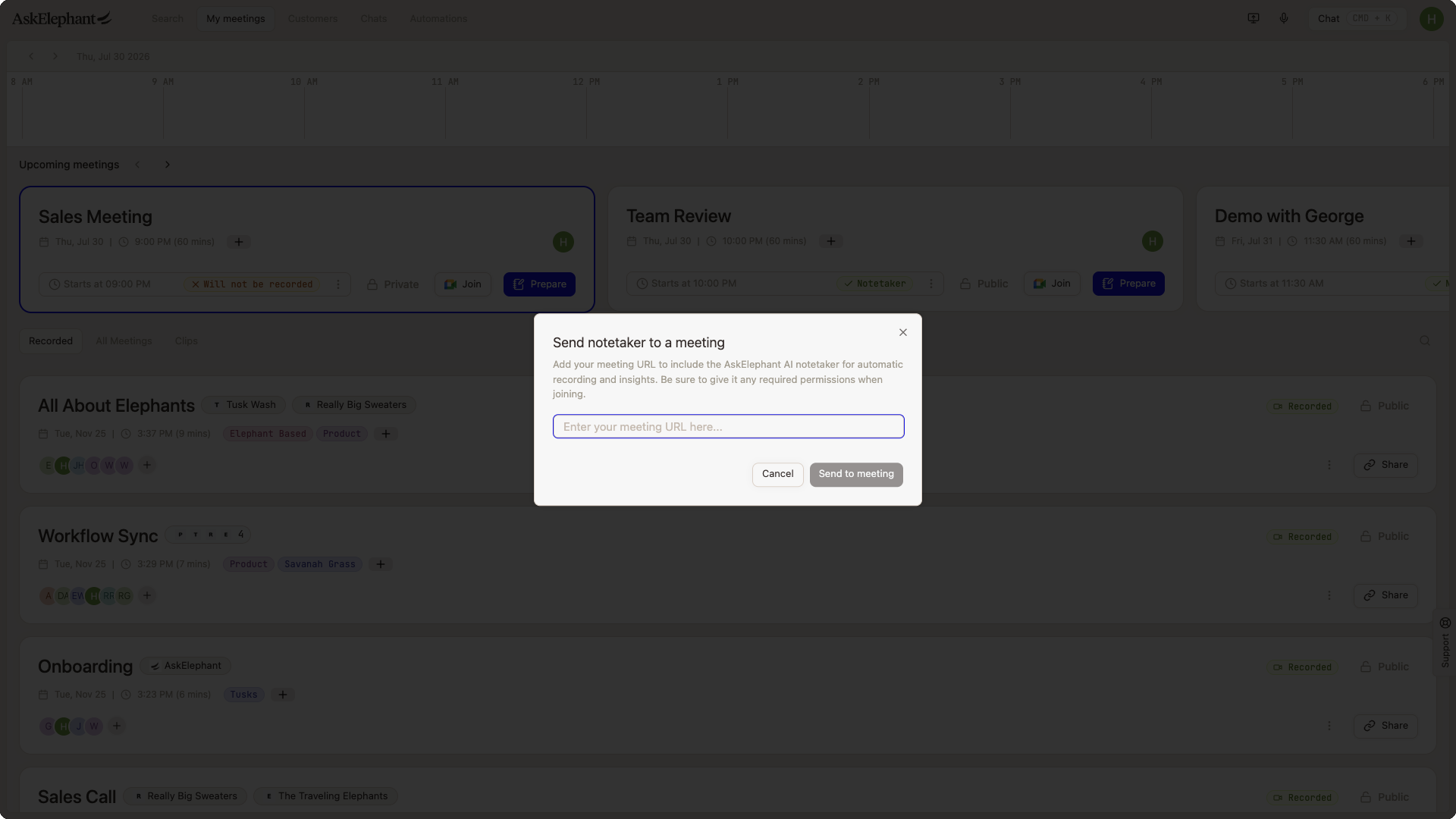
Connect your calendar first. Your calendar syncs with Google or Microsoft so the notetaker can automatically join your scheduled meetings. If a meeting wasn't set to record but you want AskElephant to join, use the Send a Notetaker button and provide the meeting URL — the notetaker will join that call directly.
How the Notetaker Works
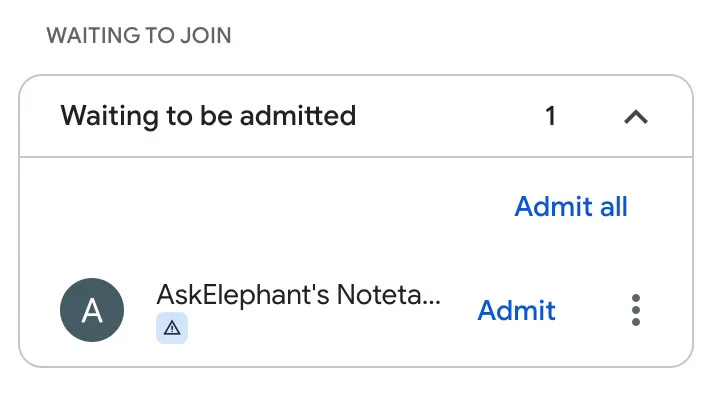
When a meeting is marked as recorded, AskElephant sends a notetaker to capture it. On Google Meet, Microsoft Teams, and Zoom, the notetaker usually needs to be admitted from the waiting room like any participant. If you've disabled the waiting room in your meeting platform, the notetaker joins automatically according to your settings.
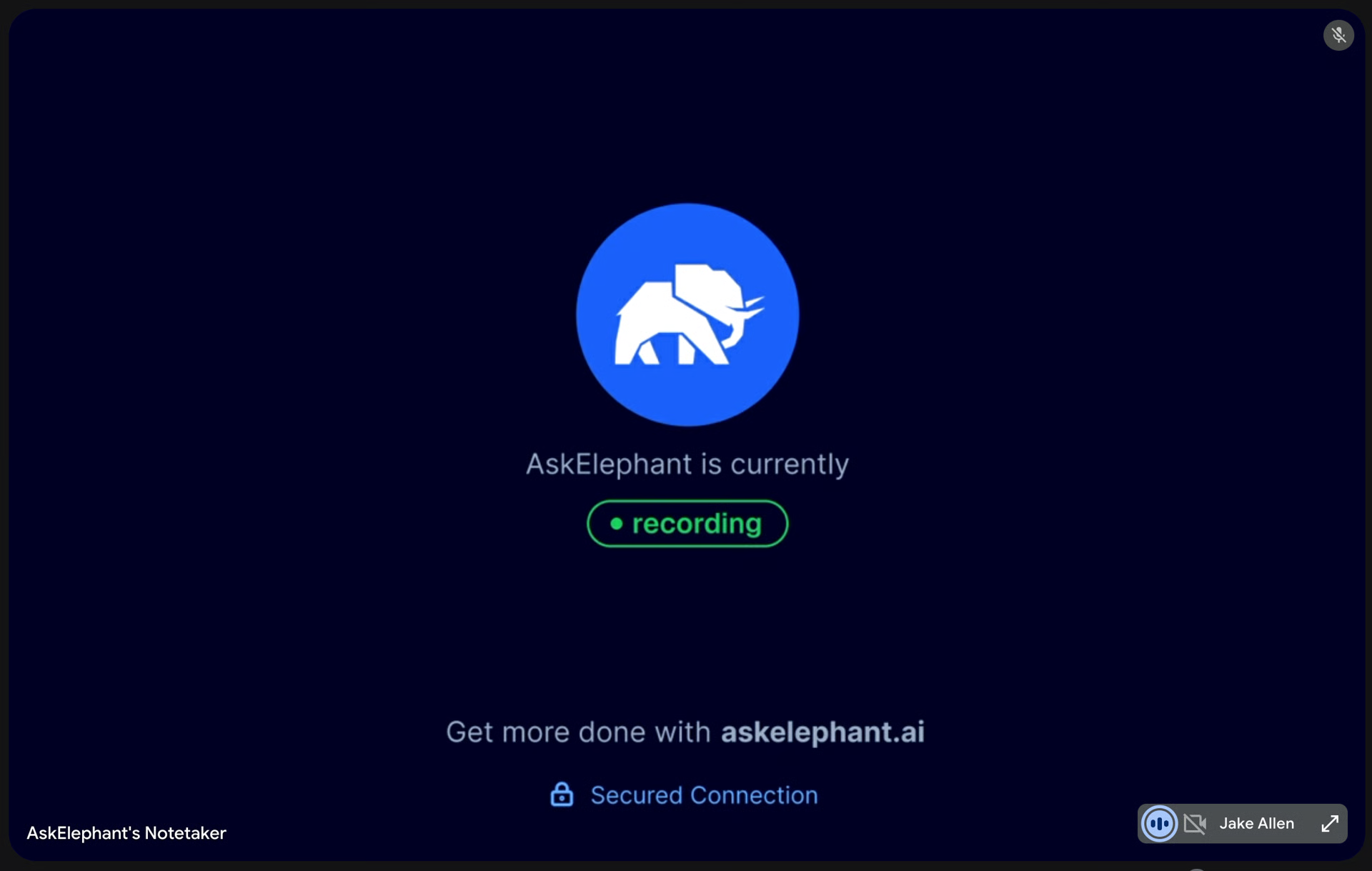
When multiple participants from the same AskElephant workspace are in the same meeting, AskElephant only sends one notetaker — typically for the meeting host. Every attendee still finds the recorded meeting in their meeting list.
Customizing Notetaker Behavior
You control when and how the notetaker joins. Open settings by clicking your name in the top-right corner, then Preferences → Notetaker Settings.
What you can customize:
When to send the notetaker — All meetings, team-only, external participant, or no meetings.
Timing — Up to 5 minutes before or after the meeting starts.
Visibility — Show an AskElephant background image (so participants know they're being recorded) or keep the notetaker invisible.
Recording mode — Audio only, gallery view (all participants), or speaker view (focused on whoever's talking).
When to start recording — When the notetaker joins, when participants join, or when someone first speaks.
Quick tip. Click Workspace settings to inherit the defaults set by your workspace admin.
Making the Most of Your Recordings
Highlighting Important Moments
During a meeting, flag important points out loud:
"Hey AskElephant, please make a note about this."
"AskElephant, can you remind me about this?"
AskElephant's meeting summary focuses on these highlighted moments, so key details land in your action items and workflow automations.
What Gets Generated After Your Meeting
Once a meeting ends, AskElephant processes the recording and generates:
A meeting summary with key points, decisions, and next steps. See
Meeting Summaries.A full transcript you can search and reference.
Runs of every active workflow in your workspace that applies.
All your Signals and automatic tags.
Why Are Multiple Notetakers Joining My Meetings?
AskElephant prevents duplicate notetakers by default — one per workspace, typically for the meeting host. If you're seeing multiple, it's usually one of these.
A third-party notetaker is also enabled. HubSpot's meeting notetaker is the most common culprit. If the second bot doesn't have the AskElephant background, it's a different tool. Ask your admin to disable the other notetaker.
A user has their calendar connected to two AskElephant workspaces. Both workspaces will send a bot. Disconnect one.
Both Google and Microsoft calendars are connected for the same user. Pick one and disconnect the other.
Personal notetaker settings are overriding workspace defaults. Have team members use workspace settings rather than custom personal settings.
Reused meeting links. Personal Meeting IDs (PMIs) or the same Zoom link used for back-to-back meetings can cause bots to overlap, especially if a meeting runs long. Generate unique links per meeting, or enable the waiting room to gate joins.
Duplicate calendar events. If an internal teammate and an external attendee both created an event for the same call, both can trigger a bot.
If you're still seeing duplicates after checking those, contact support with the meeting platform, host, whether the link is recurring, and a link or name for a specific meeting where it happened.
Why Does My Notetaker Display a Timestamp in Its Name?
A timestamp feature was briefly introduced to distinguish notetakers in back-to-back Zoom meetings (for example, MV Notetaker (8:30pm)). It was removed because the timezone was incorrectly set to server time, showing times 6 hours off for many users.
If you're still seeing timestamps in notetaker names, contact support — this feature should no longer be active.
Troubleshooting Loading Issues
If AskElephant isn't responding or appears to be loading indefinitely:
Hard refresh your browser.
CMD-Shift-Ron Mac,CTRL-Shift-Ron Windows.Narrow your query. Company-level questions on accounts with many calls or documents can hit the AI's context limit. Ask about a specific call or document instead.
Check if the issue is widespread. Try a different company or call to see if the problem is scoped to one workspace object.
Wait and retry. Occasional upstream outages (for example, an OpenAI or Cloudflare incident) resolve automatically once those services recover.
Still stuck? Contact support with the specific question, whether you were querying company-level or about a specific call, a link to the workspace or call, and any error messages.
Tips for Success
Connect your calendar first. Google or Microsoft needs to be connected so meetings populate automatically.
Test your settings on a low-stakes meeting. Get a feel for the notetaker's behavior before running it on a client call.
Leverage prep workflows. Click an upcoming meeting to set up meeting prep before the call starts.
Ready to Get Started?
Connect your calendar and customize your notetaker settings. AskElephant handles the rest — capturing, recording, and organizing every conversation so your team has the context it needs.
Need More Help?
Reach the AskElephant support team by:
clicking the Support tab on the right side of your screen,
emailing [email protected],
or using
@askelephant supportin your dedicated Slack channel.