
Managing Team Members
Introduction
Add, remove, and organize the people in your AskElephant workspace. This article covers team roles, invitation emails, subscription seats, deactivation, groups, and how to fix common problems when adding members.
Open team settings
Click your name in the top-right corner.
Click
Team.
You'll see everyone in your workspace: names, emails, groups, roles, and status.
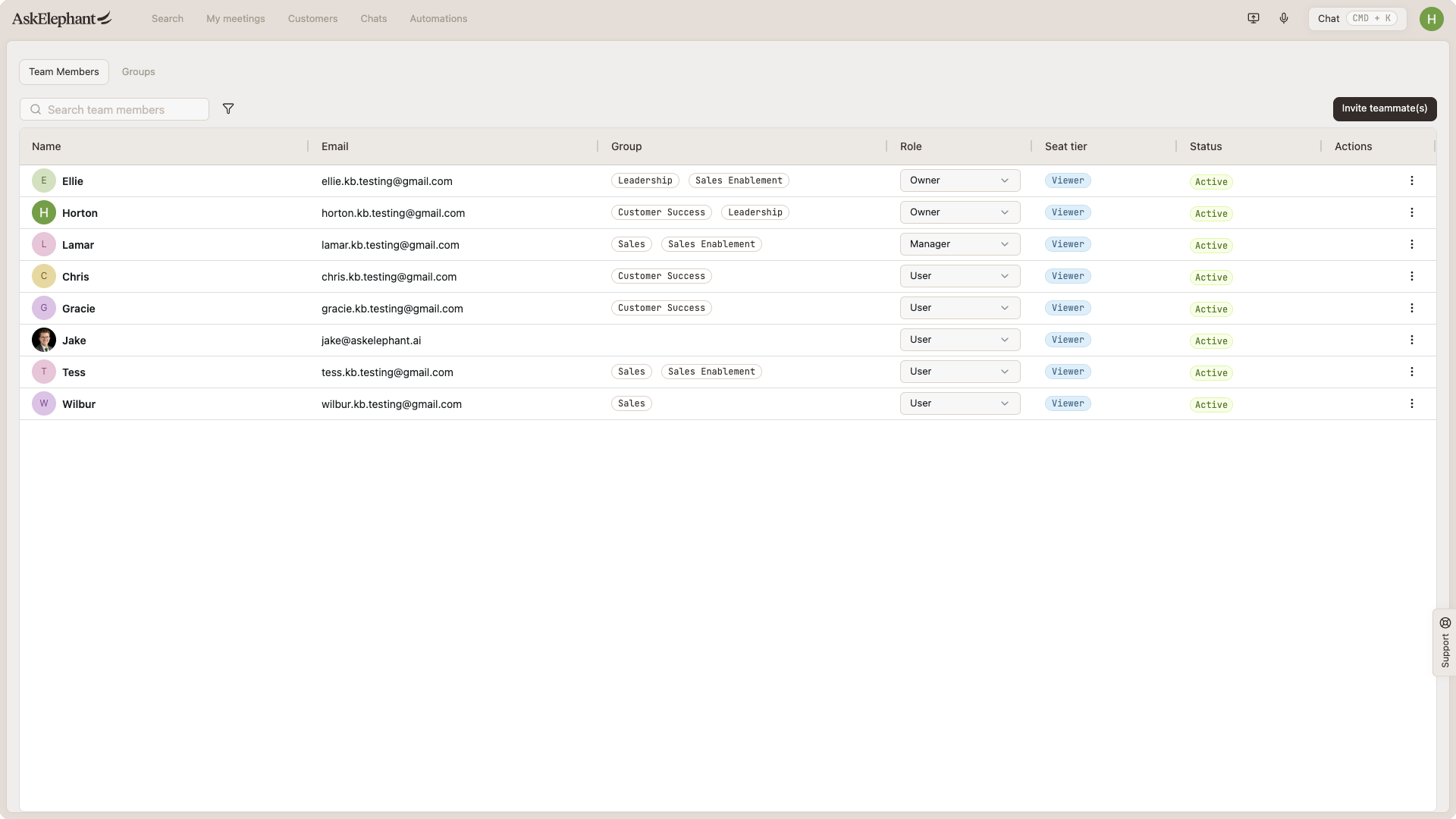
Team roles
Three roles set what someone can do in the workspace:
Owner. Full access to everything, including managing other members' roles and connecting workspace integrations. Best for workspace leadership.
Manager. Limited administrative access to specific parts of the workspace. Best for team leads or department heads.
User. Full access to use AskElephant, but no administrative controls. Best for general team contributors.
Owners can't change the role of other owners. This protects your workspace from accidental changes to leadership permissions.
For the full breakdown of what each role can and can't do, see Roles & Permissions.
Add a team member
Click
+ New Team Memberin the top-right corner.Enter the person's email.
(Optional) Add their job title.
Select which groups they should join.
Choose their role:
Owner,Manager, orUser.Decide whether to send them an invitation email.
Click the black
Finishbutton to complete the process.
You can add multiple people in one session.
⚠️ Heads up. Click the black
Finishbutton — not the grayed-outAdd team memberbutton. Using the wrong one can trigger a "no seats available" error even when you have seats remaining.
Invitation emails
When you add someone, you can send them an invitation email right away that links to the AskElephant login page. If you'd rather notify them separately, skip this step.
Subscription seats
Your subscription sets how many team members you can add. If your plan includes five seats, you can have five members.
If you try to add someone beyond your current limit, you'll be prompted to increase your subscription. New seats are billed at the same rate as your existing seats — so if each seat is $99/month, each additional seat adds $99/month.
Remove or deactivate a team member
When someone leaves or changes departments, deactivate their access:
Find their name in the team list.
Click the three dots next to their name.
Click
Make Inactive.
Deactivating removes their access to AskElephant. Their work — meetings they joined, prompts they created, workflows they built — stays in your workspace.
Organize with groups
Groups let you structure your workspace by department, project, or any grouping that fits your team.
Create a group
Go to the
Teamsection.Find the
Groupsarea.Click
Create New Group.Add a name and description.
Assign a group manager.
Add members.
Save.
You can edit or delete a group anytime. Members can belong to multiple groups.
Troubleshooting
"User already exists" but the person isn't in your team list. This can happen if a previous add didn't complete. Contact support — we can add the person manually and send a fresh invite.
"Error loading subscription details." This usually means your subscription is still syncing, especially on newly created workspaces. Try these in order:
Close the dialog and refresh your browser.
Wait a few minutes and try again.
Check your seat count on the
Teampage against your plan.If it persists, contact support with the email addresses you're trying to add, their desired role, and a screenshot of the error.
Timeouts when adding users. Hard refresh your browser:
Mac:
Cmd + Shift + RWindows/Linux:
Ctrl + Shift + R
If that doesn't help, try an incognito or private browsing window. If the issue persists, contact support — it may be a platform-wide problem.
Someone you added can't log in. Confirm they were actually invited (not just told to go to the login page). If they try to log in without an invitation, the login link won't let them in. To resend, remove and re-add them, making sure to send the invitation email.
Login link looks expired. If someone has been properly invited but their login link keeps expiring, their email client's link scanning may be "using" the link before they click it. Outlook is the common culprit.
Work around it by copying the raw link:
Right-click the login link in the email.
Select
Copy Link Address(orCopy Hyperlinkon Windows).Paste it into the browser address bar.
This bypasses email security scanning.
Need More Help?
Reach the AskElephant support team by:
clicking the Support tab on the right side of your screen,
emailing [email protected],
or using
@askelephant supportin your dedicated Slack channel.