
Privacy
Overview
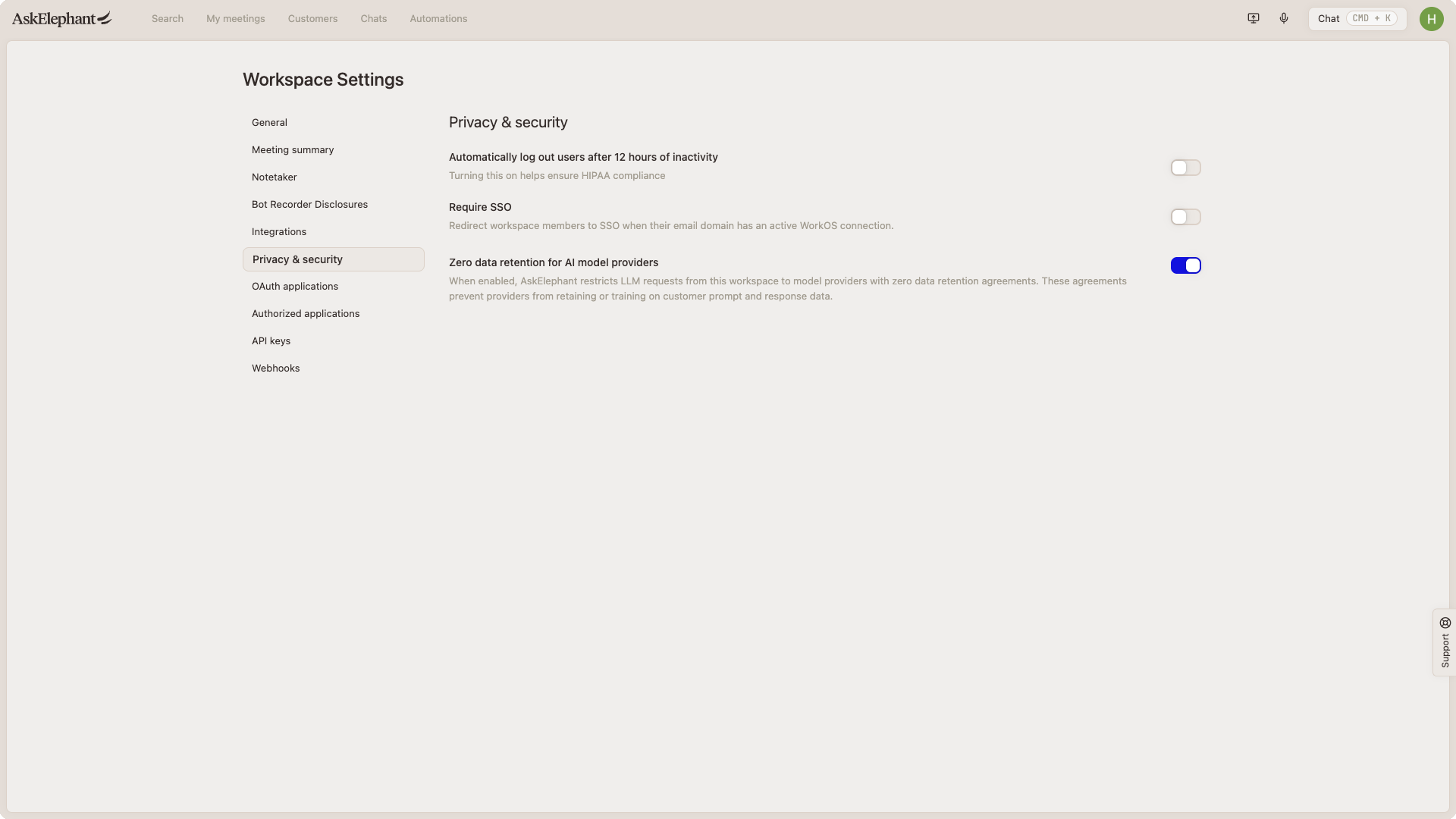
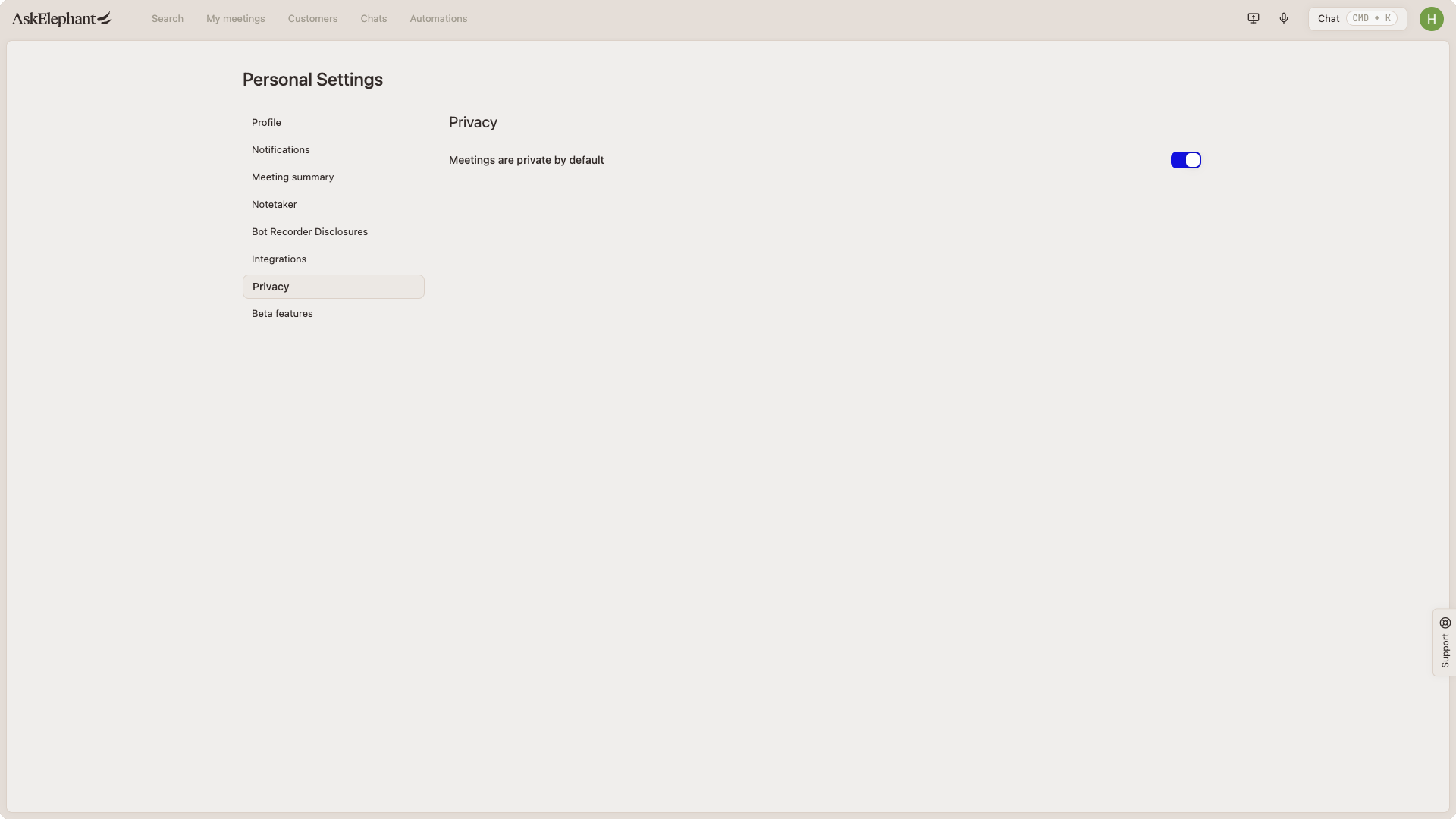
AskElephant prioritizes your privacy and provides robust controls for managing your meeting information. Control how your meetings are shared and protected. You can mark individual meetings as private, set workspace-level privacy defaults, and decide who can access recordings. This keeps sensitive customer conversations secure while ensuring your automations have the data they need to function properly.
Your Role, Your Access
Every individual in your AskElephant workspace operates with a specific role, which dictates your permissions for privacy and data access. Understanding your role helps you confidently navigate the platform.
Owners: as a Workspace Owner, you have full administrative control. You can manage all team members, set default privacy settings for the entire workspace, and view any meeting (unless specifically marked private by a participant).
Managers: if you are a Manager, you can invite new team members (as Users), update profiles, and manage meetings that you own or participate in. You also have the power to set privacy for your own meetings.
Users: as a User, your focus is on your own work. You can update your profile, view meetings you own or are invited to, and create personal AI chats.
Comprehensive Meeting Privacy Controls
AskElephant provides flexible options to ensure your meetings are recorded and shared according to your preferences.
1. Managing recording participation
You have full control over when the AskElephant bot joins your meetings and whether it records:
Toggle on/off: easily turn recording on or off for individual upcoming meetings directly from your AskElephant dashboard.
Pause mid-meeting: if you need to discuss sensitive information, you can pause the bot during a live meeting. This action stops both audio and video recording, resuming when you choose.
Remove bot: you can remove the AskElephant bot from a meeting at any time.
Default settings: Workspace Owners can set default preferences for all meetings (e.g., only record external meetings, join all meetings). You can override these defaults for individual meetings.
Block a domain: Workspace Owners and Admins can add email domains to the Bot Auto-Join Blocklist in
Workspace Settings>Notetaker. When a meeting includes a participant whose email domain matches a blocked domain, the notetaker is never scheduled automatically for that meeting. This is the strongest control available, because it prevents the recording from existing at all rather than limiting who can see it afterward. Manual sends and desktop recording still work, so a blocked domain is a strong default rather than an absolute bar on recording.
2. Setting meeting visibility
Once a meeting is recorded, you control its visibility within your workspace:
Public meetings: by default, many meetings are set to public, allowing all team members with AskElephant access in your workspace to view them. This is often used for sales calls or team-wide discussions to foster transparency and shared learning.
Private meetings: for sensitive conversations or one-on-one discussions, you can mark a meeting as private. Only the meeting owner and invited participants will have access to its transcript and recording.
Sharing private meetings: you can selectively share a private meeting with individuals by providing a link, similar to sharing a document. This grants access only to those with the link, maintaining control over sensitive information.
3. Data security and storage
AskElephant treats your data with the highest level of security and respect:
SOC 2 compliance: AskElephant is SOC 2 compliant, ensuring robust security measures are in place to protect your data. You can request access to our comprehensive Trust Center documentation for full details through the AskElephant Support chat or by emailing [email protected].
Data ownership: you remain the sole owner of your data. AskElephant acts as a steward, enabling you to use your data effectively without claiming ownership.
Internal use only: your data is used exclusively within your AskElephant instance and is never used to train external AI models or shared publicly.
Secure storage: your data is securely stored in dedicated servers in Utah (MST timezone).
Automated Privacy with the Meeting Privacy Agent (Beta)
The Meeting Privacy Agent is an intelligent tool that automatically protects sensitive meetings based on custom rules you create. Instead of choosing between marking all your meetings private or public by default, you can now set specific conditions that determine when meetings should remain private—without any manual work. For example, you might create a rule like "Mark meetings private if we discuss employee compensation" or "Mark private if the title contains 'board meeting.'" The agent evaluates each meeting after it ends and applies your rules automatically, using information like the meeting title, attendees, and transcript content.
This solves a common challenge: leaders often default all meetings to private to protect sensitive information, which prevents their teams from accessing valuable customer context. With the Meeting Privacy Agent, you can keep most meetings public while automatically protecting only the sensitive ones.
Key features:
Create custom privacy rules in natural language.
Add exceptions to fine-tune when rules apply (e.g., "unless it's a meeting with our board").
Test rules against past meetings before activating them.
Personal rules take priority over workspace-level rules.
Beta notice: the Meeting Privacy Agent is currently in open beta and may not be enabled for all workspaces. Contact your CSM or AskElephant Support to learn more about availability and beta participation.
Troubleshooting Privacy & Access
Cannot access a feature or meeting? Your user role might have limitations. Check your profile settings to confirm your current role. If you need more access, reach out to your workspace Manager or Owner.
Need to change someone's role? Only Owners can promote team members to Manager or Owner roles. Managers can invite new Users and adjust existing User roles.
Experiencing unexpected recording behavior? Review your default workspace settings and individual meeting settings. Ensure your calendar is correctly connected. If a specific attendee's meetings never get a notetaker, check whether their email domain is on the Bot Auto-Join Blocklist.
Next Steps to Master Your Privacy Controls
Confirm your role: check your profile settings to understand your current AskElephant role and associated permissions.
Adjust default settings: if you are an Owner, configure your workspace's default meeting privacy and recording preferences.
Explore meeting controls: practice managing recording settings and marking meetings as public or private within your AskElephant dashboard.
Connect integrations: ensure your CRM (HubSpot, Salesforce) and communication platforms (Slack) are connected to leverage AskElephant's full potential for secure, automated workflows.
Need Additional Help?
If you have questions or need further assistance, the AskElephant support team is here to help!
You can reach our support team in several ways:
click the Support tab on the right side of your screen,
email us at [email protected],
or use
@askelephant supportin your dedicated Slack channel.
We're committed to getting you the answers you need as quickly as possible.