
Groups
Introduction
Groups organize the people in your workspace by department or function so you can run targeted workflows, filter meetings, and match the workspace to how your company is structured.
Who Can Manage Groups
Only workspace owners and managers can create and manage groups.
Access Groups
Click your name in the top-right corner of the workspace.
Select
Team.Click the
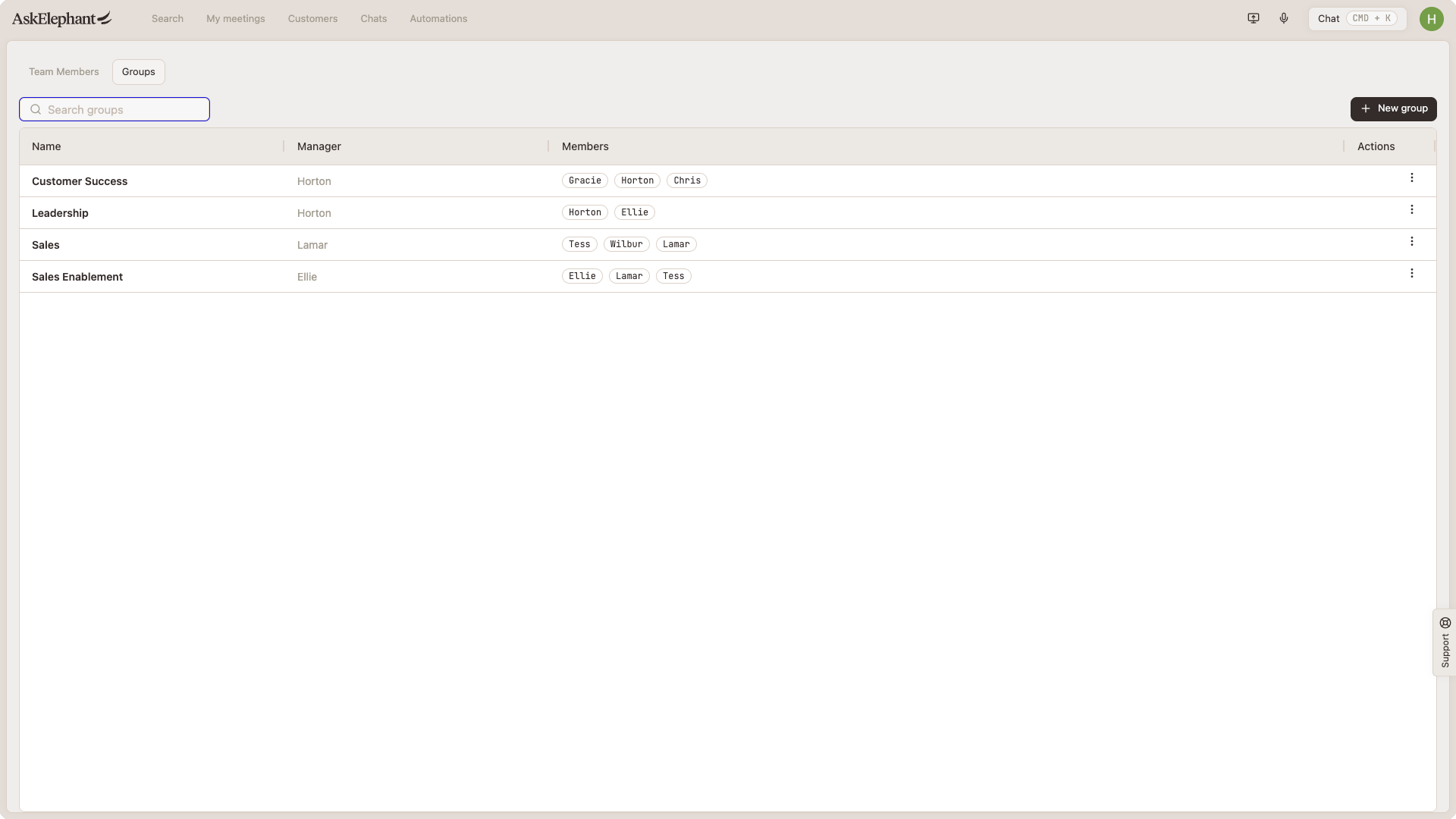
Groupstab to see all current groups.
Create or Edit a Group
From the Groups tab you'll see every existing group with its manager and members.
Click the three dots (
...) on the right side of the group.Select
Edit.Update any of the following:
Group name
Group description
Members (add or remove)
Manager (designate who oversees the group)
Click
Update.
Remove a Group
Click the three dots (
...) on the right side of the group.Select
Remove.
Removing a group deletes it entirely and disconnects it from any workflows that reference it. Those workflows will no longer be able to target that group.
Types of Groups You Can Create
Common examples:
Sales or Revenue team
Customer success
Product or Development
Marketing or Design
Operations, Legal, or HR
Post-sales or Support
You can create as many groups as you need. If the list gets long, use the search at the top of the Groups page to find a group by name.
What Groups Unlock
Filter meetings by group. In Engagements, filter meetings to only those involving specific groups. You can select one or multiple groups at a time.
Target workflows to specific groups. Configure workflows to run only for chosen groups, and set up different branches so the same workflow behaves differently depending on which group it runs for.
Keep the workspace aligned to your org. Groups keep everything organized by your company's structure so people find the right information and processes quickly.
Internal only. Groups only include internal team members. External contacts and companies exist separately in the workspace and won't be added to groups.
Troubleshooting
"Failed" Error When Creating a Group
Group creation failures are usually temporary. Try:
Wait a minute and try again.
Refresh the page.
Check your internet connection.
If the problem keeps happening, contact support with:
A screenshot of the page where you're creating the group.
A screenshot of the error message.
What you were doing when the error occurred.
Need More Help?
Reach the AskElephant support team by:
clicking the Support tab on the right side of your screen,
emailing [email protected],
or using
@askelephant supportin your dedicated Slack channel.