
Workspace Preferences
Introduction
Set defaults for your entire team that ensure your automations run consistently and reliably. These settings control everything from how your automations understand your business to how meetings are recorded and who stays logged in. Think of workspace settings as the control center for your entire AskElephant environment, the place where you define what your workspace knows about your company and how it should operate.
Who Can Change These Settings
Everything on this page requires the workspace Owner role. Managers and Users can't open workspace settings, so they can't change company context, notetaker defaults, security settings, API keys, or workspace integrations.
If Settings doesn't appear under your name, you aren't an Owner. Ask a workspace Owner to make the change, or to update your role. See Roles & Permissions for the full matrix.
Key Terms
Company Context: information about your business that helps AskElephant's AI understand your industry, location, and communication style, so responses are tailored to your needs.
Auto Log-Out: a security feature that automatically signs out team members after 12 hours of inactivity.
API Keys: secure credentials that allow your workspace to integrate with other tools and systems.
Where to Find Workspace Settings
To access your workspace settings, select your name in the top right corner, then navigate to Settings. You'll find all the settings covered below in one central location.
Set Up Your Company Context
Your company context tells AskElephant who you are and how you work. This information shapes how the AI responds across your entire workspace.
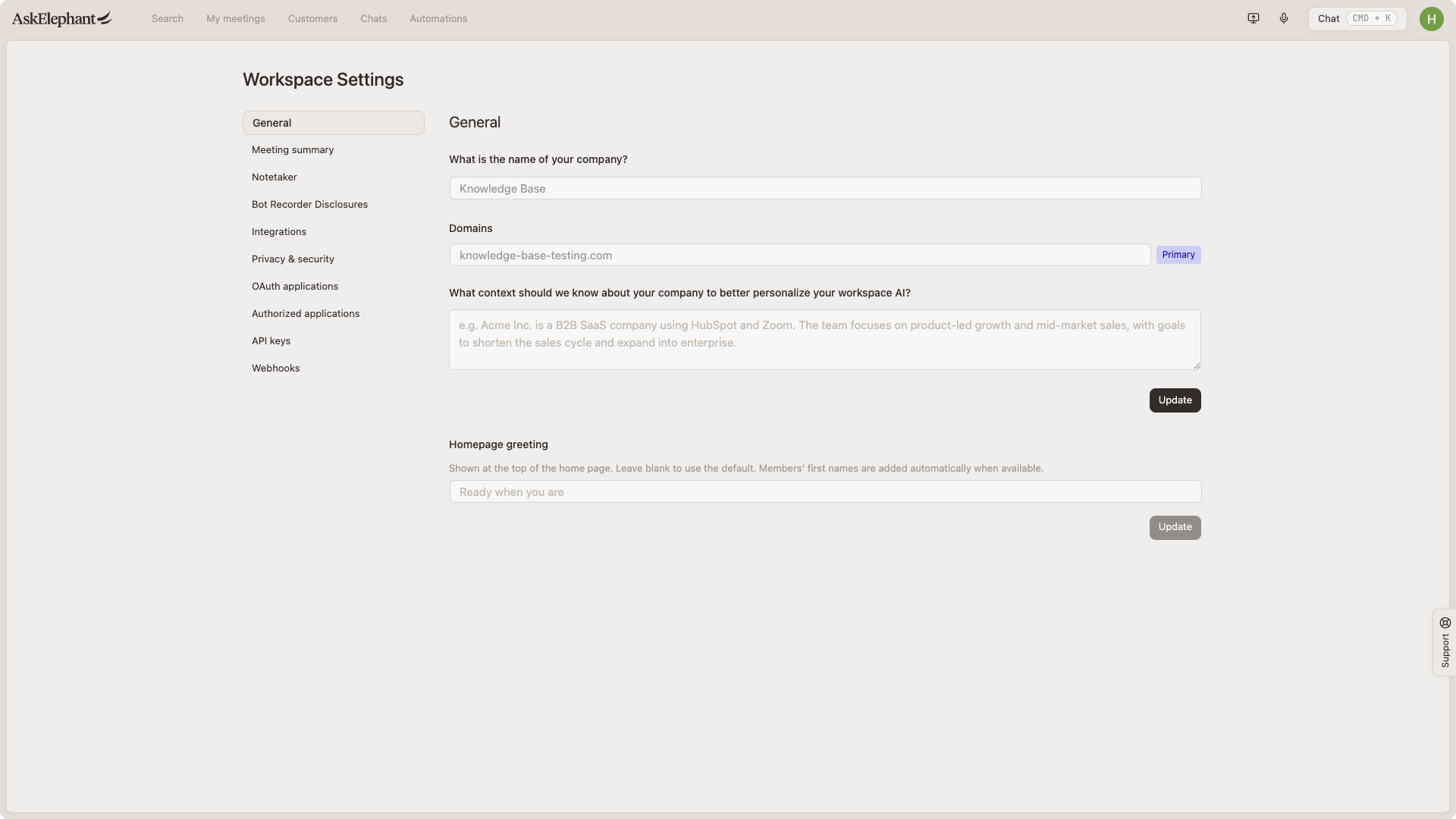
What you can define:
Your industry and business focus (for example: tech sales for dentists, B2B SaaS, etc.).
Headquarters location.
Time zone.
Communication preferences and tone.
By providing this context, you ensure that AskElephant's AI understands your business better and delivers responses that match your industry and culture. This context applies to all AI features throughout your workspace.
You can update your company name and other details in these same workspace settings. Changes apply across your entire workspace, so your team always sees the current information.
Configure Your Notetaker Settings
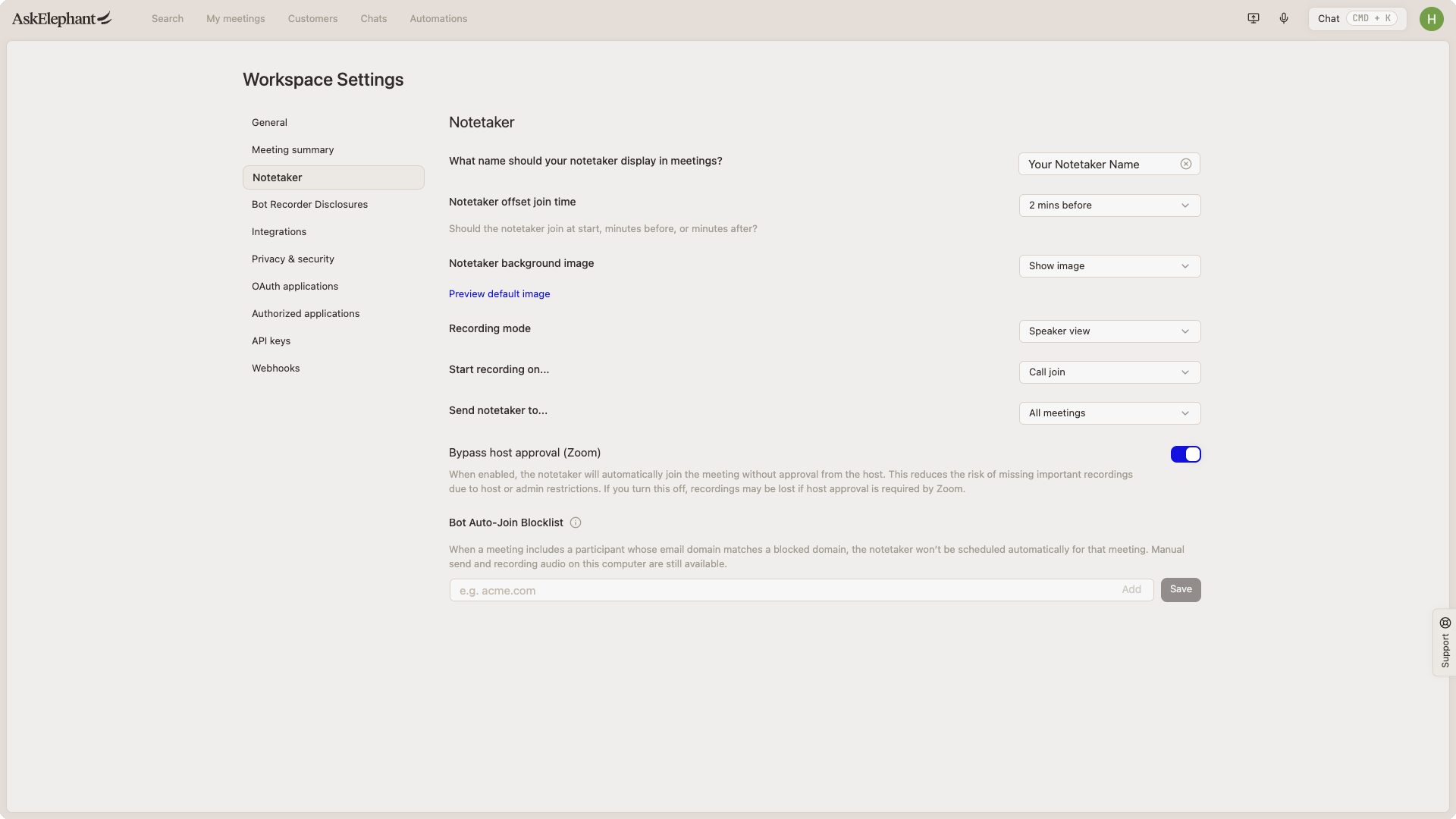
Your notetaker is the AI agent that joins your meetings to record and transcribe conversations. You can customize how it behaves to fit your workflow.
Notetaker name: set a name for your notetaker (for example: "AskElephant Bot" or "Team Recorder").
Join timing: control when the notetaker arrives on your call, up to 5 minutes before the meeting starts, at the exact start time, or up to 5 minutes after the meeting begins.
Recording options: choose what gets recorded, audio only, gallery view (all participants visible), or speaker view (active speaker highlighted).
When to start recording: when the notetaker joins the call, when participants join the call, or when participants start speaking.
Which meetings to record: all meetings, meetings with internal team members only, meetings with external participants only, or no meetings.
Bypass host approval: when enabled, the notetaker automatically joins Zoom meetings without waiting for host approval. This prevents missed recordings due to host restrictions. When disabled, the host must approve the notetaker's entry each time.
Individual team members can override notetaker settings with their own personal preferences. Personal notetaker settings live under Preferences and are available to every role, so each person can customize their own experience without needing Owner access.
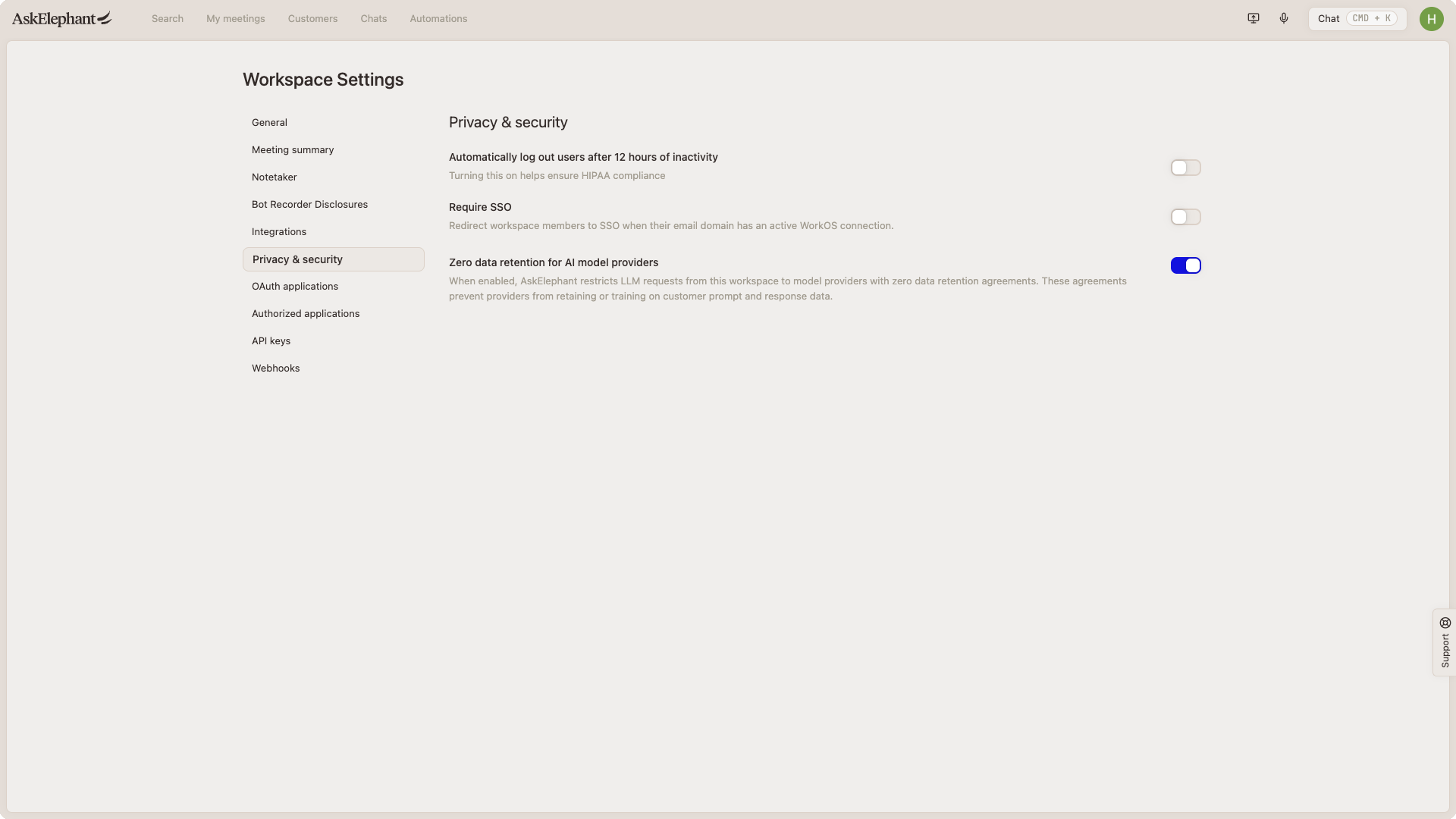
Security Settings
Auto Log-Out: toggle this feature on to automatically sign out team members after 12 hours of inactive time. This helps keep your workspace secure by ensuring only active team members remain logged in.
API Keys
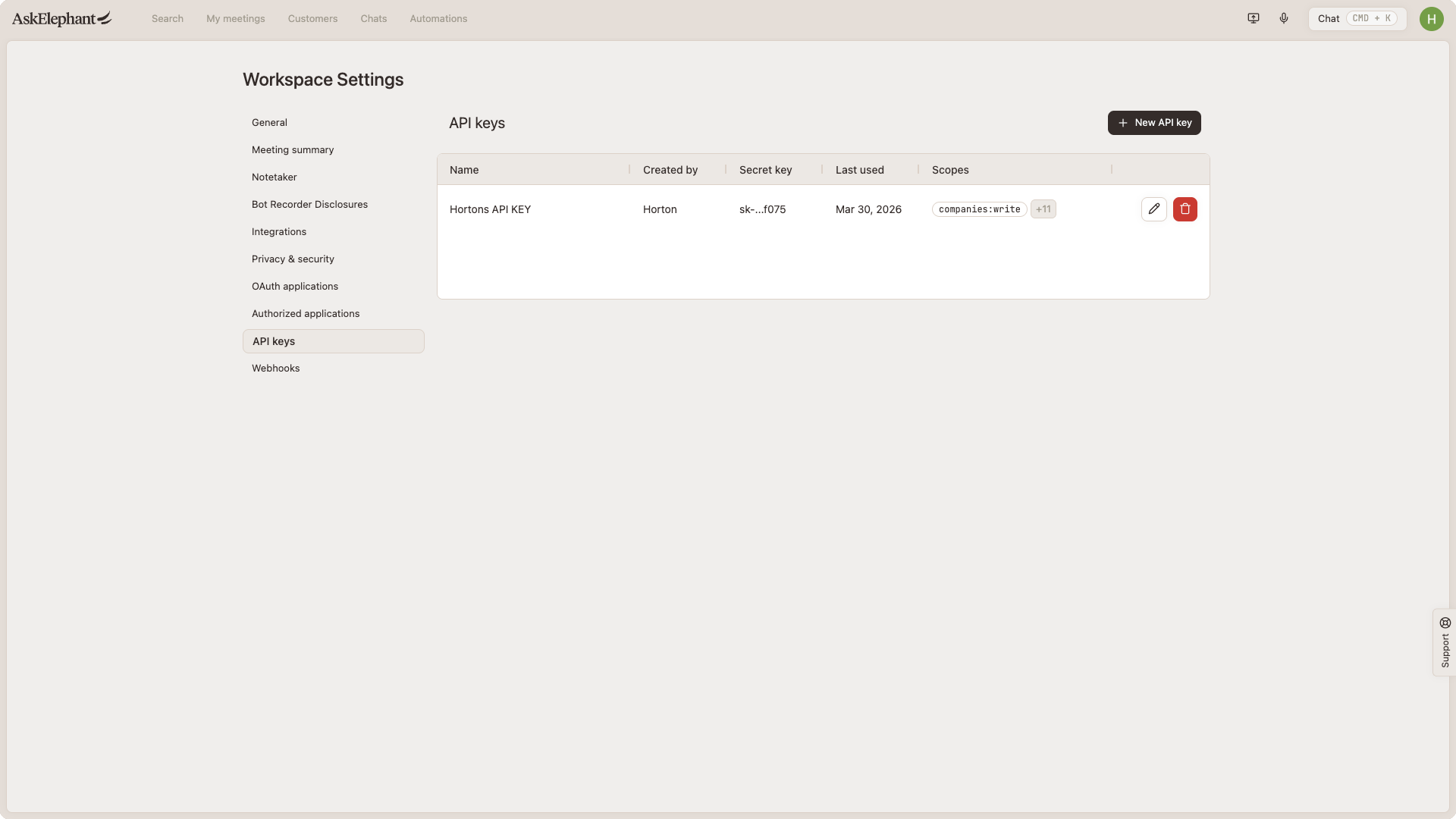
Your workspace has dedicated API keys for integrations with external systems. You can view all API keys associated with your workspace in the settings panel.
Because API keys grant access to your workspace data, only Owners can view or manage them. Treat a key like a password: don't paste it into shared documents or support tickets.
Next Steps
Once your workspace settings are configured, your team will have a customized AskElephant experience that matches your business needs. Review these settings periodically to ensure they still align with your team's workflow and security requirements.
Have questions about your workspace settings? Reach out to the Herd in our community forum for support.
Need More Help?
Reach the AskElephant support team by:
clicking the Support tab on the right side of your screen,
emailing [email protected],
or using
@askelephant supportin your dedicated Slack channel.