
User Preferences
Introduction
Customize your personal AskElephant experience so automations work the way you work. Think of it as your personal control center—it's where you tell AskElephant about yourself, how you like to communicate, and how you want your meetings recorded. Setting this up right means AskElephant will be more helpful in delivering insights and capturing the right information.
Key Terms
Personal Context: information you provide about yourself (your role, communication style, preferences) that helps AskElephant give you better, more personalized responses.
Note Taker: AskElephant's AI bot that joins your meetings and records them.
Host Approval Bypass: a setting that lets the note taker automatically join your Zoom meetings without the host having to manually approve it first.
Connected Accounts: your Google, Microsoft, Zoom, and Gmail accounts linked to AskElephant so everything works together smoothly.
Where to Find Your Preferences
You'll see the Preferences page when you first log in. If you need to get back to it later, click your name in the bottom-left corner, then select Settings.
The Personal Information Section
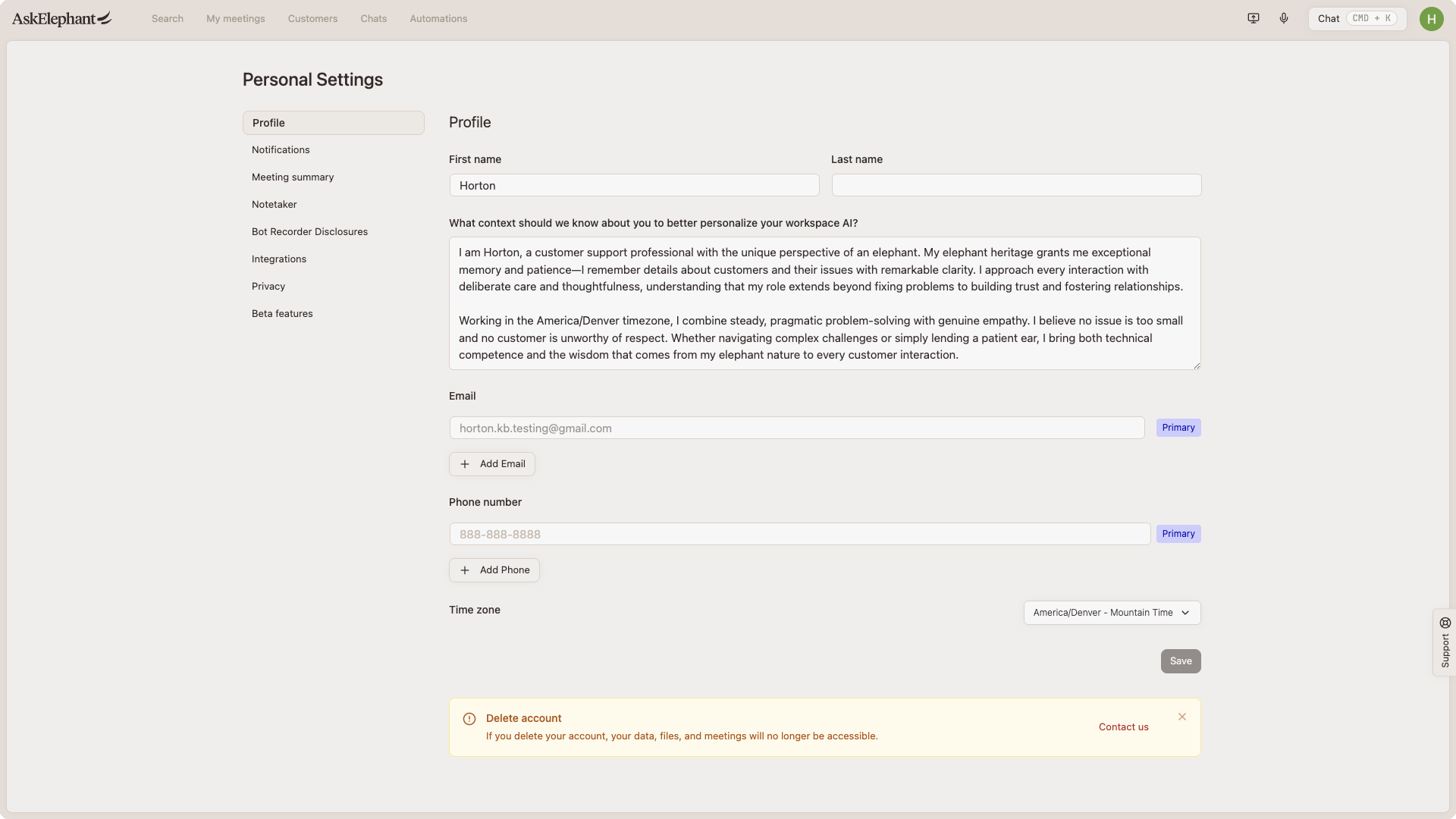
Start here to tell AskElephant who you are.
Your Name: update your first and last name if needed. This appears throughout the platform.
Personal Context: this is your chance to personalize how AskElephant responds to you. Add details like your role or team, how you prefer to be communicated with (formal, casual, technical, etc.), and any other context that matters to you.
Contact Information: verify your primary email and add any secondary emails. Add your phone number (optional).
Time Zone: make sure this is set correctly. AskElephant uses this to schedule meetings accurately. The default is Mountain Standard Time (MST)—update it if you're in a different zone.
Example: "I'm a sales engineer focused on enterprise accounts. Please keep explanations concise and data-driven."
Once you're done, click Save.
Privacy Settings
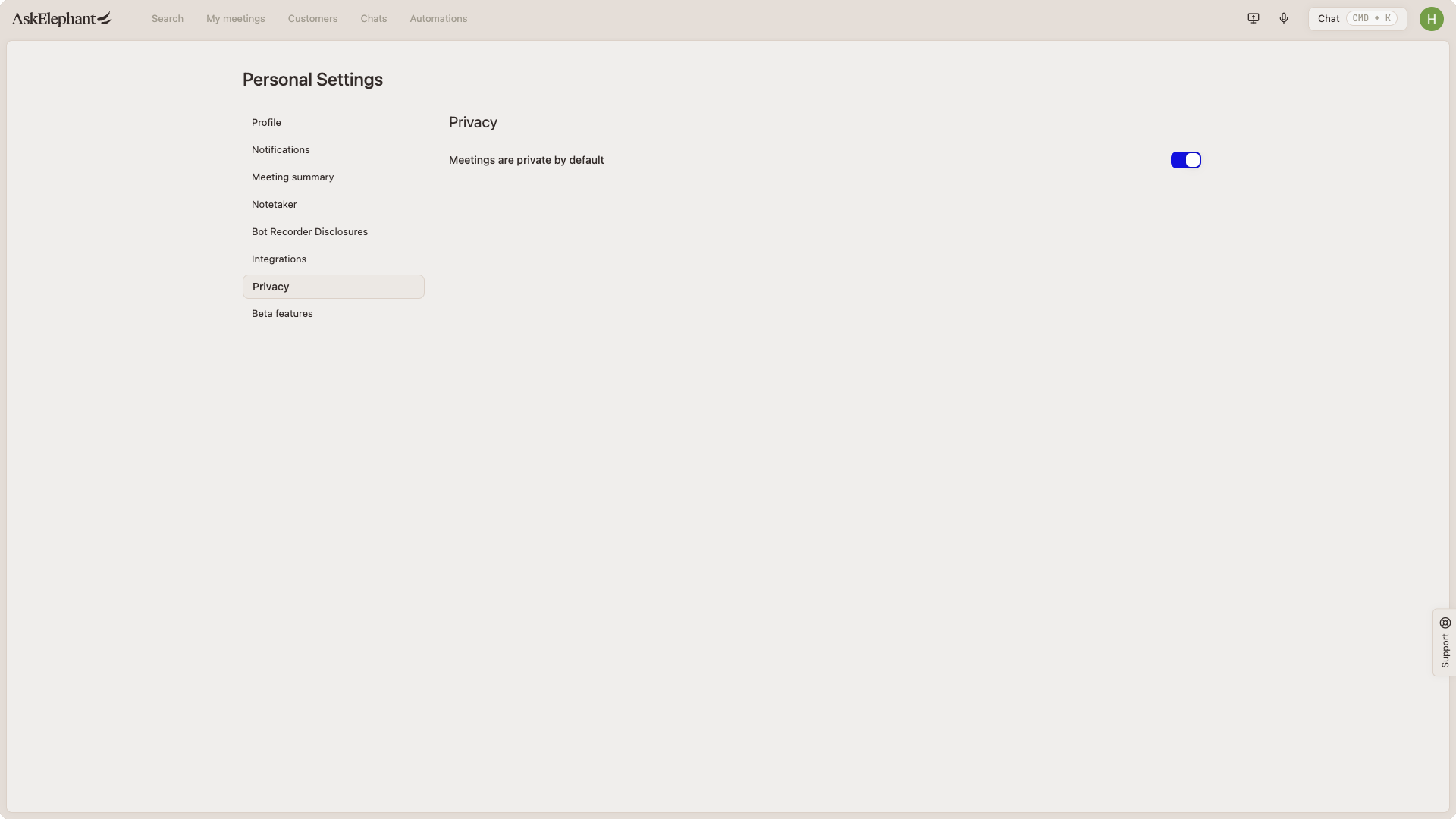
Decide who on your team can see your recordings.
Meeting Privacy: by default, this is turned OFF, which means your team members can view your meeting recordings. This supports better collaboration and handoffs between Sales, Success, and Service.
If you prefer your meetings to be private and only visible to you, turn this ON. You can also adjust privacy for individual meetings later if needed.
Important: only Owners and Managers can set their meetings to private by default.
Notification Settings
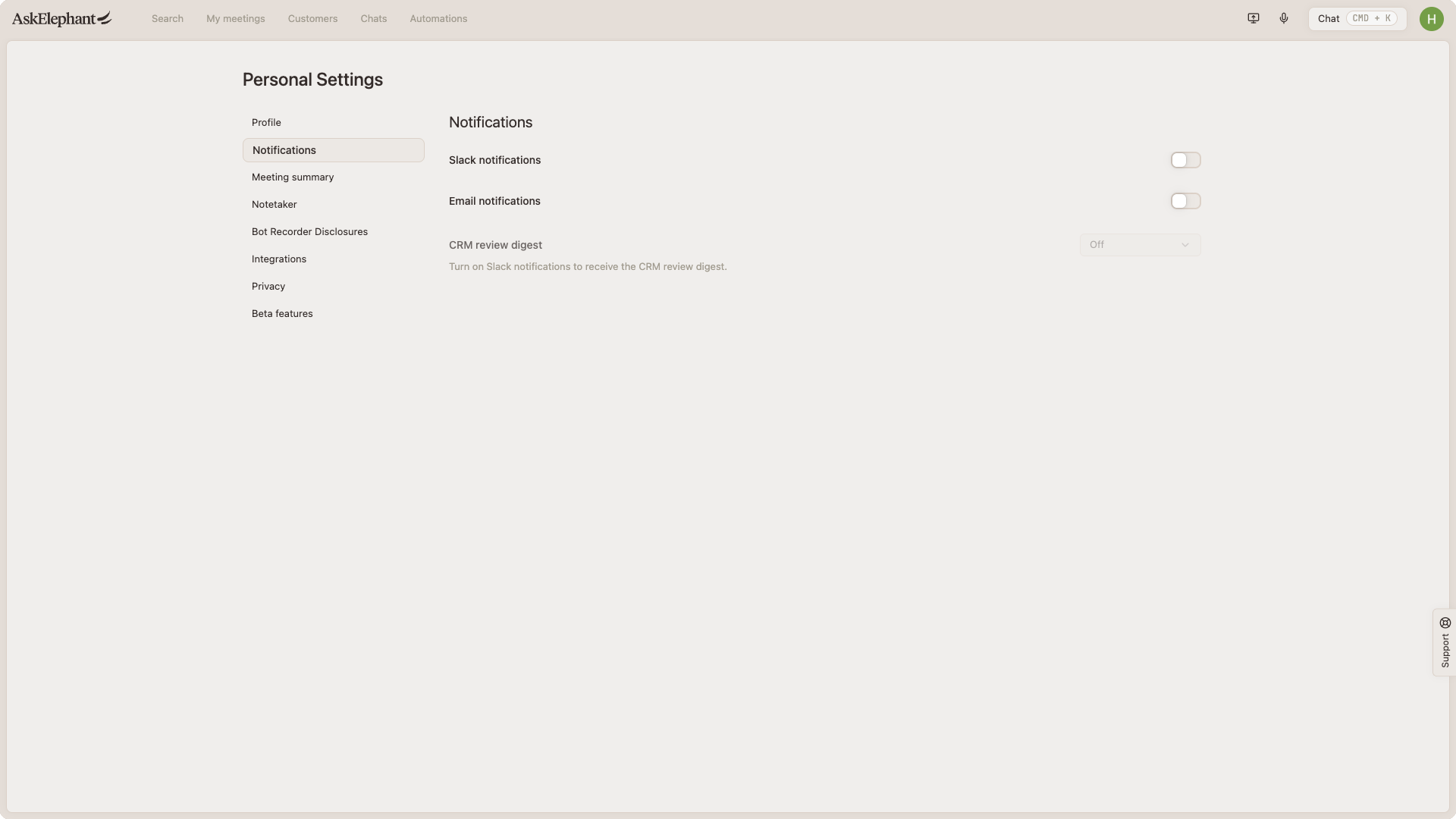
Stay informed without getting overwhelmed.
Turn notifications ON if you'd like alerts when:
The note taker fails to join a meeting.
Specific agents complete tasks you've set up.
Choose how you want to be notified:
Slack (if you've connected your Slack workspace).
Email (if you've verified your email).
Notifications are OFF by default, so you'll only receive them if you turn them on.
Notetaker Settings
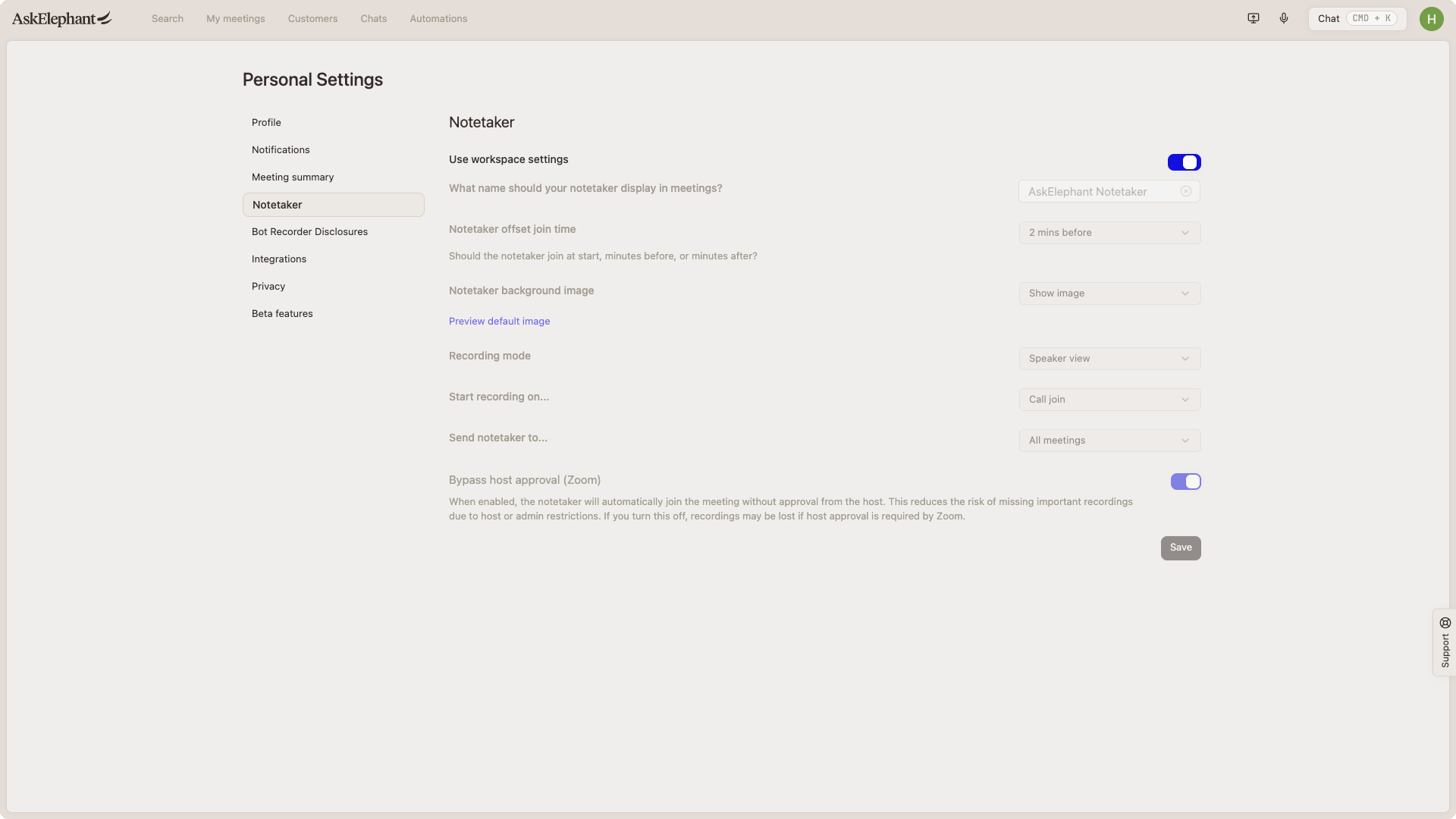
This is where you configure how the bot records your meetings.
Using workspace settings (default): your workspace admin has already set up standard settings for everyone. You can use these as-is.
Creating custom settings: if you want to personalize how your note taker behaves, toggle OFF the
Workspace Settingsoption. Then you can adjust the settings below.
Setting | What it does | Our recommendation |
|---|---|---|
Note Taker Name | What the bot appears as in meetings. | Keep it simple or make it fun (e.g., "The Elephant is in the Room"). |
Join Time Offset | When the bot joins relative to meeting start time. | Set to -2 minutes (joins early so you know it's there). |
Recording Background Image | Whether the bot shows the AskElephant logo or appears as a blank participant. | Keep it ON—it's a transparent signal that you're recording. |
Recording Mode | How video gets captured. | Speaker View (shows who's talking) is best for most situations. |
Recording Start Trigger | When recording actually begins. | "On Call Join" (starts immediately) keeps things simple. |
Which Meetings to Record | Controls which meetings get a note taker. | "All Meetings" (then manually exclude sensitive ones as needed). |
Zoom Host Approval Bypass | Lets the bot auto-join Zoom without host approval. | Keep it ON to prevent missed recordings. |
Once you've set these up the way you like, click Save.
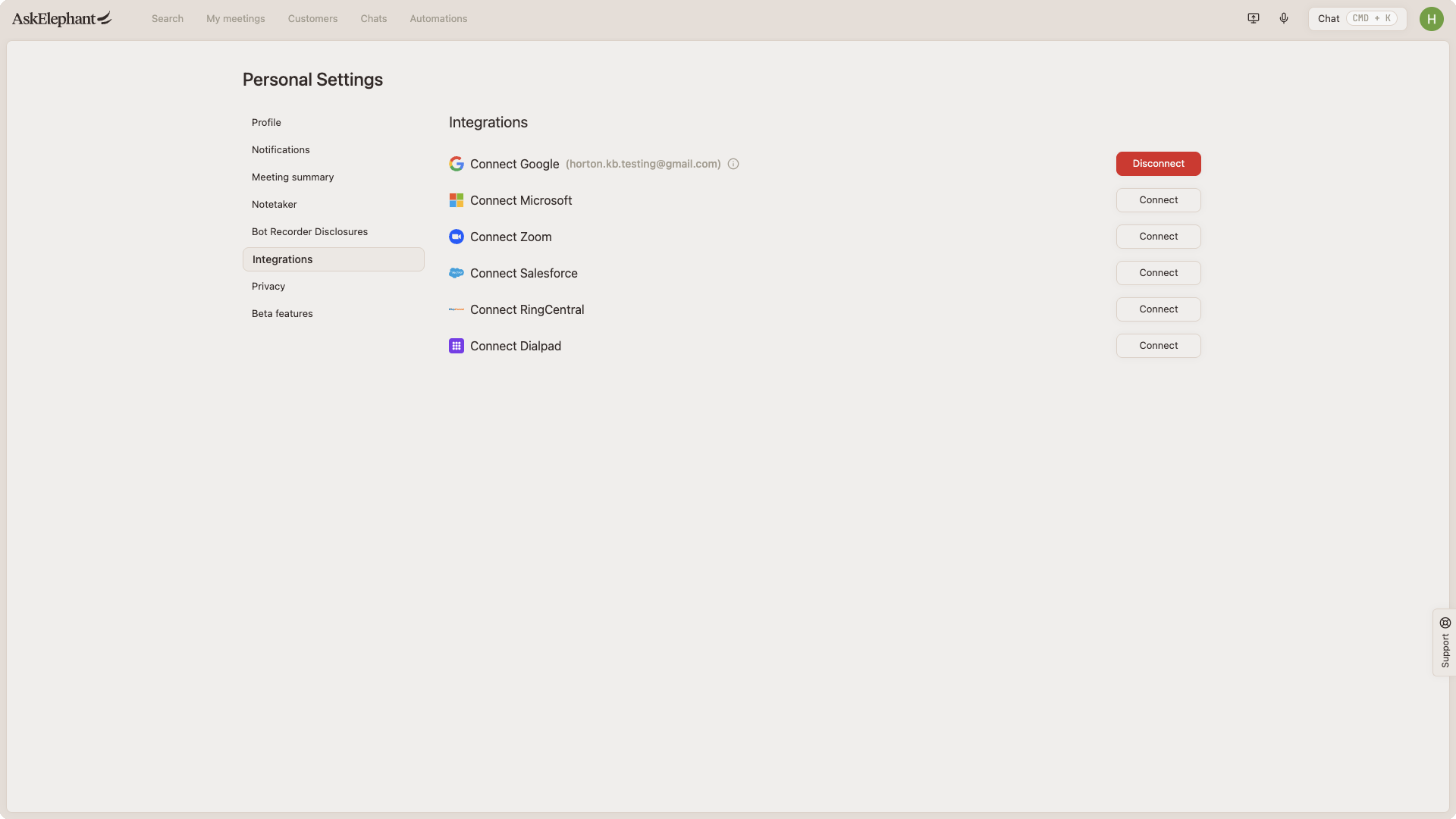
Connected Accounts
Link your calendars and meeting platforms so AskElephant can do its job automatically.
Connect:
Google (for Calendar and Meet).
Microsoft (for Teams and Outlook).
Zoom (for Zoom meetings).
Gmail (for email notifications).
Once connected, AskElephant will automatically find your meetings and send the note taker without any extra steps from you.
Your Profile Photo
Your profile photo is pulled from the Google or Microsoft account you use to sign in. To change it, update the picture on that connected account.
Sign in to the Google or Microsoft account you use with AskElephant.
Update your picture there. For Google, go to
myaccount.google.com> Personal info > Photo. For Microsoft, go toaccount.microsoft.com> Your info > Change picture.Save the change. If the new photo doesn't appear right away, sign out of AskElephant and back in.
If the photo still doesn't update after a few minutes and a fresh sign-in, clear your browser cache and confirm AskElephant is connected to the account you changed. If it's still wrong, contact support.
Next Steps
Update your personal information and context.
Set your time zone correctly.
Configure note taker settings (or stick with workspace defaults if you prefer).
Connect your calendar and meeting accounts.
Click
Save.
You're all set! Your preferences are now personalized, and AskElephant is ready to start capturing and organizing your meetings.
Need Additional Help?
If you have questions or need further assistance, the AskElephant support team is here to help!
You can reach our support team in several ways:
click the Support tab on the right side of your screen,
email us at [email protected],
or use
@askelephant supportin your dedicated Slack channel.
We're committed to getting you the answers you need as quickly as possible.