
Bad Audio/Video
Introduction
A recording exists but something looks off — a black screen, audio only, content from a different meeting, shorter than expected, or silent. Walk through the specific symptom.
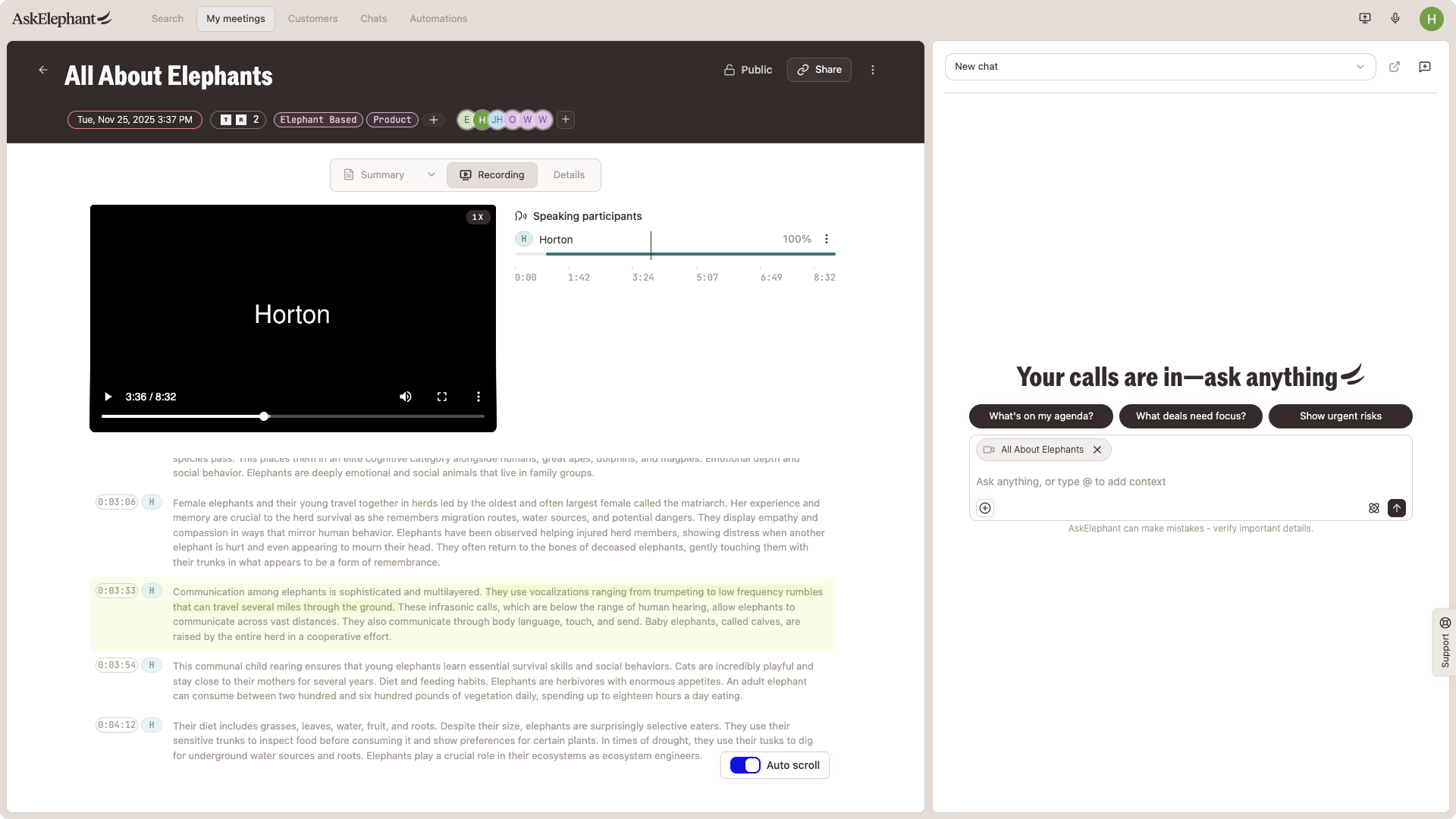
Black screen for a long stretch
If your recording plays a black screen for the first hour (or longer) before your actual content, the meeting was most likely left running after it ended. Click through the recording to find the real meeting content.
To prevent this: end meetings explicitly. Don't leave the tab open and walk away.
"Audio only" — no video
If your recordings consistently play audio with no video:
Go to
Your Name → Workspace → Notetaker Settings.Check
Recording Mode. If it's set toAudio Only, switch it toSpeaker VieworGallery View.
If Recording Mode is already set correctly and recordings are still audio-only, contact support.
Screen share missing from the recording
Screen sharing can drop if it was paused or restarted during the meeting. If the recording has no screen content:
Confirm screen sharing wasn't paused mid-meeting.
Check the event log for share-start and share-stop events.
If screen sharing was active the whole time but didn't capture, contact support with the meeting link.
Wrong meeting content in the recording
If your recording shows a different meeting, the cause is almost always a Personal Meeting ID (PMI) collision.
How PMI collisions happen:
Your PMI generates the same meeting link every time.
Back-to-back meetings using the same PMI can get mixed up, and recordings from one can land on the other.
Fix it in Zoom:
Open Zoom settings:
My Account → Settings → Meetings → Schedule Meeting.Find
Personal Meeting ID.Disable it (or turn off the "Use PMI by default" option).
Make sure each new meeting generates a unique link.
Recording is shorter than the actual meeting
If the recording cuts off partway through:
Check the event log for a
bot leftorbot removedentry. Someone may have removed the bot mid-meeting.The recording may need reprocessing. Contact support with the meeting link.
Silent recording (video plays, no audio)
Confirm
Recording Modeisn't set to an unexpected value in workspace settings.During the meeting, did everyone have working audio? Poor audio during the call = poor or silent audio in the recording.
If the file is entirely silent despite working audio in the meeting, contact support.
Still stuck?
If the playback issue doesn't match any of the above, contact support with the meeting link, the platform (Zoom, Teams, Google Meet), and a screenshot of what's wrong. See Meeting recording & transcription for the full troubleshooting guide.