
Lost Meeting
Introduction
If a meeting you expect to see isn't showing up in AskElephant, it's usually in the wrong tab, set to private, or owned by a different team member. Walk through these in order.
Look in the right tab
My Meetings → Recordedshows only meetings that generated a recording.My Meetings → All Meetingsshows everything on your calendar, recorded or not. If a meeting failed to record, it'll be here but not inRecorded.Search(left sidebar) looks across your whole workspace, including meetings owned by teammates.
If you can't find it under My Meetings, try Search next. Filter by date, attendee, or meeting title.
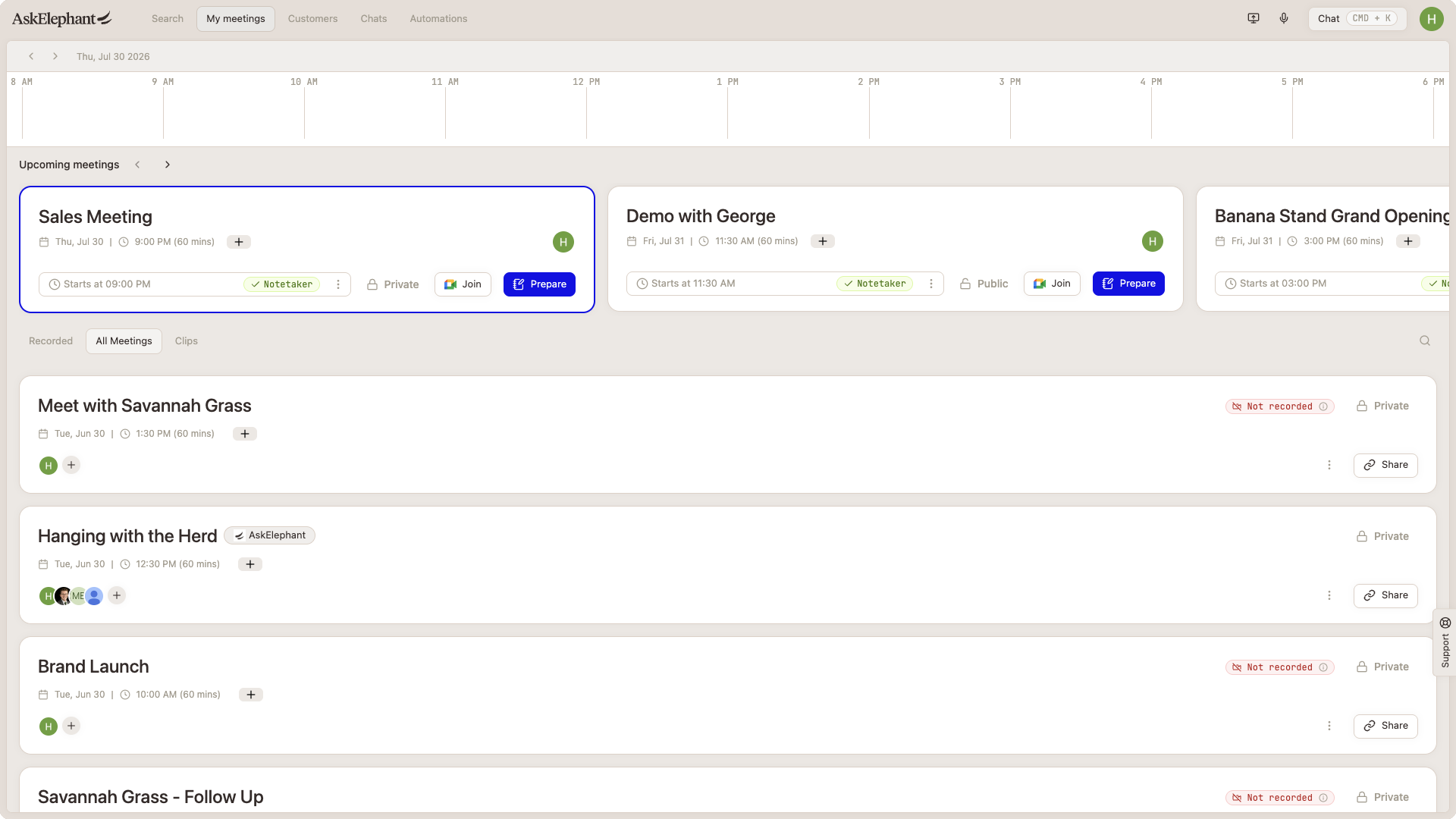
Team member meetings live under Search
Meetings owned by other people don't appear in your My Meetings view. To find them:
Open the
Searchtab in the left sidebar.Filter by team member, date range, or meeting title.
If a team member's meeting still doesn't show up, the meeting may be private.
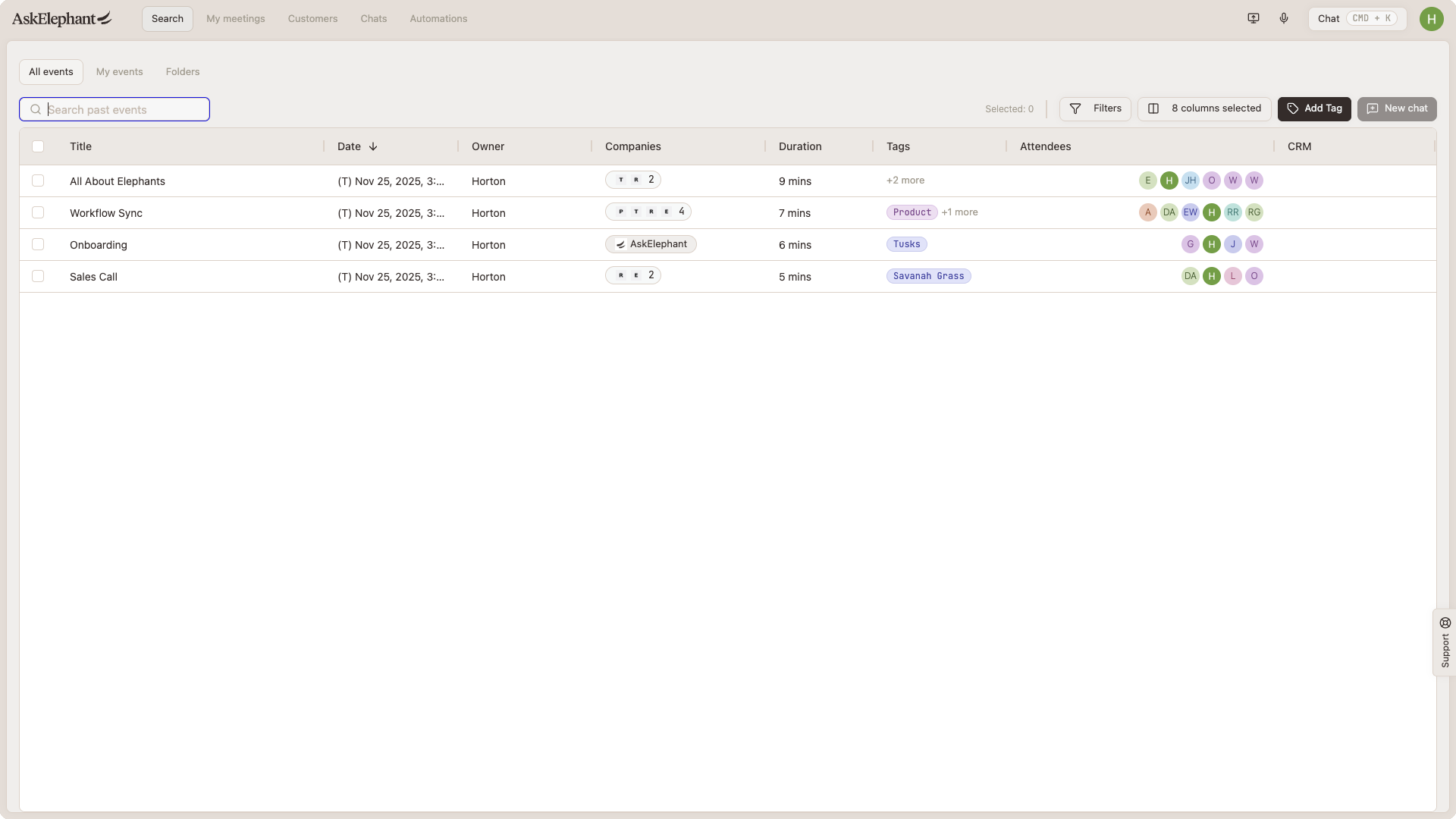
Private meetings are hidden from non-attendees
Meetings marked as private are only visible to attendees who were on the call. Specifically:
Private meetings don't appear in search or in the main interface for non-attendees — even if they recorded successfully.
Owners and managers can't see private meetings unless they were attendees.
Workflows may not run on private meetings unless explicitly enabled in the workflow's settings.
If you expect a meeting but can't see it:
Ask the meeting owner whether the meeting is set to private.
Ask the owner to mark it public, or add you as an attendee.
For account-level privacy settings (which override individual meeting visibility), check with the meeting organizer.
Enterprise note. Enterprise customers can enable access controls that let workspace administrators view all private meetings. Contact support if your workspace needs this.
Calendar integration mismatch
If multiple meetings are missing, your calendar integration may be the cause:
Confirm the correct calendar account is connected at
Your Name → Preferences → Connected Calendar.If you use both Google and Microsoft calendars, confirm the right account is connected. Connecting both can cause duplicates or missing events.
Confirm the meeting organizer is an active user in your workspace. Events from deactivated users may not sync.
Check with the meeting organizer
If everything above checks out, the meeting may have been deleted intentionally, or the organizer's workspace may be separate. Ask them directly.
Still stuck?
If you've checked search, privacy, and calendar settings and still can't find the meeting, contact support with the exact meeting title, the date and time, and a screenshot of what you're seeing. See Meeting recording & transcription for the full troubleshooting guide.