
Missing Recording
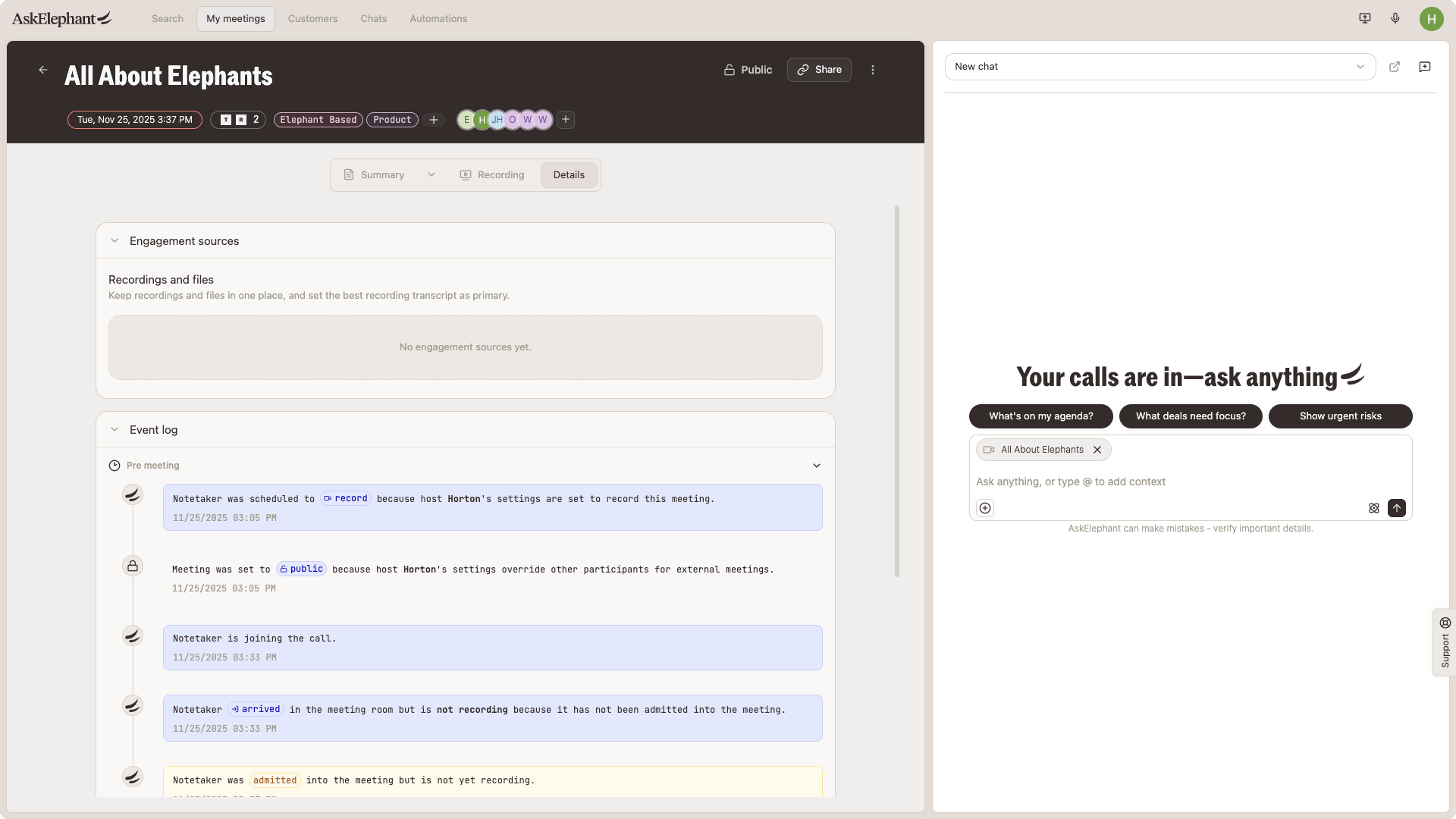
If you expected a recording and it's not there — or the meeting page shows a Recording failed error with the elephant image — walk through these checks. The event log on the meeting page is your fastest diagnostic.
Try these first
Refresh the page, then hard refresh (
Cmd+Shift+Ron Mac,Ctrl+Shift+Ron Windows).Wait 10-15 minutes. Large recordings take longer to process/upload.
Confirm the meeting actually ended. If the bot is still in the call, processing hasn't started yet.
Did the notetaker actually join?
If the notetaker never made it into the meeting, there's nothing to process. See Notetaker didn't join or got stuck.
The privacy-first rule
AskElephant defaults to privacy when internal attendees have conflicting settings. If any internal attendee has External calls only enabled, or has recording disabled in their personal settings, the whole meeting won't be recorded — regardless of everyone else's preferences.
To confirm:
Open the meeting page.
Check the event log for an entry about an attendee's settings blocking recording.
Ask that attendee to update their Notetaker settings, or manually toggle the specific meeting on.
Look for the "Will not be recorded" tag
Before a meeting starts, a Will not be recorded visual tag appears on its meeting page if something will block recording. Catch this ahead of time by scanning My Meetings → Upcoming Meetings. Two things cause the tag:
No meeting link on the calendar event. The notetaker joins a meeting URL, not a calendar slot, so an event with no Zoom, Microsoft Teams, or Google Meet link is never recorded. Open the event, and if there's no link, edit it to add one. See Meetings for the full steps.
Recording is switched off. Either it was toggled off for that meeting, or an attendee's settings are blocking it (see the privacy-first rule above). Toggle it back on, or ask the attendee with the blocking setting to adjust theirs.
Duplicate recordings
You may see two recordings of the same meeting (often one very short, one full-length). Common causes:
The bot was kicked mid-meeting and a new bot joined.
Meeting ownership was transferred, so two different users' bots both attempted to record.
Two calendar events point to the same meeting. For example, a separate prep-notes event, or the meeting synced from two connected calendars. AskElephant treats each calendar event as its own meeting and sends a notetaker to each, so you get a second recording.
Be careful when removing participants — don't remove the AskElephant bot by mistake. If the duplicate comes from a second calendar event, turn recording off for that event or don't send a notetaker to it. If duplicates appear regularly, contact support.
Internal meetings classified as external (or vice versa)
Adding calendar groups to an internal meeting event can cause AskElephant to treat it as external, changing which settings apply. If your internal meetings are being recorded when they shouldn't be (or the reverse), check whether the event has a calendar group attached, and review your workflow scope.
RingCentral calls aren't appearing
Individual connection required. Each team member connects their own AskElephant account to RingCentral — the workspace-level connection isn't enough.
Email and phone numbers must match exactly between AskElephant and RingCentral.
Expect a 5-minute sync lag after the call ends before it appears.
Mobile app recordings
Save the recording after you finish — it doesn't save automatically.
Recordings sync to your main account; check the web dashboard if they don't appear on mobile.
Was the Recording Deleted After It Was Created?
If the meeting page shows that a recording existed but it's now gone, someone may have deleted it. Deleting a meeting or recording removes it for the whole workspace, and it can't be restored. Check the event log on the meeting page for a deletion entry. To confirm who deleted it and when, contact support with the meeting link. If the notetaker never joined, there was no recording to delete. See Notetaker didn't join or got stuck.
Ask support to reprocess
If the notetaker showed Recording in green during the meeting but the recording still isn't available after 15+ minutes, contact support with the meeting link. Support can manually reprocess. In rare cases the underlying recording isn't recoverable, and you'll need to upload a local recording as a workaround.
Upload a recording manually as a workaround
If a meeting wasn't recorded by AskElephant but you have a Zoom, Teams, or local recording, download it and upload it into AskElephant from the web app. It'll process like any other meeting.
Still stuck?
If the event log doesn't explain the failure and reprocessing hasn't helped, contact support with the meeting link, the platform, and a screenshot of the Recording failed state if one is showing. See Meeting recording & transcription for the full troubleshooting guide.