
Meetings & Notetaker
Introduction
The notetaker is how AskElephant captures your conversations. It joins your meetings, records the call, and creates the transcript that every downstream workflow depends on. This is the getting-started overview — for deeper detail, see Notetaker 101 (settings, troubleshooting) and Meetings (calendar setup, privacy, finding meetings).
Key Terms
Notetaker. An AI assistant that joins your meetings to record audio, video, and generate a transcript.
Meeting Transcript. A text record of everything said, generated from the notetaker's recording.
Accessing Your Meetings
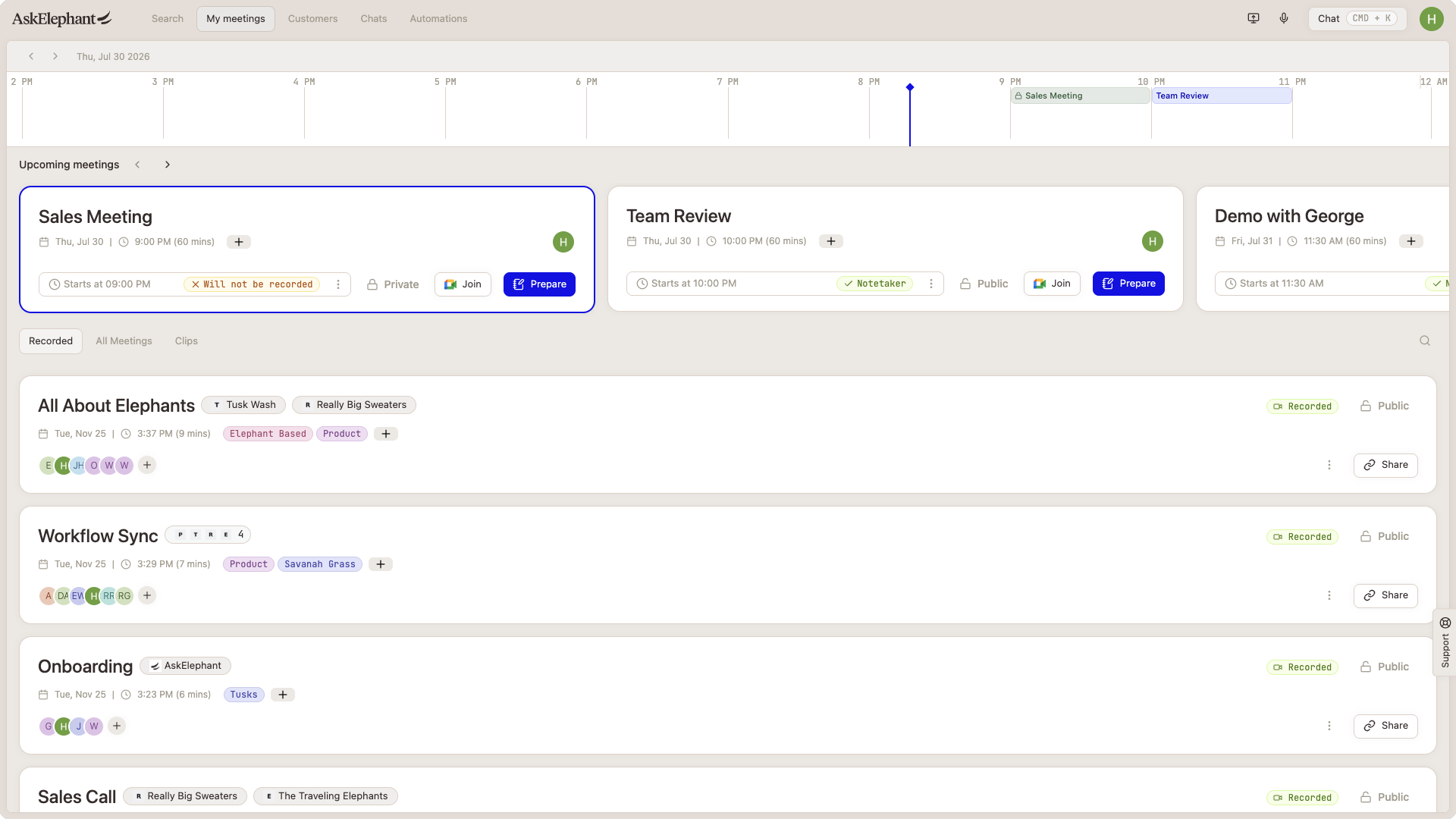
All your meetings live in one place: the My Meetings tab.
Recorded and past meetings — browse everything you've captured, along with clips from specific moments.
Upcoming meetings — see your calendar with a clear view of what's next.
Joining a Meeting
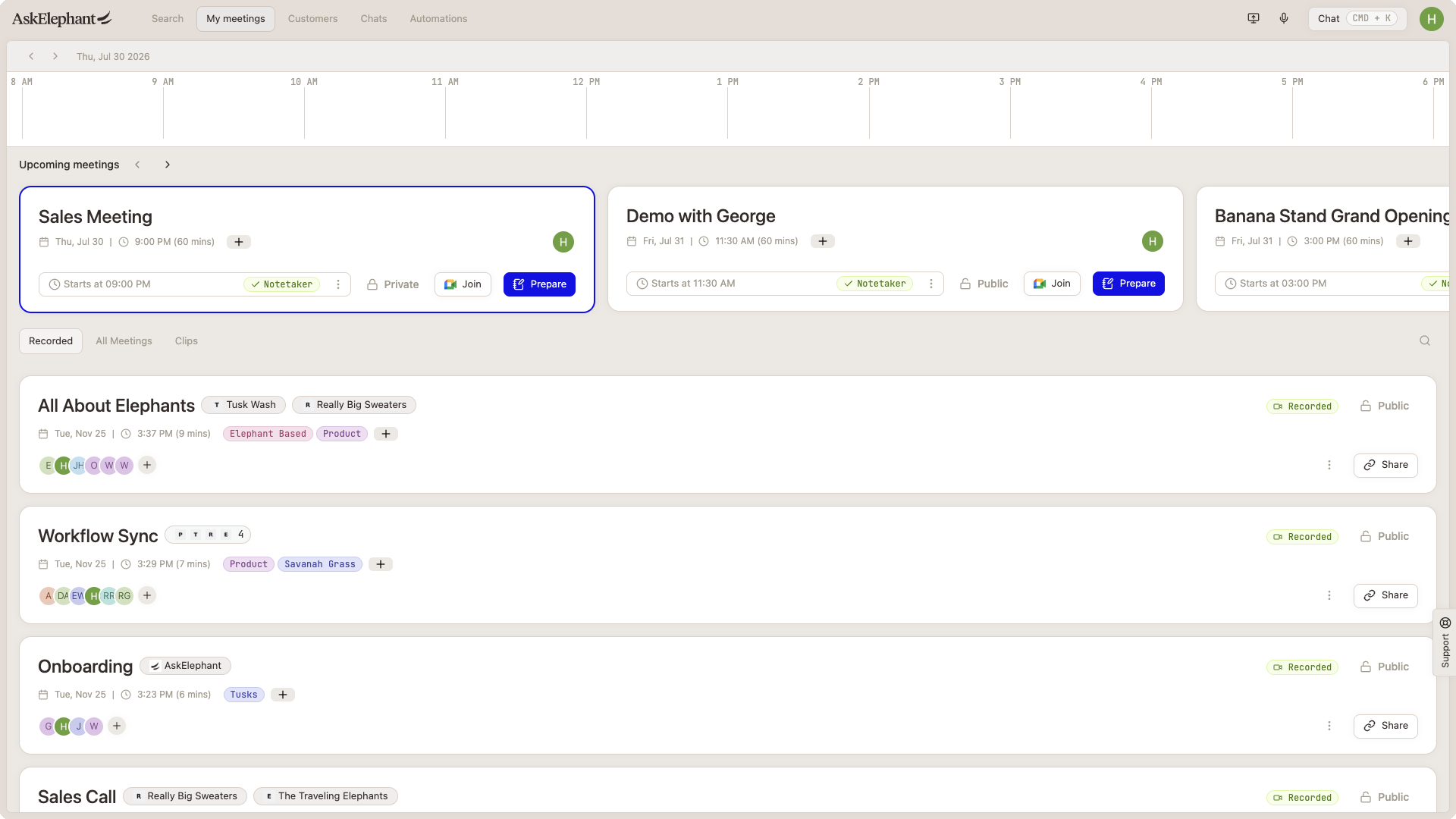
Click Join Meeting directly from AskElephant when you're ready. Your calendar syncs with Google or Microsoft, so meetings appear automatically once you connect.
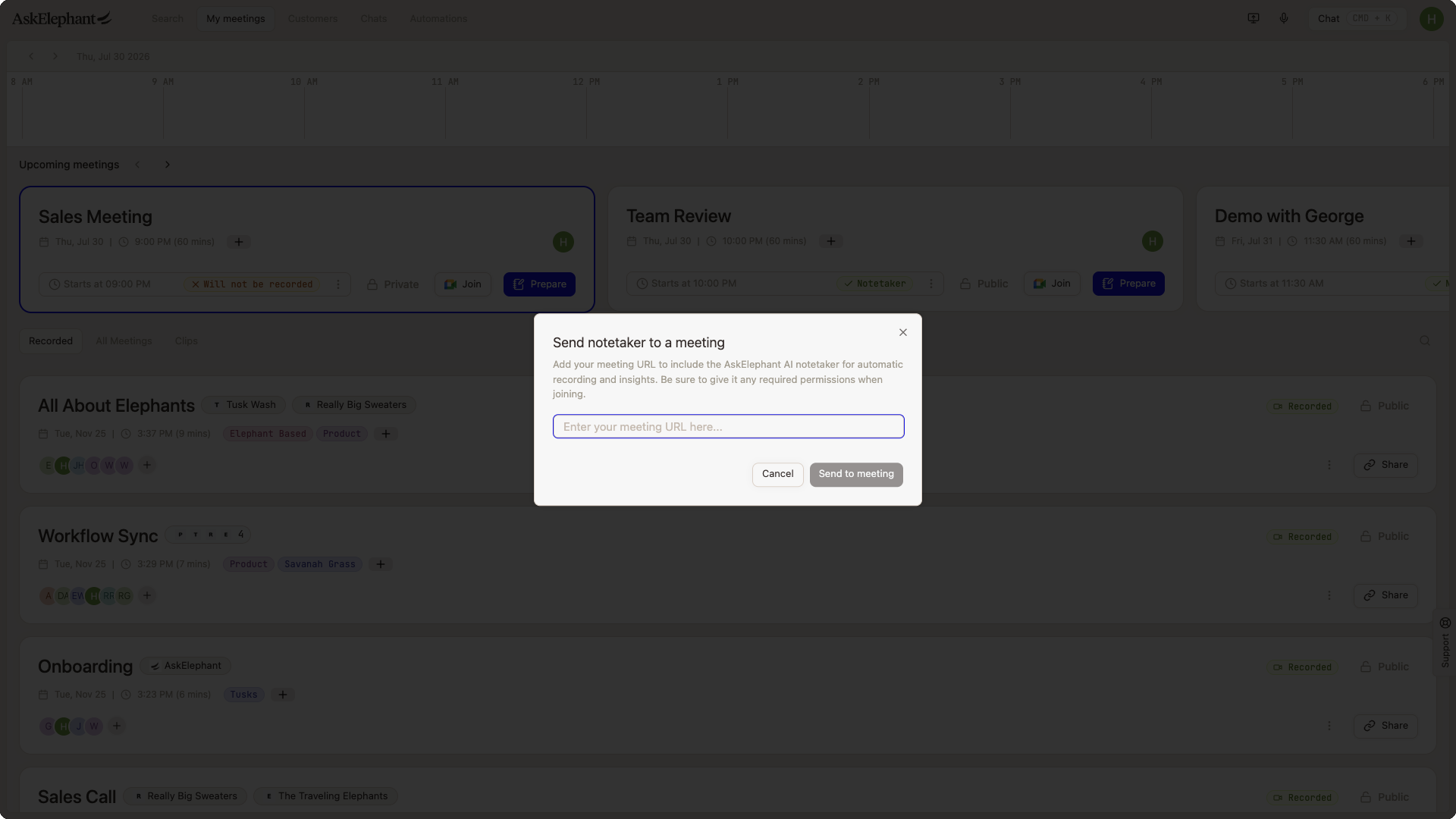
If a meeting wasn't originally set to record but you want AskElephant to join, click Send a Notetaker in the top navigation bar and paste the meeting URL. The notetaker joins that specific call.
How the Notetaker Works
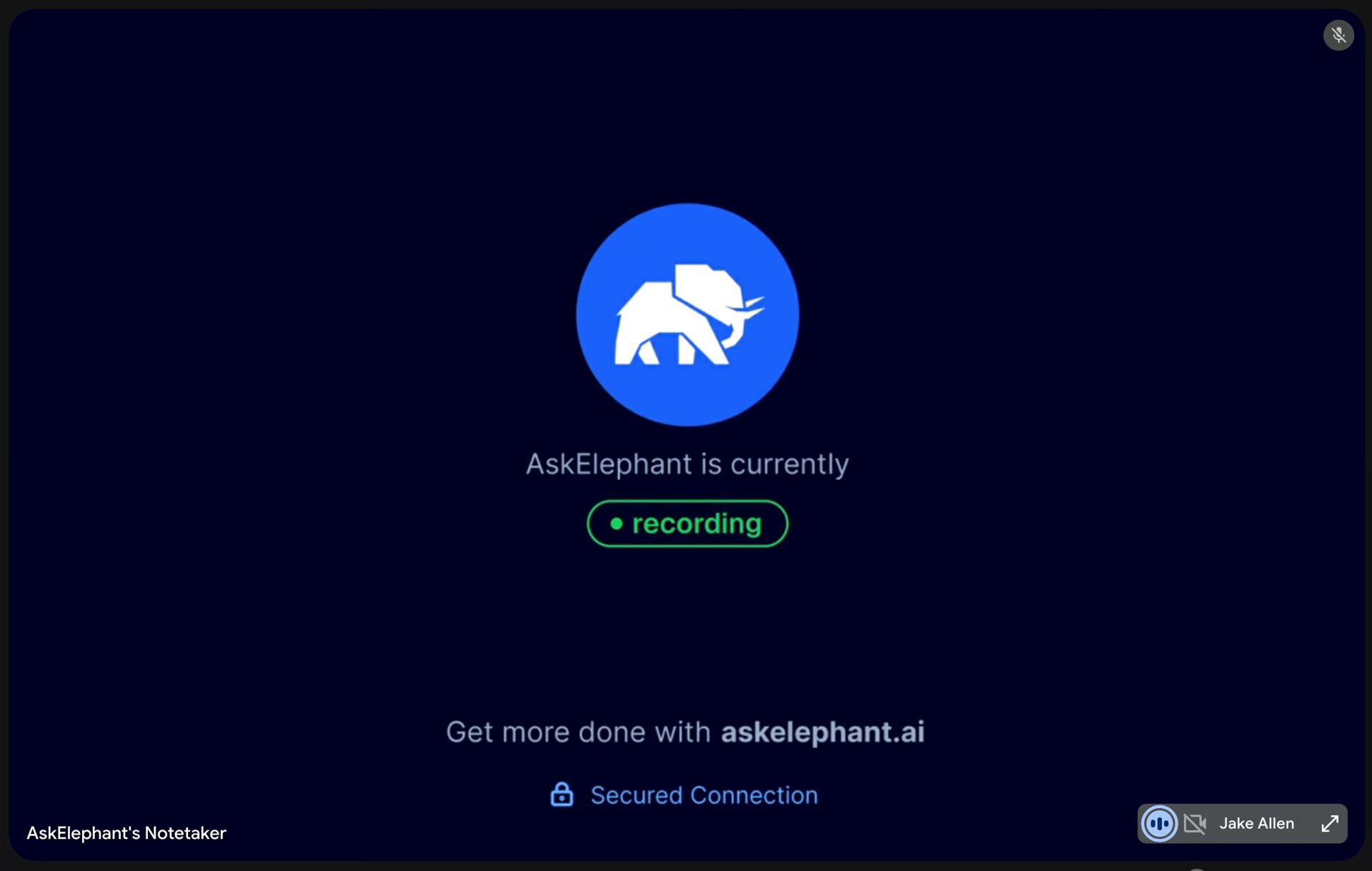
When a meeting is marked as recorded, AskElephant sends a notetaker to capture it. On Google Meet, Microsoft Teams, and Zoom, the notetaker usually needs to be admitted from the waiting room like any participant. If you've disabled the waiting room in your meeting platform, the notetaker joins automatically according to your settings.
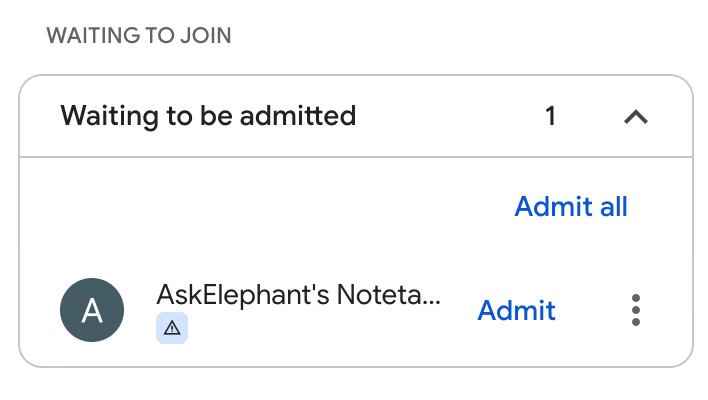
The notetaker can join any meeting on your calendar, regardless of who's hosting. If a client sends a calendar invite with a meeting URL, the notetaker can record that call.
Customizing Notetaker Behavior
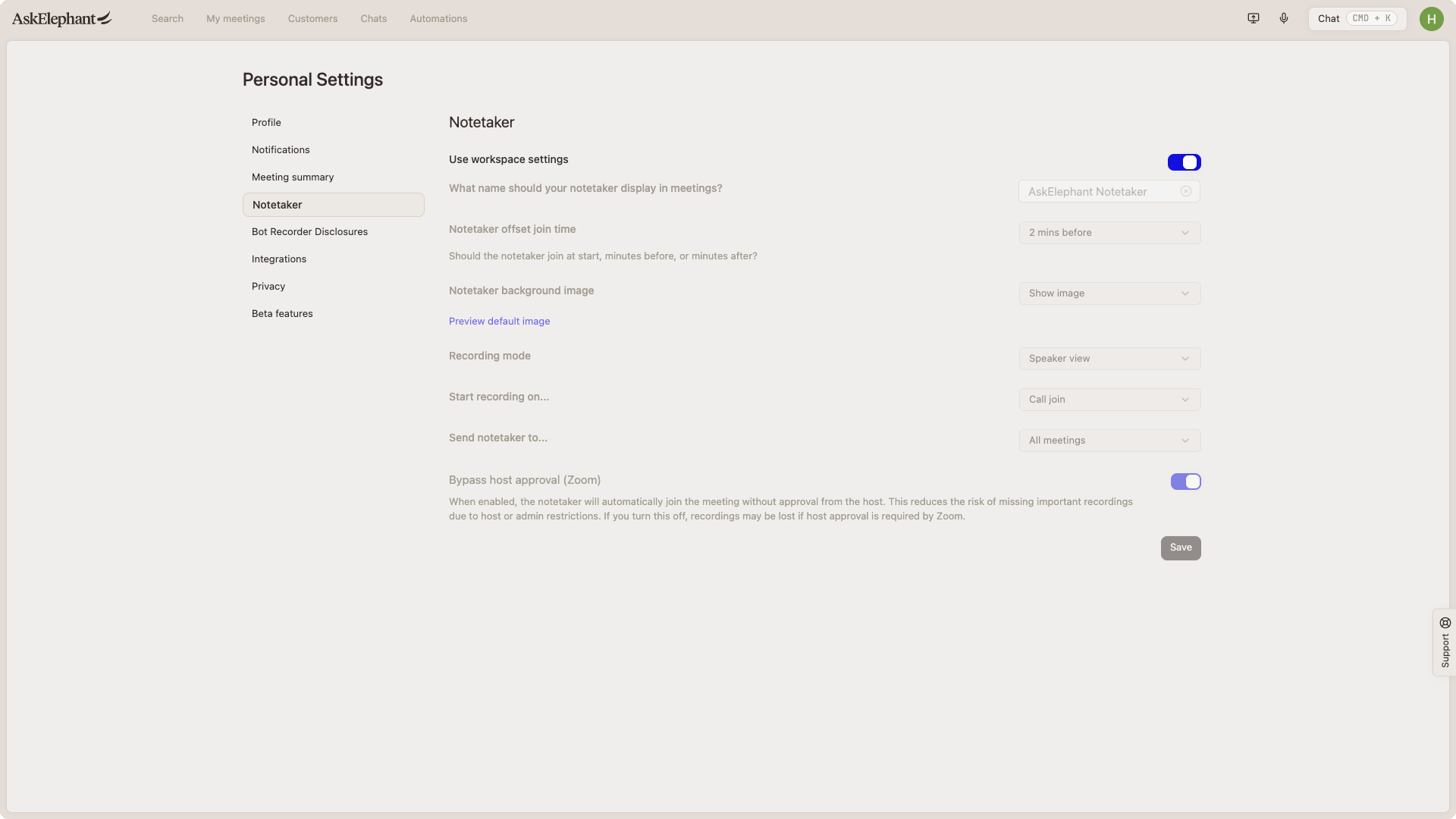
Open Preferences → Notetaker Settings from the menu under your name. You can customize:
When to send the notetaker — all meetings, team-only, external participant, or no meetings.
Timing — up to 5 minutes before or after the meeting starts.
Visibility — show an AskElephant background image or keep the notetaker invisible.
Recording mode — audio only, gallery view, or speaker view.
When to start recording — on join, on first participant, or on first speech.
Click Workspace settings to inherit the defaults set by your workspace admin.
For a deeper breakdown of each setting and troubleshooting common notetaker issues, see Notetaker 101.
Privacy and Meeting Controls
Making Meetings Private or Public
By default, meetings are visible to your workspace. Owners and Managers can change this.
For an individual meeting — click the
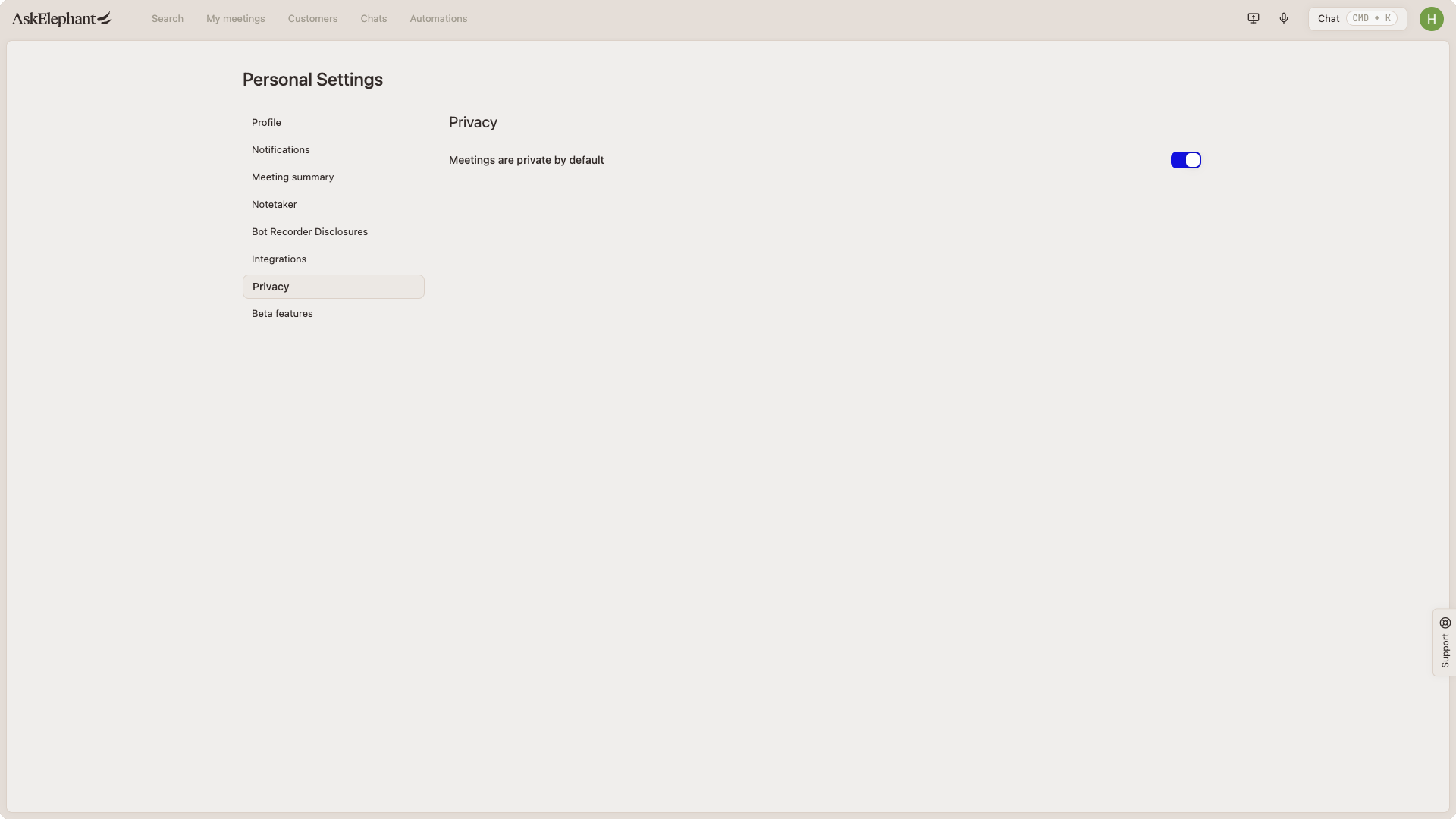
private/publictoggle on the meeting inMy Meetingsor on the meeting page.For all your meetings — open
Preferences, find theMeetingssection, and checkMeetings are private by default.
Host setting wins. If you host a meeting, your privacy setting takes priority. For example, if you host a public meeting, it stays public even if a manager joins and has their default set to private.
For the full privacy-and-deletion model — including role-based deletion permissions and the edge case where an attendee's private-by-default setting takes over — see Meeting Privacy & Deletion.
Making the Most of Your Recordings
Highlighting Important Moments
During a meeting, flag key points out loud:
"Hey AskElephant, please make a note about this."
"AskElephant, can you remind me about this?"
AskElephant's meeting summary emphasizes these moments, so they land in your action items and workflow outputs.
What Happens Next
Once your meeting ends, AskElephant processes the recording and triggers your automations. You get:
A full transcript you can search and reference.
Runs of every active workflow in your workspace that applies.
All your Signals and automatic tags.
Tips for Success
Connect your calendar first. Google or Microsoft needs to be connected so meetings populate automatically.
Test your settings on a low-stakes meeting. Get a feel for the notetaker before running it on a client call.
Leverage prep workflows. Click an upcoming meeting to set up meeting prep before the call starts.
Ready to Get Started?
Connect your calendar and customize your notetaker settings. AskElephant handles the rest — capturing, recording, and organizing every conversation so your team has the context it needs.
Need More Help?
Reach the AskElephant support team by:
clicking the Support tab on the right side of your screen,
emailing [email protected],
or using
@askelephant supportin your dedicated Slack channel.