
Search
Introduction
The Search page is your meeting library. It shows all recorded meetings you have permission to see, and gives you filters, tagging, and bulk selection so you can find exactly the right meetings or analyze a set of them together in Chat.
Key Terms
Internal call — a meeting where everyone has your company's email domain.
External call — a meeting with at least one participant from outside your organization.
Tag — a custom label you add to meetings (for example, "Onboarding" or "Q3 planning").
Group — a pre-defined internal team (for example, Sales, Product, Support).
What You'll See
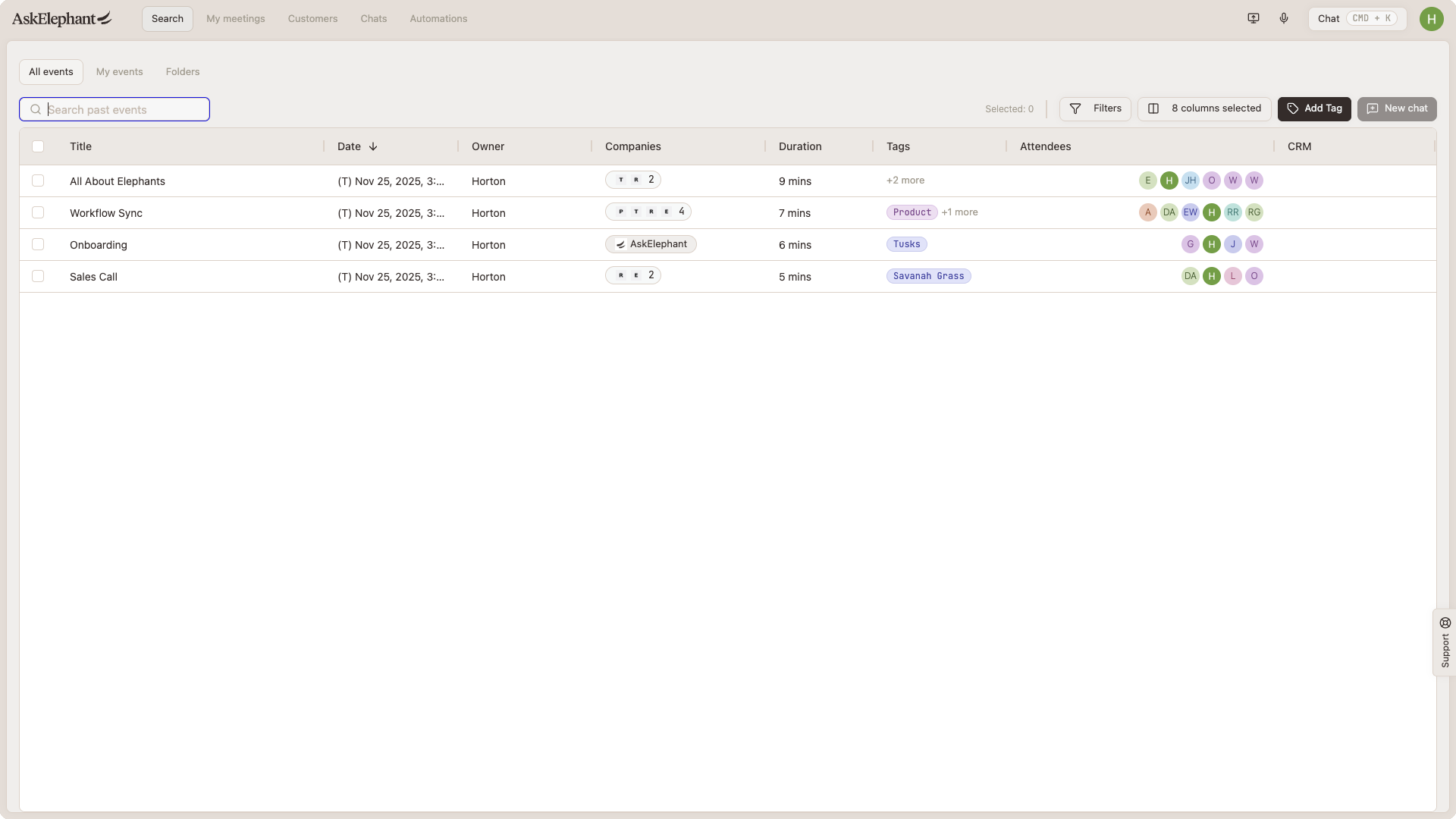
Top of the page. A search bar, a filter bar, and a Clear filters button.
Main table. Meetings matching your search and filters, with checkboxes on each row. The top-left checkbox selects all currently visible meetings.
Meeting Visibility
Only public meetings are visible to other team members through Search. Private meetings don't appear in team search results, even for workspace owners and managers. If a teammate's meeting should be visible and isn't, ask them to make it public.
Find Meetings
Search by title. Type in the search bar at the top. Results update as you type.
Filter by call type. Choose Internal (all attendees from your company) or External (at least one outside attendee).
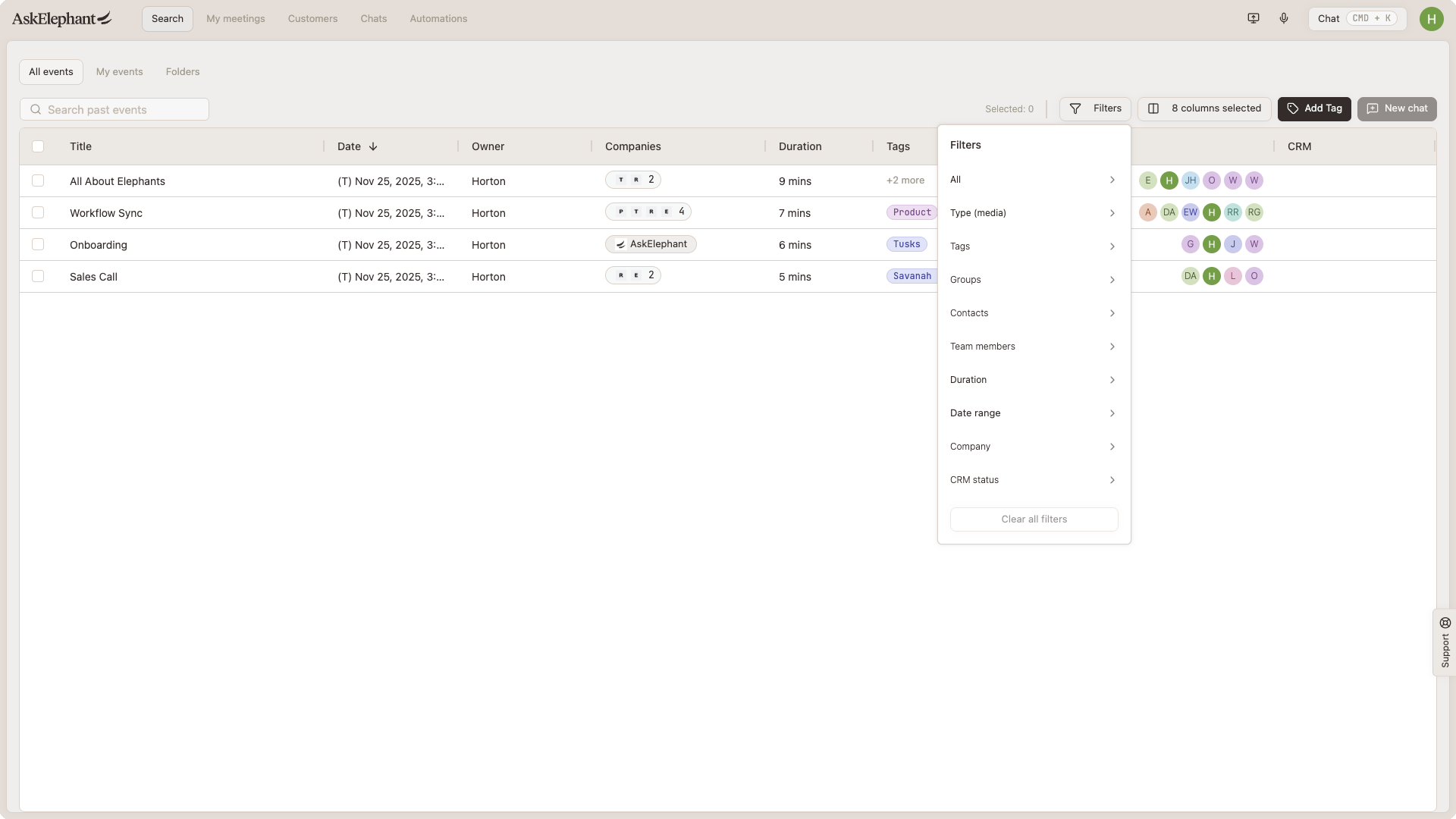
Other filters.
Media type — mobile app, meeting, appointment, audio upload.
Date range — a specific time window.
Duration — set a min/max with the slider.
Team members — calls involving specific people.
Groups — filter by internal group (Sales, Product, etc.).
Contacts — filter by external contacts.
Company — filter by a specific company.
Tags — filter by any tags you've applied.
Recorded status — only recorded or only not-recorded meetings.
Combine filters. Layer filters to get a precise set. For example, External + Product group + last 2 weeks + >10 minutes = every external call the Product team had recently over 10 minutes.
Select Meetings
Click the checkbox next to a meeting to select it, or use the top-left checkbox to select everything currently visible. Meetings load in batches of 20, so if you need more, scroll down to load the next batch and use the top-left checkbox again.
What to Do With Selected Meetings
Start a new chat with them. Click New chat (top right). You'll land in Chat with all selected meetings loaded as context. Ask the AI to compare, summarize, or find patterns across them.
Tag them. Click Manage tags and either apply an existing tag or create a new one. Every selected meeting picks up the tag.
Tagging and Searching by Tag
Tags group related meetings so you can filter to them later without rebuilding the same filter set. There are a few ways to add a tag to a meeting.
Manual from My meetings. Click the plus icon next to the meeting title and pick a tag.
Manual from Search. Select one or more meetings, click Manage tags, and apply a tag.
Via a workflow. Configure a workflow to apply a tag automatically based on your criteria.
Auto-tagging. Enable the automatic meeting tag option on a tag, and AskElephant will use the tag's description to decide whether to apply it by comparing it against meeting transcripts.
Tag past meetings and sequences. You can tag meetings that already happened the same way you tag new ones, using Manage tags from Search or the plus icon on the meeting. Manual tagging is the reliable way to track sequences like first, second, and third meeting. Auto-tagging reads transcript content and may not detect where a meeting falls in a sequence, so apply sequence tags by hand.
Manage Your Tags
You can create a new tag from the search page (click the tag icon near the filters, type a name, select Create new tag) or from Automations → Tags → New tag.
Search by Tag
Go to the Search page.
Click
Filter.Select the tags you want.
Customize Your View
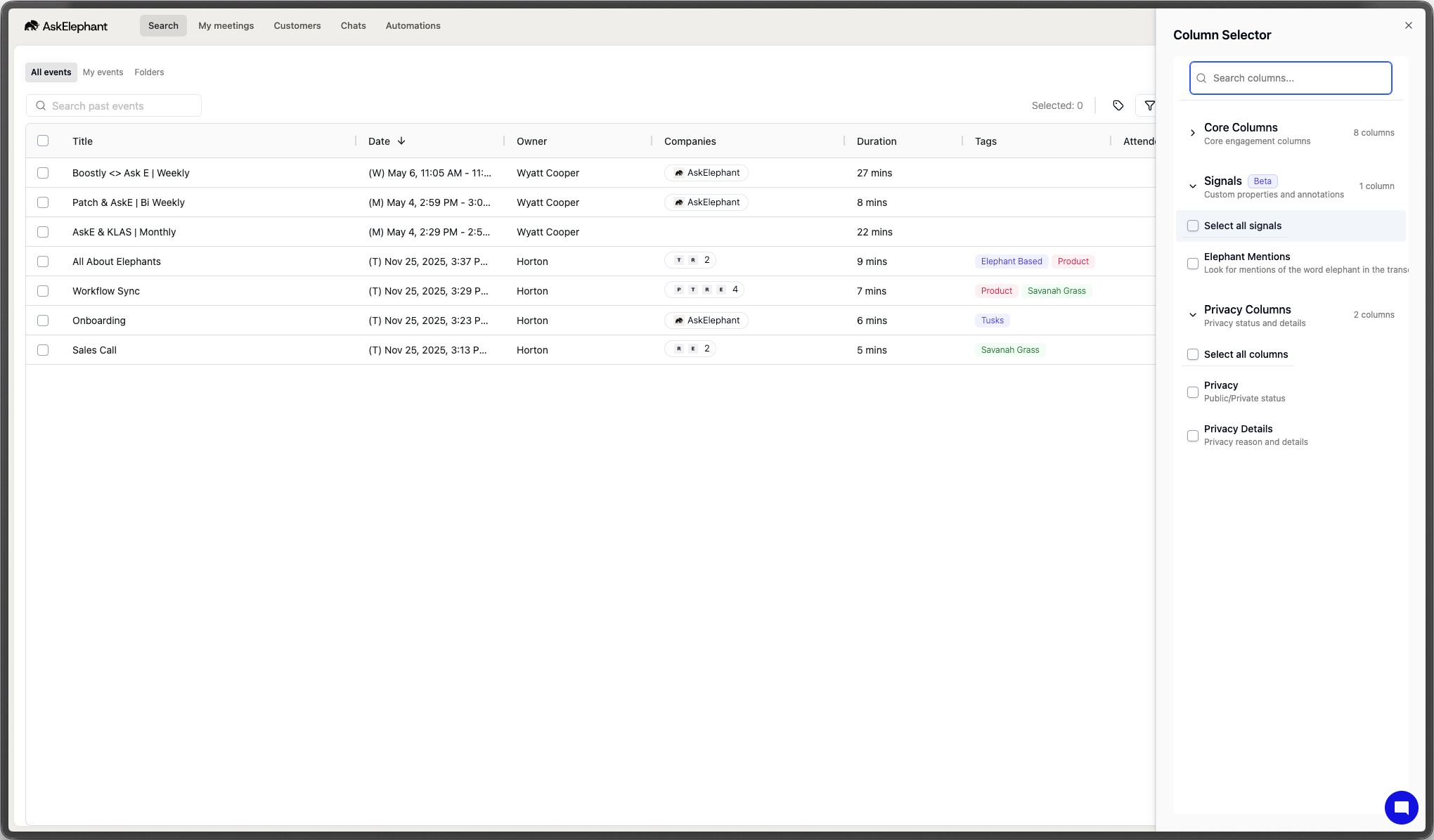
Reorder columns — click and drag column headers.
Resize columns — drag the edge of a column.
Quick Tips
Filters stick around until you clear them. Useful when you're focused on one view.
Scroll to load more before using "select all" if you want more than 20 meetings.
Tag patterns early (for example, "lost deals" or "expansion opportunities") so you can find them instantly later.
Ask specific questions in Chat. Instead of "tell me about these calls," try "what are the most common objections?" or "what features keep coming up?"
Need More Help?
Reach the AskElephant support team by:
clicking the Support tab on the right side of your screen,
emailing [email protected],
or using
@askelephant supportin your dedicated Slack channel.