
Internal Search
Introduction
Internal Search is a chat-based tool that helps you quickly locate and retrieve information stored across your AskElephant workspace. Whether you're looking for a specific contact, reviewing meeting details, checking workflow outputs, or finding team signals, Internal Search brings that data directly into your conversation1 without switching between pages or digging through folders.
Think of it as a smart search assistant that understands your workspace context and surfaces exactly what you need.
Key Terms
Entity Tagging: a way to label specific people, companies, or records in your chat. When you tag an entity, Internal Search can access its ID directly, making searches faster and more accurate.
Semantic Search: a search method that understands the meaning behind words, not just exact matches. For example, finding all conversations about "contract deadlines" even if those exact words aren't used. Currently disabled but coming soon.
Keyword Search: the current search method that matches specific words or phrases in your workspace data. Works across transcripts, chat messages, and meeting records.
Global Chat: the main chat interface available across your entire workspace. Internal Search works best here because it can automatically detect which page or record you're viewing.
Workflow Outputs: results generated by automated workflows, including summaries, transcripts, and extracted data like signal values.
What Internal Search Can Find
Internal Search retrieves data from across your workspace, including:
Workspace records: companies, contacts, teams members
Meetings & calls: existing meeting data, transcripts, and engagement records
Calendar events: scheduled meetings and time-blocked activities
Chat messages: conversations within your workspace
Workflows: existing workflows and their outputs (summaries, transcripts, signal values)
Signals: extracted insights and data points from your CRM
Tool metadata: information about integrations and connected tools
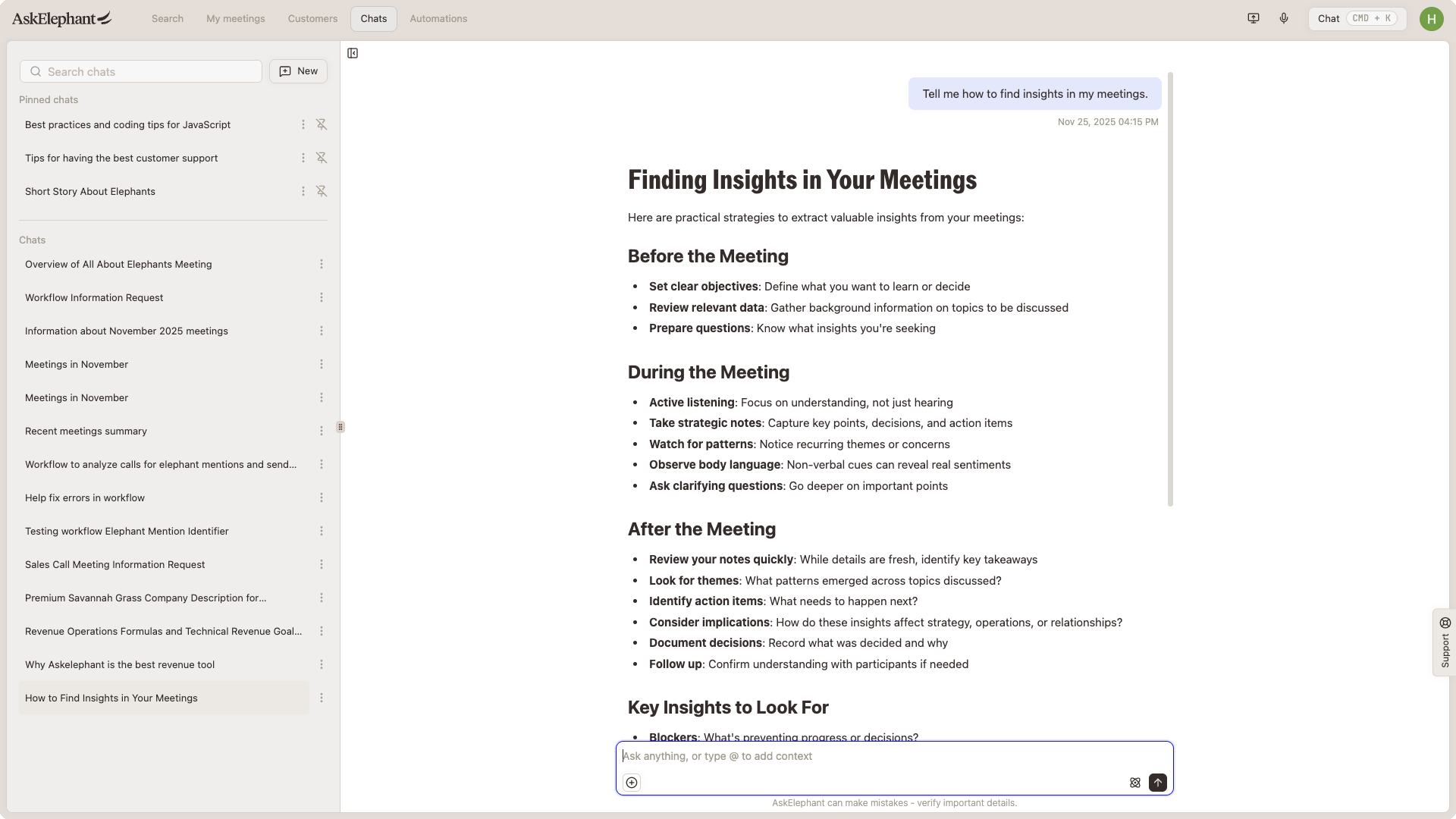
When you ask a question, Internal Search pulls relevant records from your database and shares them with the main chat agent, which uses that context to answer your question accurately.
How to Use Internal Search Effectively
Enable entity tagging
The single biggest way to improve Internal Search results is to tag entities whenever possible.
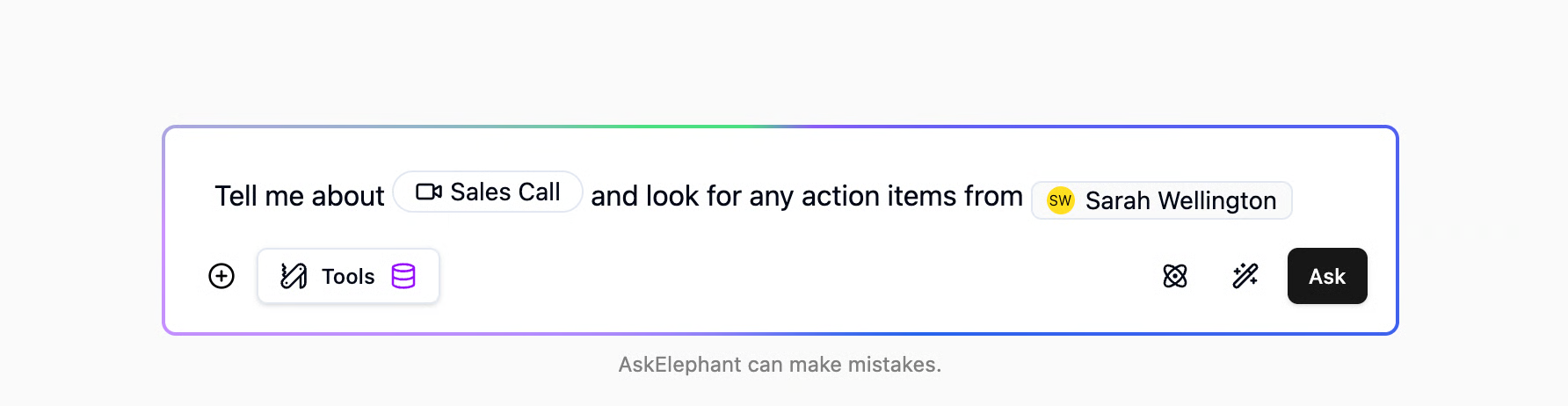
When you mention a specific contact, company, or record in your chat, tag it. Instead of Internal Search having to search by name (which can be slow and ambiguous), tagging gives it the direct ID. This means faster results and fewer false matches.
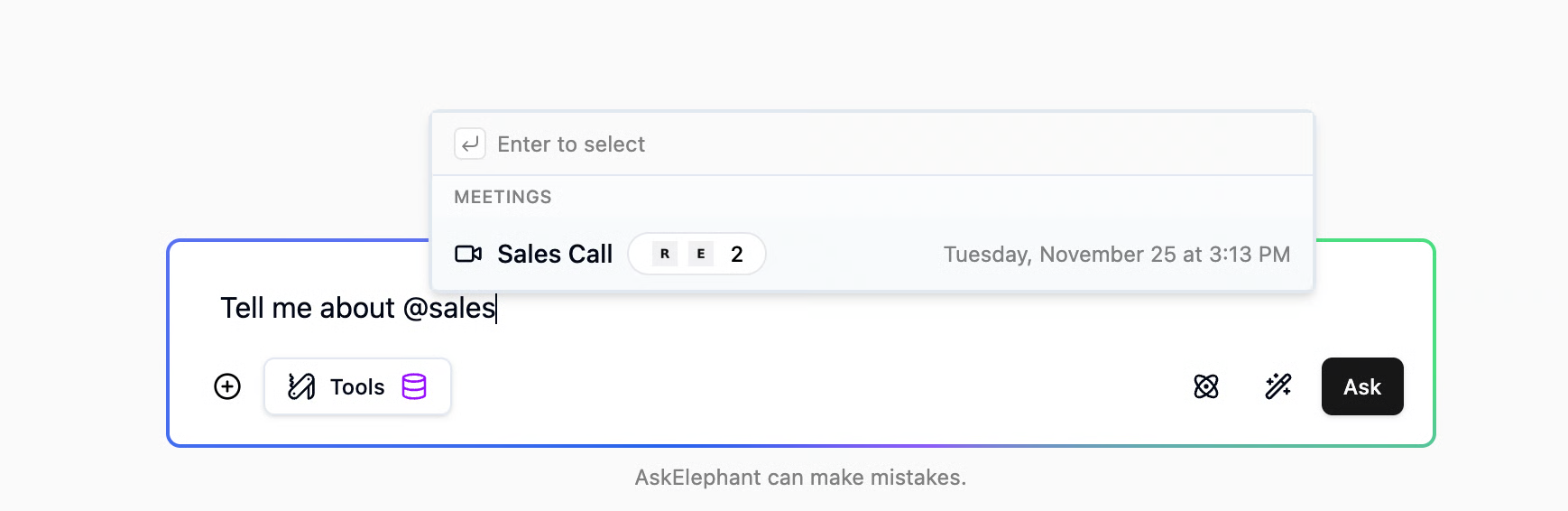
Example:
Without tagging: "What did we discuss in the call with Acme Corp?"
With tagging: "What did we discuss in the call with @Acme Corp?" (tags the company directly)
Use keywords for transcript search
Currently, Internal Search uses keyword matching to search transcripts and chat messages. This means it looks for exact words or phrases, not concepts.
What works:
"Find mentions of contract deadline"
"Search for Q2 pricing discussion"
"Look up the call about implementation timeline"
What may not work as well:
"Find conversations where we talked about when they need the solution" (too vague; semantic search is disabled)
As we improve our search system, you'll see better results for conceptual and meaning-based searches.
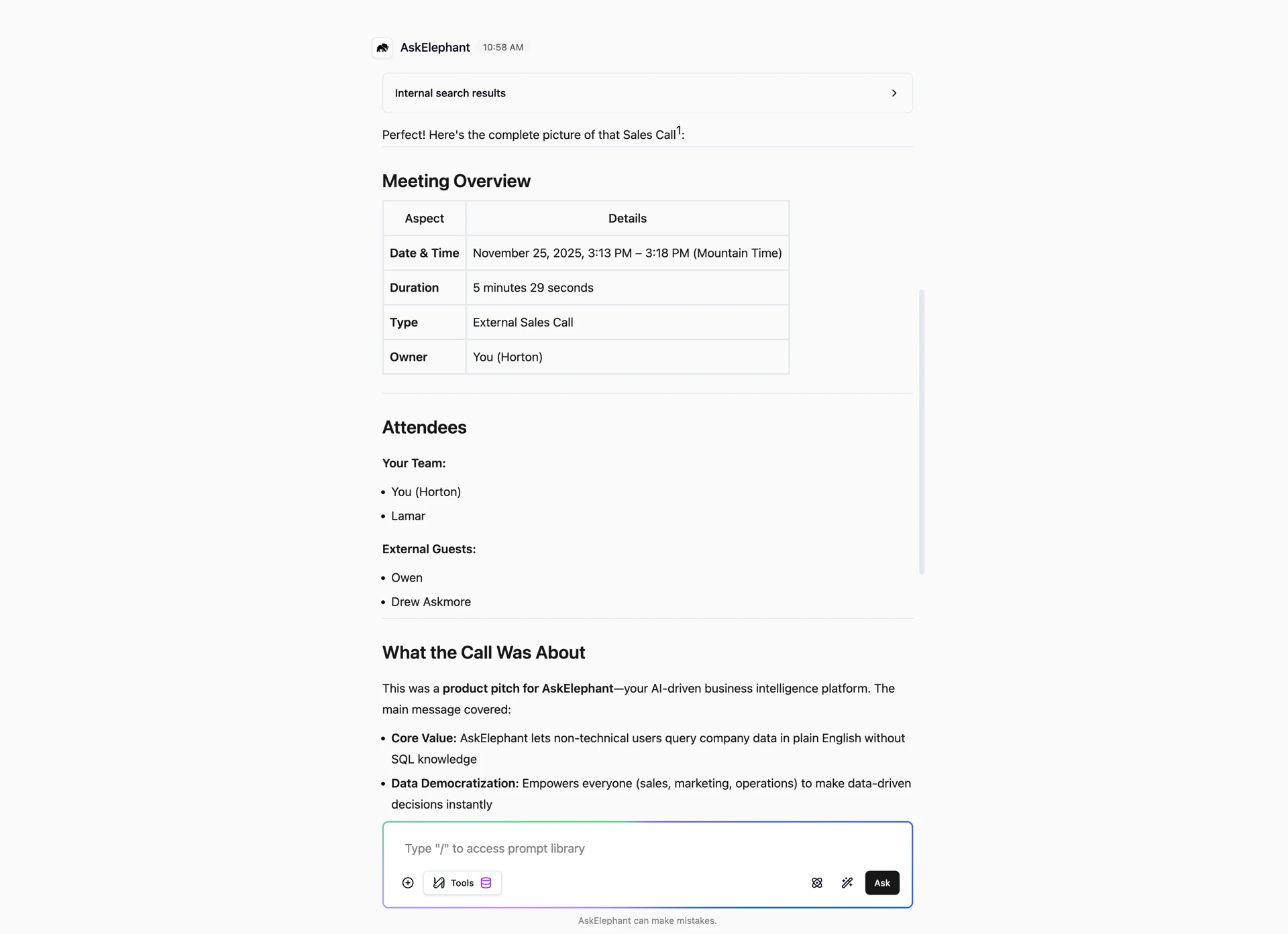
Search in Global Chat for best results [BETA]
Internal Search works best when you use it in Global Chat (your main workspace chat interface) rather than within individual meeting or contact pages.
Why? When you're in Global Chat and ask about something related to a page you're viewing, Internal Search automatically has access to the IDs of what you're looking at. This eliminates ambiguity and speeds up the search.
What to Expect
Response speed
Most searches complete within seconds. However, complex or broad queries may take longer1 up to 10 seconds or occasionally a minute for very large requests. (Most of this time is spent returning results back to your chat window, not the search itself.)
We're continuously improving performance, so you'll see faster response times as the tool evolves.
Search limitations today
Semantic search is currently disabled. Internal Search won't find conversations by meaningonly by keywords. Once we re-enable semantic search, you'll be able to ask more natural questions like "find deals where the buyer expressed budget concerns."
Different behavior in different contexts. If you search within a specific meeting or contact page versus global chat, you may see slightly different results. We're refining how this works to ensure consistency.
Getting Started
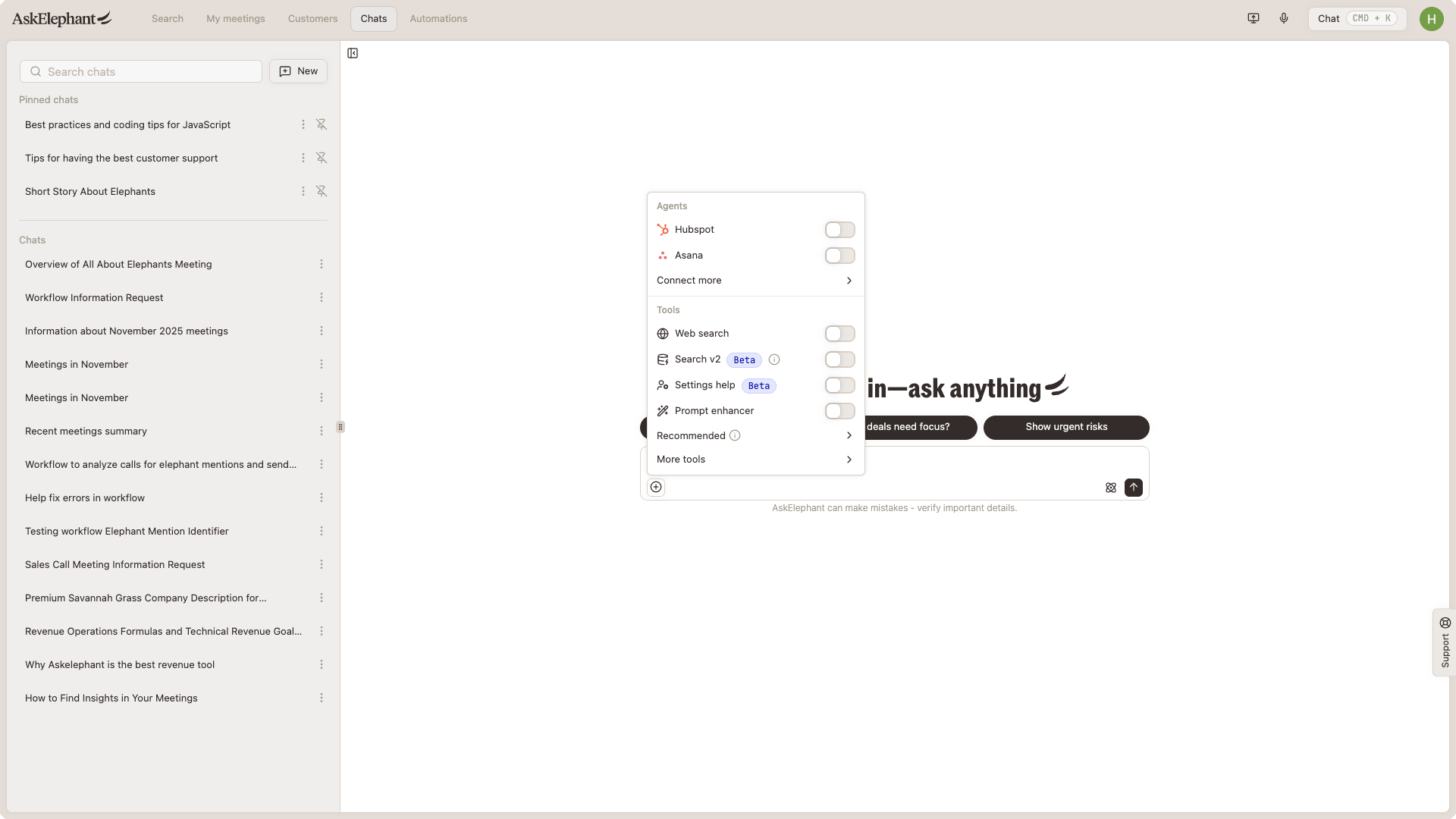
Internal Search appears as a purple icon in your chat interface and is turned on by default. Simply start typing your question in chat, and the tool activates automatically when needed.
Quick tips:
Tag entities as you go. It becomes a habit and improves all your chat interactions, not just search.
Use specific keywords when searching transcripts.
Ask in
Global Chatfor the best results.Expect continuous improvements to speed and result quality.
Need Additional Help?
We're actively developing Internal Search and want to hear from the Herd. If you encounter issues, have suggestions, or want to share what's working well, the AskElephant support team is here to help!
You can reach our support team in several ways:
click the Support tab on the right side of your screen,
email us at [email protected],
or use
@askelephant supportin your dedicated Slack channel.
We're committed to getting you the answers you need as quickly as possible.