
Prompt Library
Introduction
Prompt library is your team's collection of reusable prompts that you can save, organize, and access instantly inside AskElephant. Instead of copying and pasting the same prompts across meetings and engagements, build your library once and use it anywhere.
Why Prompt Library Matters
Repetition slows you down. If you're using the same prompt across multiple meetings, Prompt library eliminates the copy-paste cycle. You create it once, save it, and pull it up in seconds.
This is especially valuable for consistency. If you always summarize customer calls the same way, save that summary prompt and reuse it for every engagement without recreating it each time.
How to Access Prompt Library
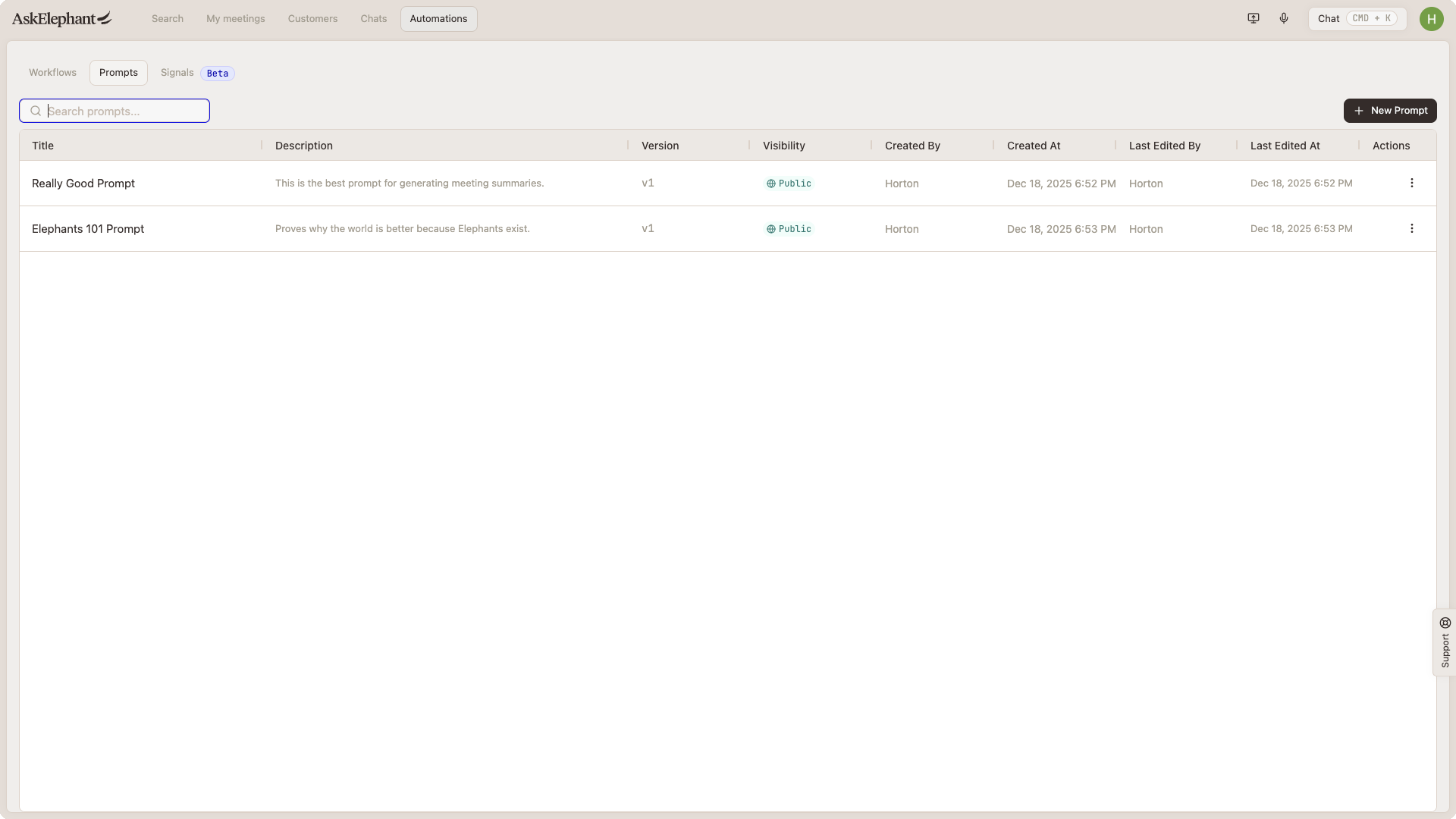
Click
Automationsin the top navigation barSelect
Promptsfrom the Automations menu
You'll see every available prompt with title, description, version number, creator, and last edited date.
Creating a New Prompt
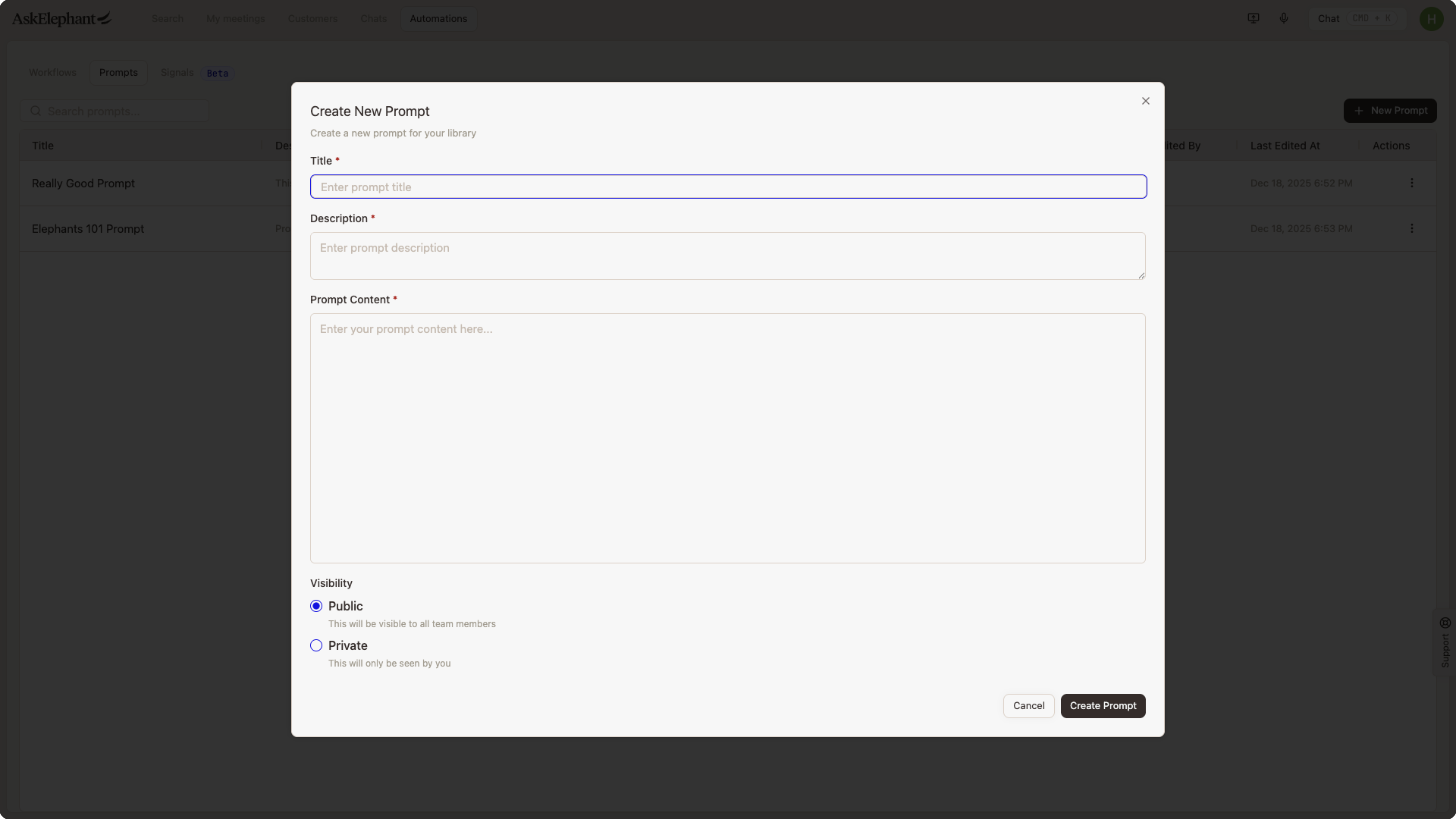
Click the
New Promptbutton in Prompt libraryFill in the prompt details:
Title: a clear, recognizable name (for example,
Meeting summary template)Description: a brief explanation of what the prompt does
Content: the actual prompt text or instructions
Set visibility:
Public: everyone in your workspace can see and use itPrivate: only you can access it
Click
Create Prompt
Your prompt is saved and ready to use.
Editing and Managing Prompts
Prompts evolve with your workflows. To update one:
Find the prompt in your Prompt library (scroll or search)
Click the three dots next to it
Select
EditMake your changes and save
AskElephant tracks every version automatically. When you edit, the version number increments (v1 becomes v2) and the system records who edited it and when. That keeps your team aligned and creates a clear history.
Using Prompts in Your Work
Prompt library is available anywhere you're working in AskElephant:
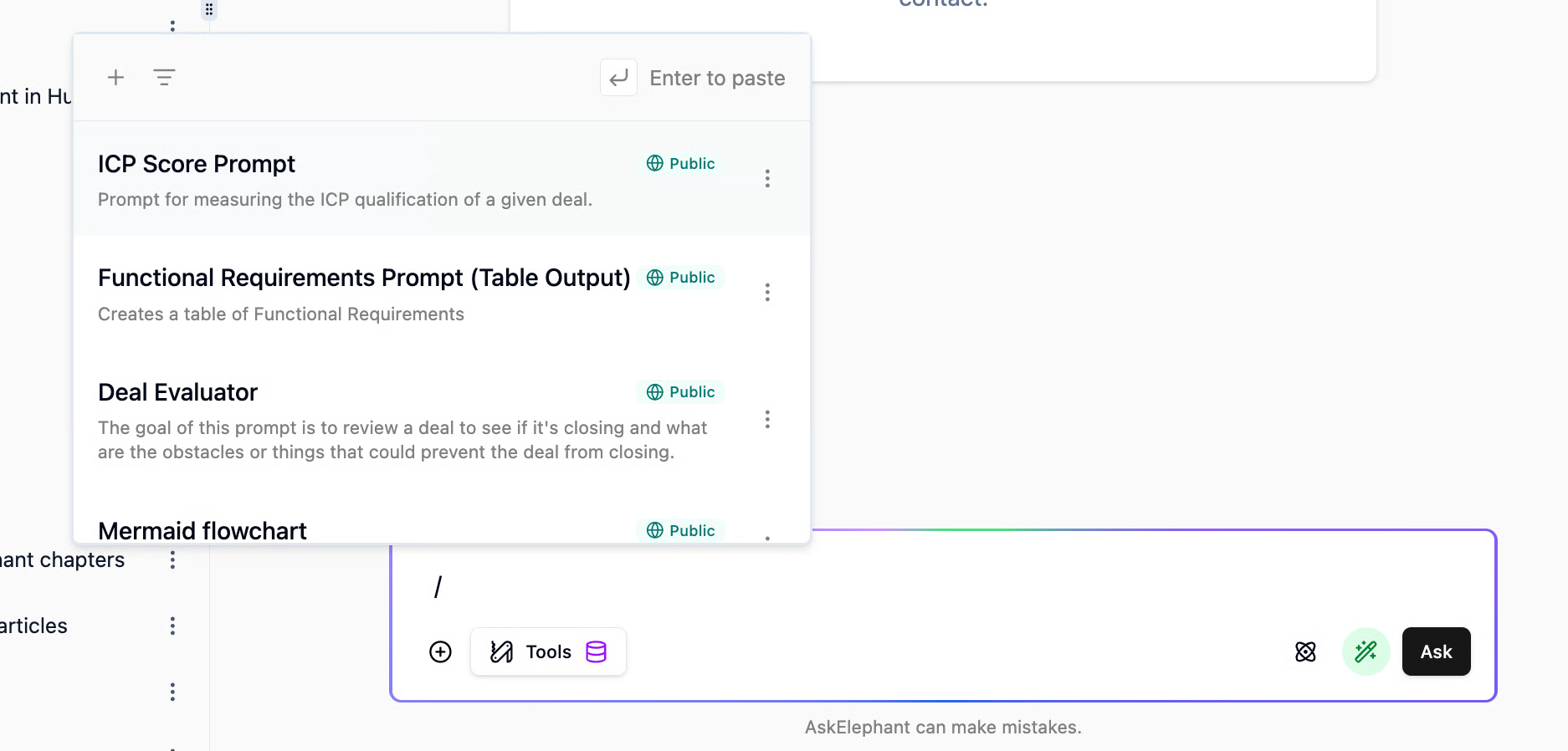
Type
/(forward slash) in any chat or work areaThe Prompt library popup appears
Search for the prompt you need or browse your list
Select the prompt to insert it instantly
No copying, no pasting, no tab switching. Your entire library is one keystroke away.
Real-world example
Say you run customer calls every week and always need the same summary format:
Create a
Weekly call summaryprompt once and save it to Prompt libraryAfter each customer call, open the meeting engagement
Type
/in a chat, select your summary prompt, and it appears instantlyRun it and get a consistent summary every time
If you change the summary format later, edit the prompt once and every future use reflects the change
Public vs. Private Prompts
Public prompts work when your whole team benefits from the same template—like a standard meeting summary or discovery call outline. Public prompts keep everyone aligned and consistent.
Private prompts are for your own workflows or templates you're still developing. They stay visible only to you and keep your personal work organized without cluttering the team library.
You can change a prompt's visibility later as needs shift.
Next Steps
Pick one prompt you use regularly. Create it, save it to Prompt library, and try pulling it up with the / command. Once you see the time savings, you'll build out more templates for your common workflows.
Need Additional Help?
If you have questions or need further assistance, the AskElephant support team is here to help!
You can reach our support team in several ways:
click the Support tab on the right side of your screen,
email us at [email protected],
or use
@askelephant supportin your dedicated Slack channel.
We're committed to getting you the answers you need as quickly as possible.