
Salesforce
AskElephant's Salesforce Agent keeps your CRM up to date without manual data entry. Use it to query Salesforce in natural language, automatically update records from meetings, and build workflows that respect your Salesforce permissions.
What the Salesforce Agent does
The Salesforce Agent can read, create, and update records in your Salesforce instance based on meeting conversations, chat prompts, or automated workflows. It works with:
Accounts
Contacts
Leads
Opportunities
Notes
Custom objects (sales scorecards, account planning, handoff summaries, and anything else your team tracks)
The agent operates within your Salesforce permissions — it can only view or change records you're already authorized to view or change.
How the integration is set up
There are two levels of Salesforce integration, and they serve different purposes.
Workspace-level integration is set up once, and it takes two people (or one person who is both). An AskElephant workspace Owner connects the integration under Workspace Settings → Integrations; a Salesforce administrator installs the AskElephant package on the Salesforce side. Managers and Users can't open Workspace Settings, so they can't connect or disconnect it. For the full setup sequence, see Connect Salesforce.
Workspace-level integration powers automated workflows that run in the background — for example, summarizing meetings and pushing notes to opportunities after a call. Workspace-level workflows are available to everyone on your AskElephant workspace.
User-level integration is connected individually by each team member, whatever their role. It's required for chat-based interactions with the Salesforce Agent and respects your individual Salesforce permissions.
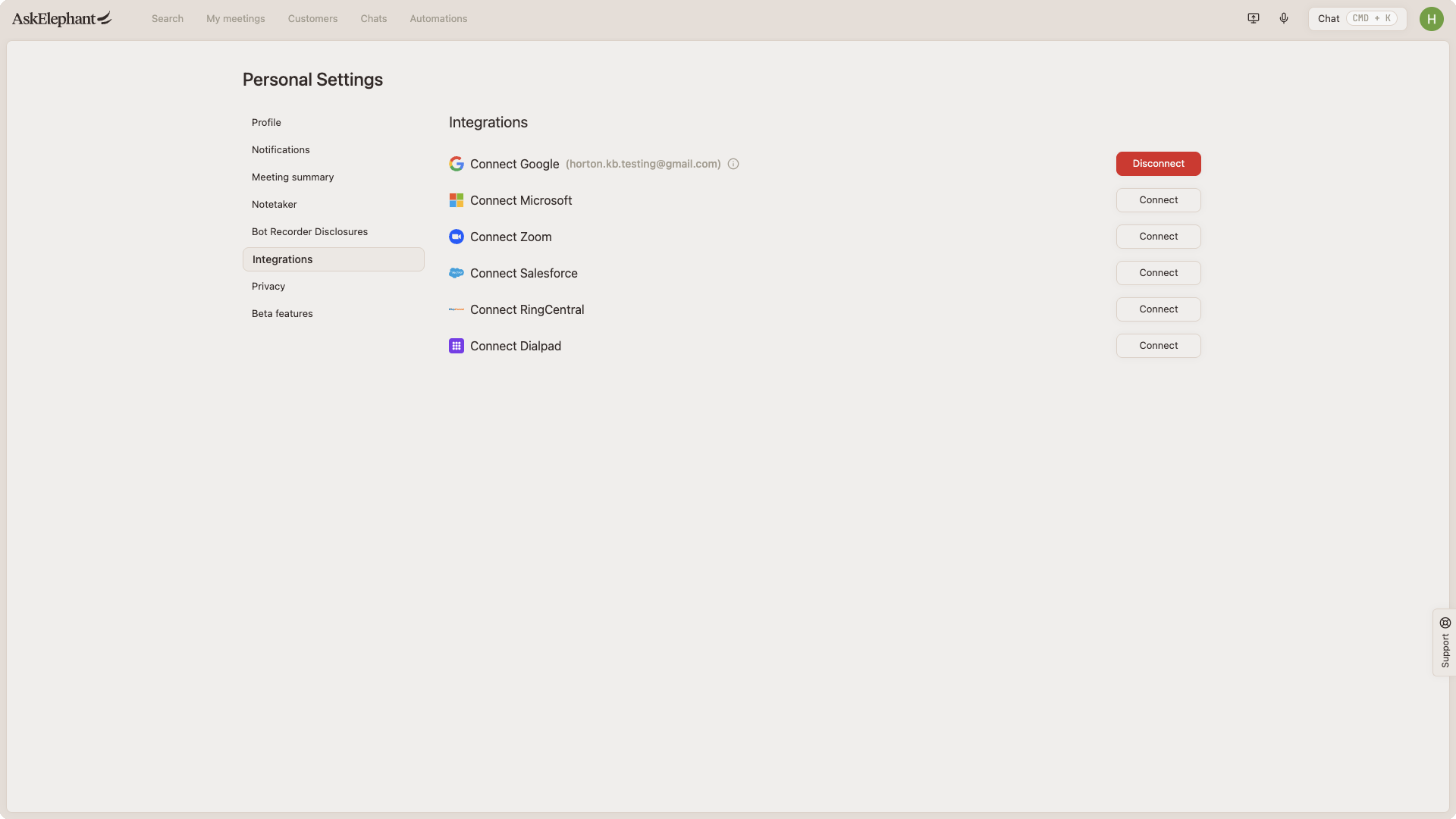
Both can be active at the same time. You need the user-level connection to chat with the Salesforce Agent, even if the workspace-level connection already exists.
Set up user-level integration
Go to Personal settings → Integrations in AskElephant.
Find Salesforce in the list of available integrations.
Click
Connectto authorize your individual Salesforce access.
Personal-level connections live under Personal settings → Integrations and are separate from workspace-level integrations (accessed via Your Name → Integrations and configured by workspace Owners).
Salesforce admins: Ensure users in your workspace can self-authorize when connecting Salesforce to AskElephant.
To set your OAuth to allow self-authorization for AskElephant make sure AskElephant is installed under Connected Apps OAuth Usage
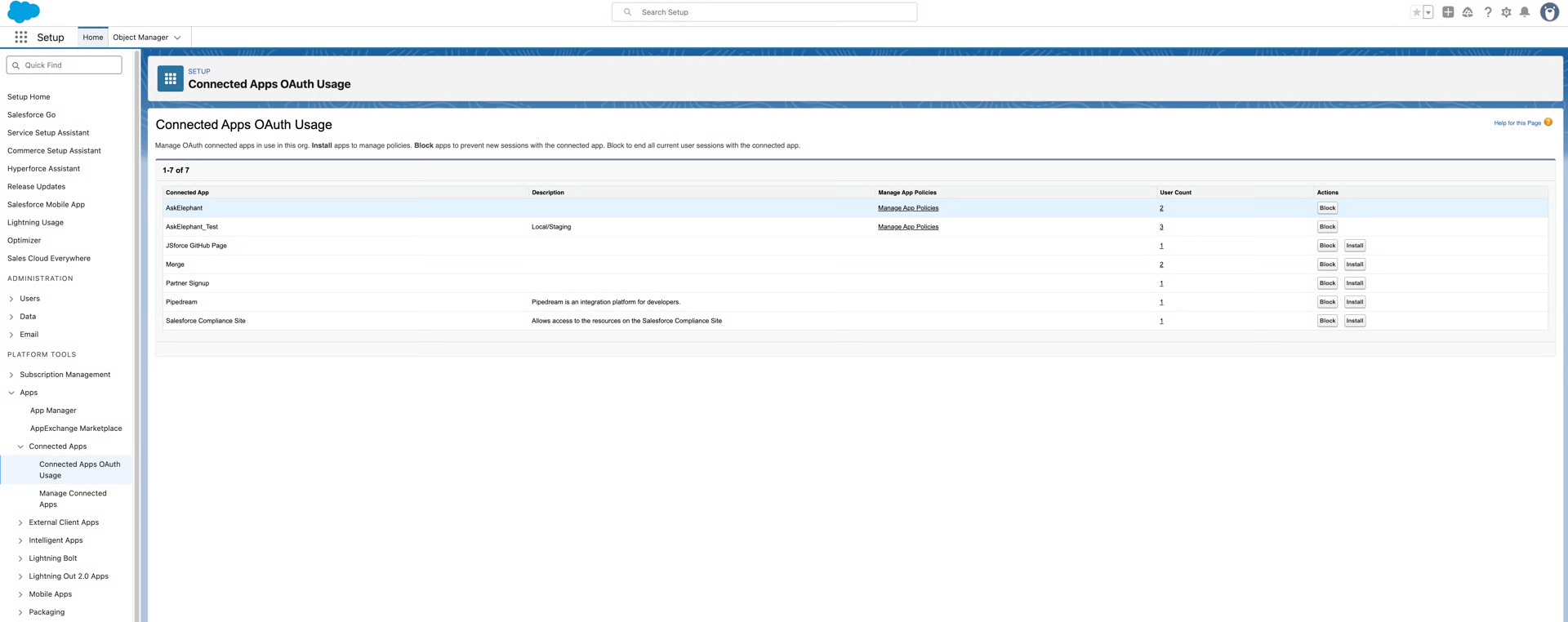
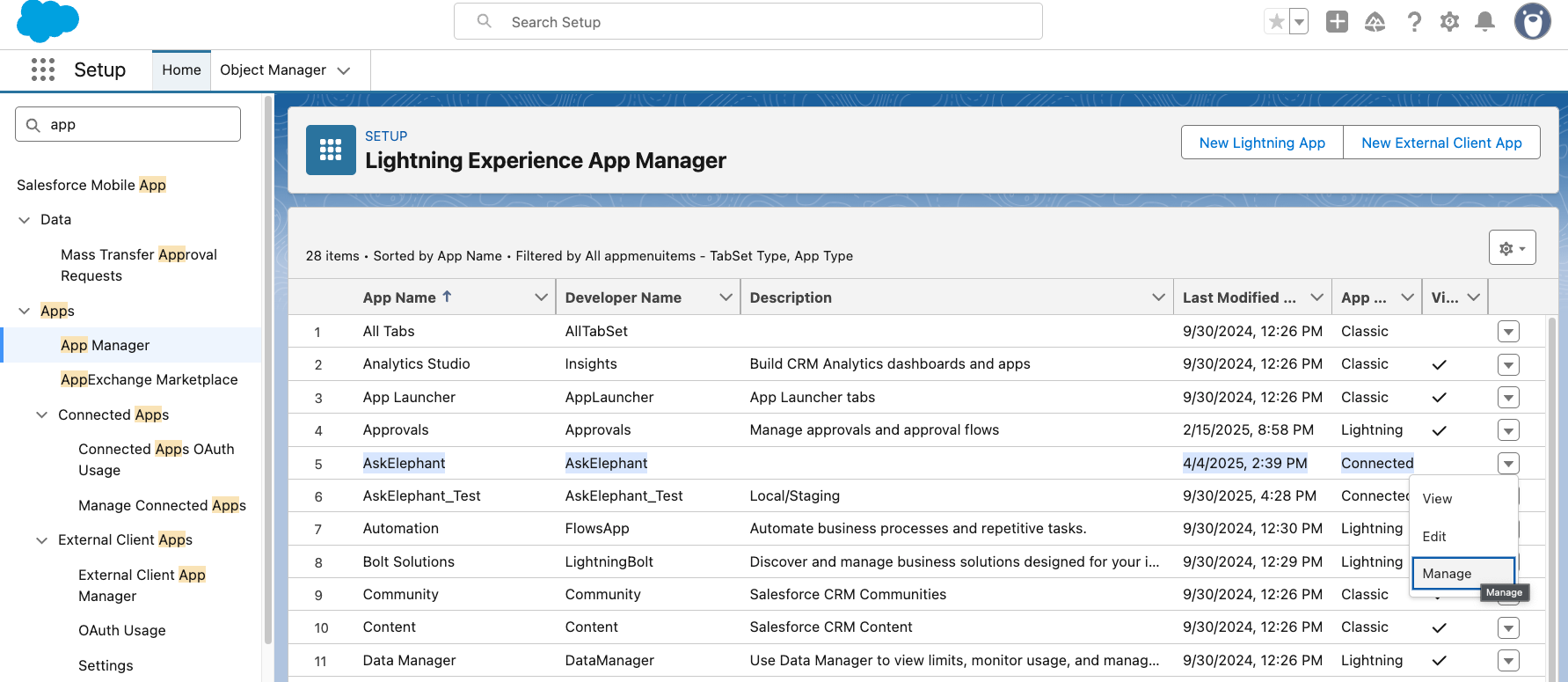
locate AskElephant in the Salesforce App Manager.
Then click “Edit Policies” and change Permitted Users to: “All users may self-authorize”
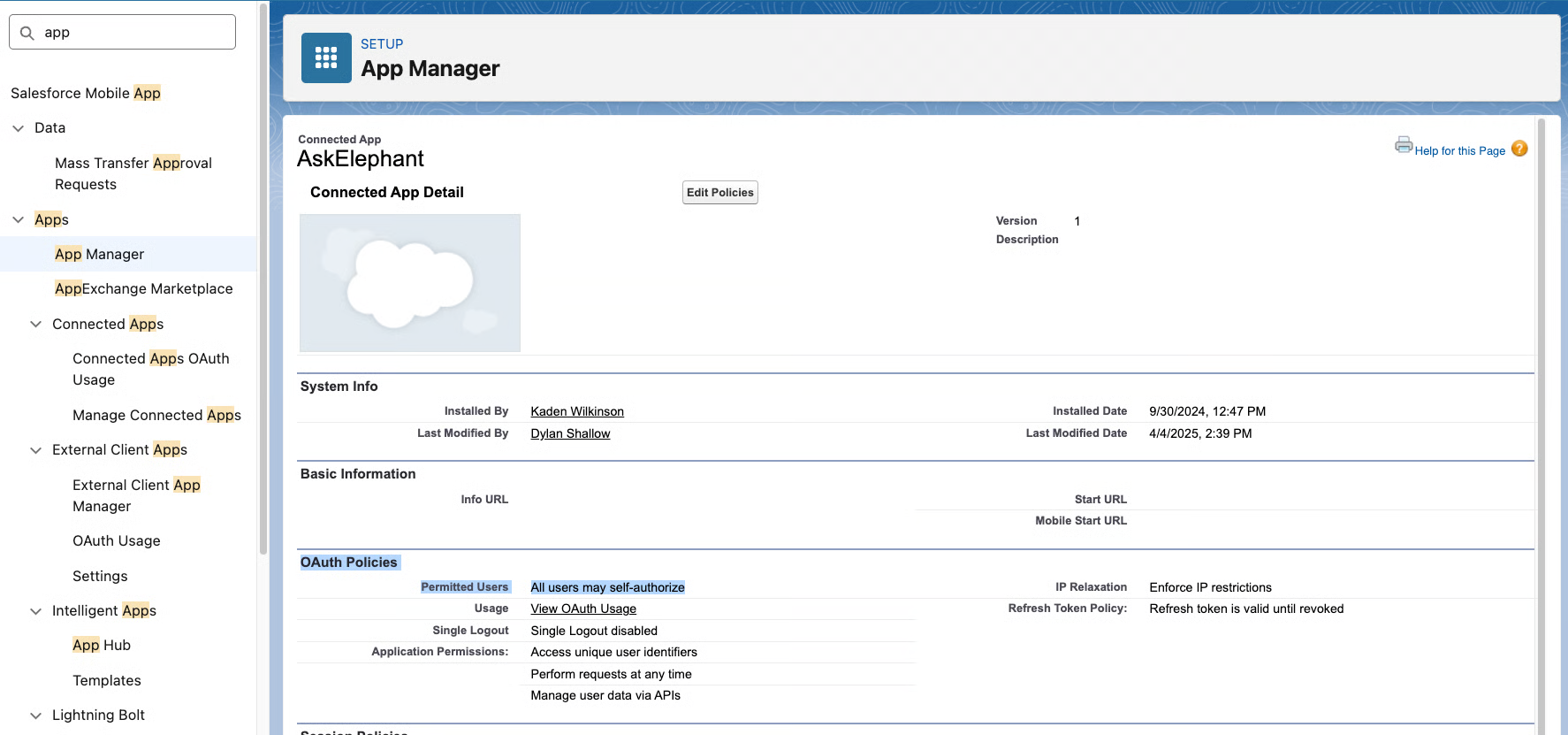
This will allow a seamless and secure connection for everyone in your Salesforce and AskElephant workspace.
Three ways to use the Salesforce Agent
1. Chat with the Salesforce Agent
Open a chat in AskElephant, toggle on the Salesforce Agent in the tools list, and ask questions in plain language. For example:
"Show me all opportunities closing this quarter"
"What accounts need follow-up this week?"
"Show me all the accounts that were created in September 2024 in my Salesforce"
"List all contacts associated with
[specific account name]""Create a new opportunity for
[company name]"
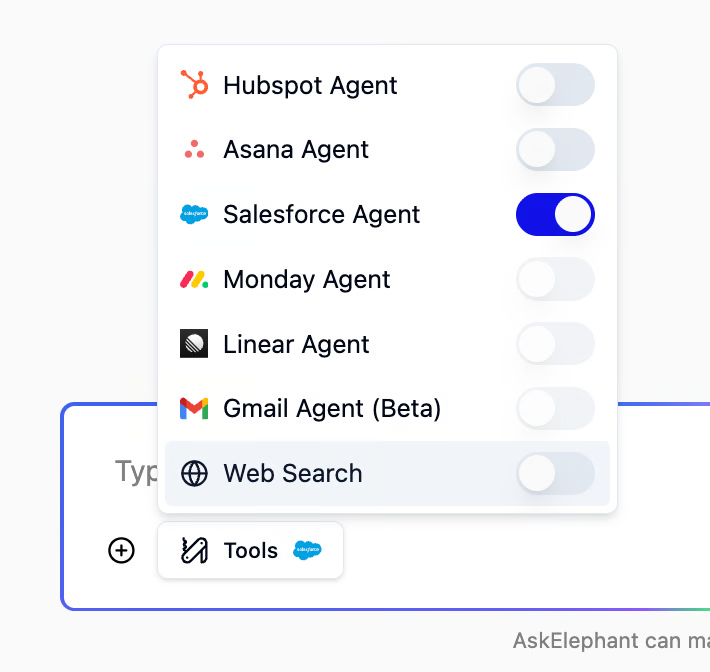
Specific prompts produce better results than vague ones. If the agent appears to load but returns nothing, try rewriting your prompt with more detail about the records, fields, or time range you want.
2. Automated workflows
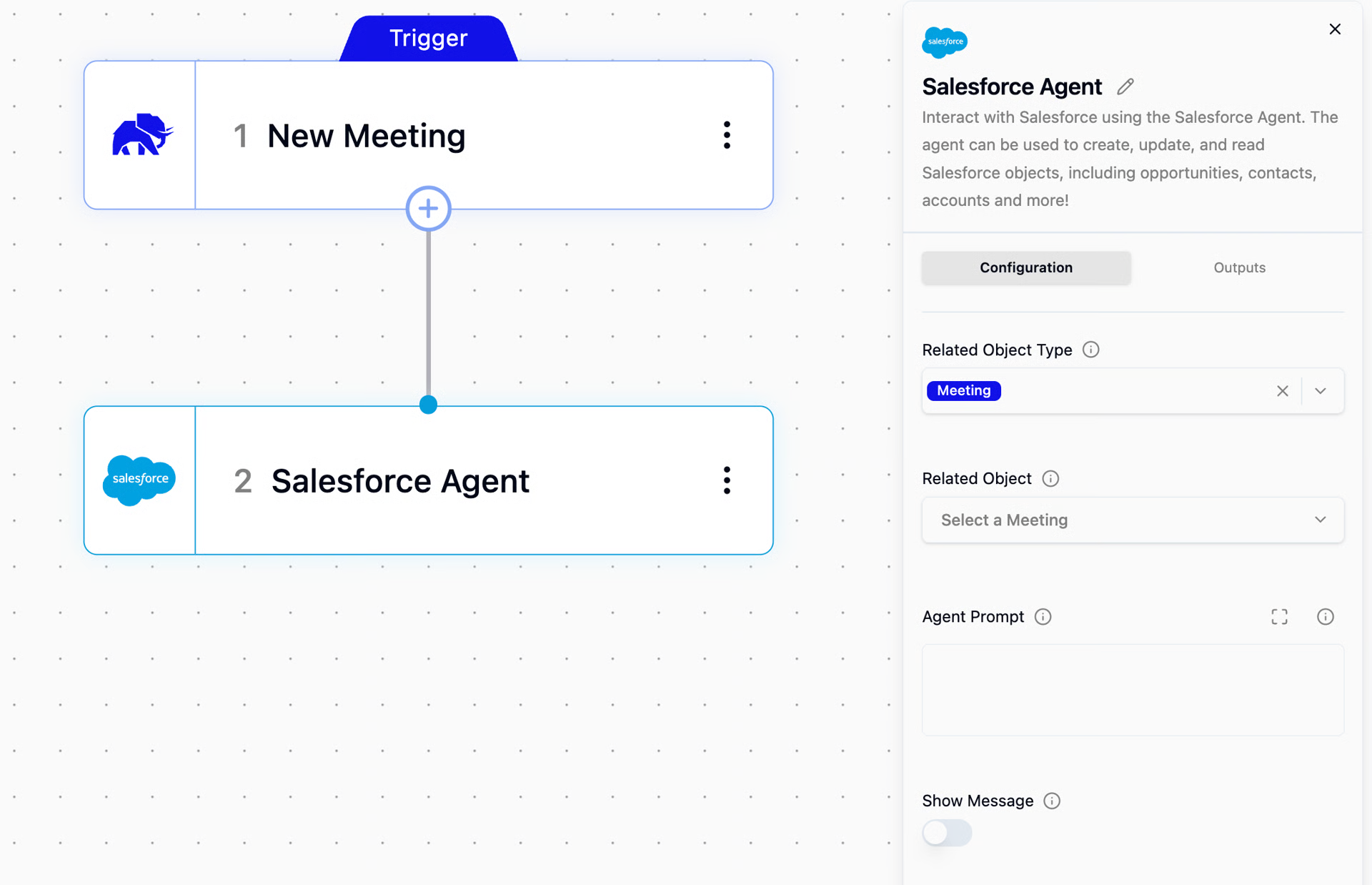
Add a Salesforce Agent node to a workflow after a trigger (such as a meeting ending) and give it a custom prompt. The node runs automatically, inside your Salesforce permissions. Common uses:
Summarize meetings and push summaries to opportunities, contacts, or engagements
Update field values (deal size, stage, next steps) after a call
Monitor transcripts for competitor mentions, coaching signals, or account changes
Track stakeholder types — Champion, Blocker, Decision Maker — on contacts
Generate deal scorecards for open, won, or lost opportunities
Build pre-meeting briefs that pull context from Salesforce, LinkedIn, and previous conversations
3. Workflows with human-in-the-loop
Add a Salesforce Agent node to a workflow, then include a line like "Ask for confirmation before proceeding with these updates" in the prompt. The agent will propose the changes and request approval inside the engagement the workflow is tied to (meeting, conversation, follow-up) before writing to Salesforce.
This is the right pattern for high-stakes updates where you want automation speed with human oversight.
Troubleshooting
"Internal server error" when connecting
If you see an "Internal server error" when trying to connect your Salesforce account, your Salesforce admin needs to enable OAuth self-authorization for the AskElephant app.
Have your admin:
Open the Salesforce App Manager.
Locate AskElephant under
Connected Apps OAuth Usage.Click
Edit Policiesand change Permitted Users toAll users may self-authorize.
Your organization may have policies that limit which users can self-authorize — check with your admin if you're unsure.
Salesforce isn't visible in Integrations
If Salesforce doesn't appear in your Personal settings → Integrations list:
Hard refresh your browser (
Cmd+Shift+Ron Mac,Ctrl+Shift+Ron Windows).If it's still missing, ask your Salesforce admin to confirm self-authorization is enabled for the AskElephant app.
If the admin settings are correct but the option still doesn't appear, contact support to enable user-level integration for your workspace.
After it's enabled, changes can take up to an hour to take effect.
Agent loads but doesn't return data
If the Salesforce agent shows a loading state but returns nothing, try a more specific prompt. Name the object, the field, or the time range you want. Vague prompts like "show me Salesforce data" tend to time out or return nothing; specific prompts like "list all contacts associated with Acme Corp" work reliably.
Connection problems in chat
If you can't access Salesforce data through chat, verify that you've connected your individual Salesforce account in Personal settings → Integrations. Workspace-level integration alone isn't enough for chat — chat requires the user-level connection.
Permission errors
If you get permission errors, check with your Salesforce admin that:
Your user profile has the right object and field permissions
AskElephant is approved as a connected app in your Salesforce org
OAuth policies allow user self-authorization
Security and permissions
The Salesforce Agent:
Only accesses data you have permission to view in Salesforce
Maintains audit trails showing who made what changes
Can be configured for human-in-the-loop approval before making updates
Respects all existing Salesforce security protocols
For sensitive operations, set up workflows to propose changes rather than implement them automatically, so you stay in the review loop.
Best practices
Start with low-risk automations like adding meeting notes before moving to field updates.
Write specific prompts that name the data to extract and where to place it.
Include human review steps for critical updates.
Test workflows on a few engagements before rolling out to the team.
Use consistent field and object naming across your workflows.
Need More Help?
Reach the AskElephant support team by:
clicking the Support tab on the right side of your screen,
emailing [email protected],
or using
@askelephant supportin your dedicated Slack channel.