
HubSpot
Introduction
The HubSpot integration connects your customer relationship management (CRM) system directly to AskElephant. This means your sales, success, and service teams can access, create, and update customer information without leaving AskElephant, all within your conversations and automated workflows.
Think of it as giving AskElephant direct access to your customer database. Your team stays in one place, information flows automatically, and nothing falls through the cracks.
Key Terms
CRM (Customer Relationship Management): A system that stores all your customer information: contacts, companies, deals, and communication history. HubSpot is a popular CRM platform.
Integration: A connection between two software tools that allows them to share information and work together.
Workflow: An automated sequence of actions triggered by a specific event (like when a new deal is created).
OAuth: A secure way for AskElephant to access your HubSpot account without storing your password.
HubSpot Agent: An AI assistant within AskElephant that understands natural language requests and performs actions in your HubSpot account.
Getting Connected: The Basics
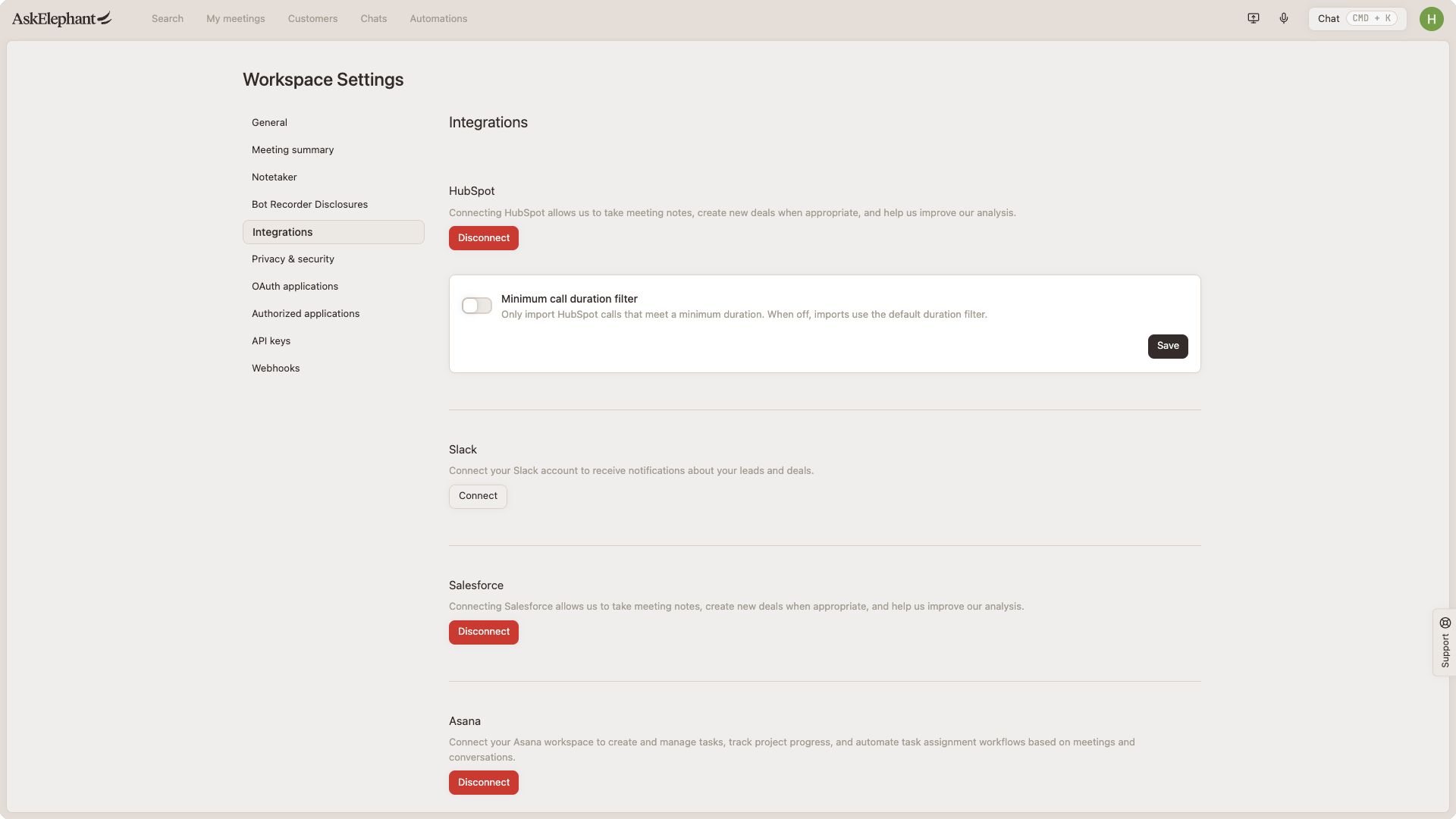
Connecting HubSpot to AskElephant takes just a few minutes. It requires the workspace Owner role in AskElephant, plus basic permissions in your HubSpot account. Managers and Users can't open Workspace Settings, so they can't connect, reconnect, or disconnect HubSpot. See Roles & Permissions.
To connect:
Go to
Workspace Settings → IntegrationsFind HubSpot in the integrations list
Click
ConnectYou'll be taken to HubSpot's login page
Log in and approve the requested permissions
You're automatically redirected back to AskElephant. You're connected.
Now you can toggle the HubSpot Agent in any chat to automatically add CRM data and create HubSpot centric workflows!
What AskElephant Can and Cannot Do
AskElephant can:
View all contacts, companies, and deals you have access to
Create new records (contacts, companies, deals, notes, tasks)
Update existing records
Link records together (like connecting a contact to a company)
Add notes and activity logs
AskElephant cannot:
Delete records (this is intentional, a safety feature)
Change your HubSpot account settings or user permissions
Capability | Agent | Workflow Actions | Workflow Triggers |
|---|---|---|---|
Create Records | ✅ | ✅ | - |
Update Records | ✅ | ✅ | - |
Search Records | ✅ | ✅ | - |
Delete Records | ❌ | ❌ | - |
Manage Associations | ✅ | ⚠️ | - |
Batch Operations | ✅ | ⚠️ | - |
Complex Searches | ✅ | ⚠️ | - |
Event Response | - | - | ✅ |
Property Changes | - | - | ✅ |
How to Use It: Real-World Examples
Example 1: After a Sales Meeting
You've just wrapped up a meeting with a prospect. Instead of manually logging everything into HubSpot later, you can ask AskElephant to:
Create a new deal based on what you discussed
Add all meeting attendees as contacts
Associate everyone with the prospect's company
Log detailed meeting notes automatically
You simply type: "Create a deal for Acme Corp based on this meeting and add all attendees as contacts."
AskElephant handles the rest.
Example 2: Automating Follow-ups
Set up a workflow so that whenever a deal moves to a specific stage (like "Proposal Sent"), AskElephant automatically:
Creates a task for your team to follow up
Sends a notification to Slack
Adds a note to the deal in HubSpot
No manual work required.
Example 3: Finding Information Quickly
Instead of jumping between tabs, ask AskElephant directly in a conversation:
"Show me all deals over $50,000 in proposal stage"
"Find all VP-level contacts at tech companies"
"What's the status of the Acme renewal deal?"
Two Ways to Use the Integration
1. Direct Conversations
Enable the HubSpot tool in any chat and ask questions or request actions in plain English. AskElephant understands what you need and executes it. You can ask it to create records and log activity without repeating information.
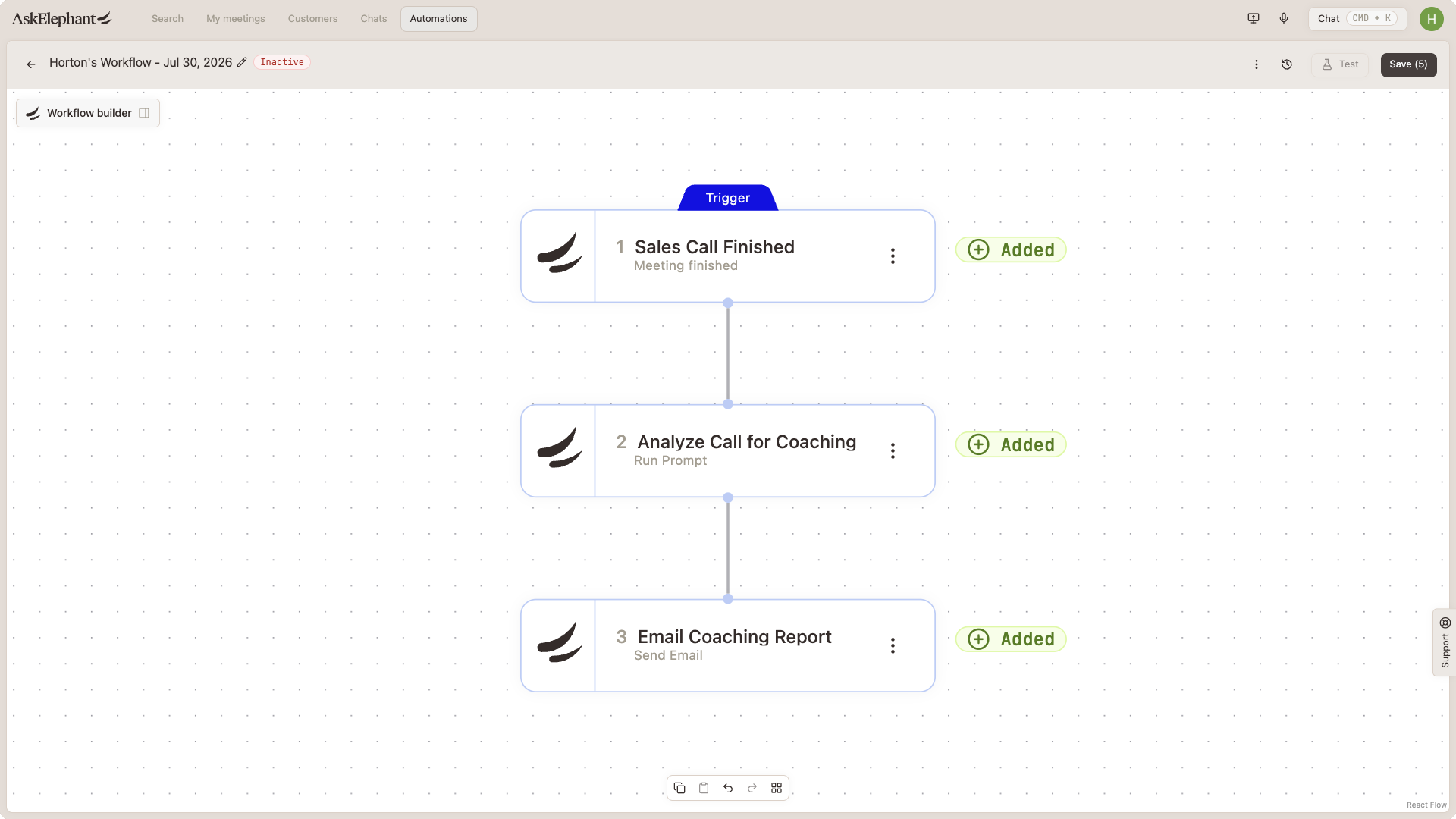
2. Automated Workflows
Set up triggers that fire when something happens in HubSpot (like a new contact created), then define actions AskElephant should take automatically.
Best Practices: Get the Most Out of It
Be specific with requests. Instead of "Find some VP contacts," try "Find all contacts where job title contains VP and lifecycle stage is customer." The more detail, the better the results.
Log everything. Use AskElephant to add meeting notes, call summaries, and decisions to your CRM immediately. This keeps your data fresh and your team informed.
Automate repetitive tasks. If your team does the same thing repeatedly (like creating tasks when deals move to a stage), set up a workflow to do it automatically.
Keep associations clean. Always link contacts to their companies and deals to relevant contacts. This creates a complete picture of your customer relationships.
Import from HubSpot
The HubSpot integration import feature allows you to import HubSpot call/meeting data directly into AskElephant. This is especially useful when you first connect the HubSpot integration to your workspace.
Importing is a workspace-level action, so it also requires the Owner role.
⚠️ Important. The import feature is managed by date. Using the import feature multiple times over the same period will generate duplicate calls.
Disconnecting (If Needed)
Disconnecting is an Owner action, and it affects the whole workspace: everyone loses HubSpot access, not just you.
Go to
Workspace Settings → IntegrationsFind the HubSpot integration
Click
Disconnect
Your existing AskElephant data stays intact, but workflows using HubSpot will stop working. You can reconnect anytime to restore functionality.
Troubleshooting
Seeing Connect when HubSpot is already connected, workflow failures, or property-name errors? Start with a hard refresh (Cmd+Shift+R on Mac, Ctrl+Shift+R on Windows).
Next Steps
Ready to get started?
Connect your HubSpot account using the steps in "Getting Connected" above.
Try a simple request in a conversation, like searching for a contact or creating a quick note.
Set up one automation workflow based on a repetitive task your team does regularly.
Invite your team and show them how to use it in their daily work.
Have questions or run into issues? Reach out to the Herd in our community forum. They're great at helping with integration questions and sharing workflows that work well.
Need More Help?
Reach the AskElephant support team by:
clicking the Support tab on the right side of your screen,
emailing [email protected],
or using
@askelephant supportin your dedicated Slack channel.