
Companies
Introduction
See the full picture of each customer account. The Companies view brings together all meetings, team members involved, and conversation history so you can prep for calls, hand off accounts, and spot risks early.
AskElephant creates company records automatically when new contacts from different organizations join your meetings. You can also create companies manually or import them from HubSpot.
Key Terms
Company record — an automatic or manually-created entry for an organization, identified by its email domain.
Domain — the email suffix that identifies a company (for example,
acme.com). AskElephant uses it to automatically link contacts to companies.Company page — the dedicated workspace for a specific company, showing all meetings, contacts, and conversation history.
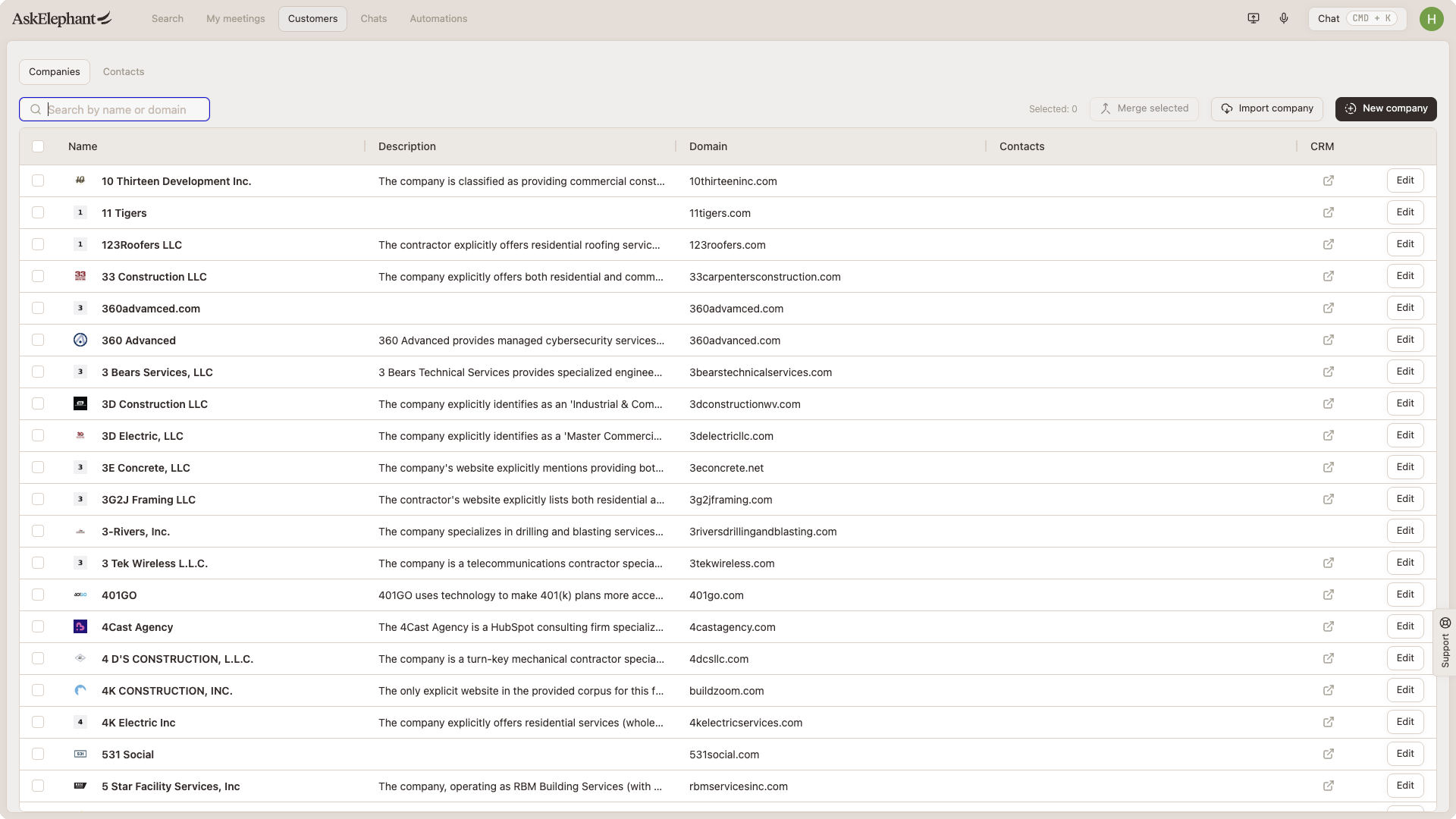
Companies List
Search bar to find companies by name.
Create new companybutton to add a company manually.Import from HubSpotto bulk-import up to 100 companies at a time.Editon each company to modify details or manage contacts.
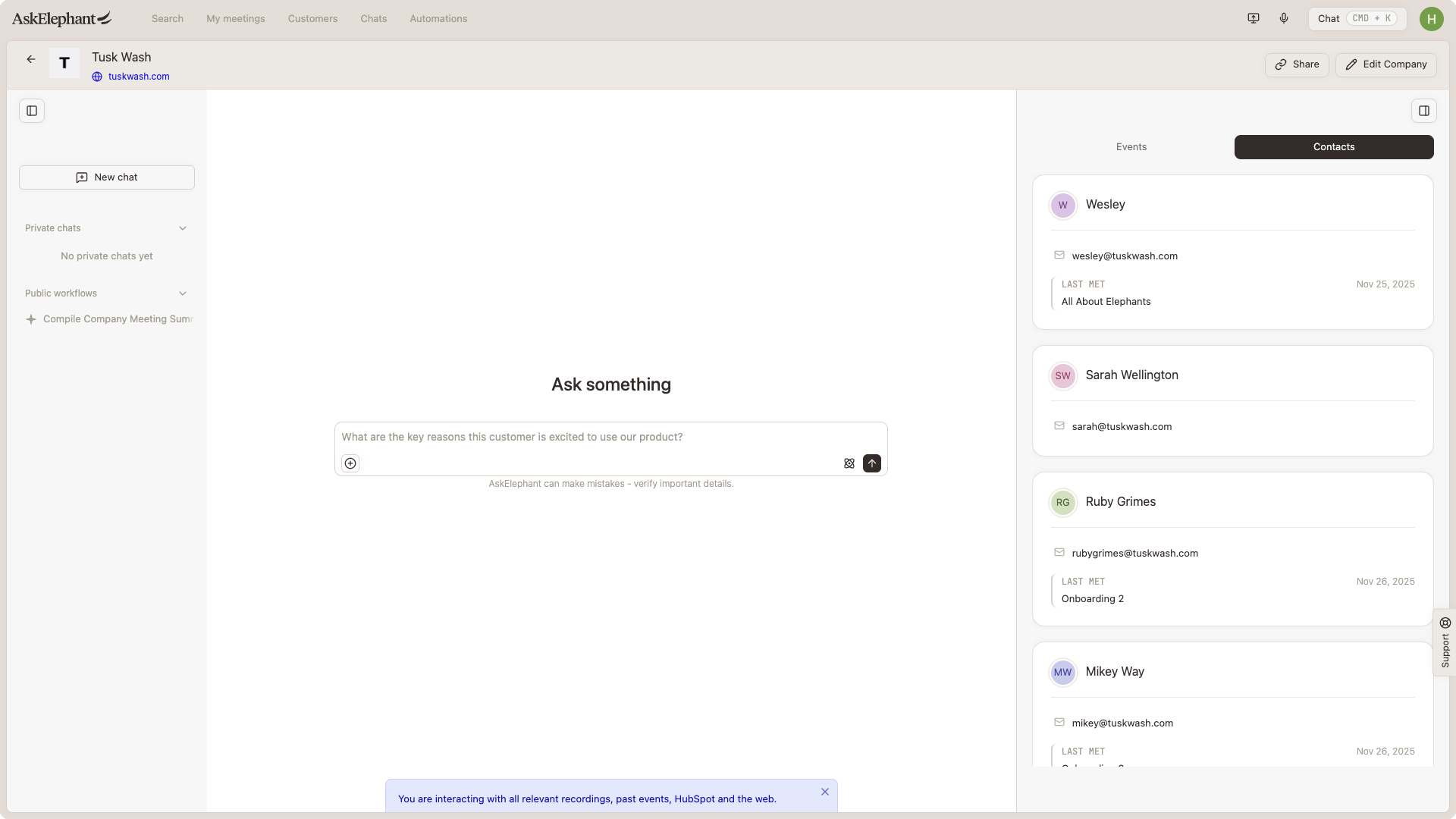
Company Page Layout
Left side:
Conversation window to ask questions about the company.
Meeting history showing all calls with that company.
Previous chats you've had about this company.
Manual workflows (grayed out) that you can trigger for this company.
Right side:
Contacts list showing everyone from that company.
Events and meetings with timestamps and details.
Upcoming calls scheduled with this company.
How Automatic Company Creation Works
When someone from a new organization attends a meeting:
AskElephant checks their email domain (for example,
[email protected]).If that domain doesn't exist yet, a company record is created.
Future contacts from that domain automatically link to the same company.
All their meetings are grouped under that company.
Example: Tyler from Acme joins a meeting. AskElephant creates "Acme" as a company and links Tyler to it. When Sarah from Acme joins a later call, she's automatically associated with Acme too.
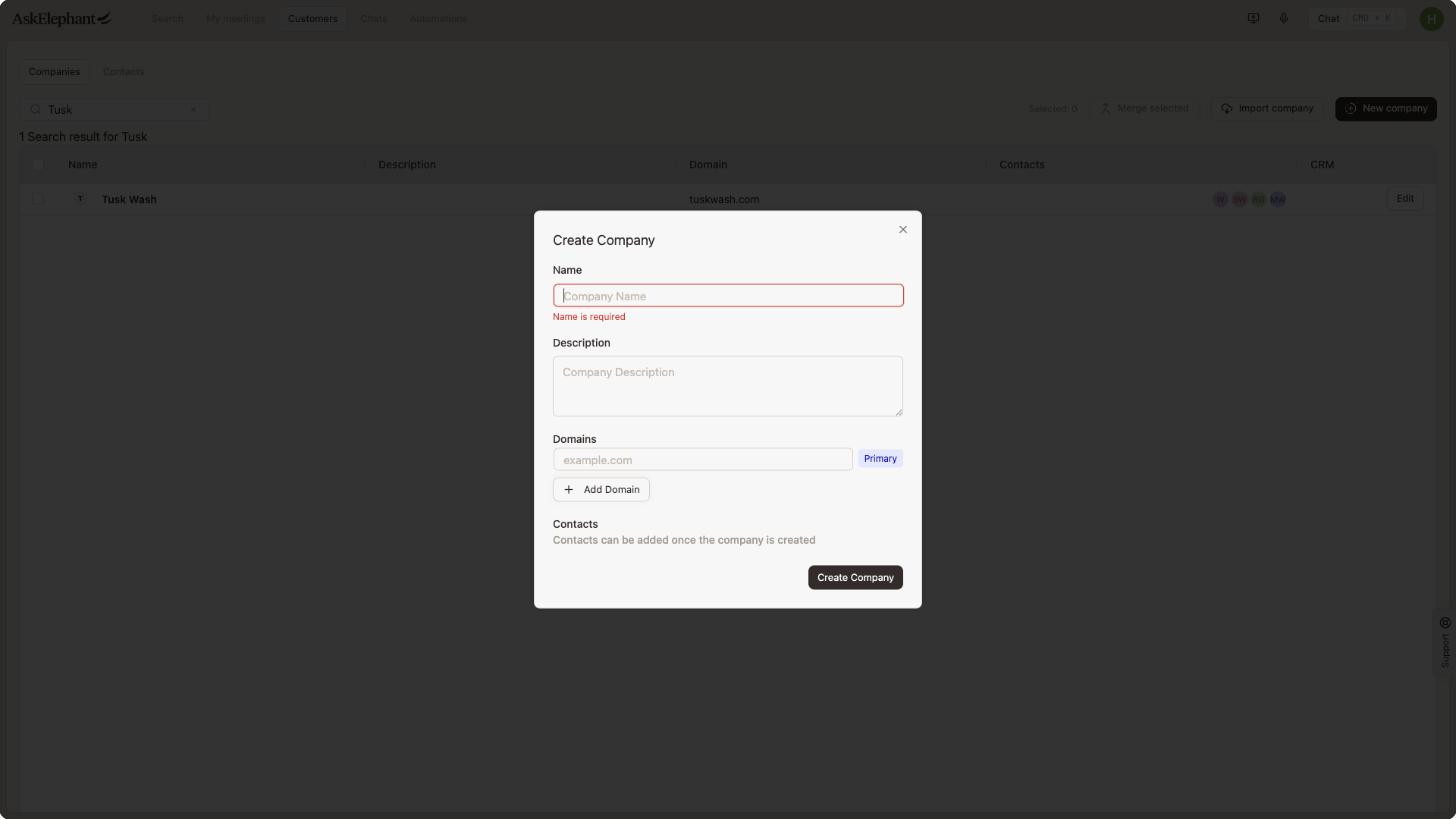
Create a Company Manually
Click
Create new companyat the top.Enter the company name and domain.
The domain is used for automatic contact matching from that point on.
Import From HubSpot
Click
Import.Search for companies.
Select and import up to 100 at a time.
Querying All Calls With a Client
The fastest way to ask questions across every meeting with a specific client is Chat on the company page — it's pre-loaded with every call associated with that company, so you can ask questions like "What were the main topics discussed?" or "What are their pain points?" without attaching meetings manually.
If you'd rather pick specific meetings:
Go to the search page.
Select the meetings you want to include.
Click
New chatto open a conversation with just those meetings as context.
Prepare for a Call
Open the company page.
Ask the AI: "Give me a summary of our past interactions" or "What should I know about this account?"
Review the conversation history on the left.
Check upcoming calls on the right.
Hand Off an Account
Open the company page.
Ask: "Summarize everything you know about this company and our relationship."
Review past meetings and key contacts.
Check any previous chats about this company.
You'll get full context on the company's history, expectations, and key interactions.
Edit or Find a Company
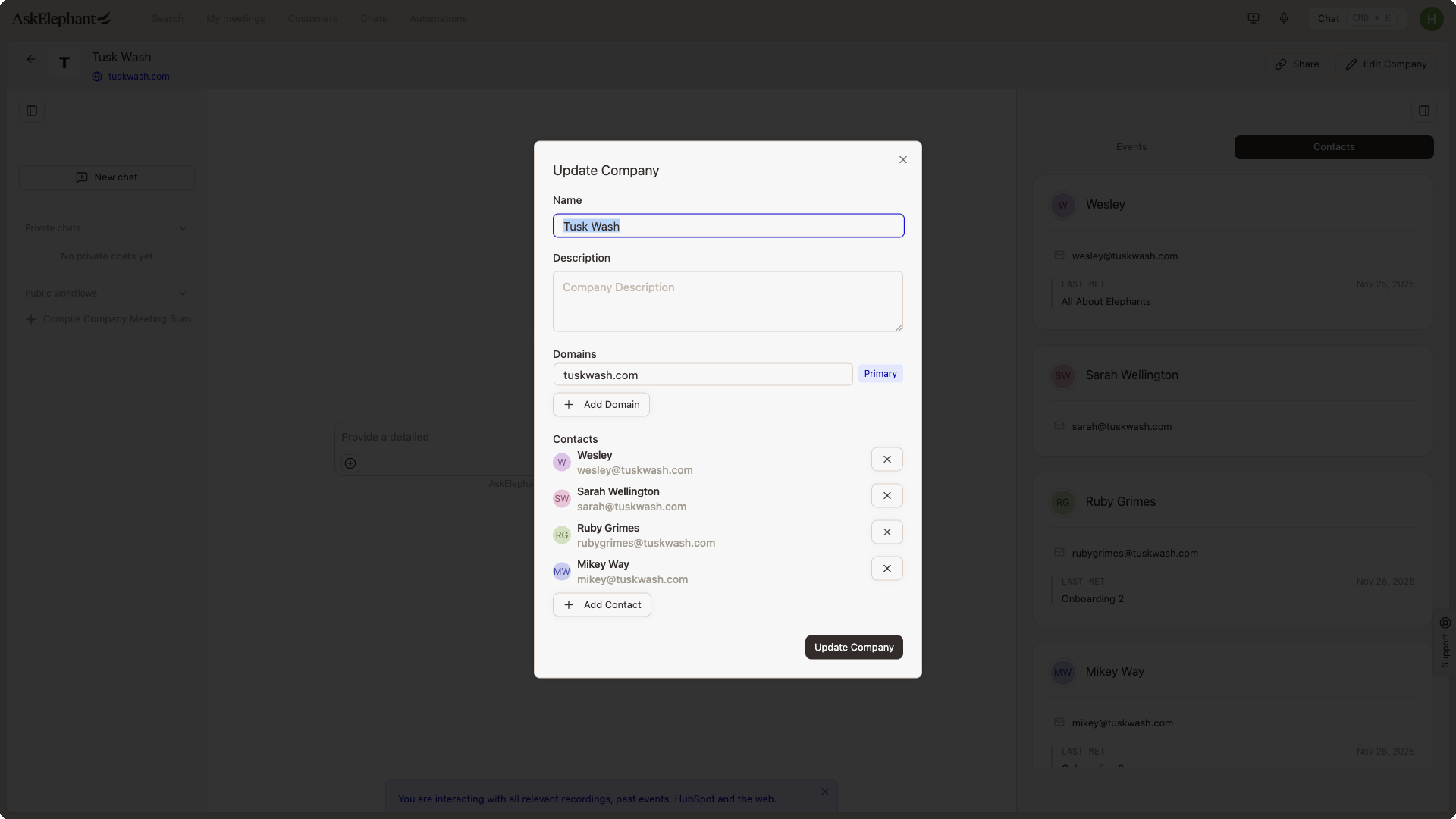
Edit company information
Find the company in the list.
Click
Edit.Update the name, domain, or contacts.
Find a company
Use the search bar to find the company by name.
Results appear as you type.
Click to open the company page.
Quick Tips
Set the domain carefully. The domain is how AskElephant identifies company contacts, so make sure it's correct.
Review before important meetings. Spend a few minutes on the company page before a big call to refresh your memory.
Ask specific questions. Instead of "Tell me about this company," try "What issues have they mentioned in past calls?"
Check the right side. The contacts and upcoming calls section gives you a quick overview without needing to open Chat.
Need More Help?
Reach the AskElephant support team by:
clicking the Support tab on the right side of your screen,
emailing [email protected],
or using
@askelephant supportin your dedicated Slack channel.