
My Meetings Page
Introduction
View all your recorded meetings in one searchable hub. My Meetings keeps your conversations organized and accessible so you can review what happened, trigger manual actions if needed, or troubleshoot why an automation behaved a certain way. Each recording is the source of truth for your automated workflows.
Key Terms
Meeting Card: A box on your screen that displays information about a single meeting, including who's attending, when it's scheduled, and other important details.
Note Taker: An AI assistant that joins your meetings to capture important information and create a record of what was discussed.
Recording: An audio or video capture of your meeting that you can revisit later.
Privacy Setting: A choice you make about whether a meeting is private (only visible to specific people) or public (visible to your broader team).
Tag: A label you add to a meeting to help organize and find it later (like "client call," "one-on-one," or "follow-up required").
What You'll See on This Page
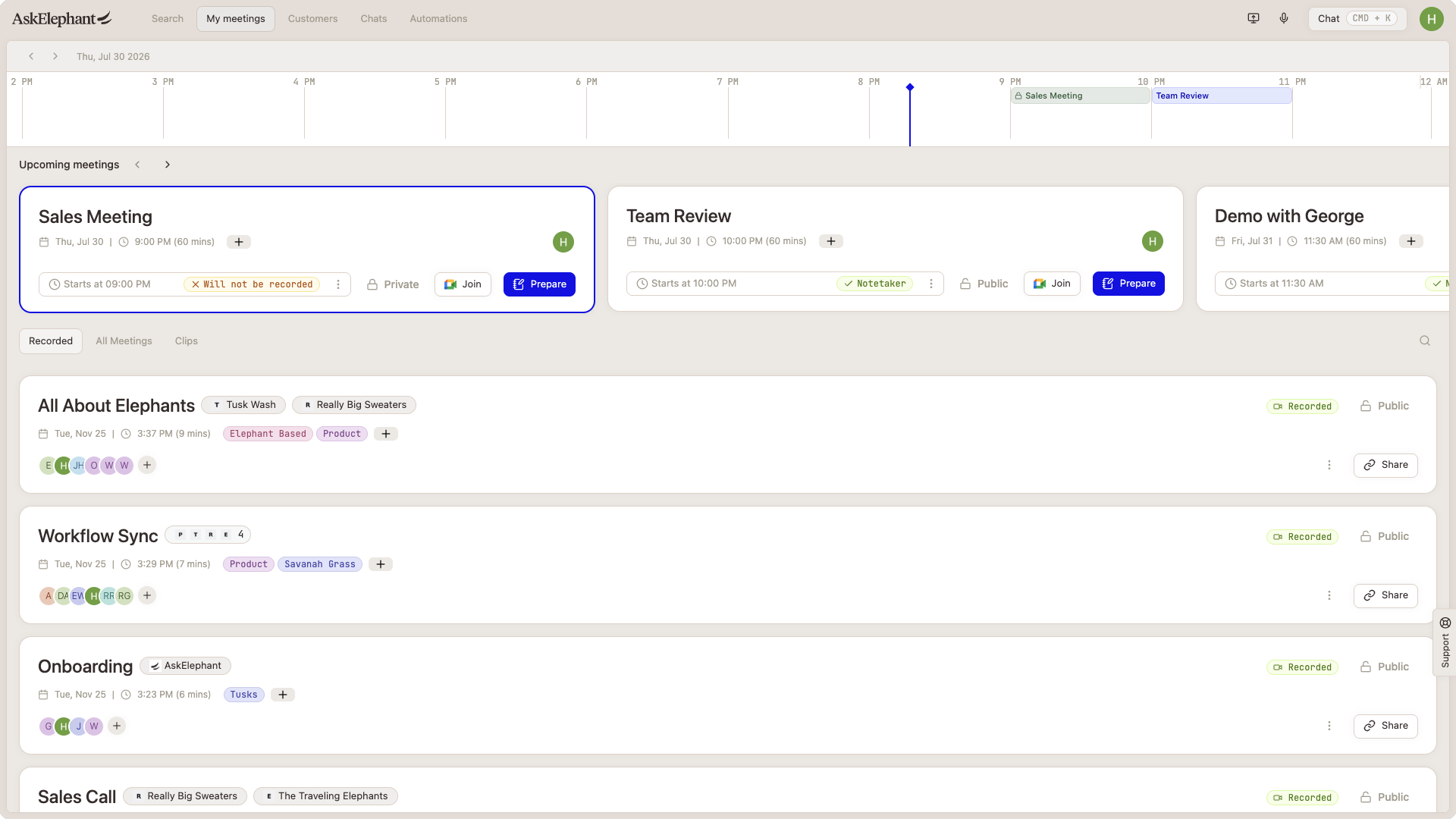
The My Meetings page is organized into several sections that work together to give you complete visibility into your meeting schedule and history.
Your Calendar View
At the very top of the page, you'll find an interactive calendar that displays your upcoming meetings. This calendar is scrollable, so you can navigate forward and backward through time to see what's coming up.
The calendar includes:
Visual meeting display showing all scheduled calls
A blue time line that indicates where you are in the current day
Easy navigation with forward and backward arrows, plus a
Todaybutton to jump back to the current date
You can click on any date in the calendar to explore what meetings you have scheduled, making it easy to plan ahead or catch up on your schedule at a glance.
Your Upcoming Meetings
Below the calendar, your upcoming meetings appear as individual cards. You can scroll through these cards or use the side arrows to browse. Each card displays:
Meeting title and scheduled time
The company or contact you're meeting with
Who's attending (list of participants)
Recording status (whether the meeting will be recorded, or a
Will not be recordedtag showing that it will not be)Privacy settings (whether it's private or public)
Note taker status (crucial information about your AI assistant)
Why the note taker status matters: The system tells you whether your AI note taker is ready, waiting in a waiting room to be admitted, or if any setup is needed. This is especially helpful if you're not the meeting host, so you'll know exactly when to reach out and ask the host to let your note taker in.
Your Past Meetings
Below your upcoming meetings, you'll see a section for past meetings you've already completed. These are organized so you can easily find and revisit them. Each past meeting card shows the same key information as upcoming meetings, plus options to access recordings, manage sharing, and organize with tags.
The past meetings section is where you'll spend time reviewing what was discussed, sharing recordings with your team, and maintaining a searchable archive of your conversations.
How to Use This Page
Preparing for a Meeting
Locate your meeting in the upcoming meetings section or on the calendar
Click the Prepare button to access the full meeting page and gather relevant context about the call
Check the note taker status to ensure your AI assistant is set up and ready
Adjust privacy settings if needed, deciding whether this should be a private or public meeting
Add tags to the meeting (optional but helpful for organization). For example, you might tag it as "client call" or "quarterly business review"
Review attendees to confirm everyone who should be there is invited
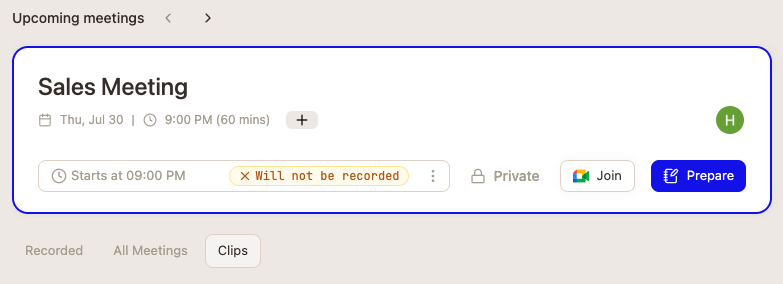
If the card says Will not be recorded, the usual cause is a calendar event with no meeting link. Open the event on your calendar, and if there is no Zoom, Microsoft Teams, or Google Meet link, edit the event to add one. See Meetings for the full steps.
Joining a Meeting
When it's time for your call:
Find your meeting in the upcoming meetings cards
Click the meeting link to join directly from AskElephant
You'll be taken to the meeting page where you can connect to the video call
There's no need to hunt through your calendar or email for meeting links. Everything is right here.
Managing Your Note Taker
Before or during your meeting:
Check the status on your meeting card to see if your note taker needs to be admitted
Communicate with the host if needed (if you're not hosting the meeting and your note taker needs admission)
Confirm recording is enabled if you want the meeting captured
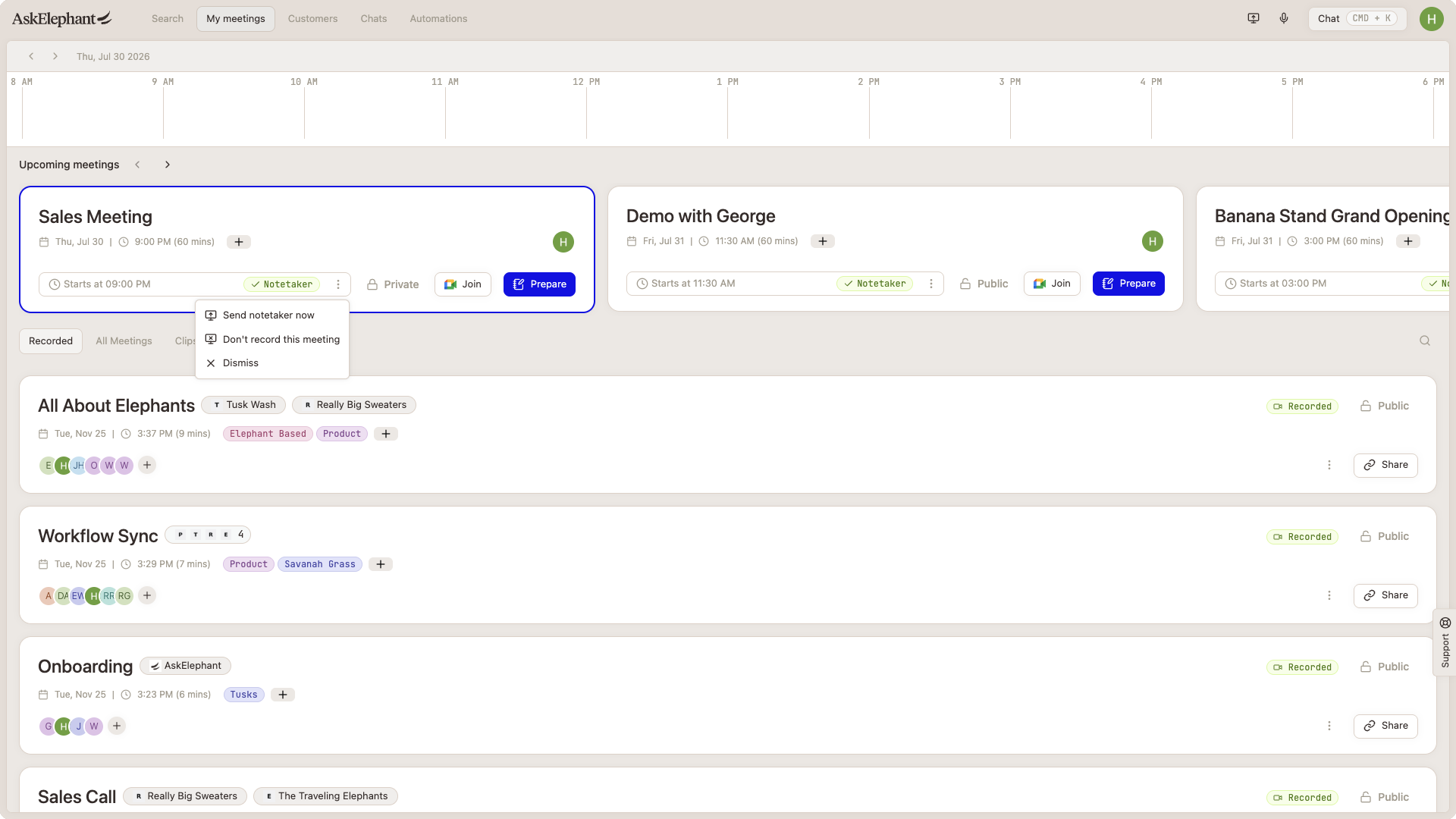
Your note taker will automatically create notes and a record of the meeting, so you can focus on the conversation rather than scrambling to take notes yourself.
Accessing Recordings and Sharing
After a meeting wraps up:
Find the recording in your past meetings section
View it anytime by clicking on the meeting card
Share recording links with team members who need access
Check recording status to confirm the meeting was successfully captured (if you need to troubleshoot why a meeting wasn't recorded, the
Show Not Recordedfilter helps you identify gaps)
Organizing Your Meetings
Over time, you'll accumulate many meetings. Here's how to keep them organized:
Add tags to both upcoming and past meetings for easier searching and categorization. Develop a consistent tagging system with your team (like "client," "internal," "requires follow-up," etc.)
Rename meetings using the three-dot menu on any meeting card if the original title doesn't capture what the call was about
Change privacy settings anytime by clicking on the privacy option. There's no need to wait until after the meeting
Use the
Show Not Recordedfilter to view only meetings that weren't recorded, helping you identify which calls you might want to revisit or troubleshoot
Finding Important Moments
If you've created clips from your meetings (short video or audio segments of key moments), they're automatically stored in a dedicated clips section on this page. You can quickly find and revisit these highlights without hunting through full recordings.
Quick Tips for Success
Use tags consistently across your meetings. Establish a tagging system with your team so searching becomes second nature.
Check note taker status before meetings start to avoid any delays or technical issues.
Confirm the meeting has a link. An event with no meeting link is tagged
Will not be recordedand the note taker will not join it.Rename meetings with clear, descriptive titles so you can find them later. Instead of "Call with Client," try "Q4 Budget Review - Client ABC."
Review past meetings to catch anything you might have missed during the conversation. Your note taker will have captured key details.
Share recordings strategically. Only share with the people who need access to keep your team informed and on the same page.
Create clips of key moments to make important takeaways easy to find and share with your team.
Next Steps
Start by exploring your upcoming meetings on this page and getting familiar with where everything is located. Then, try these actions:
Add a tag to one of your past meetings
Rename a meeting to something more descriptive
Review a past meeting recording to see how your note taker captured the conversation
Prepare for an upcoming meeting using the Prepare button
As you use the page more, you'll develop a system and rhythm that works best for your workflow. The My Meetings page becomes more valuable the more you interact with it.
Need More Help?
Reach the AskElephant support team by:
clicking the Support tab on the right side of your screen,
emailing [email protected],
or using
@askelephant supportin your dedicated Slack channel.