
Navigating the Interface
Introduction
The AskElephant home page is your command center for managing meetings, tracking companies and contacts, and gaining AI-powered insights from your conversations. This guide walks you through the main sections of the interface so you can start using AskElephant with confidence.
Key Terms
My Meetings Page: Your homepage showing all upcoming and past meetings, along with recording status and quick action buttons.
Top Navigation Bar: The navigation menu across the top of your screen that connects you to all major features (meetings, search, companies, contacts, chats, and workflows). Your workspace name sits on the left; your user menu is in the top-right corner.
Engagement: Any interaction tracked in AskElephant this includes meetings, uploaded documents, and recorded conversations.
Workflow: An automated process powered by AI that helps you extract insights and streamline repetitive tasks.
Prompt Library: A collection of customizable AI instructions you can reuse across AskElephant to get consistent, tailored responses.
Your Homepage: My Meetings
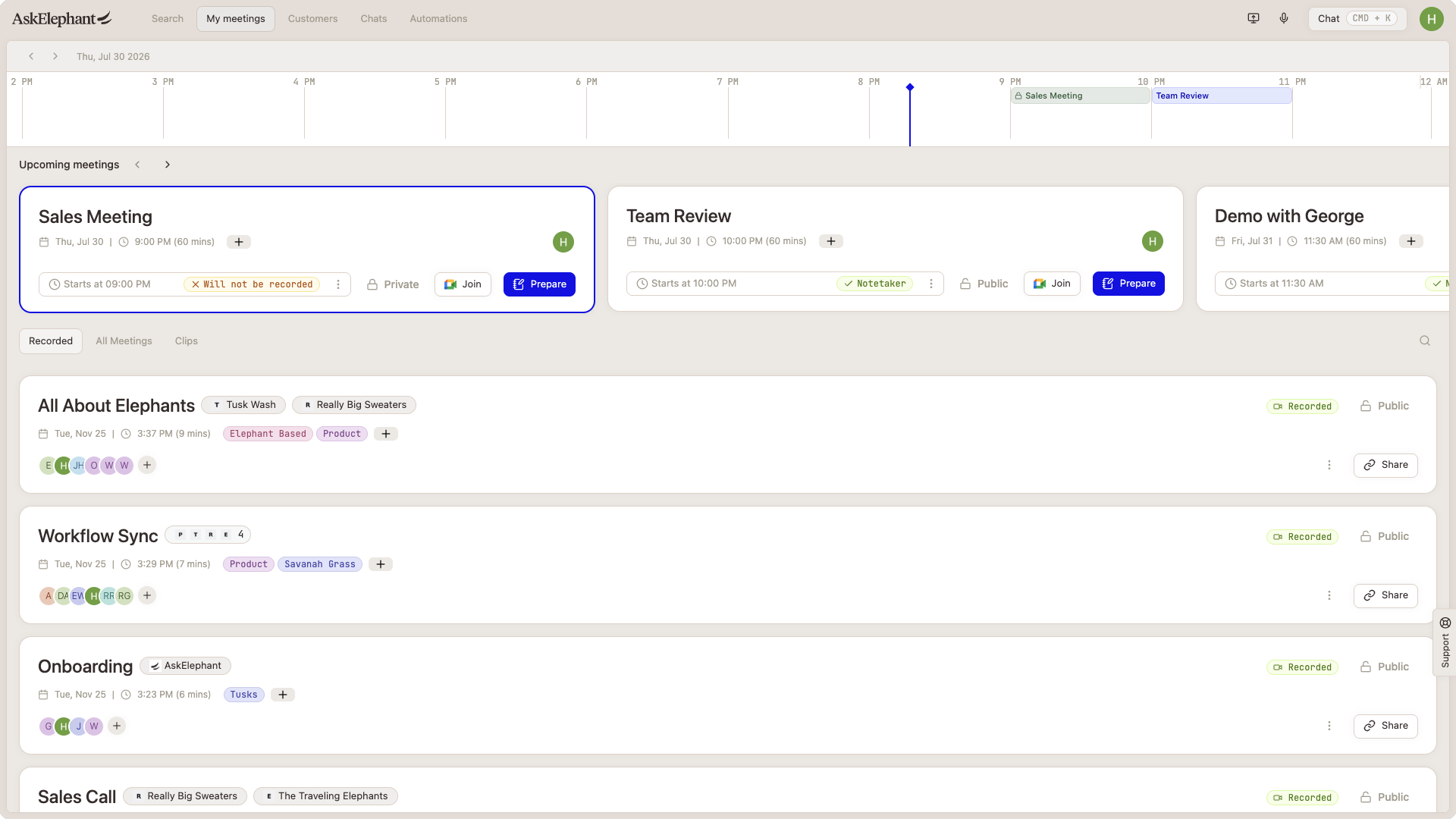
When you first log in, you're on the My Meetings page. This is where meetings live at the core of AskElephant.
Here, you can:
View your calendar and upcoming meetings at a glance
See whether meetings are recorded or not
Mark meetings as private or public
Join meetings directly
Hit the
Preparebutton to get ready before a meeting starts
This single view gives you quick access to everything you need before, during, and after your customer conversations.
Navigate with the Top Bar
The top navigation bar is your main navigation tool. You'll see your workspace name on the left, followed by these key tabs:
Tab | What It Does |
|---|---|
My Meetings | View all your meetings, past and upcoming |
Search | Find any engagement across your entire workspace including your team's meetings and uploaded files |
Companies | See all companies your workspace interacts with view details, edit info, and access meeting history |
Contacts | Manage contact details (name, email, phone, company) see engagement history for each person |
Chats | Chat with AI using your meeting context and connected tools (CRM, web search, etc.) |
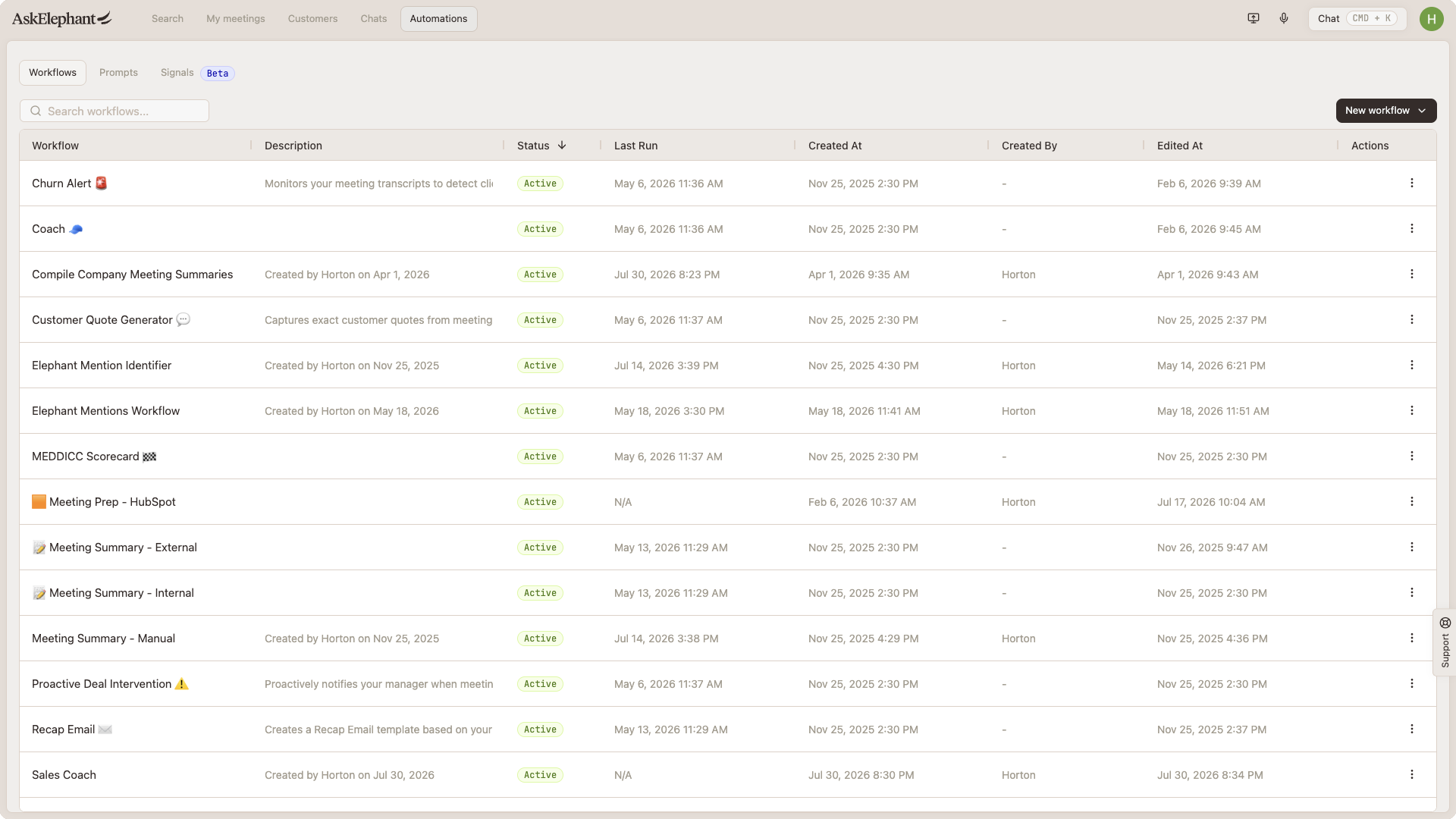
Workflows | Set up automated processes and access your prompt library and signals |
Search Across Everything
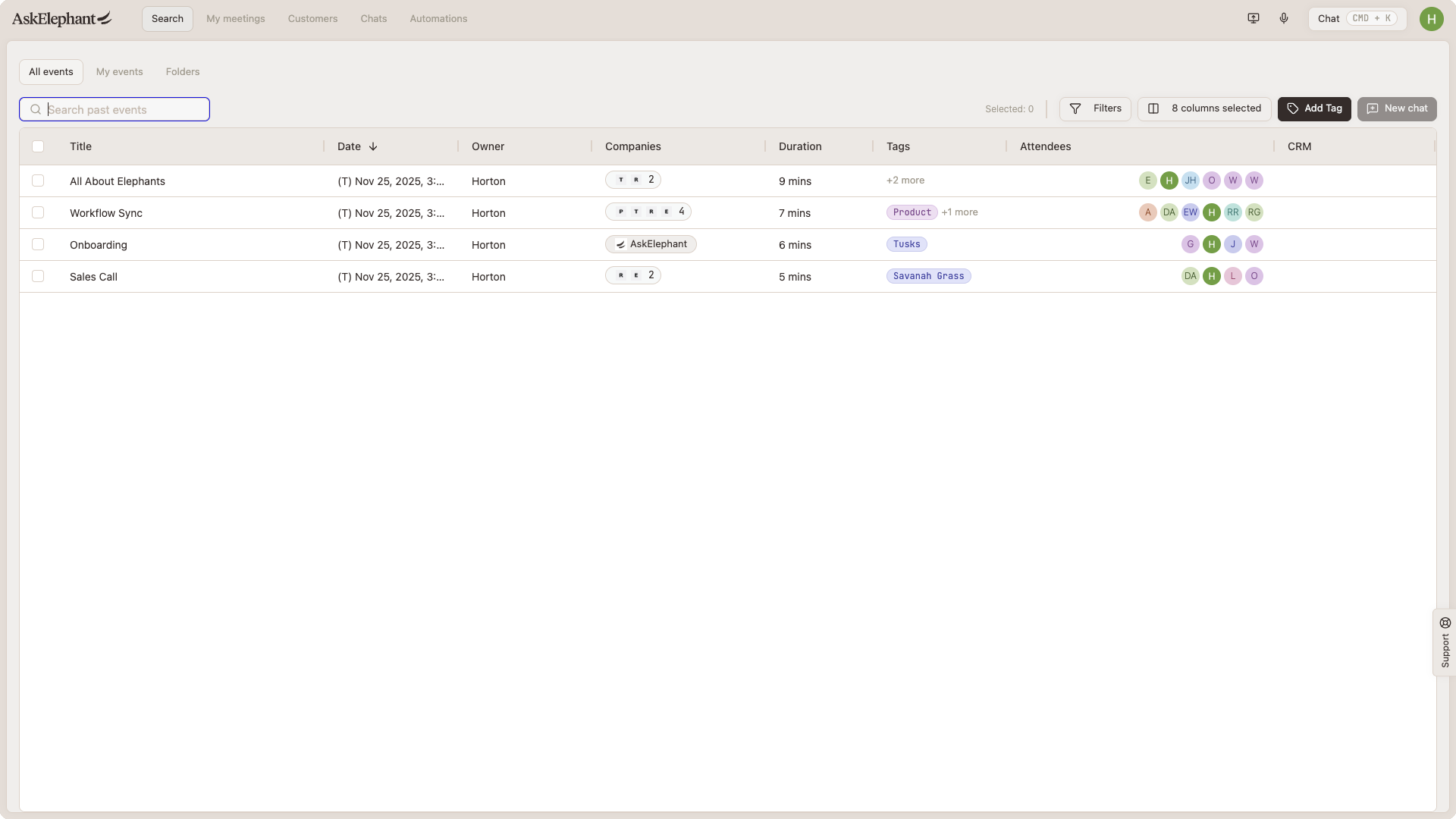
The Search tab is more powerful than it sounds. It pulls together all engagements across your workspace your meetings, your team members' meetings, and any documents you've uploaded.
Each result shows:
Title and date
Owner and associated companies
Duration (for meetings)
Tags and attendees
Filter and customize columns to focus on what matters
You can also start a new chat directly from search results, making it easy to dive deeper into any engagement.
Organize Your Companies and Contacts
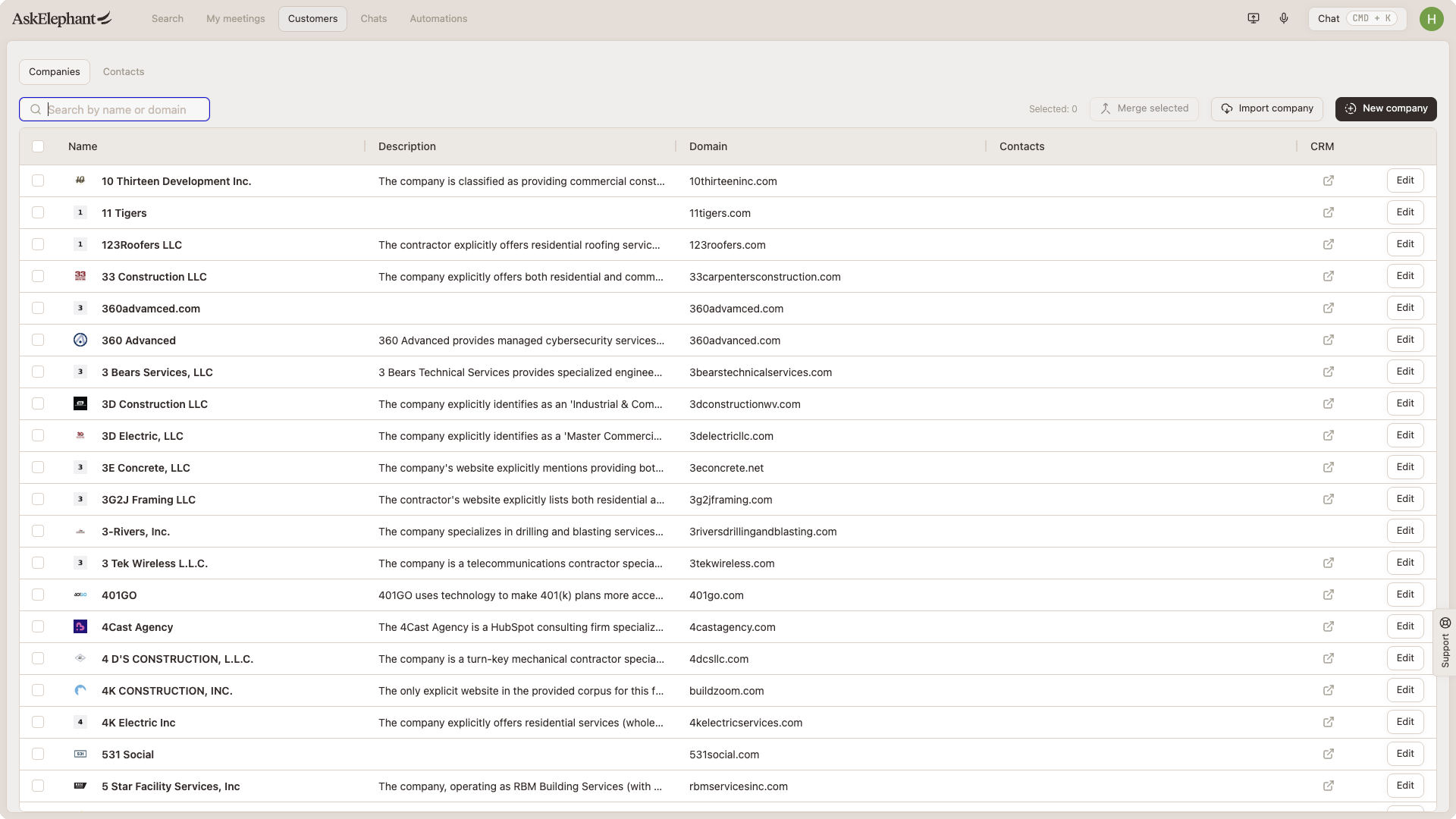
Companies Tab: This is your workspace's company database. Click on any company to see:
All meeting engagements with that company
A chat space to discuss the company
Workflows you can run for that company
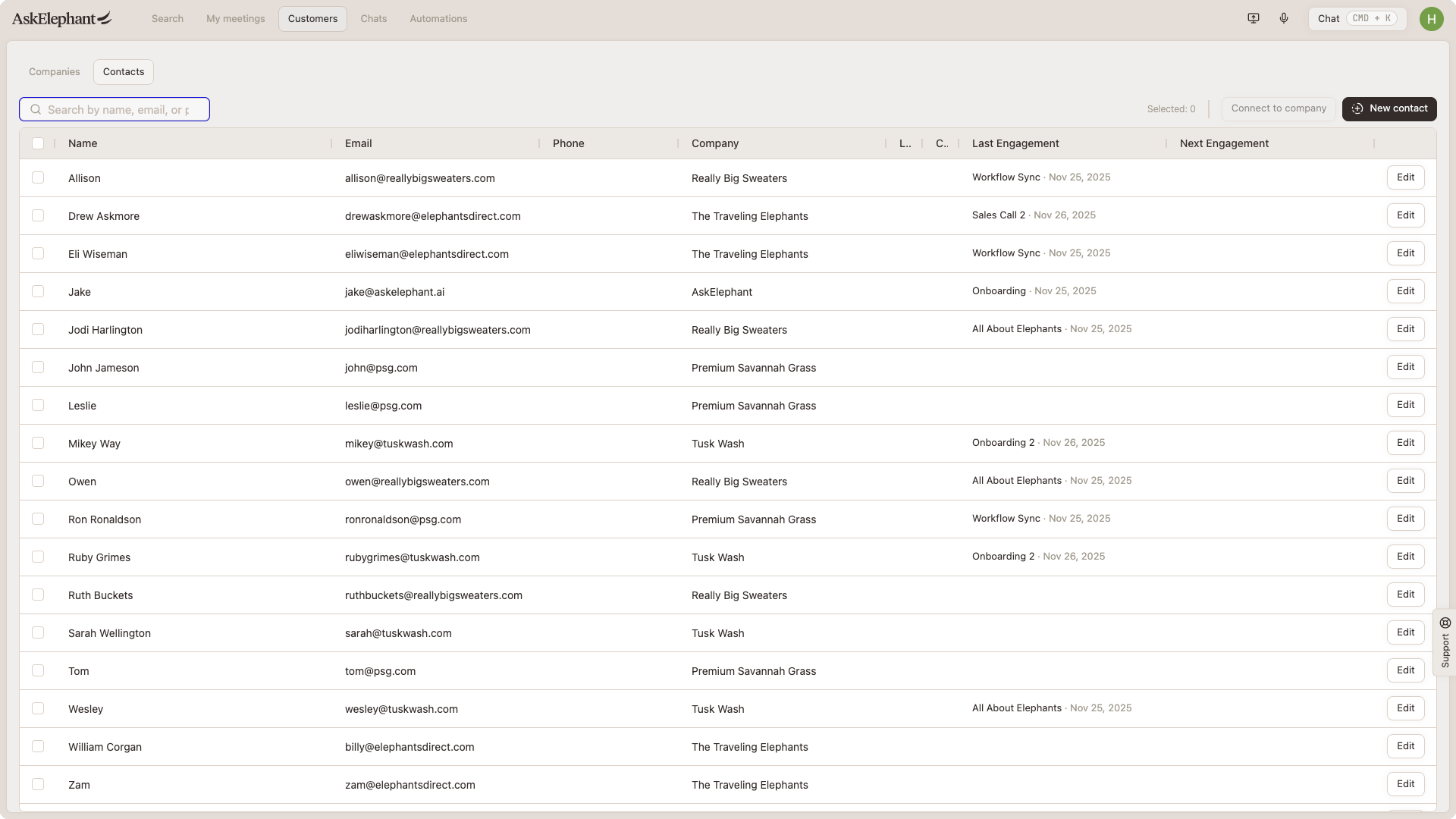
Contacts Tab: Similar to companies, but focused on individual people. Track their name, email, phone, and company affiliation. Select any contact to view past engagements and run workflows.
Chat with AskElephant: The Chats Tab
The Chats tab opens a chat interface that works like a regular AI assistant but better. You can:
Select specific meetings or documents to give the AI context
Connect to your CRM (HubSpot, Salesforce), project tools (Linear, Notion), or web search
Choose from multiple AI models (Claude, ChatGPT, Gemini, and others) depending on your needs
This means your AI assistant isn't working blind it understands your customer conversations and can pull from your business tools to give smarter, more relevant answers.
Automate and Gain Insights: Workflows
The Workflows tab is home to three powerful tools:
Workflows: Automated processes that handle repetitive tasks and extract insights from your engagements. You can create workflows from pre-built recipes or build your own with AI.
Prompt Library: A collection of reusable AI instructions. Create custom prompts once, then use them across AskElephant to get consistent results. You can edit, version, and organize prompts by visibility.
Signals: Custom data points you define to track patterns in your engagements. For example, you might create a signal to flag when a prospect mentions budget constraints.
Upload Files and Capture Meetings
In the top navigation bar (to the left of your user menu), you'll also find:
Upload Button: Add audio, video, PDFs, Word docs, Excel sheets, PowerPoints, and other business files. These automatically appear in Search and on your My Meetings page.
Send Notetaker: If a meeting isn't on your calendar or you want to add AskElephant to an external meeting, use this feature. Insert the meeting URL, and AskElephant joins as a notetaker.
Record Now: Start recording audio instantly for any meeting. The recording uploads to your My Meetings and Search tabs automatically.
Manage Your Settings
Click your name in the top-right corner to access:
Preferences: Edit your personal settings (name, contact info, privacy settings, personal integrations)
Workspace: Manage workspace-level settings (name, domain, notetaker settings, API keys, and security)
Team: View all team members, their roles, and active status. Add new members or manage existing ones.
You'll also find options for theme, beta features, signals, tags, and integrations.
Next Steps
Start by exploring your My Meetings page to get familiar with your calendar and past conversations. Then, try the Search tab to see how all your engagements connect. Once you're comfortable, head to the Chats tab to chat with AskElephant and and add your meeting context.
Need Additional Help?
If you have questions or need further assistance, the AskElephant support team is here to help!
You can reach our support team in several ways:
click the Support tab on the right side of your screen,
email us at [email protected],
or use
@askelephant supportin your dedicated Slack channel.
We're committed to getting you the answers you need as quickly as possible.