
Creating Clips
Overview
You can't permanently edit or trim the original recording. Instead, create and share a clip that contains only the portion you want.
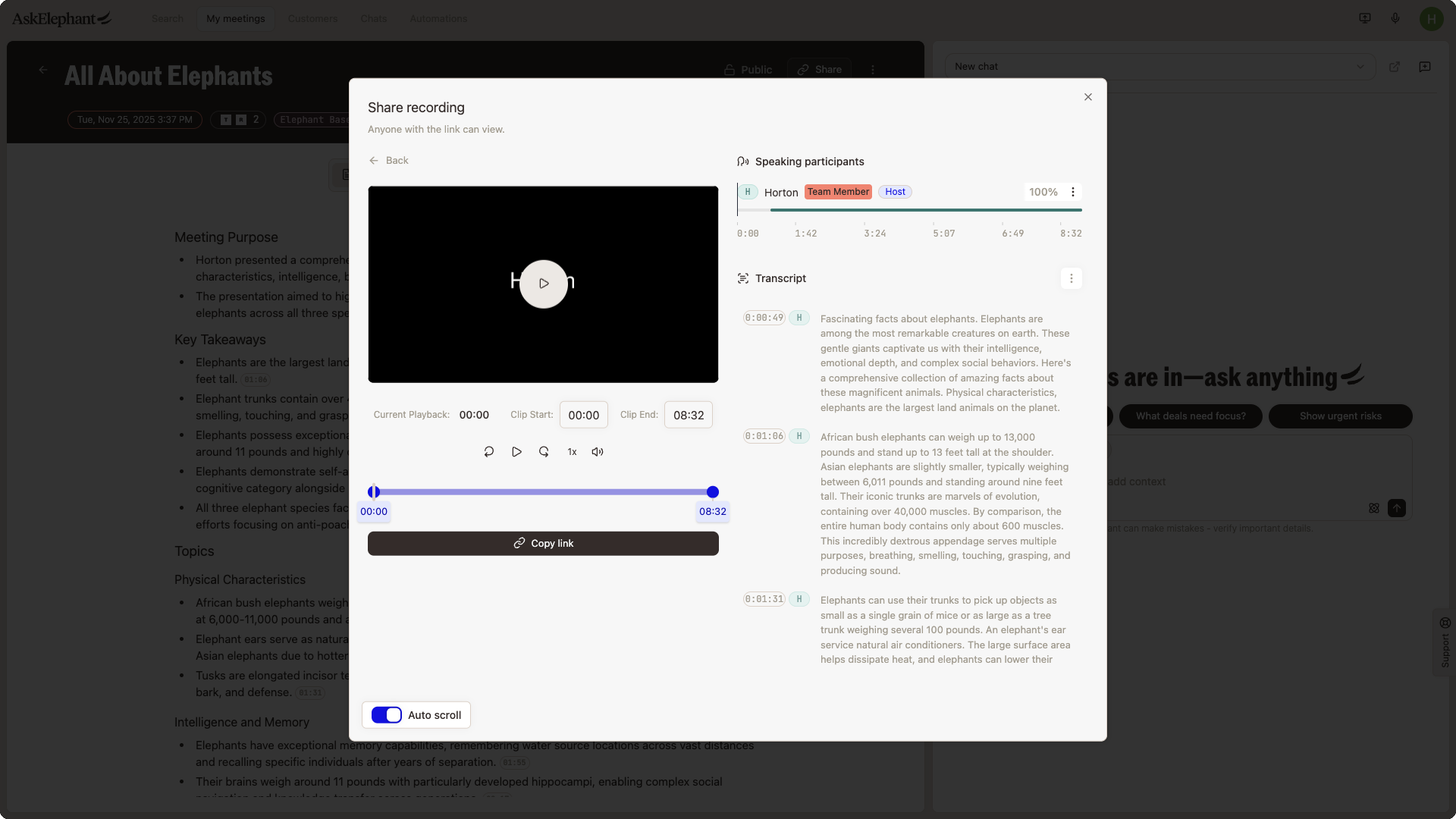
How to Create a Clip
Open the recorded call.
Click
Share.Select
Share Externally.Use the timeline slider to set the start and end points for the clip.
Copy the clip link and share it.
Notes and Limitations
The original recording stays unchanged. Clips are separate extracts.
There's no way to permanently delete or trim parts of the original file in-app.
For an edited permanent file, download the clip and use an external audio editor.
Troubleshooting
If the
Sharebutton or timeline isn't visible, refresh the page and confirm you have permission to access the recording.If a clip link isn't working, check your sharing settings.
Need More Help?
Reach the AskElephant support team by:
clicking the Support tab on the right side of your screen,
emailing [email protected],
or using
@askelephant supportin your dedicated Slack channel.