
How to Get Your AskElephant API Key
Use this guide to create a workspace API key for data export in just a few minutes.
Before you start
You need access to your AskElephant workspace settings.
If you are only exporting data, use read-only scopes.
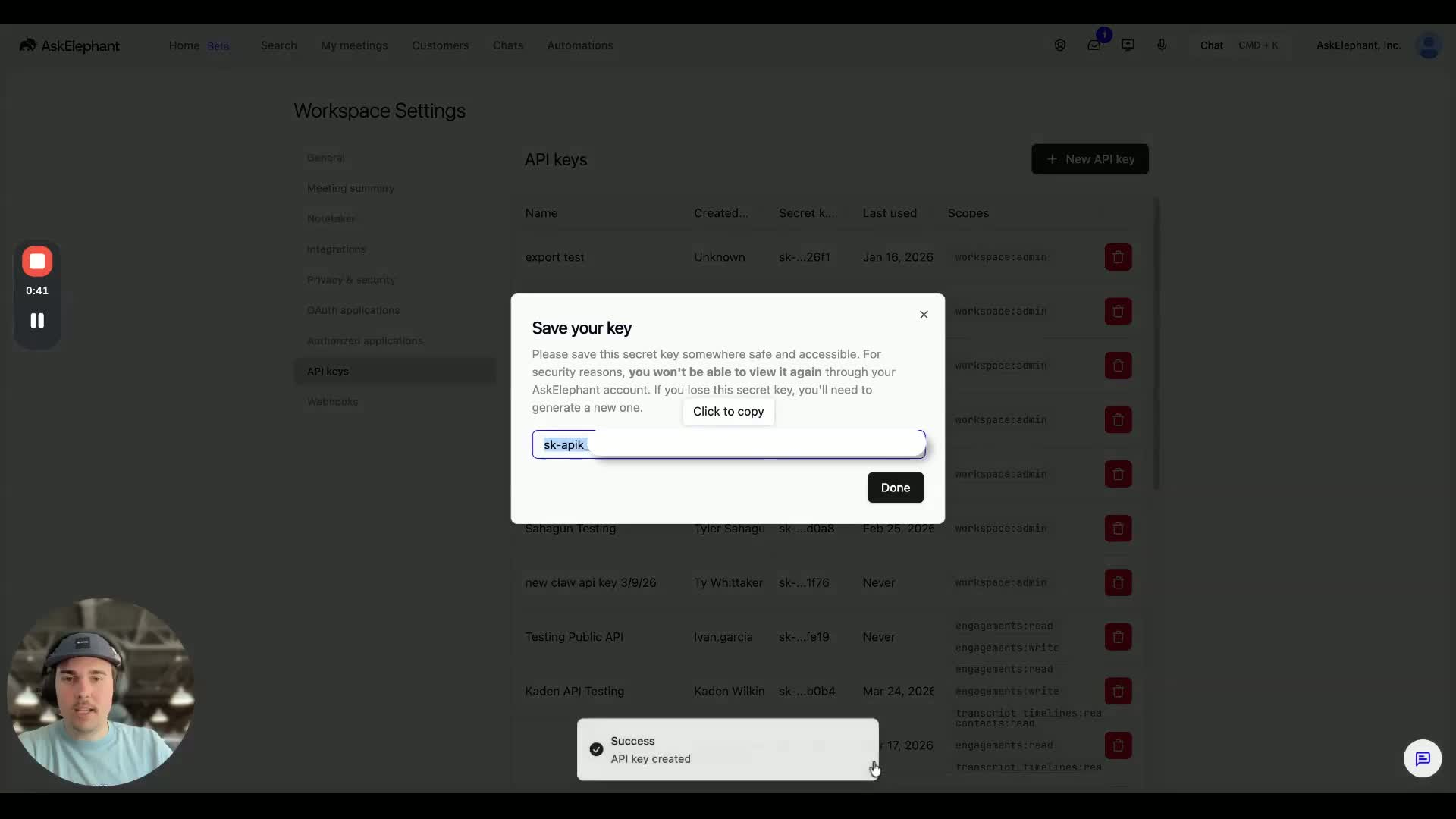
Save the key in a password manager right away because you will not be able to view the full secret again later.
Step 1: Open Workspace settings
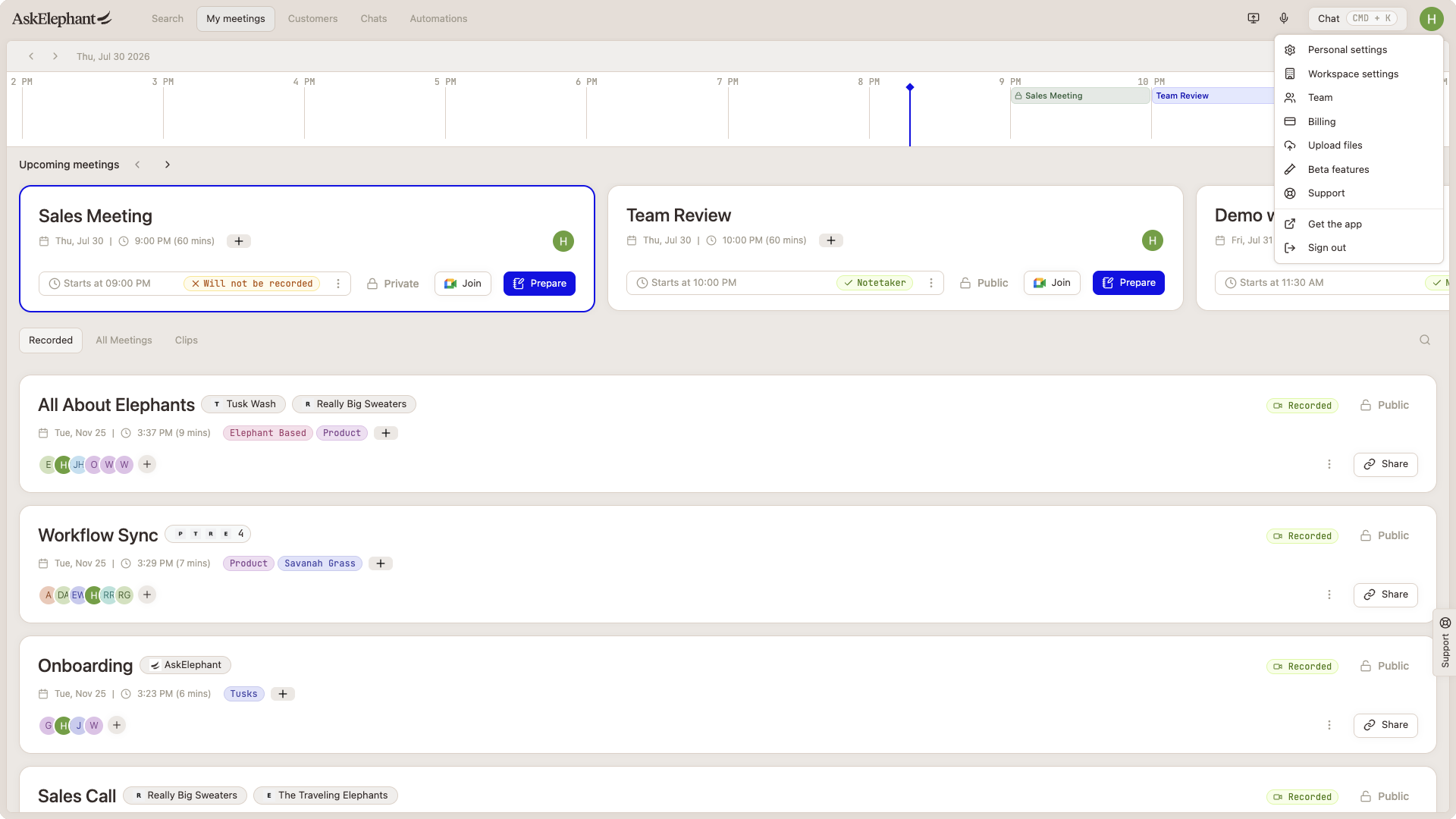
Click your profile icon in the top-right corner, then choose Workspace settings.
Step 2: Open API keys
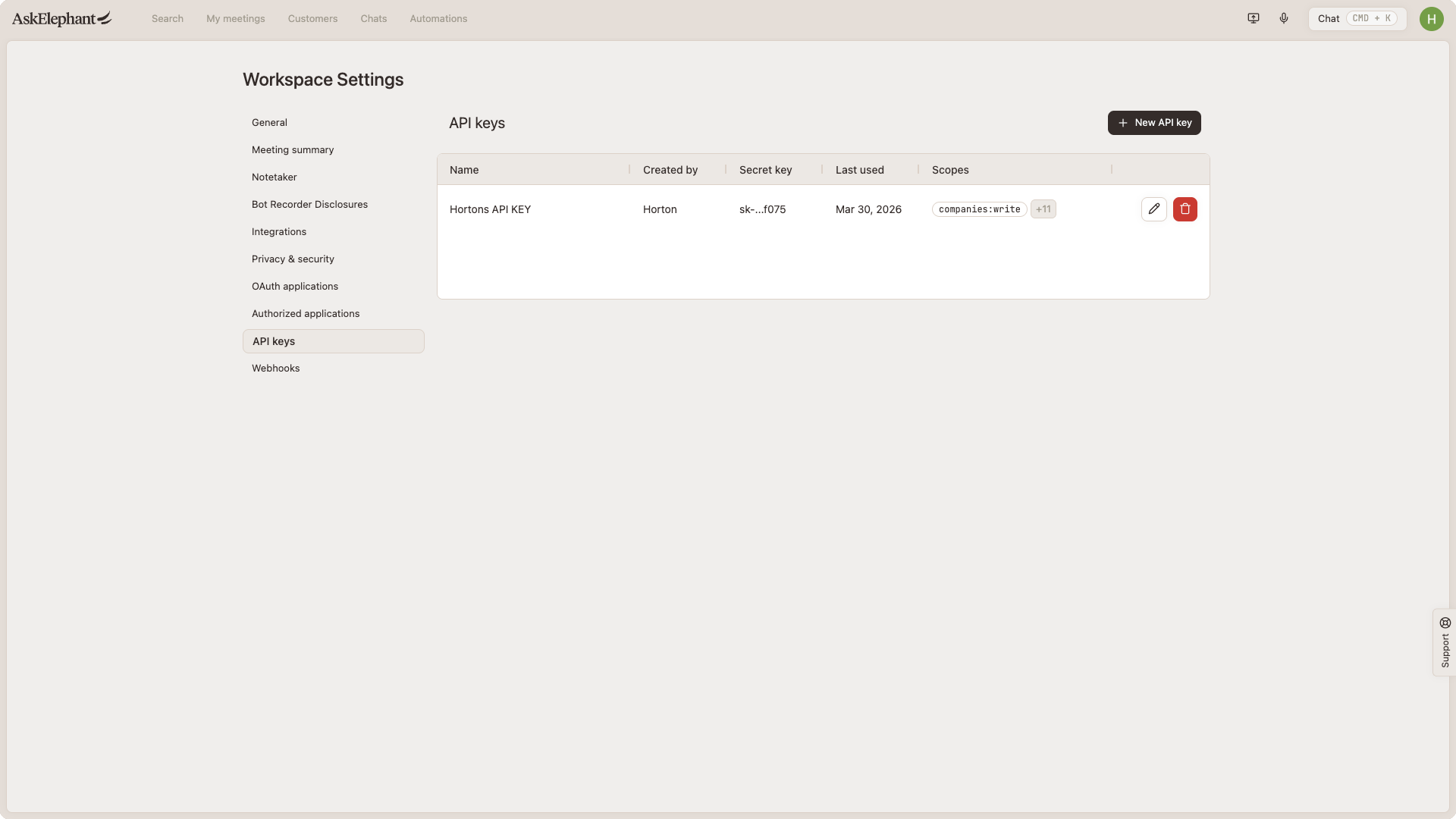
In Workspace settings, select API keys and click New API key.
Step 3: Create a read-only export key
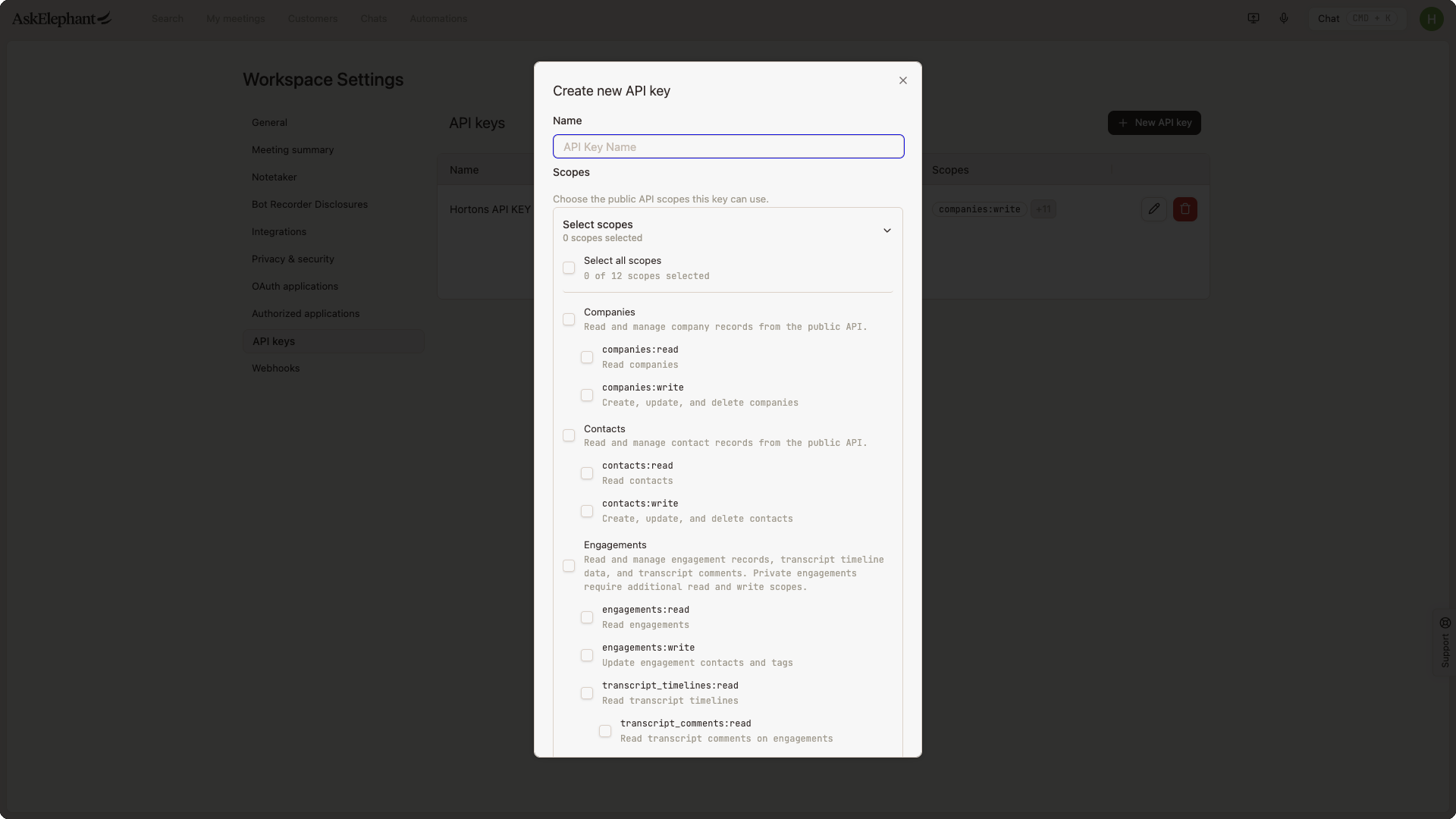
Give the key a clear name such as data-export-prod, then choose the scopes you need.
Recommended scopes:
engagements:readtranscript_timelines:readcontacts:readif you need contact exportscompanies:readif you need company exportsusers:readif you need workspace user exportstags:readif you need tag exportstranscript_comments:readonly if you need transcript comments
Step 4: Save the key
Click Create, copy the key, and save it somewhere secure immediately.
Step 5: Test the key
Use the key as the raw Authorization header value in your first API request.
curl --request GET \
  --url 'https://app.askelephant.ai/api/v2/engagements?limit=25' \
  --header 'Authorization: sk-apik_<id>.<secret>' \
  --header 'Accept: application/json'
Accessing Private Meetings
By default, an API key can read public meetings only. If you request a private meeting with a key that doesn't have private access, the API returns a 404 as if the meeting doesn't exist.
To read private meetings:
Use a workspace API key created by an Owner or Admin with the private-meeting scope enabled. Enabling that scope requires accepting a data-access agreement and applies to the whole workspace.
Or use the AskElephant MCP signed in as yourself, which respects your own meeting access. See The AskElephant MCP.
If you don't see the private-meeting scope when creating a key, contact your CSM or AskElephant Support.
FAQ
Which scopes do I need for a standard export?
For most exports, start with engagements:read and transcript_timelines:read. Add the other read scopes only if you need those supporting resources.
Do I need write scopes?
No. If you are only exporting data, use read-only scopes.
Can I see the key again later?
No. Save it as soon as you create it. If you lose it, create a new key.
Where should I store the key?
Use a password manager or a secure secrets vault. Do not paste API keys into Slack, email, tickets, or shared docs.
Why do I get a 404 for a meeting I know exists?
A 404 usually means your key can't access that meeting, not that it's missing. Private meetings return a 404 for keys without private access. See Accessing Private Meetings above.
What should I do next?
Go back to the parent page, How to Export Your AskElephant Data, and follow the export walkthrough.
Need Additional Help?
If you have questions or need further assistance, the AskElephant support team is here to help!
You can reach our support team in several ways:
click the Support tab on the right side of your screen,
email us at [email protected],
or use @askelephant support in your dedicated Slack channel.
We're committed to getting you the answers you need as quickly as possible.