
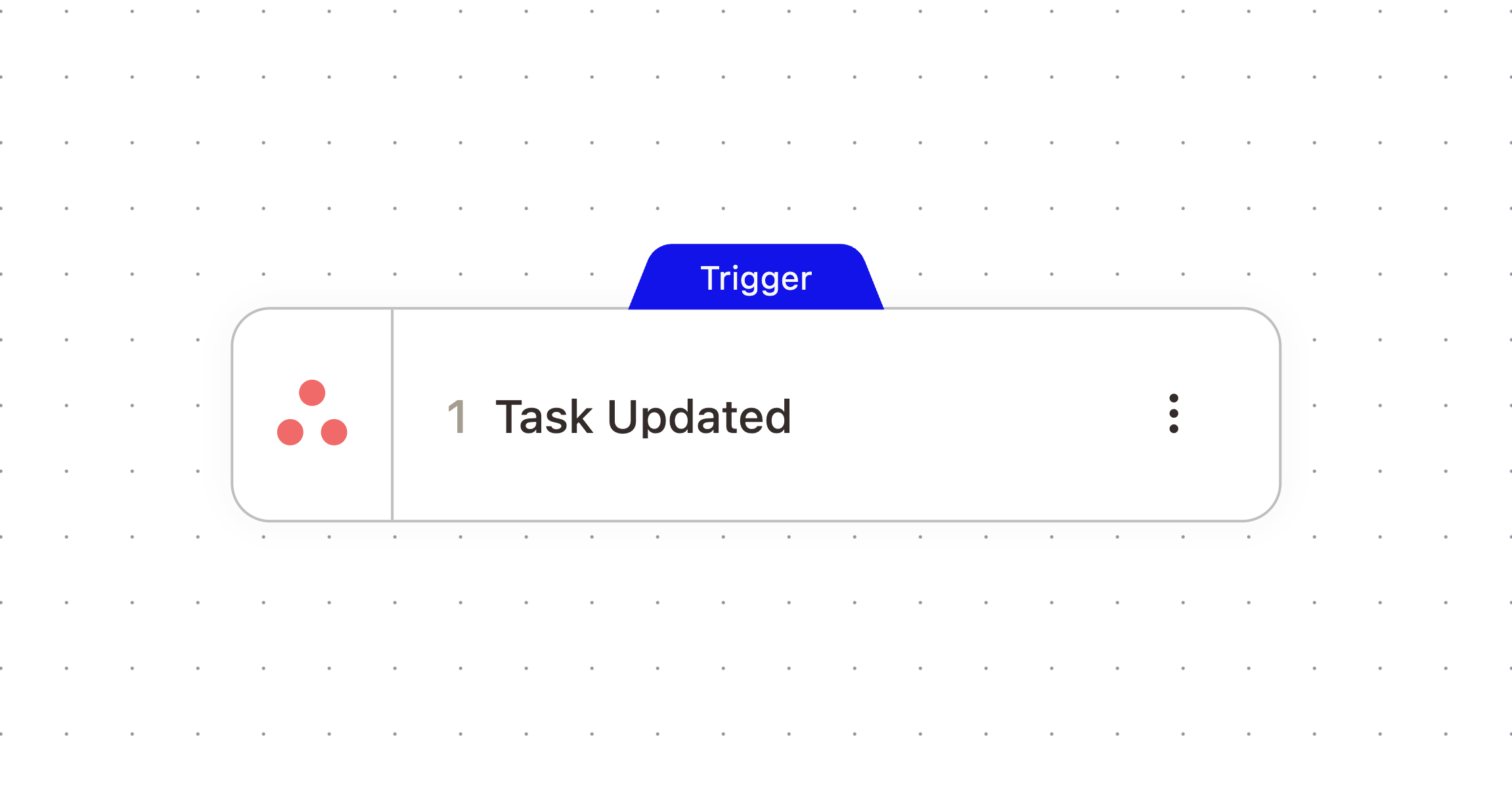
Task Updated
Starts a workflow whenever a task changes in Asana, such as a status, assignee, or due date change. Use it to react to specific edits without polling Asana yourself.
What It Does
Fires when a task is updated in your connected Asana workspace, and passes along what changed along with the task's current details.
When It Fires
Use this to react to specific kinds of edits, such as notifying someone when a task is reassigned, or logging when a due date slips. Use the filters below to scope the trigger to the exact change you care about; without them, it fires on any update.
Configuration
Configure the node with these settings:
Field | What it controls |
|---|---|
Assignee Changed | Only fire when the assignee changes. |
Status Changed | Only fire when the completion status changes. |
Due Date Changed | Only fire when the due date changes. |
Completion Status | Only fire when the task is marked complete ( |
Field Changed | Only fire when this specific field changes. |
Assignee ID | Only fire for tasks assigned to this specific user GID. |
Project ID | Only fire for tasks in this specific project GID. |
Outputs
The node passes these values downstream. Check the Outputs tab on the configured node to confirm exact paths.
Variable | Type | Description | Example |
|---|---|---|---|
|
|
| |
|
|
| |
|
|
| |
|
|
| |
|
|
| |
|
|
| |
|
|
| |
|
|
| |
|
|
| |
|
|
| |
|
|
|
Example Workflow
A workflow filters this trigger to fire only when assigneeChanged is true, then uses Find User and a messaging node to notify the newly assigned person.
Related Nodes
Task Created
Task Completed
Update Task
Need More Help?
Reach the AskElephant support team by:
clicking the Support tab on the right side of your screen,
emailing [email protected],
or using
@askelephant supportin your dedicated Slack channel.