
Task Created
Starts a workflow whenever a new task is created in Asana. Use it to react the moment work is added, such as routing it, assigning it, or filing it into a section.
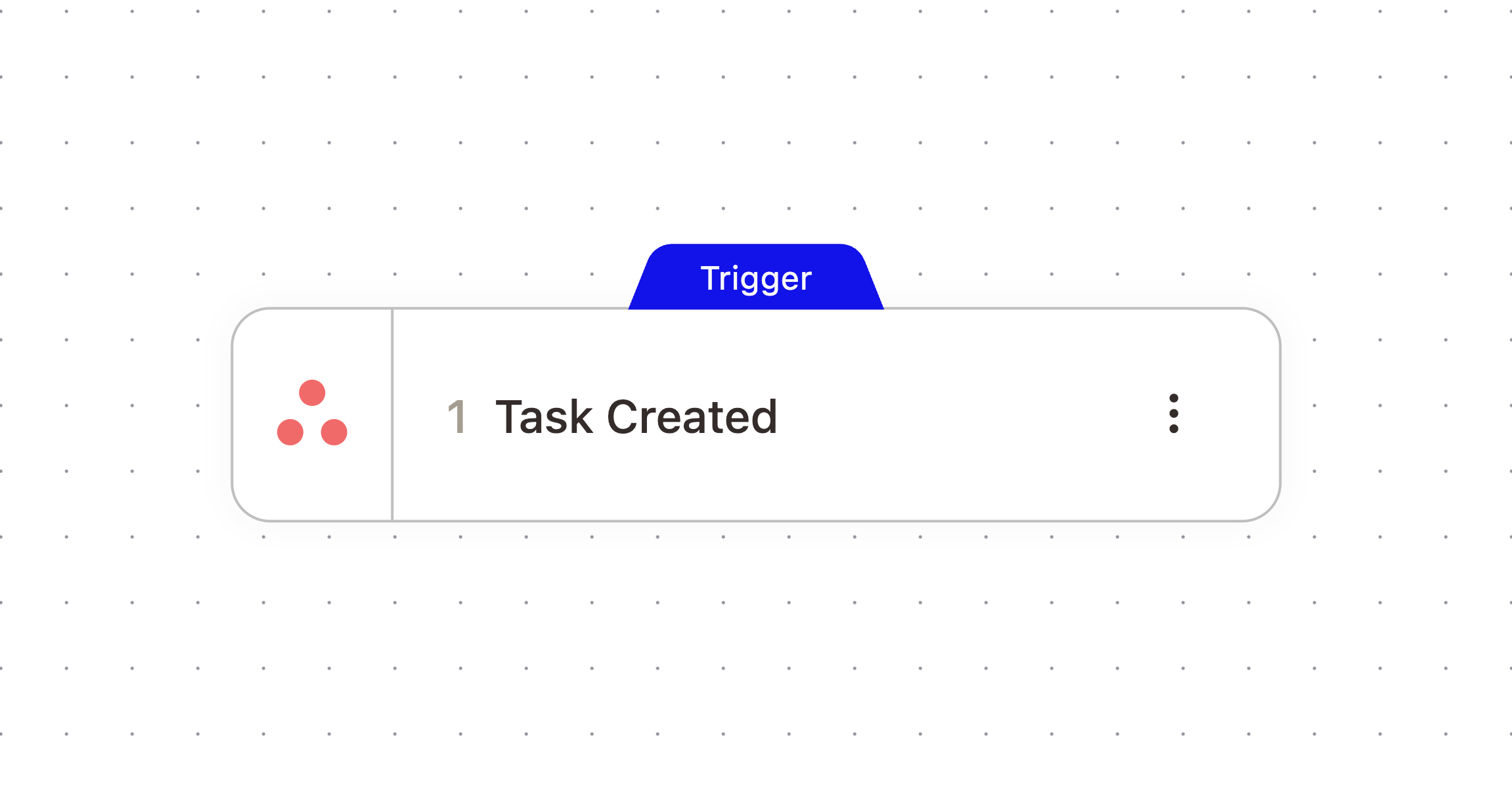
What It Does
Fires when a new task is created in your connected Asana workspace, and passes along the task's details as the workflow's starting context.
When It Fires
Use this to automate what happens right after a task is created, such as filing untriaged tasks into a "Needs Review" section, or notifying a channel when a task without an assignee is added to a specific project. Narrow it with the filters below if you only want to react to tasks matching certain criteria.
Configuration
Configure the node with these settings:
Field | What it controls |
|---|---|
Assignee ID | Only fire for tasks assigned to this specific user GID. |
Assignee Email | Only fire for tasks assigned to this email address. |
Project ID | Only fire for tasks in this specific project GID. |
Project Name | Only fire for tasks in a project whose name contains this text. |
Task Name Contains | Only fire for tasks whose name contains this text. |
Has Parent | Only fire for tasks that are (or are not) subtasks. |
Has Due Date | Only fire for tasks that do (or do not) have a due date. |
Outputs
The node passes these values downstream. Check the Outputs tab on the configured node to confirm exact paths.
Variable | Type | Description | Example |
|---|---|---|---|
|
|
| |
|
|
| |
|
|
| |
|
|
| |
|
|
| |
|
|
| |
|
|
| |
|
|
| |
|
|
| |
|
|
|
Example Workflow
When a task without a due date is created in the "Support Escalations" project, a workflow uses Update Task to set a due date and Add Task to Section to file it into "Needs Triage."
Related Nodes
Task Updated
Task Completed
Add Task to Section
Need More Help?
Reach the AskElephant support team by:
clicking the Support tab on the right side of your screen,
emailing [email protected],
or using
@askelephant supportin your dedicated Slack channel.