
Add a New Company or Contact
Overview
Use the Customers tab to create new companies and contacts. You can add a company name, website, and contact email addresses.
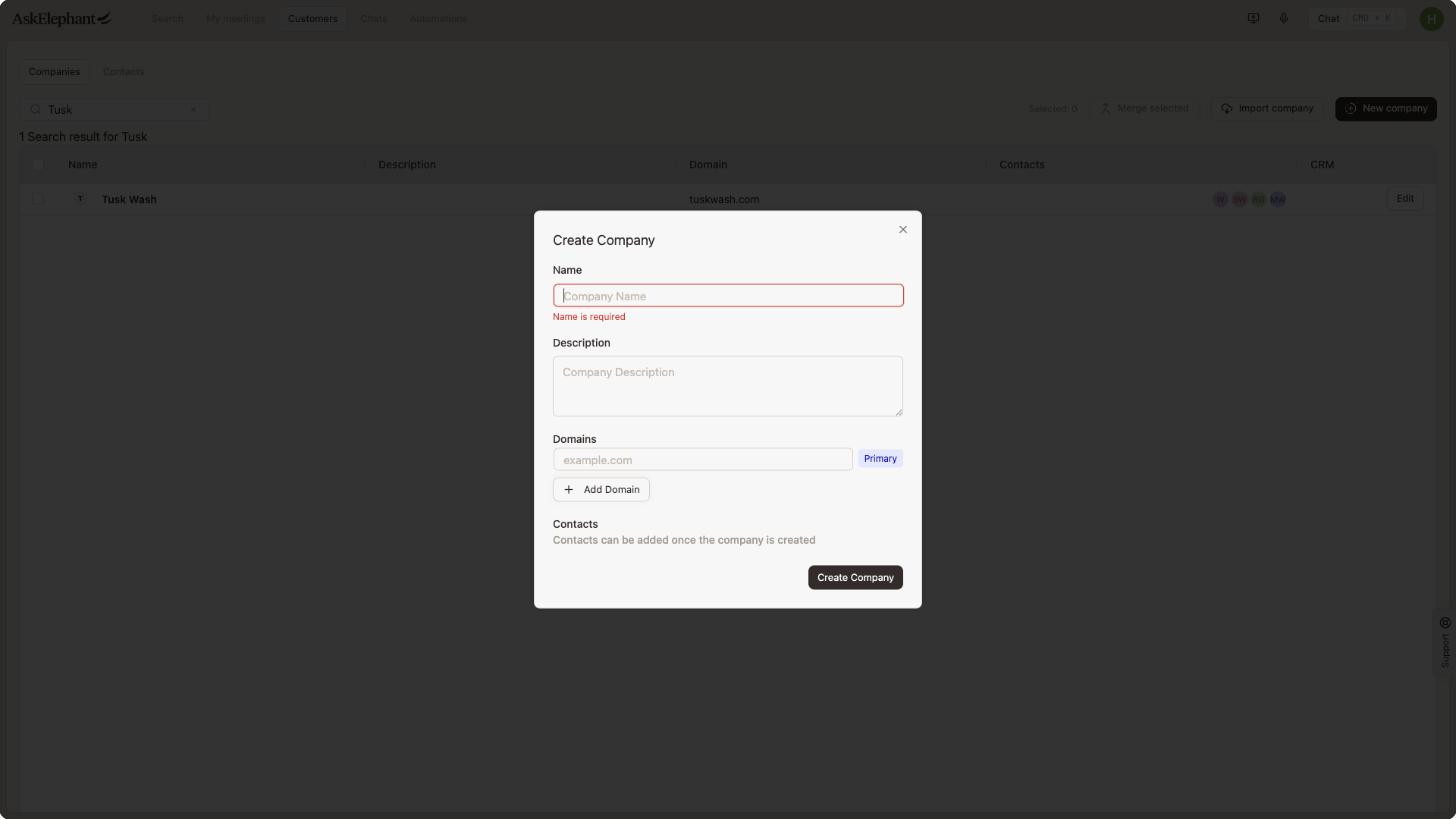
Steps
Open the
Customerstab.Click
New Companyto create a company record.Enter the company name and website (for example,
houseloan.com).Click
Saveto create the company.With the company selected, click
New Contactto add a contact tied to that company.Enter the contact's name and email address (for example,
[email protected]), then clickSave.
Notes
Enter emails in a standard format (
[email protected]).To add multiple contacts for the same company, repeat the
New Contactsteps.If you don't see the
Customerstab, check your account permissions or contact an admin.
Troubleshooting
If saving fails, refresh the page and try again.
The website field is optional. You can leave it blank and update it later.
Need More Help?
Reach the AskElephant support team by:
clicking the Support tab on the right side of your screen,
emailing [email protected],
or using
@askelephant supportin your dedicated Slack channel.