
Deal Updated
Start a workflow whenever a deal record changes in HubSpot. It appears as Deal Updated in the workflow builder.
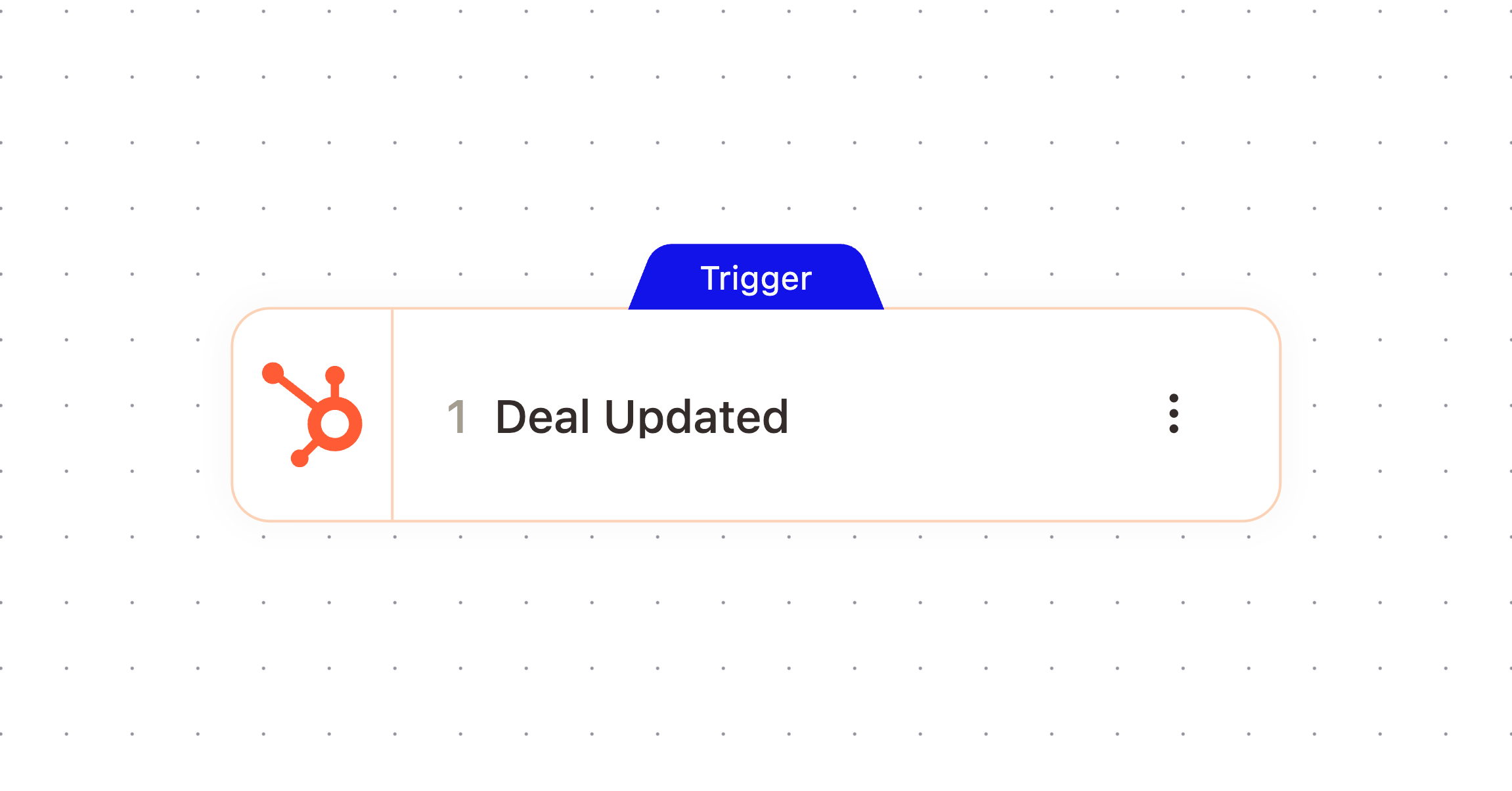
What It Does
Watches your connected HubSpot workspace and fires when an existing deal record is updated, giving the workflow a reference to the deal, its associated company or companies, and the property that changed.
When It Fires
Fires when a deal is updated, which includes stage changes. Leave the property filter empty to fire on any property change, or narrow it to a single property, such as the deal stage, so the workflow only runs for that specific change.
Configuration
Configure the node with these settings:
Field | What it controls |
|---|---|
Property Name | Enter a HubSpot property name to only trigger when that property is updated. If left blank, all property changes trigger the workflow. |
Outputs
The node passes these values downstream. Check the Outputs tab on the configured node to confirm exact paths.
Variable | Type | Description | Example |
|---|---|---|---|
|
| A reference to the company that the deal is associated with in AskElephant |
|
|
|
| |
|
| All AskElephant companies associated with the deal. Use this only when the workflow intentionally needs every associated company; the company output remains the primary single-company reference for backwards-compatible write actions. |
|
|
|
| |
|
|
| |
|
|
| |
|
|
| |
|
|
| |
|
|
|
Example Workflow
Filter on the deal stage property, then add a note to the associated company and alert the account team whenever a deal moves to Closed Won.
Related Nodes
Deal Created
Add Note to Deals
Search Deal
Need More Help?
Reach the AskElephant support team by:
clicking the Support tab on the right side of your screen,
emailing [email protected],
or using
@askelephant supportin your dedicated Slack channel.