
Create Conversation
Start a new AI conversation in AskElephant, optionally attached to a meeting, contact, or company so it appears on that object's page.
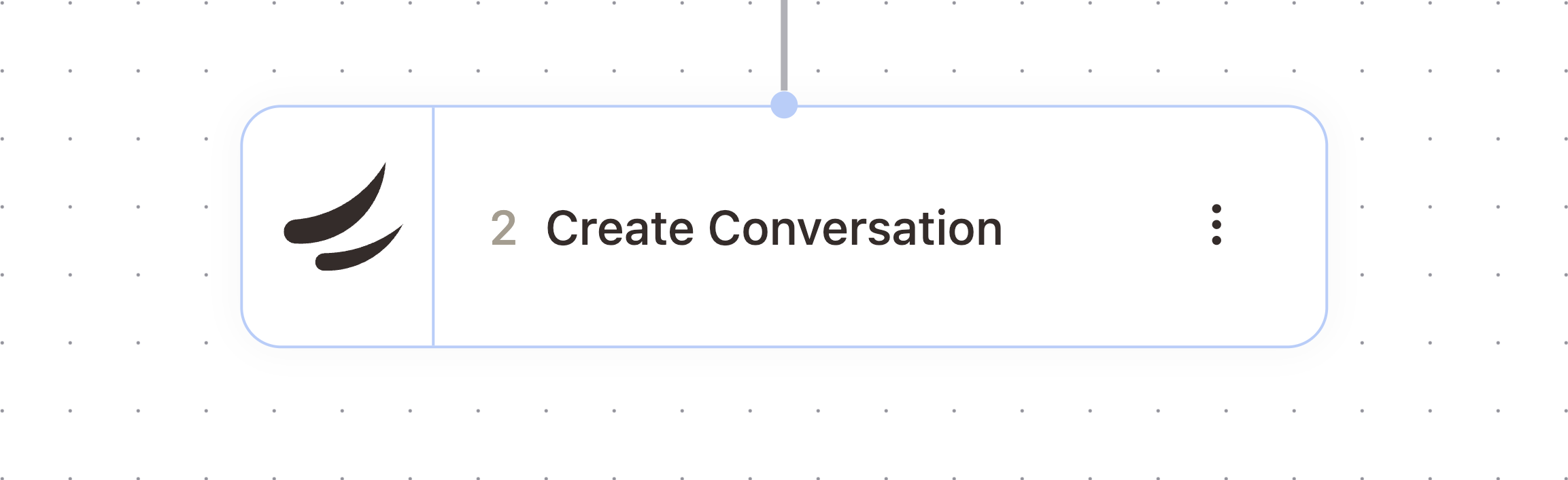
What It Does
Creates a new, empty conversation thread. If you attach it to a meeting, calendar event, contact, or company, the conversation becomes accessible from that object's page in AskElephant. You can also give it a custom title and pin it to the top of the conversation list.
When To Use It
Use this when a workflow needs to start a conversation that later nodes will send messages into, such as Send Message to Conversation or Attach Documents to Conversation. If you just need a single AI response as a workflow variable without a visible conversation, use Run Prompt instead. If you want to create the conversation and send the first message in one step, use Chat with AI.
Configuration
Configure the node with these settings:
Field | What it controls |
|---|---|
Title | The conversation's title. Defaults to |
Meeting | Attach the conversation to a specific meeting so it appears on that meeting's page. |
Calendar Event | Attach the conversation to an upcoming calendar event so it appears on that event's page. |
Contact | Attach the conversation to a specific contact so it appears on that contact's page. |
Company | Attach the conversation to a specific company so it appears on that company's page. |
Pinned | When enabled, pins the conversation to the top of the conversation list. |
Outputs
The node passes these values downstream. Check the Outputs tab on the configured node to confirm exact paths.
Variable | Type | Description | Example |
|---|---|---|---|
|
| A reference to the created conversation |
|
|
|
| |
|
| A clickable link to the created conversation in AskElephant |
|
Example Workflow
When a deal closes, create a conversation attached to the company, then use Send Message to Conversation to ask the AI to draft a handoff summary for the customer success team.
Related Nodes
Send Message to Conversation
Attach Documents to Conversation
Chat with AI
Need More Help?
Reach the AskElephant support team by:
clicking the Support tab on the right side of your screen,
emailing [email protected],
or using
@askelephant supportin your dedicated Slack channel.